
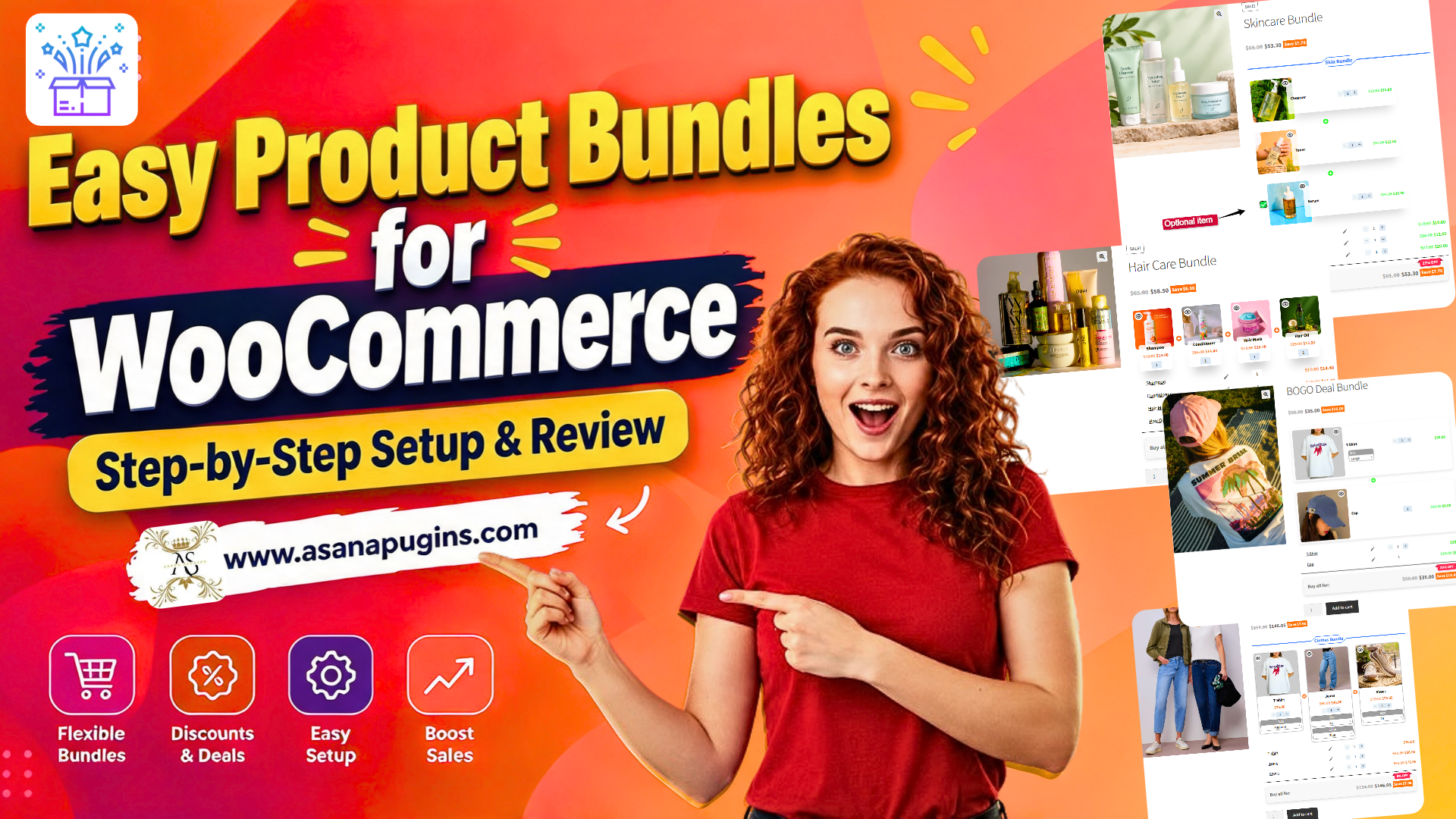
One of the fastest ways to grow your eCommerce revenue isn’t just getting more traffic—it’s increasing your Average Order Value (AOV). When customers buy multiple related items together instead of a single product, your profit margins increase while shipping and acquisition costs stay low.
However, the default grouped product feature in WooCommerce is basic and lacks the flexibility to run modern promotional strategies. If you want to create dynamic packages, mix-and-match kits, or BOGO deals without writing a single line of code, you need a dedicated solution.
In this guide, we will explore how to create easy product bundles for WooCommerce using the popular Product Bundle Builder for WooCommerce plugin. You will learn its key features, a step-by-step setup tutorial, and practical tips to maximize your store’s sales
Table of Contents
- Why Product Bundling Matters (And Where Default WooCommerce Falls Short)
- Core Features: What Makes This Plugin an Easy Choice?
- How to Create Product Bundles in WooCommerce (Step-by-Step Tutorial)
- How to Create Different Types of WooCommerce Product Bundles
- Customize the Bundle Item Display
- How to Create WooCommerce Bundle Deals
- More WooCommerce Product Bundle Ideas
- WooCommerce Product Bundles FAQs
- Conclusion
- Related Resources
- 🌐SOCIAL MEDIA LINKS
Why Product Bundling Matters (And Where Default WooCommerce Falls Short)
Product bundling is a classic retail strategy made famous by brands like McDonald’s (value meals) and Amazon (“Frequently Bought Together”). By combining complementary items into a single purchase, you solve two major problems: customer decision fatigue and low order values.
Offering bundles delivers three key advantages:
- Higher Average Order Value (AOV): Encourages shoppers to add more items to their carts in a single checkout.
- Faster Inventory Turnover: Pairs slower-moving products with your top bestsellers.
- Perceived Customer Value: Discounts make shoppers feel they are securing an exclusive deal.
The Problem with Default WooCommerce “Grouped Products”
While WooCommerce comes with a built-in Grouped Product type, it is far too rigid for serious marketing campaigns:
- It does not allow dynamic pricing or dedicated bundle-level discounts.
- It cannot enforce minimum or maximum item requirements.
- It lacks support for custom deals like BOGO (Buy One Get One) or Mix-and-Match kits.
To unlock advanced deals and create intuitive shopping experiences, a specialized tool is essential. That is where Product Bundle Builder for WooCommerce (developed by AsanaPlugins under the slug easy-product-bundles-for-woocommerce) comes into play.
Core Features: What Makes This Plugin an Easy Choice?
The Product Bundle Builder for WooCommerce plugin stands out because it combines simplicity with advanced promotional capabilities. Instead of relying on multiple disjointed extensions, it handles several popular sales mechanics in a single lightweight package.
Here is what you can build using the plugin:
- Simple & Dynamic Bundles: Combine fixed sets of items or let customers assemble custom kits with automatic price recalculation.
- Mix-and-Match Products: Perfect for gift boxes, custom skincare sets, or pastry boxes where customers choose a set quantity from a curated selection.
- BOGO & Tiered Promotions: Easily run Buy One Get One or Buy 2 Get 1 Free campaigns to drive fast inventory movement.
- Composite & Assembled Goods: Build complex products made up of individual components (for example, custom PC builds, bike setups, or modular furniture).
- Gift With Purchase (GWP): Offer free or discounted promotional items directly on the product page when target conditions are met.
- Granular Inventory & Cart Control: Choose whether to count the bundle as a single item or multiple separate line items in the cart, and decide whether shipping fees apply per item or across the whole bundle.
How to Create Product Bundles in WooCommerce (Step-by-Step Tutorial)
Step 1. Install Product Bundle Builder for WooCommerce
Before creating your first product bundle, install the Product Bundle Builder for WooCommerce plugin on your WordPress website.
- Go to Plugins → Add New Plugin in your WordPress dashboard.
- Search for Product Bundle Builder for WooCommerce. Find the plugin by AsanaPlugins
- Then click Install Now and Activate.
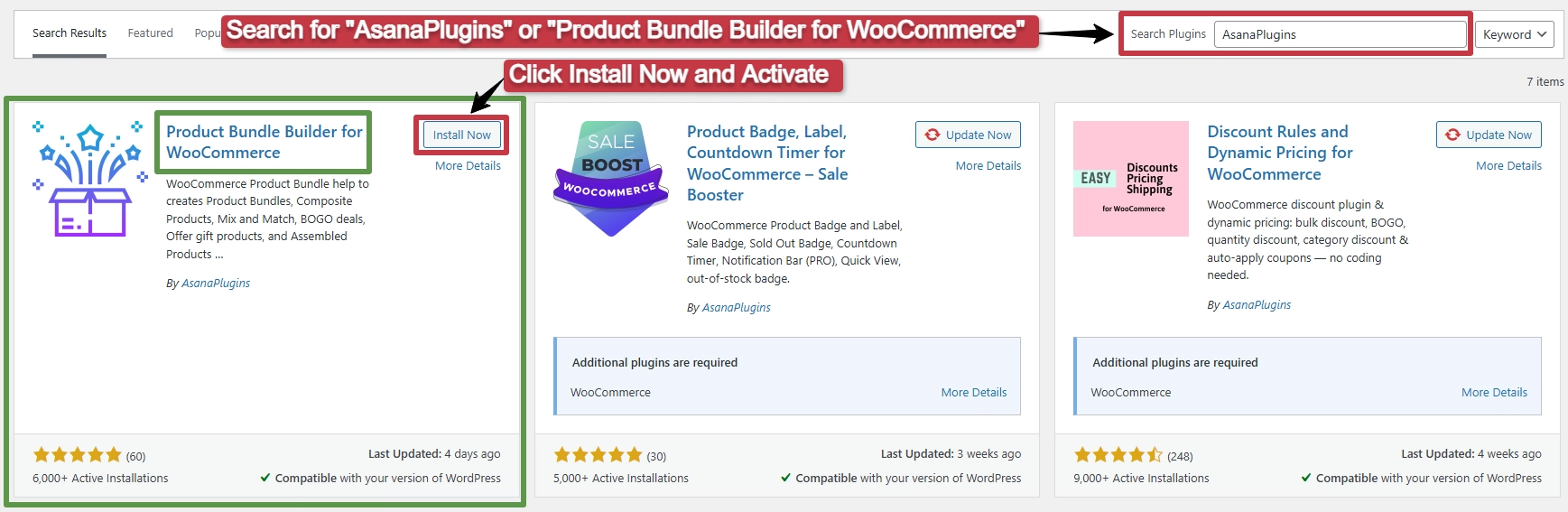
You can also download the free version from the WordPress Plugin Directory.
Once the plugin is activated, you can create your first bundle directly from the WooCommerce product editor.
Step 2. Create a WooCommerce Product Bundle
Once Product Bundle Builder for WooCommerce is installed and activated, you can create your first bundle from the standard WooCommerce product editor.
Follow these steps:
- Go to Products → Add New in your WordPress dashboard.
- Enter a name for your bundle and add a product description if needed.
- Set a product image for your bundle from the right-hand sidebar.
- Scroll down to the Product data section.
- Open the product type dropdown and select Product bundle.
- A new Product Bundles tab will appear in the product data panel.
- Open the Product Bundles tab and click Add Item to create your first bundle item.
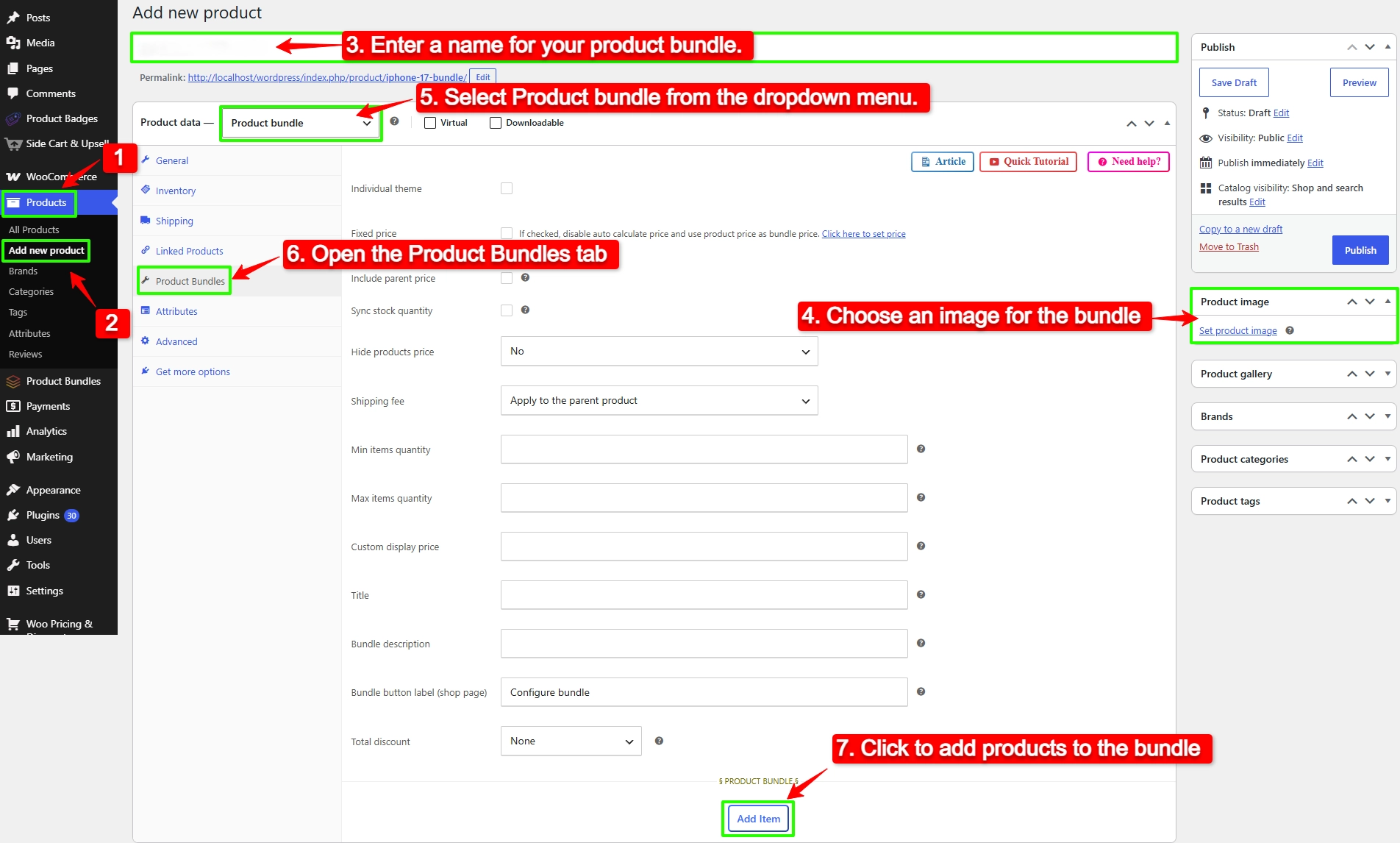
Each bundle item represents a product selection area within your bundle. You can create multiple items and configure each one separately.
Step 3. Add Products to Your Bundle
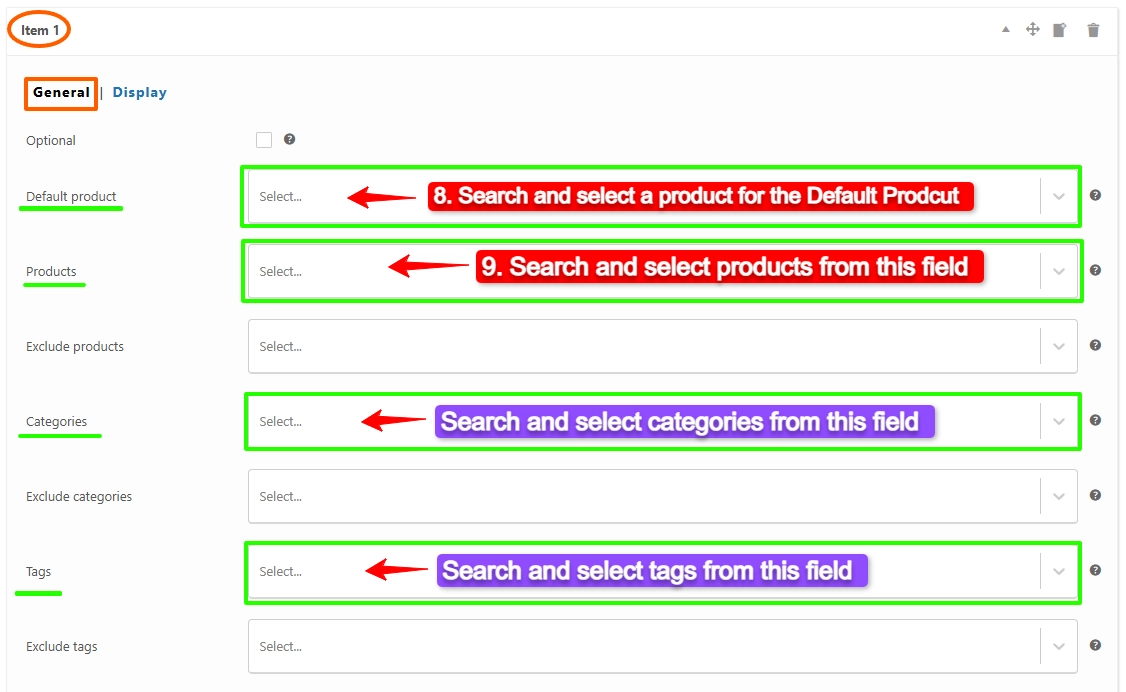
After adding a bundle item, scroll down to the item settings.
- In the Default Product field, search for and select the product you want to use as the default for the item.
- In the Products field, search for and select the products customers can choose from.
If you are using the Pro version, you can also use options such as Categories and Tags to dynamically define which products are available for a bundle item.
Step 4. Configure Bundle Items
Each bundle item can be configured independently based on how you want customers to build or purchase the bundle.
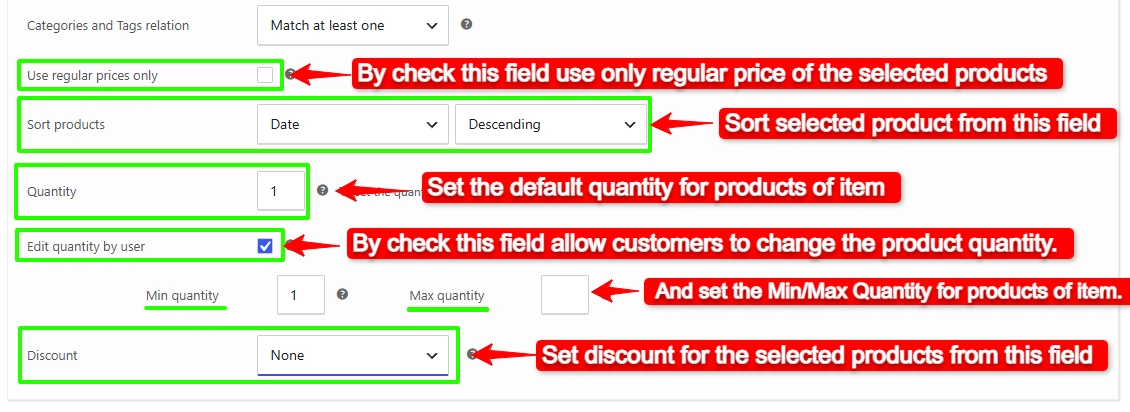
You can configure options such as:
- Use regular prices only: By checking this field use only the regular price of selected products.
- Sort products: With this field, you can sort selected subscription products by “ID”, “Title”, “Menu order”, “Date”, “Price”, “popularity”, and “Rating”.
- Quantity: Set the default quantity for the selected product.
- Edit Quantity by User: Allow customers to change the quantity and define minimum and maximum quantities.
- Discount: Apply a percentage, fixed-price, or price-based discount to the item.
Customize the Bundle Item Display
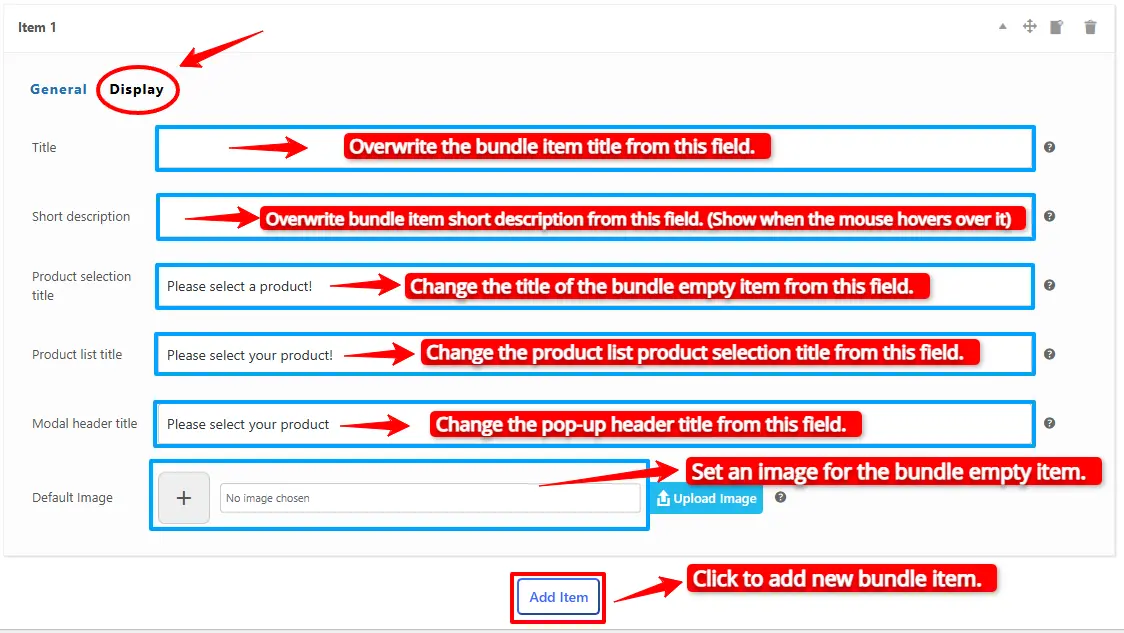
You can also use the Display settings to customize how each bundle item appears on the product page and configure the settings below:
- Title: Use this field to overwrite the title of the selected product in the bundle item.
- Short Description: Use this field to overwrite the short description of the selected product in the bundle item.
- Product Selection Title: Use this field to change the title displayed when customers need to select a product for the bundle item.
- Product List Title: Use this field to change the title displayed for the product list.
- Modal Header Title: Use this field to customize the title displayed in the product selection pop-up.
- Default Image: Use this field to set an image for the bundle item when no product has been selected.
- This image is displayed for the empty bundle item.
You can click Add Item again to create additional bundle items and configure the products available in each one.
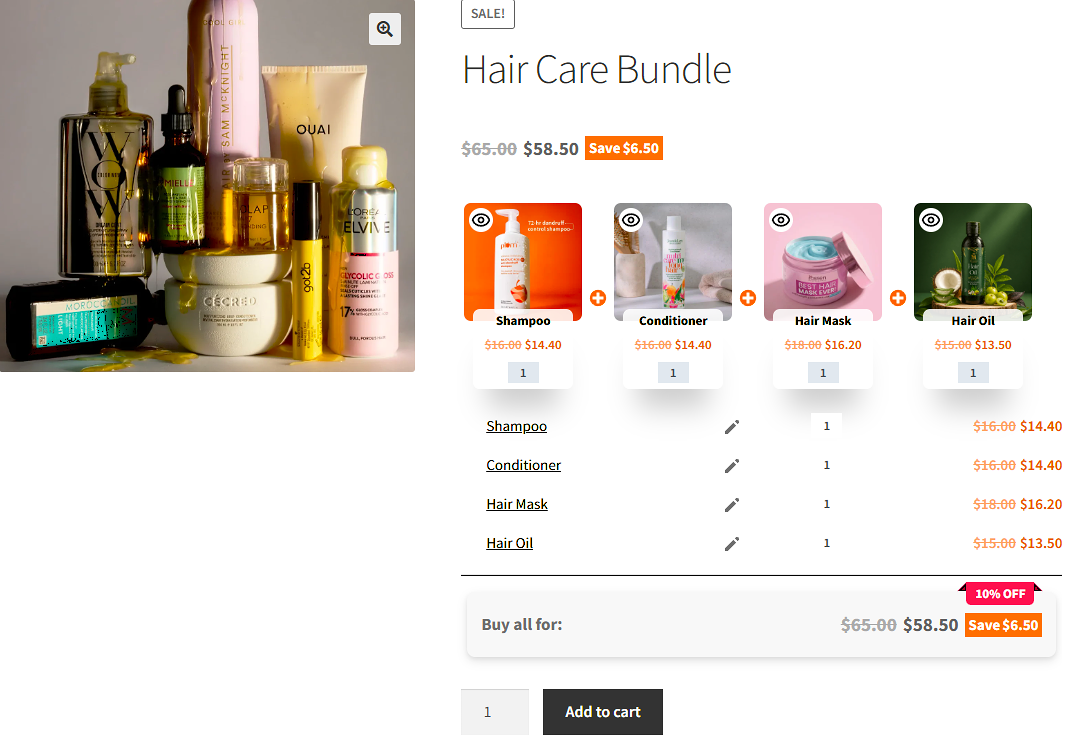
For example, if you are creating a Hair Care Bundle, you could create separate items for a Shampoo, Conditioner, Hair Mask, and Hair Oil, like this:
- Item 1: Shampoo
- Item 2: Conditioner
- Item 3: Hair Mask
- Item 4: Hair Oil
Step5. Set the Bundle Price
Product Bundle Builder for WooCommerce supports two main pricing methods:
- Fixed Price: Set one price for the entire bundle.
- Auto Calculate Price: Automatically calculate the bundle price based on the products selected for each bundle item.
For a fixed-price bundle:
- Enable Fixed Price
- Enter the bundle’s price in the General tab.
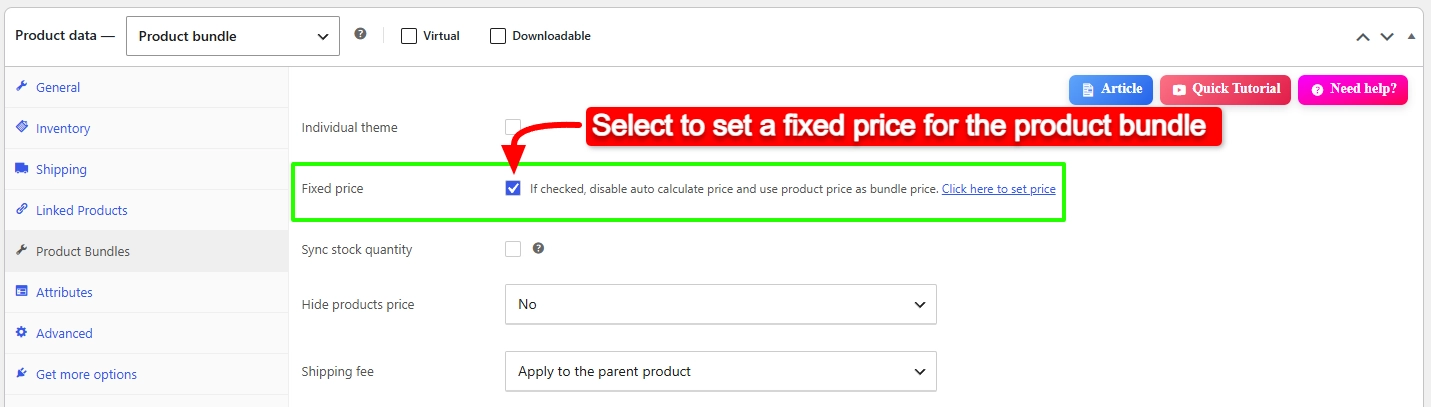
For a dynamically calculated bundle, leave Fixed Price disabled. The bundle price will then be calculated from the products selected in the bundle items.
After configuring the bundle, click Publish to make it available in your store.
Step 6. Publish Your Product Bundle
After configuring the bundle items and setting the bundle price, publish the product to make it available on your WooCommerce store.
Before publishing, review the bundle settings and make sure the selected products, item quantities, and pricing are configured correctly.
Once published, customers can open the bundle product page, select their preferred products, and add the completed bundle to their cart.
Step 7. Test Your Product Bundle
Open the bundle product page on your store and test the customer experience.
Select different products for each bundle item and make sure that:
- Customers can select the products you added to each item.
- The quantity rules work as expected.
- The bundle price is displayed correctly.
- The selected products are added to the cart correctly.
- The bundle information is displayed correctly in the cart and checkout.
This helps ensure that your bundle works as expected before customers start purchasing it.
Create More Advanced Bundles
Once you have created your first bundle, you can customize it further using the available bundle and item settings.
You can configure options such as optional items, product categories, tags, discounts, item quantities, product display layouts, quick view, and more depending on your needs and plugin version.
How to Create Different Types of WooCommerce Product Bundles
With Product Bundle Builder for WooCommerce, you can create different types of product bundles depending on how you want customers to select products and how you want to calculate the bundle price.
Here are some practical examples of WooCommerce product bundles you can create.
Create a Build-Your-Own Bundle
A build-your-own bundle allows customers to choose a product for each bundle item from a predefined selection.
For example, you can create a skincare bundle with three items:
- Item 1: Cleanser
- Item 2: Moisturizer
- Item 3: Serum
Add the available products to each item and let customers choose their preferred product for each part of the bundle.
To create this type of bundle, add multiple bundle items and select the products that customers can choose from in each item. Customers can then select one product for each item when building their bundle.
This is useful when you want to create a personalized bundle while controlling which products customers can choose.
Add Variable Products and Let Customers Choose a Variation
You can add variable products to a bundle item and allow customers to select the variation they want.
For example, if you are creating a clothing bundle, you can add a variable T-shirt product to an item. When customers select the T-shirt, they can choose the available variation options, such as size and color, before adding it to their bundle.
To do this, add the variable product to the bundle item’s Products field. When a customer selects the product, the available variation attributes are displayed so they can choose their preferred variation.
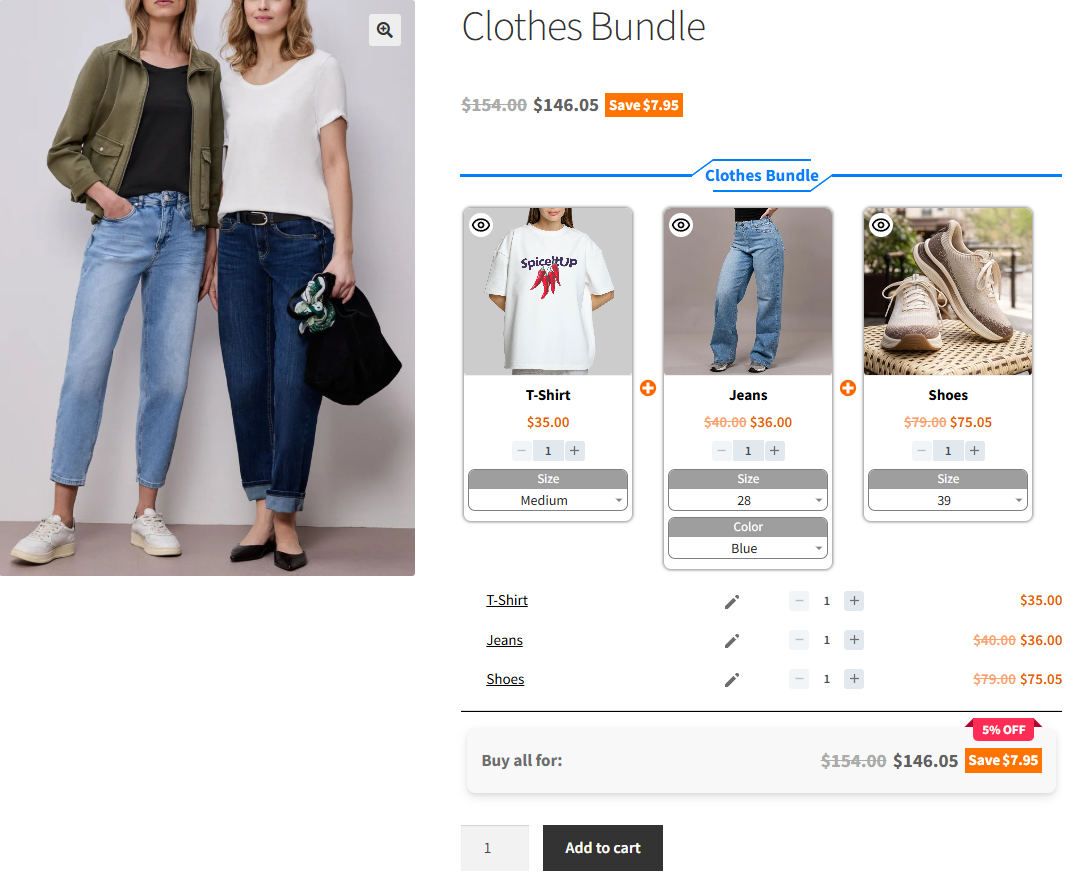
This is useful for products such as clothing, shoes, and other products that have multiple variations.
Create a Bundle with Optional Items
You can make individual bundle items optional, allowing customers to decide whether they want to include them in the bundle.
For example, you could create a skincare bundle with:
- Cleanser — Required
- Moisturizer — Required
- Serum — Optional
To make an item optional, open its settings and enable the Optional option.
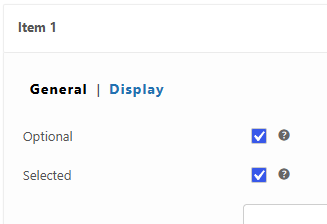
Customers can then select a cleanser and moisturizer while deciding whether or not to include the serum.
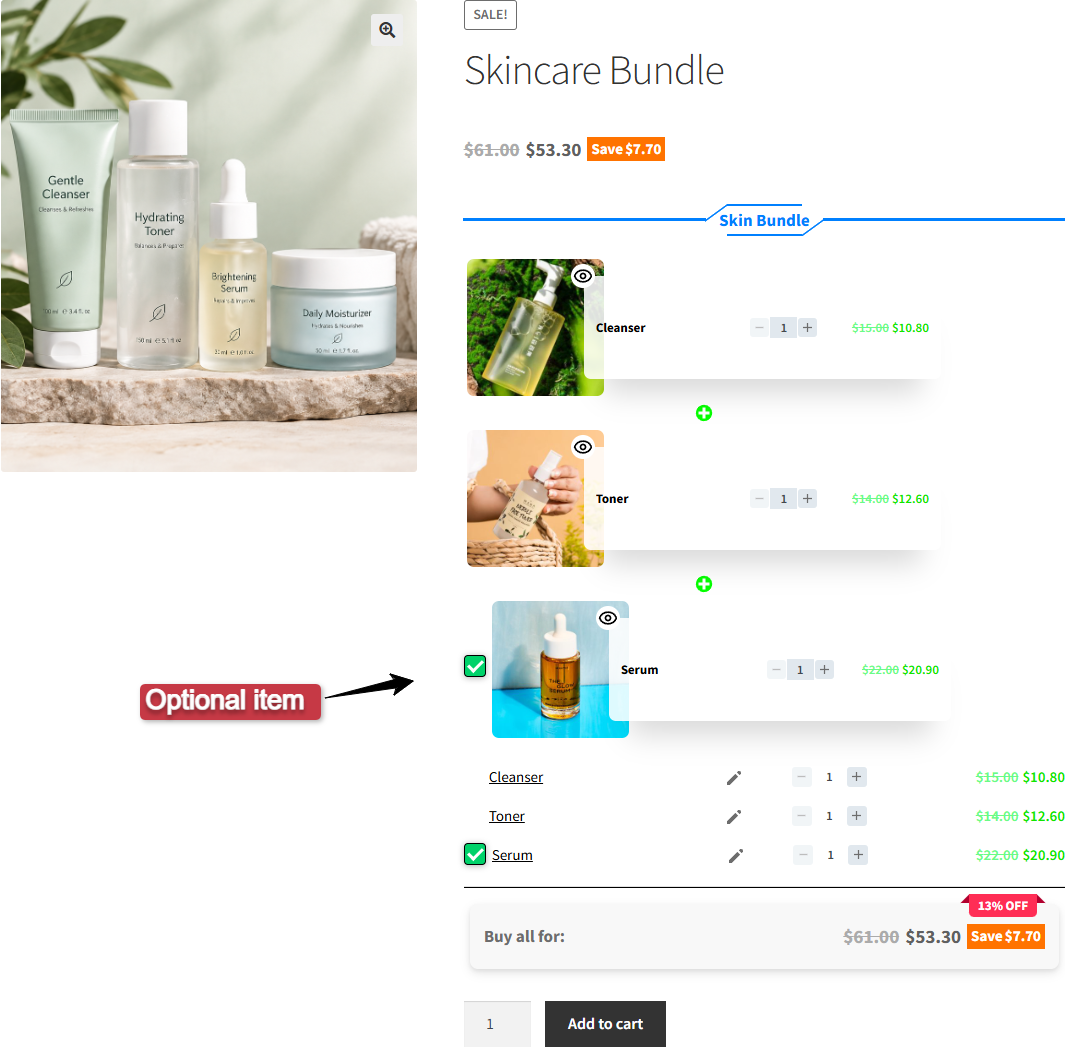
This gives customers more flexibility without requiring every item in the bundle to be selected.
Set Minimum and Maximum Total Quantity
You can control the total number of products included in a bundle using Min and Max Total Quantity.
The total quantity is calculated across all bundle items. This allows you to define the minimum and maximum number of products customers can select in total.
For example, you could set the minimum total quantity to 3 and the maximum total quantity to 5. Customers must then select at least 3 products and cannot select more than 5 products across the bundle.
To configure this, set the Min and Max Total Quantity values in the bundle settings.

This is useful when you want to give customers flexibility while keeping the total number of products within a specific range.
Apply a Total Discount
You can apply a discount to the total price of the bundle.
For example, if the selected products have a combined price of $100, you can apply a total discount to reduce the final bundle price.
To configure this, set the Total Discount in the bundle settings and enter the discount amount or percentage you want to apply.
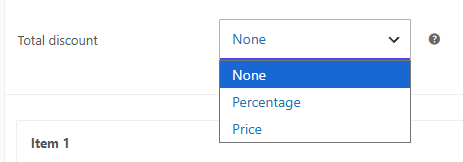
The discount is calculated based on the total price of the selected products.
This is useful when you want to offer a special price when customers purchase multiple products together.
Apply a Discount to a Bundle Item
You can also apply a discount to individual bundle items. Open the bundle item’s settings and use the Discount dropdown menu to select the discount type you want to apply.
Depending on the selected discount type, you can configure the corresponding discount value for that item.
For example, you can apply a discount to a specific item while using different pricing or discount settings for the other items in the bundle.
Set a Fixed Price for Bundle Items
You can assign a fixed price to individual bundle items instead of using the selected product’s regular price.
For example, you could create a skincare bundle with:
- Cleanser: $15
- Moisturizer: $20
- Serum: $25
To set a fixed price for an item, open the bundle item’s settings and select Fixed Price from the Discount dropdown menu. Then, enter the fixed price you want to apply to that item.
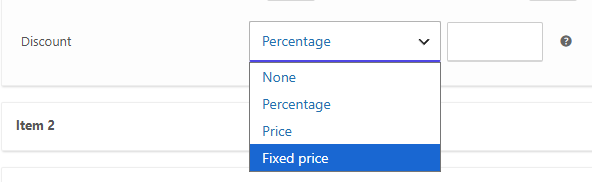
When customers select a product for that item, the configured fixed price is used instead of the selected product’s regular price.
This is useful when you want all products available within a particular bundle item to have the same bundle price.
Customize the Bundle Item Display
You can customize how bundle items and their products are displayed to customers. When a customer clicks a bundle item, a pop-up opens where they can browse the available products and select the one they want.
Choose a Bundle Item Theme
Product Bundle Builder for WooCommerce includes four different themes for displaying bundle items:
- Two Grid layouts
- Two List layouts
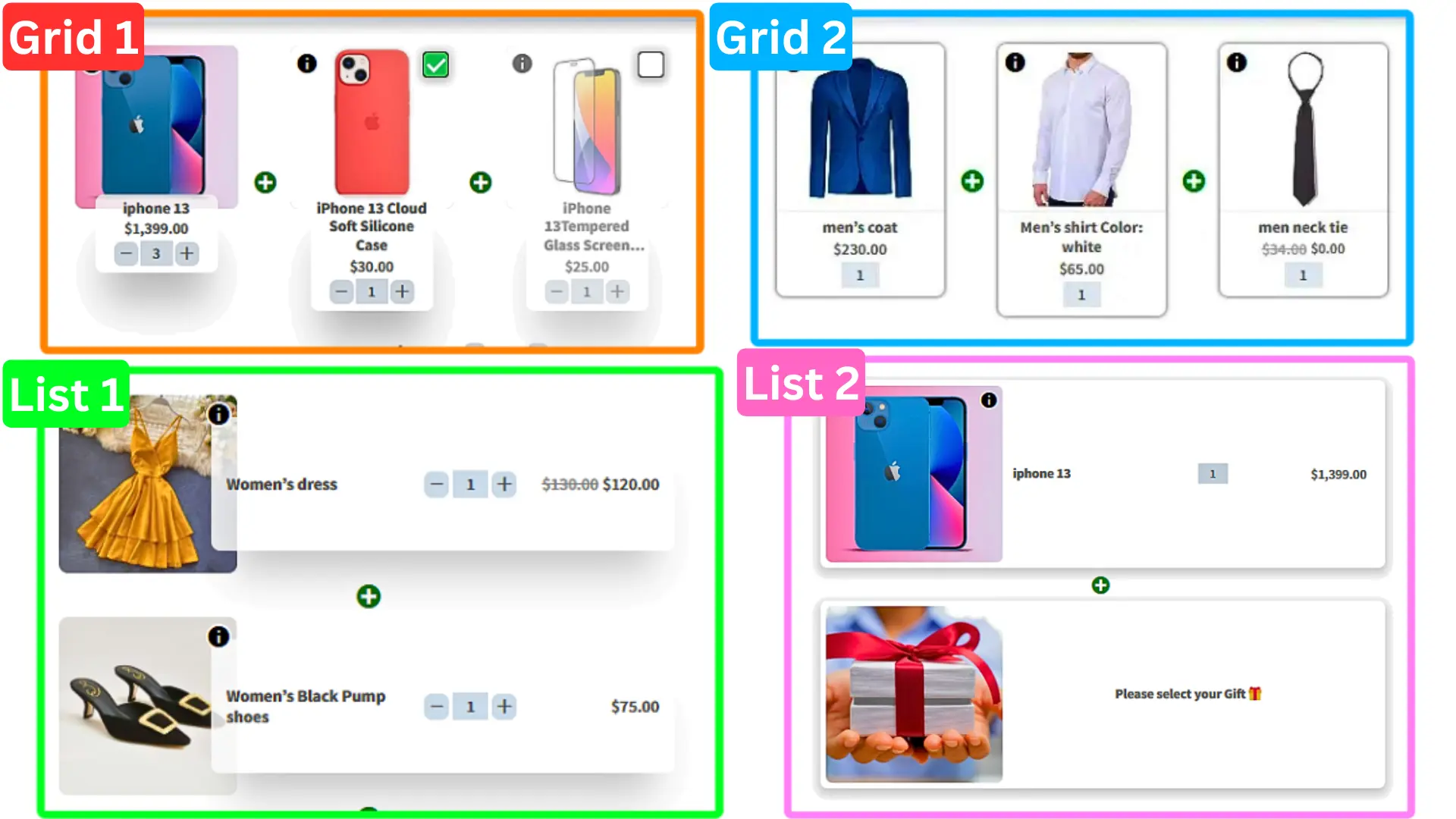
You can choose the theme that best fits the design of your store and how you want customers to browse the products available for each bundle item.
When customers click a bundle item, the selected theme is used to display the available products inside the pop-up.
Use Product Quick View
With the Pro version, Product Quick View is available for bundle items.
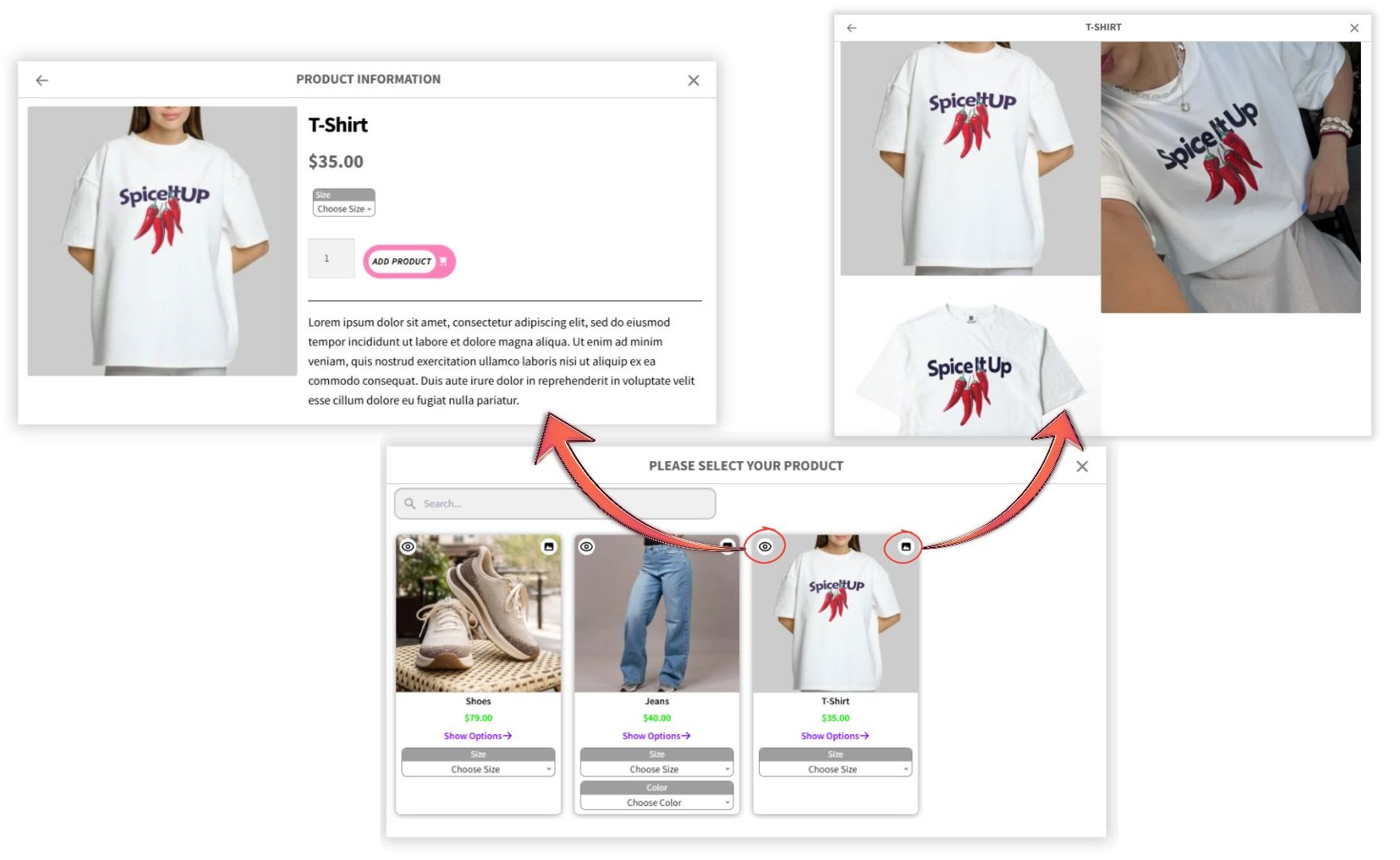
Each product displayed in the bundle item pop-up includes a Quick View button. When customers click it, a pop-up opens and displays information about that product without requiring them to leave the bundle selection process.
This allows customers to check product details before selecting a product for the bundle.
View Additional Product Images
The bundle item pop-up also supports product images.
If a product has multiple images, customers can click the Images button on the product to view its additional images. This makes it easier for customers to see the product from different angles before selecting it.
These options give customers more information while choosing products for each bundle item, without taking them away from the bundle page.
How to Create WooCommerce Bundle Deals
Product Bundle Builder for WooCommerce can be used to create different types of promotional bundle deals by applying discounts to individual bundle items. For example, you can create offers such as:
- Buy One, Get One Free (BOGO): Give customers a free product when they purchase another product.
- Buy One, Get One 50% Off: Offer a second product at a 50% discount when customers purchase the first product.
- Free Gift with Purchase: Include a free product as a gift when customers purchase another product.
- Discounted Add-On Products: Offer additional products at a reduced price as part of a bundle.
The discount can be configured separately for each bundle item, giving you flexibility to create different promotional offers.
Create a Buy One, Get One Free (BOGO) Deal
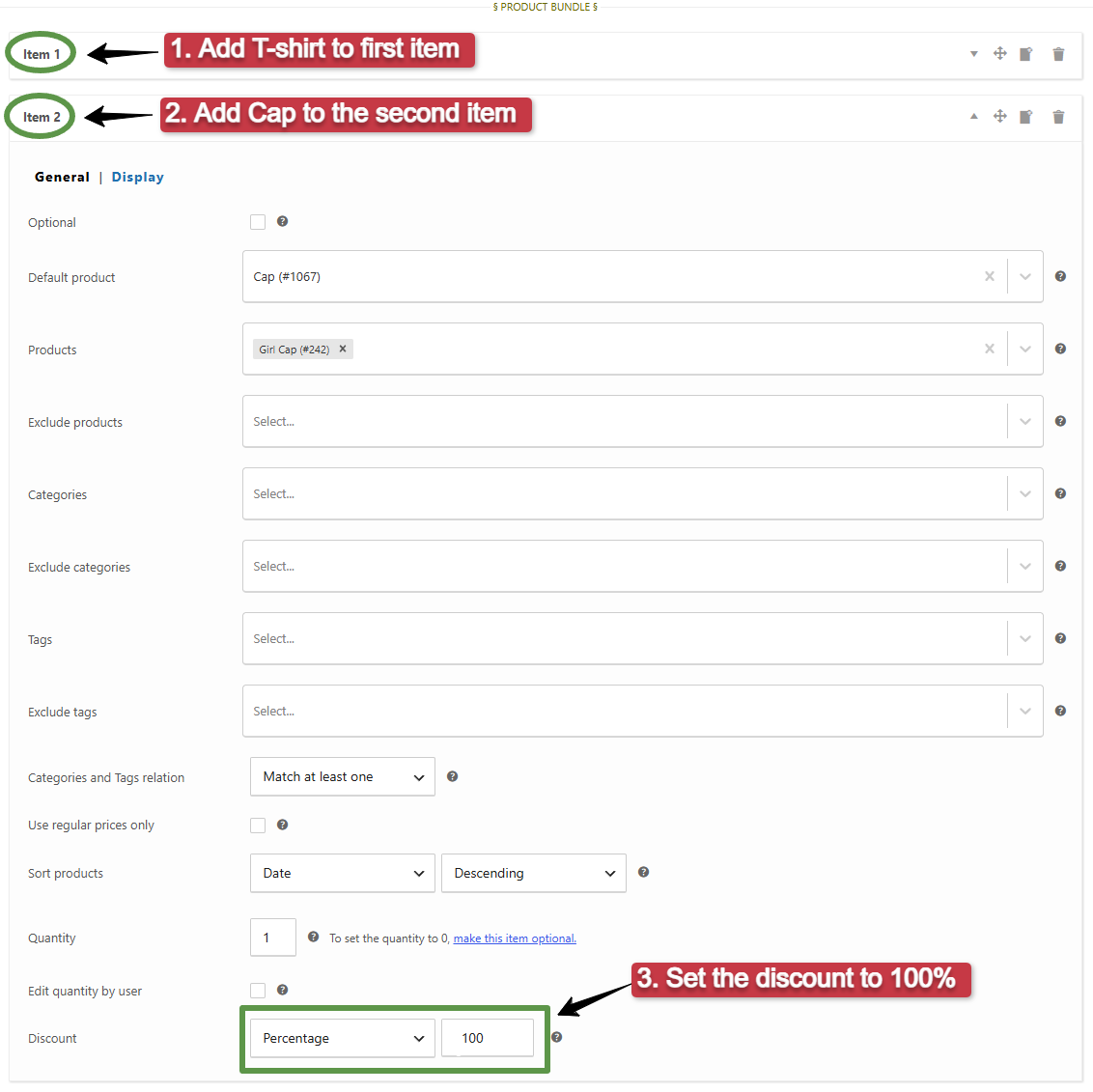
A Buy One, Get One Free (BOGO) deal allows customers to purchase one product and receive another product for free. With Product Bundle Builder for WooCommerce, you can create this type of promotion by applying a 100% discount to one of the bundle items.
For example, you can offer a free cap when a customer purchases a T-shirt:
- Item 1: T-Shirt
- Item 2: Cap — 100% discount
Step 1: Add the Products
Create two bundle items and add the T-Shirt to the first item and the Cap to the second item.
Step 2: Set the Discount
Open the settings for the Cap item and find the Discount option.
Select the appropriate discount type and set the discount to 100%. The Cap will then be included in the bundle at no additional cost.
Step 3: Publish the Bundle
Complete the remaining bundle settings and publish the product.
When a customer selects the T-Shirt and Cap, they pay for the T-Shirt while the Cap is included for free.
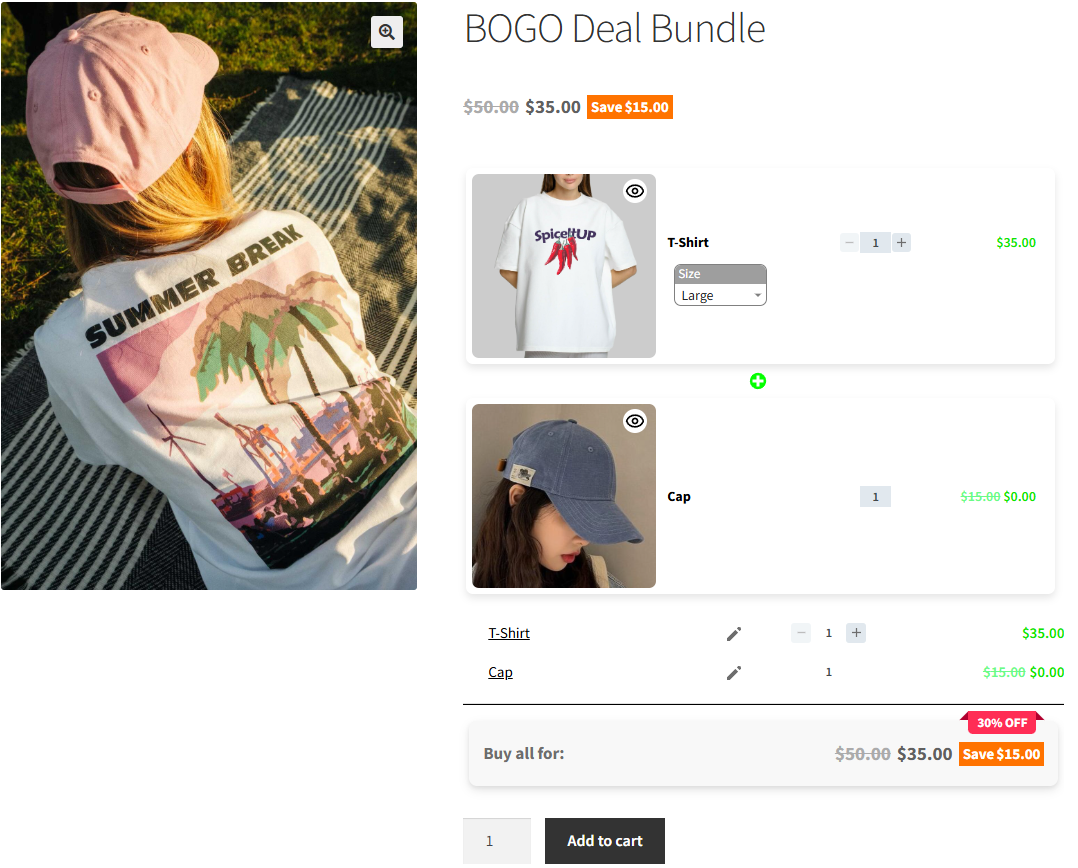
You can also add multiple products to the second item, allowing customers to choose their free product from a predefined selection.
More WooCommerce Product Bundle Ideas
You can create product bundles for almost any type of WooCommerce store. Here are a few examples to inspire your own bundle ideas:
- Gaming Bundle: Gaming Mouse + Mechanical Keyboard + Mouse Pad
- Coffee Bundle: Coffee Beans + Mug + French Press
- Travel Bundle: Backpack + Water Bottle + Travel Organizer
- Fitness Bundle: Resistance Bands + Workout Gloves + Water Bottle
- Gift Bundle: Candle + Greeting Card + Gift Box
- Office Bundle: Notebook + Pen Set + Desk Organizer
- Pet Care Bundle: Pet Shampoo + Grooming Brush + Pet Toy
- Electronics Bundle: Wireless Charger + Phone Stand + USB Cable
WooCommerce Product Bundles FAQs
A WooCommerce product bundle combines multiple products into a single bundle, allowing customers to purchase related products together. Depending on the bundle settings, customers can select products, choose variations, and receive discounts as part of the bundle.
Yes. You can add multiple products to each bundle item and let customers choose one product from the available options.
Yes. You can add variable products to bundle items. When customers select a variable product, they can choose from its available variations, such as size or color.
You can use Auto Calculate to calculate the price based on the selected products, or Fixed Price to set a specific price for the entire bundle.
Yes. You can apply a discount to individual bundle items using the Discount option in the item settings.
Yes. You can make individual bundle items optional. Customers can then choose whether they want to include the optional product in their bundle.
Yes. Select Fixed Price from the Discount dropdown in the bundle item’s settings and enter the price you want to charge for that item.
Yes. You can set Min and Max Total Quantity to control the total number of products customers can select across the bundle items.
Yes. You can use Total Discount to apply a discount to the bundle’s total price.
Conclusion
Creating WooCommerce product bundles can help you combine related products, give customers more purchasing options, and create flexible promotional offers.
With Product Bundle Builder for WooCommerce, you can create bundles that fit different products, store types, and customer needs. You can let customers choose products and variations, customize bundle items, set pricing, apply discounts, and control how products are displayed.
Whether you want to group complementary products, let customers build their own bundle, offer promotional deals, or create a completely different bundle concept for your store, you can customize the bundle to suit your needs.
Ready to create your first WooCommerce product bundle?
Try Product Bundle Builder for WooCommerce and start creating customizable product bundles for your store.
Related Resources
Want to learn more about WooCommerce product bundles and related strategies? Explore these helpful guides:
- How to Create WooCommerce Product Bundles
- WooCommerce Product Bundles Free Plugin
- WooCommerce Product Bundle with Variations (Free Plugin)
- WooCommerce Mix and Match Free Plugin
- How to Translate WooCommerce Product Bundles
- 4 Best WooCommerce free plugins to boost sales and revenue
- Boost Your E-commerce Sales with WooCommerce Product Bundles
- Create Custom Bundles with Categories in WooCommerce Product Bundle Plugin
- How to Create WooCommerce Composite Products? (free Plugin)
- 11 Best Plugins to Create WooCommerce Product Bundles
- WooCommerce Product Bundle: How to Create Dynamic and Flexible Bundles
- Provide Free Gift Products in WooCommerce: Complete Guide
- WooCommerce Combo Offers Free Plugin
- WooCommerce Bundled Products
- WooCommerce Grouped Products
- WooCommerce Assembled Products
- How to Create Subscription Bundles in WooCommerce (Complete Guide)