Updated on Leave a comment

WooCommerce Mix and Match Free Plugin

Mix and match plugin

A WooCommerce Mix and Match Free Plugin lets customers build their own personalized box by selecting items from a set of available products on your store. In this article, we introduce the WooCommerce Mix and Match Free Plugin, which helps you create anything from simple custom boxes to advanced product bundles with flexible options.

If your products can be combined to form attractive bundles, you can easily set them up using the WooCommerce Mix and Match Free Plugin and offer customers a more interactive, customizable shopping experience.

Table of Contents

What is WooCommerce Mix and Match Products?

A WooCommerce Mix and Match product is a product that allows customers to create their own personalized boxes from individual products available on your site. Customers can select different products and set the quantity for each item, then mix them to build a custom bundle.

This type of product helps store owners offer flexible bundles that encourage customers to purchase more items in one order and increase Average Order Value (AOV).

Create WooCommerce Mix and Match Product

To create a WooCommerce Mix and Match products, you can use the Easy Product Bundles for WooCommerce free plugin. This powerful plugin lets you build everything from simple mix-and-match boxes to advanced mix-and-match scenarios with flexible product selection and quantity control.

It’s an easy and reliable solution for creating customizable bundles that improve the shopping experience and help increase your sales.

WooCommerce Mix and Match Free Plugin

Unfortunately, it is not possible to create a mix-and-match product with WooCommerce core. The good news is that Easy Product Bundles for WooCommerce is the best WooCommerce mix-and-match free plugin that allows creating mix and match products easily.

Some of the WooCommerce mix and match plugin features:

  • Bundle item discounts: Apply discounts to individual items inside the mix and match bundle.
  • Fixed-price mix and match products: Sell the entire bundle at a fixed price, regardless of which products the customer selects.
  • Automatic price calculation: Dynamically calculate the bundle price based on selected products and quantities.
  • Optional bundle items: Allow customers to skip optional items while building their custom box.
  • Multiple layout styles: Choose from beautiful Grid and List layouts in small, medium, and large sizes.
  • Rule-based product selection: Force customers to follow a specific structure, such as selecting one product from Category A and another from Category B.
  • Flexible product sources: Offer products based on specific products, categories, or tags.
  • Quantity limits per item: Set minimum and maximum quantity limits for each bundle item.
  • Advanced shipping control: Decide whether shipping costs apply to the whole bundle or to individual bundle items.

Video Tutorial

Examples of WooCommerce Mix and Match Products

Mix and match products work by allowing customers to select individual products they’d like to purchase and add them to a gift hamper, product box, or bundle.

Some of the popular examples of WooCommerce mix and match products are:

  • Bundle Discounts
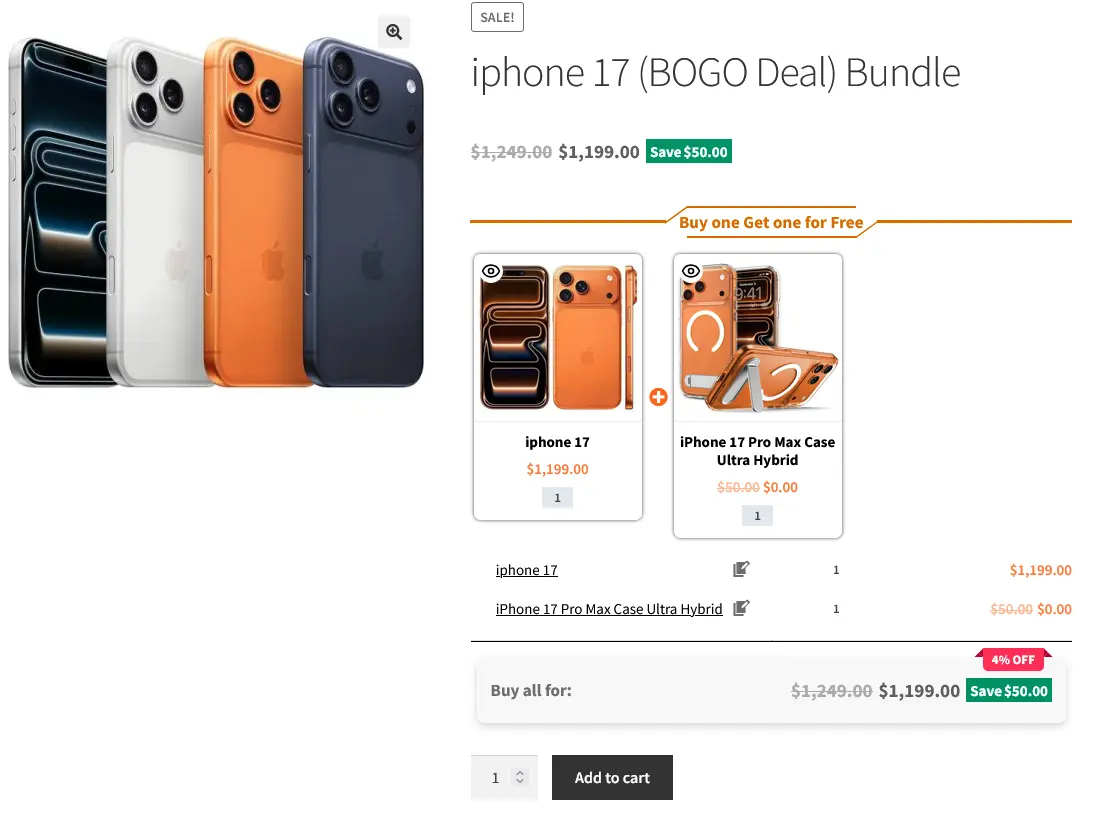
  • BOGO deals
  • Gift products
  • Customizable products or Product boxes

Bundle Discounts

To increase Average Order Value (AOV), you can combine related products into a mix-and-match bundle and offer them with a discount. Providing a better price for the bundle encourages customers to purchase multiple items together instead of buying a single product.

For example, if you sell mobile phones, you can create a bundle that includes the phone along with a protective case and a screen protector, offered at a discounted price compared to purchasing each item separately.

Gift Products

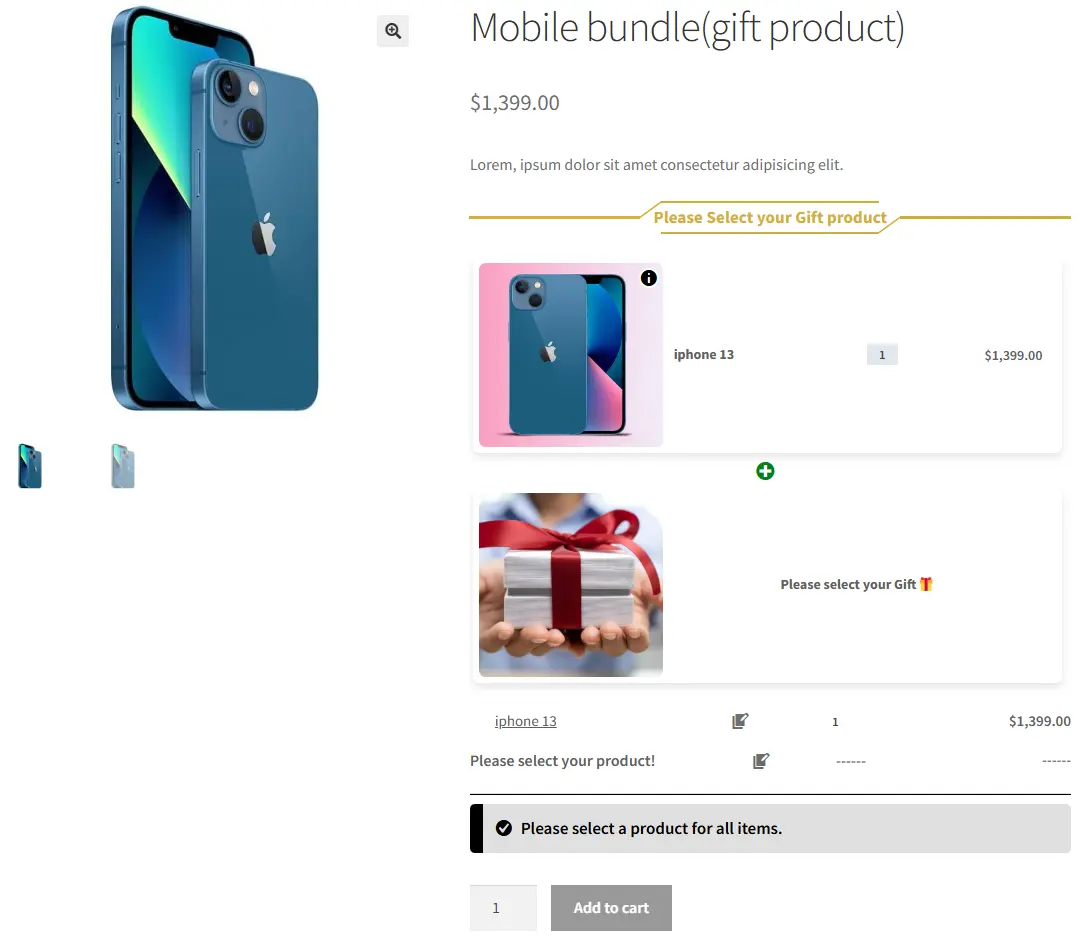
You can build customer loyalty and encourage customers to buy more by offering gift products with selected purchases. For example, you can automatically add a free product when a customer buys a specific item or qualifies for a special offer.

With WooCommerce Mix and Match, you can also let customers choose their own gift from multiple available products. This flexibility creates a more engaging shopping experience and makes bundled offers more appealing.

Product Boxes

You can allow your customers to build their own boxes using Mix and Match products for WooCommerce.

Customizable foods like sandwiches, pizzas, and salads can be offered as product boxes. Customers can configure products and build their own delicious foods by picking food items.

How to Create WooCommerce Mix and Match Products

In this guide, we’ll show you practical examples of how to create Mix and Match products in WooCommerce.

In this tutorial, you’ll learn how to set up the following examples:

  • Mobile bundle
  • How to create mix-and-match product bundles with variable products.
  • Mobile bundle with optional items
  • Offer a gift product (BOGO deal)
  • Offer multiple gift products
  • Men’s clothes as a configurable or personalized product

Create Mobile Bundle Discount in WooCommerce

If you have a mobile store, then you can increase average order value by creating and offering a mobile bundle discount in WooCommerce.

Follow these steps to create a bundle discount in WooCommerce.

Step 1: Install WooCommerce Product Bundle Free Plugin

To install Easy WooCommerce Product Bundles, follow the below steps.

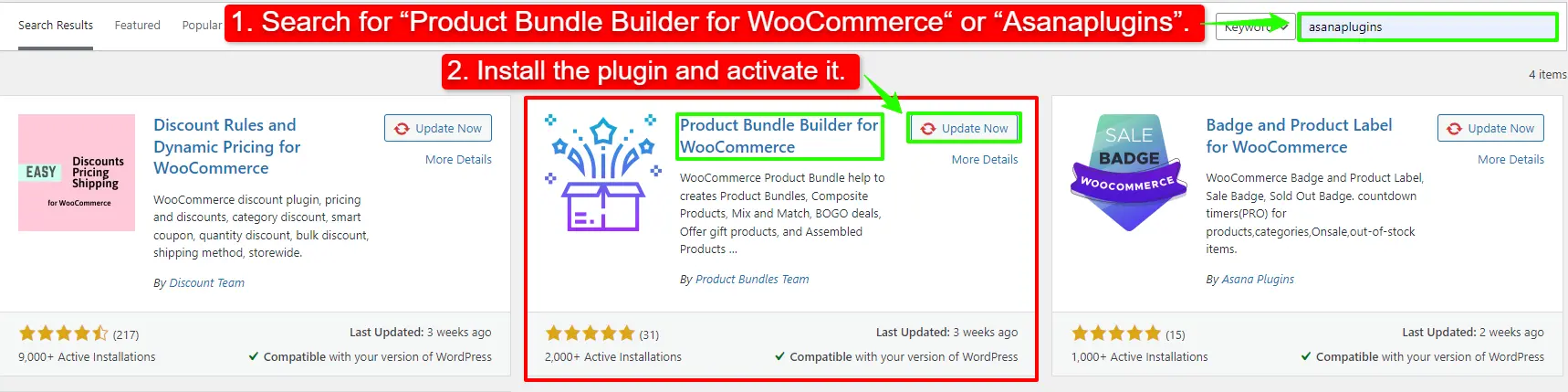
  1. Navigate to the Plugins >> Add New menu on your WordPress website
  2. Then search for Product Bundle Builder for WooCommerce or “Asanaplugins”
  3. Find the Product Bundle Builder for WooCommerce
  4. Install the plugin and activate it.
Installing WooCommerce Mix and Match Free Plugin

Step 2: Create Regular Products

First, you should create regular products in WooCommerce for mobile, mobile cases, and mobile glass covers.

To create a simple product in WooCommerce read this article in addition you can read create variable products in WooCommerce to create a variable product.

Step 3: Create a Product Bundle in WooCommerce

Now you should create a product bundle that bundles mobile, case, and glass covers with a discount or without.

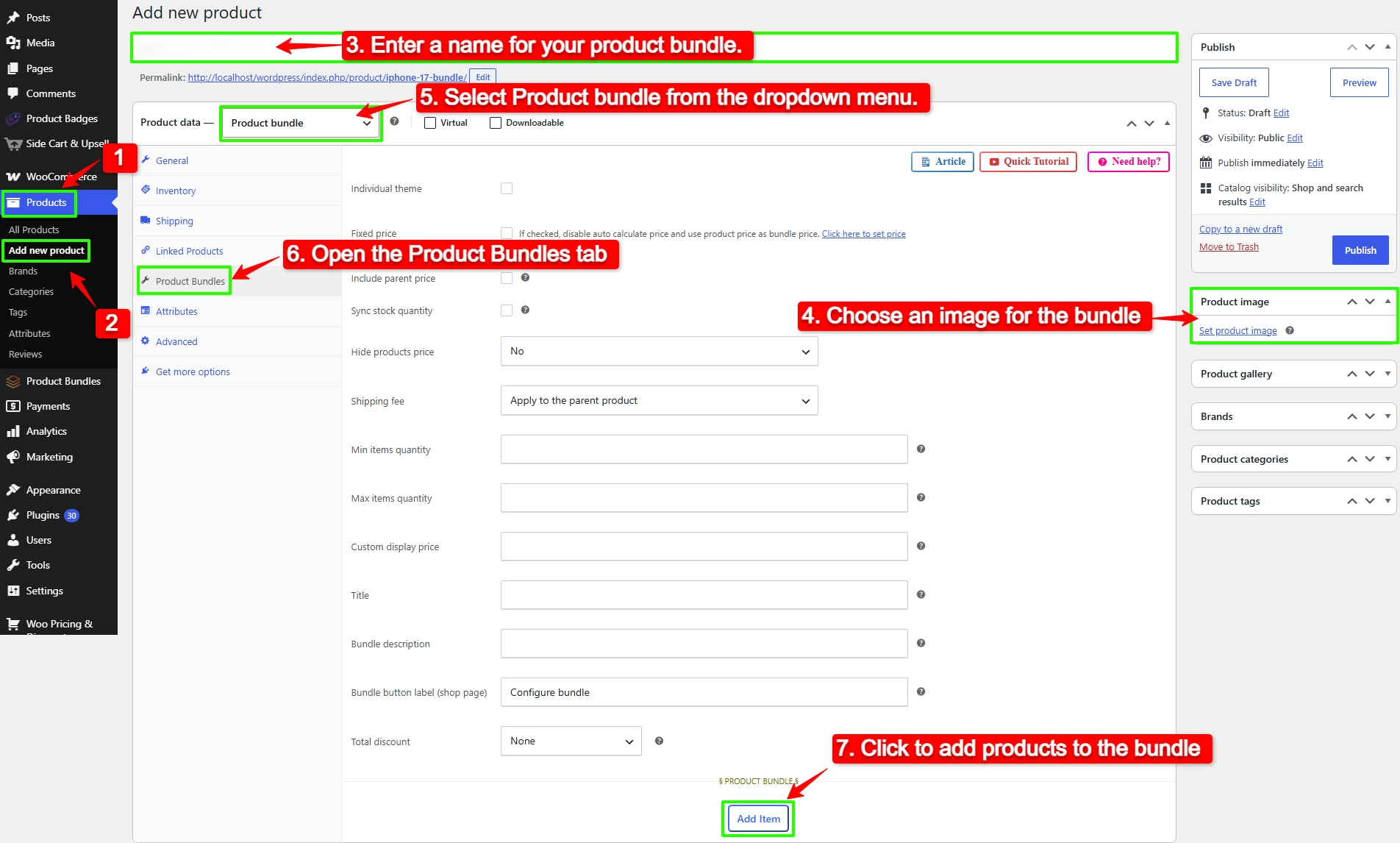
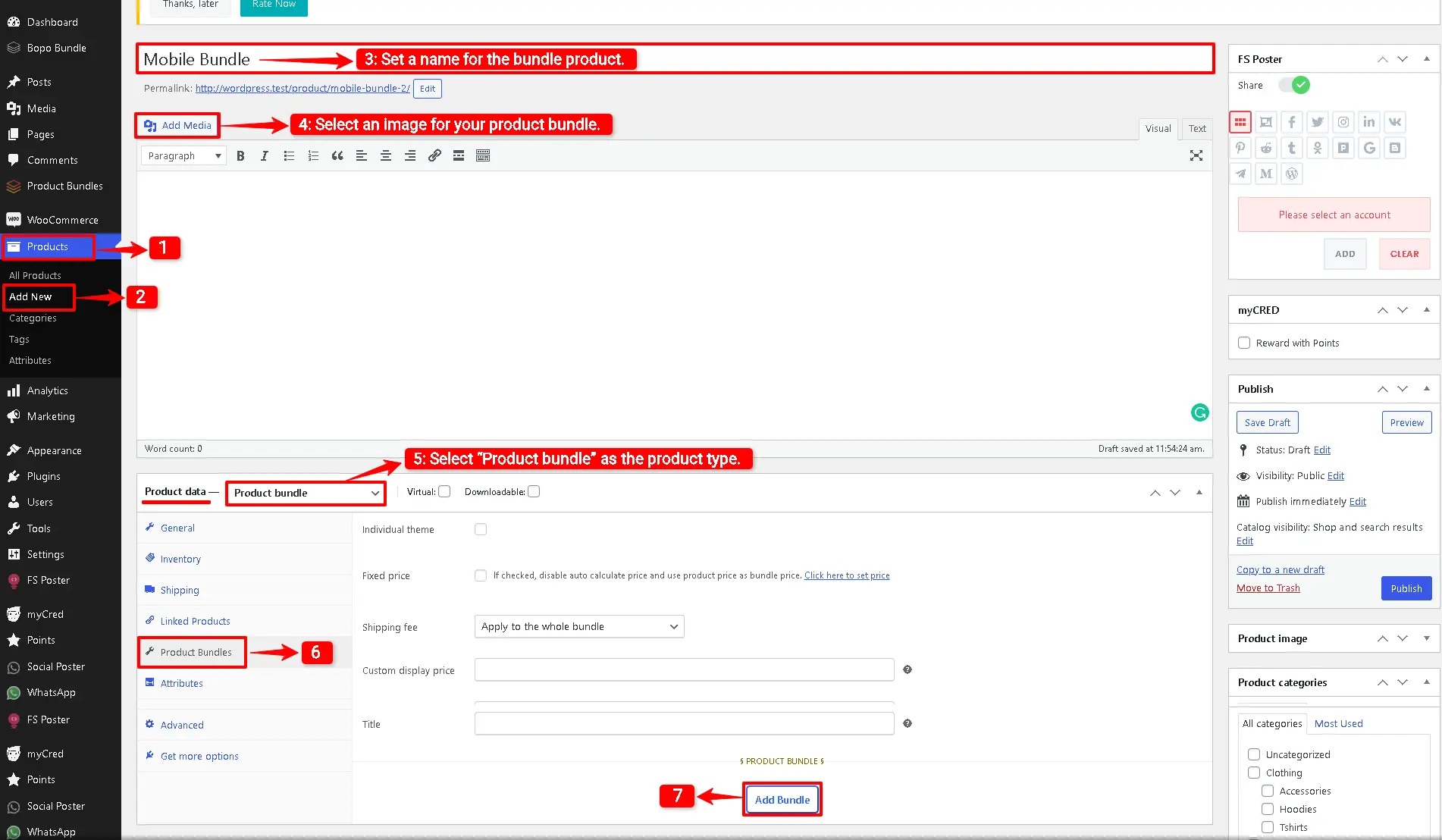
1. Navigate to WooCommerce Products >> Add New product to create a new product.

2. Set a name for the bundle product, for instance, “Mobile Bundle”.

3. Click  “Set product image” from the right sidebar and select an image for your Product Bundle.

4. Now navigate to the Product data panel, and select “Product bundle” as the product type.

Step 4: Add Bundle Items

5. After selecting “Product bundle” as the product type the “Product Bundles” tab will appear in the product data panel.

6. Click on the “Product Bundles” tab.

7. Click the “Add Bundle” button to add a new bundle item to the product bundle.
add item to woocommerce mix and match plugin

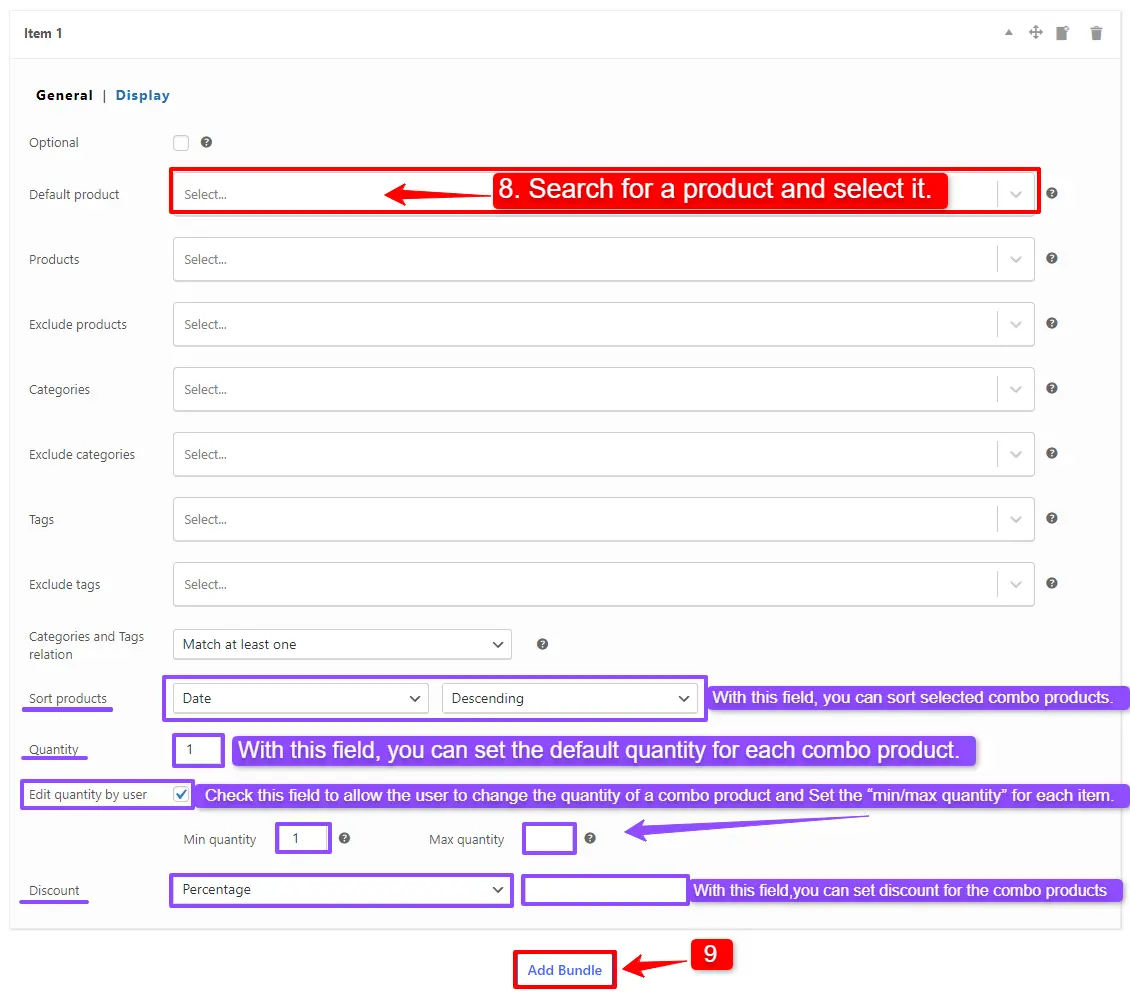
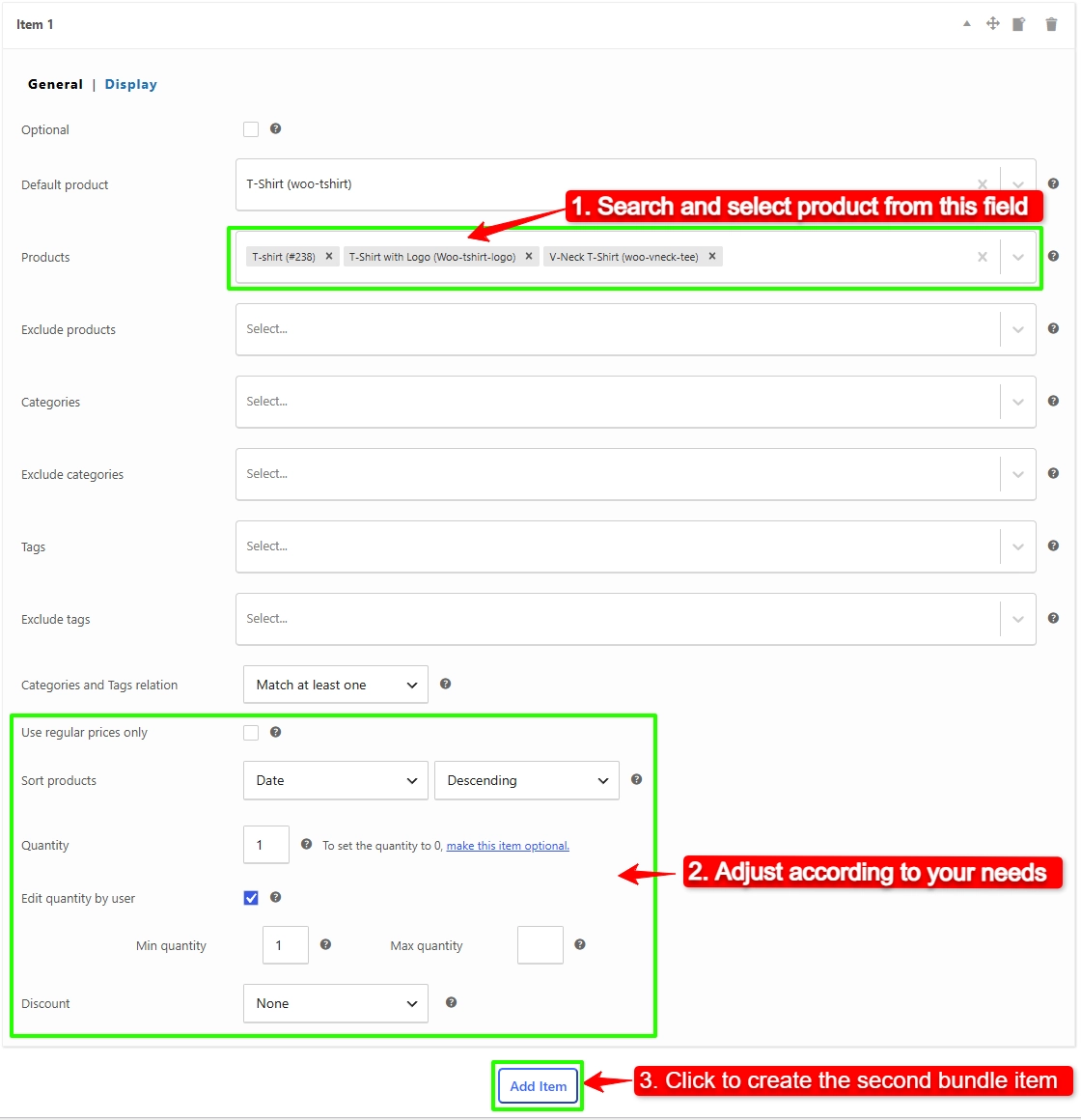
8. Now, in the “Default Product” field, search for the mobile and select it.

Step 5: Customising WooCommerce Product Bundle

You can also configure the below settings to your WooCommerce Product Bundle in the item field:

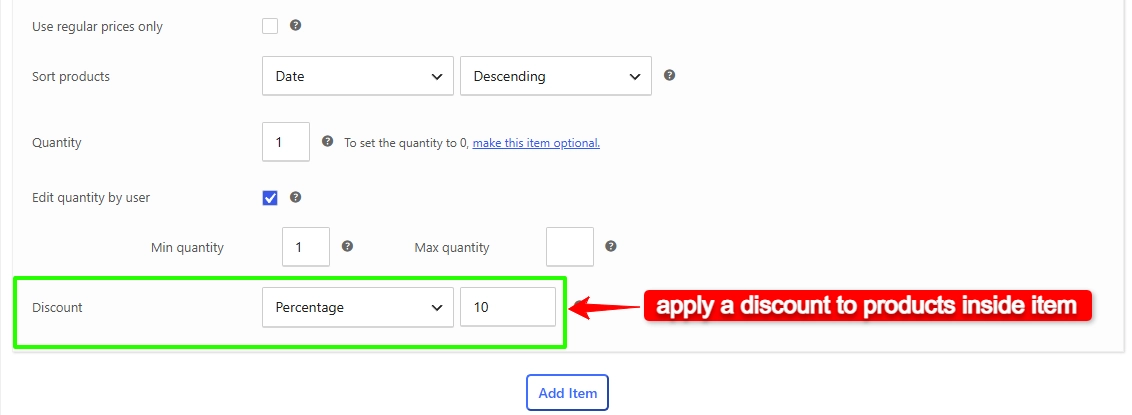
  • Sort products: With this field, you can sort selected products by “ID”, “Title”, “Menu order”,” Date”, “Price”, “popularity” and“Rating”.
  • Quantity: In this field, you can set the default quantity for each product.
  • Edit quantity by user: Check this field to allow the user to change the quantity of product and Set the “min/max quantity” for each item.
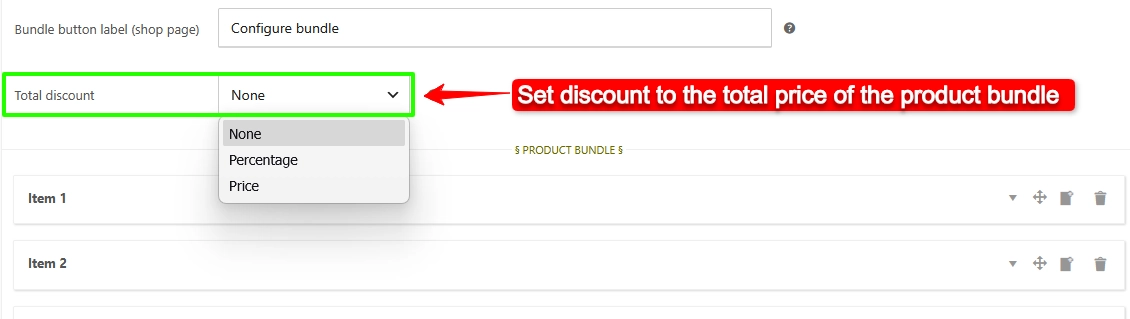
  • Discount: In this field, you can set discounts for product bundles by percentage, price or fixed price.
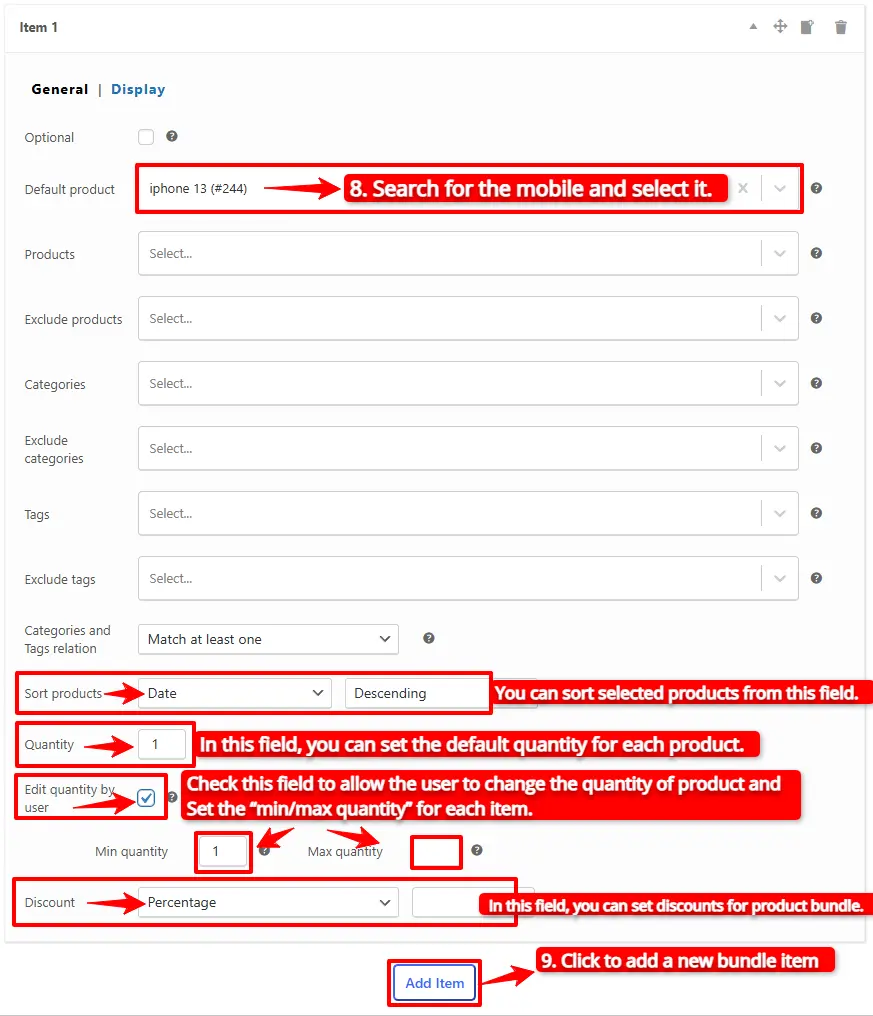
Add item for WooCommerce mix and match plugin

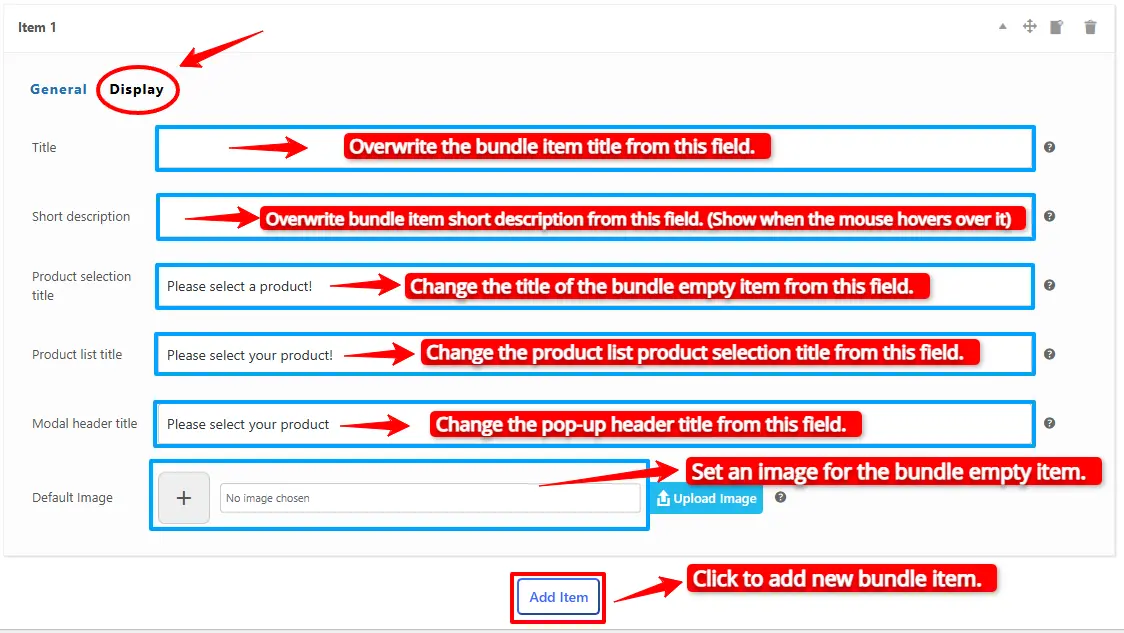
Now you can go to the “display” tab of the item and configure the following sections:

  • Overwrite bundle item title.
  • Overwrite bundle item short description. (Show when the mouse hovers over it)
  • Change the title of the bundle’s empty item.
  • Change the product list product selection title.
  • Change the pop-up header title.
  • Set an image for the empty item.
Display tab of product bundle item

9. Then click on the “Add Item” button to add a new bundle item for the mobile cases.

10. Now, in the “Products” field, search for mobile cases and select them. You can add multiple products in the “Products” field.

11. Click the “Add Item” button to add a new bundle item for the mobile glass covers.

12. In the “Products” field, search for the mobile glass covers and select them. You can include multiple glass covers; therefore, the customer has multiple choices.
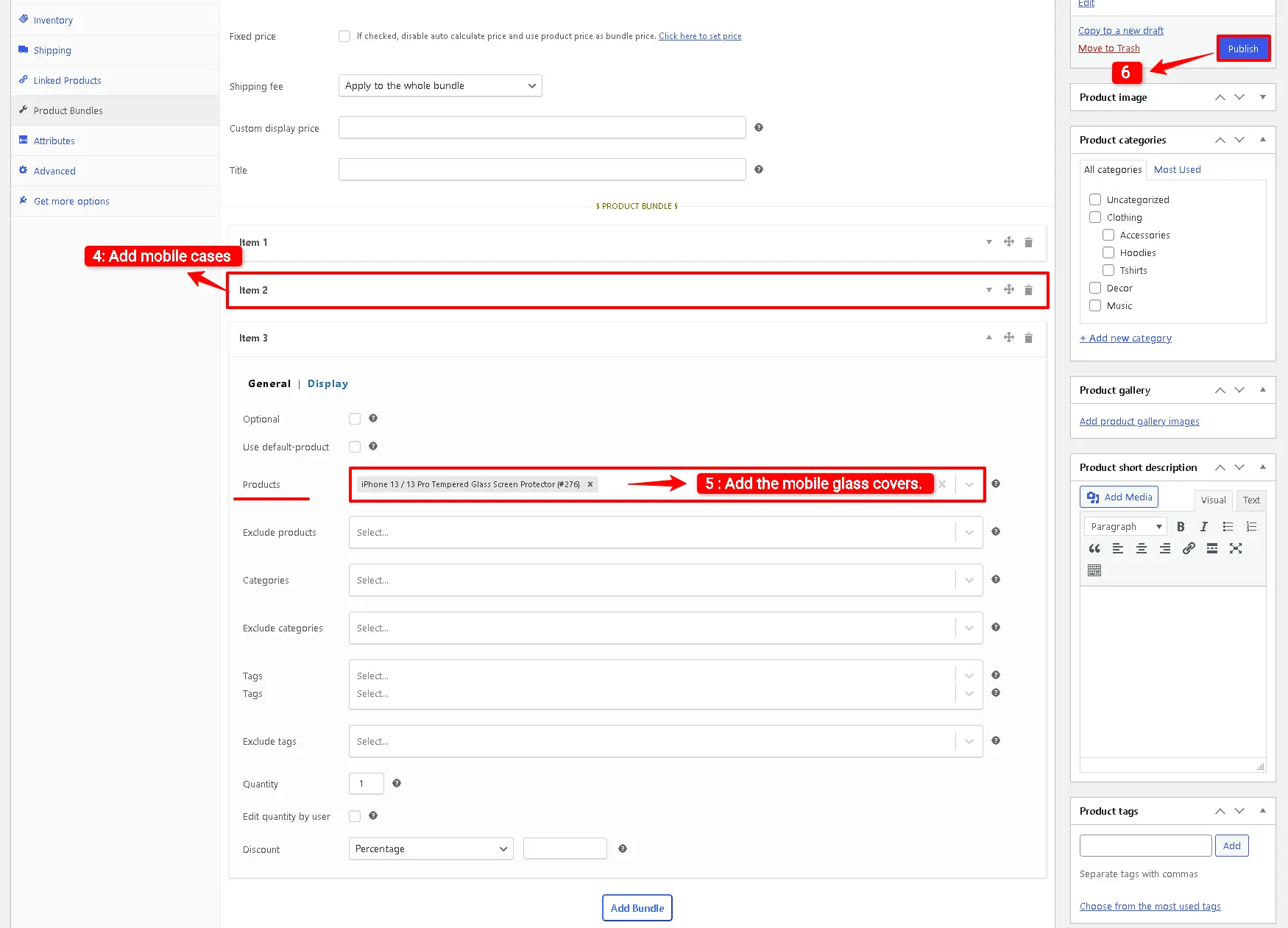
Add Bundle item to WooCommerce Mix and Match Free Plugin

13. Now you can publish the Mix and Match product bundle on your website.

Step 6: Set a price for the Bundle Product

The Easy WooCommerce Product Bundles free plugin offers two pricing strategies.

  1. A fixed price for the whole bundle product
  2. Auto-calculate the price based on selected products

1. Fixed Price

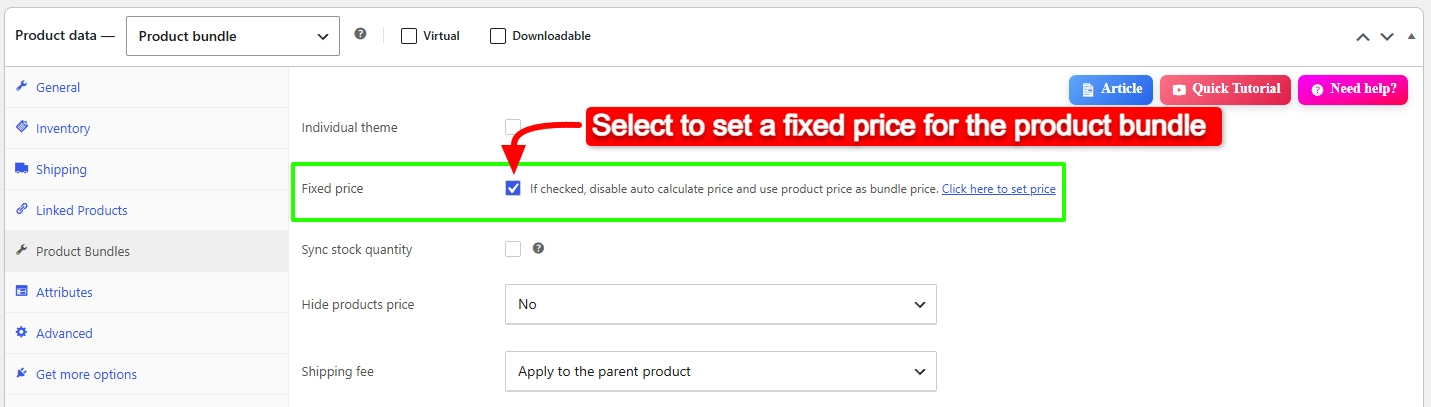
If you would like to set a fixed price for the whole bundle product, then check the “Fixed Price” option.
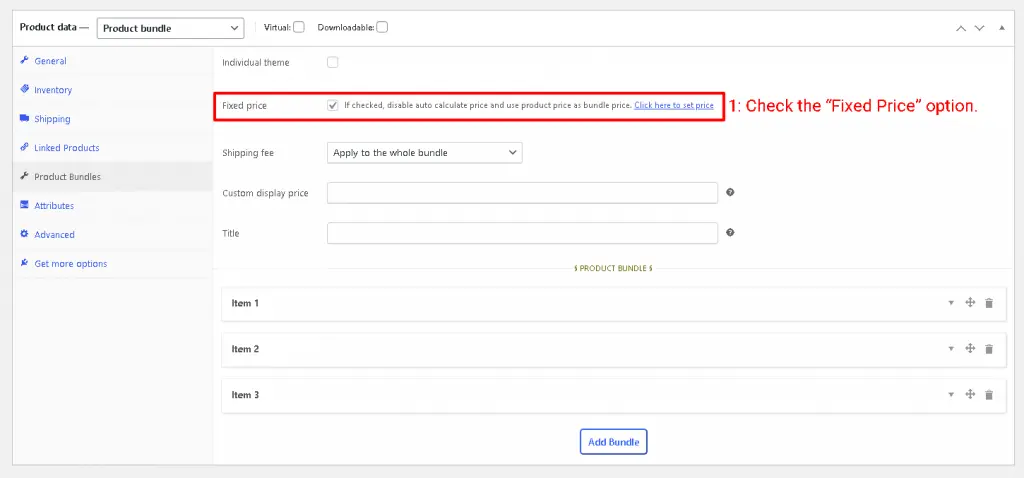
Set fixed price for product bundle in woocommerce
Fixed price product bundle in WooCommerce

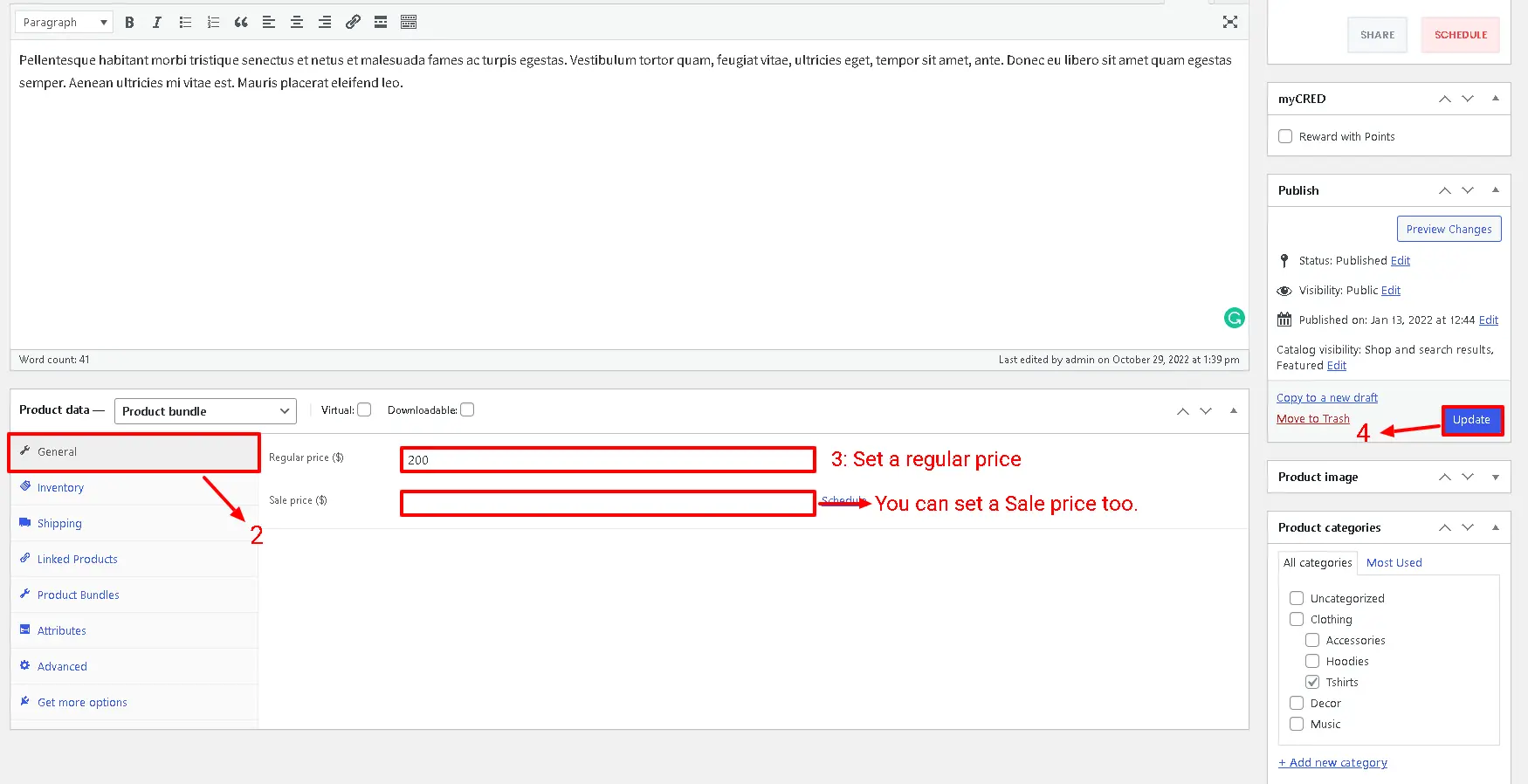
Navigate to the “General” tab and set a regular price for the Product. You can set a Sale price too.

After setting a price, update the product.
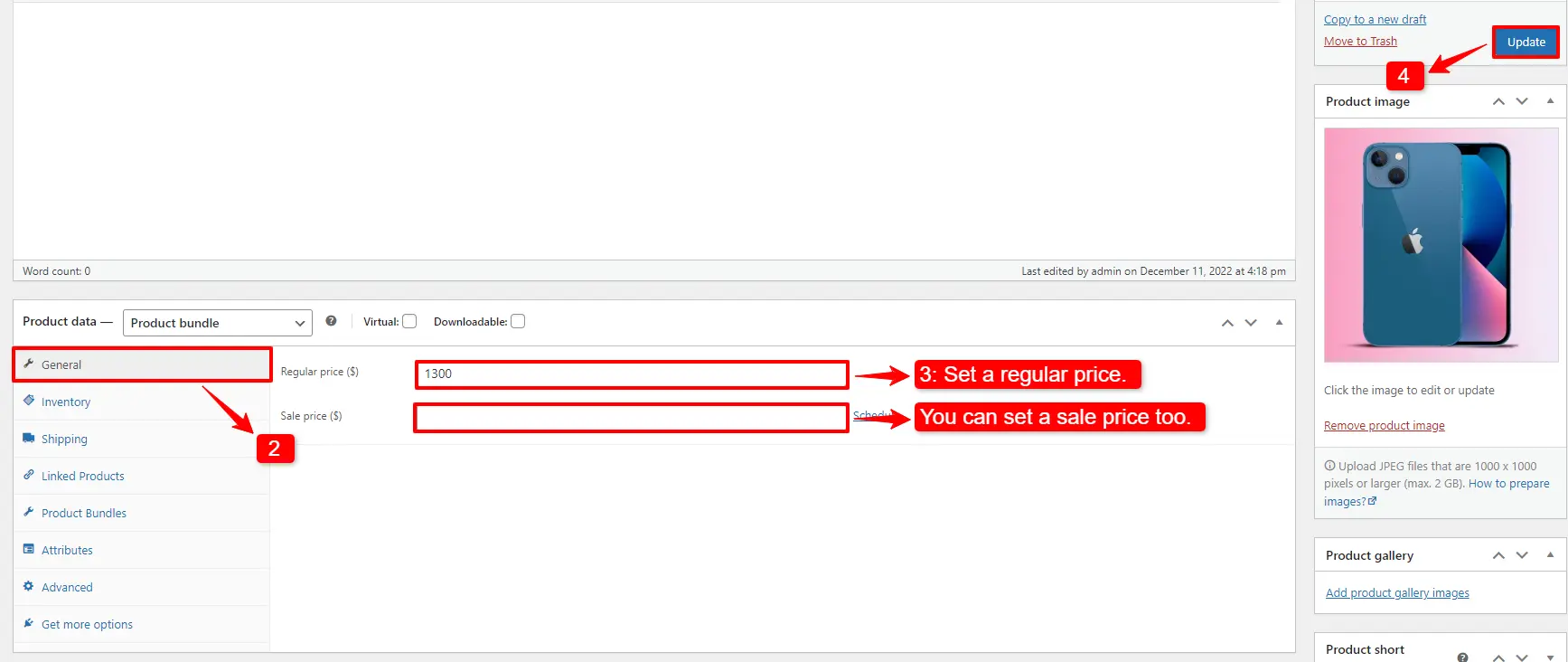
Set Fixed Price

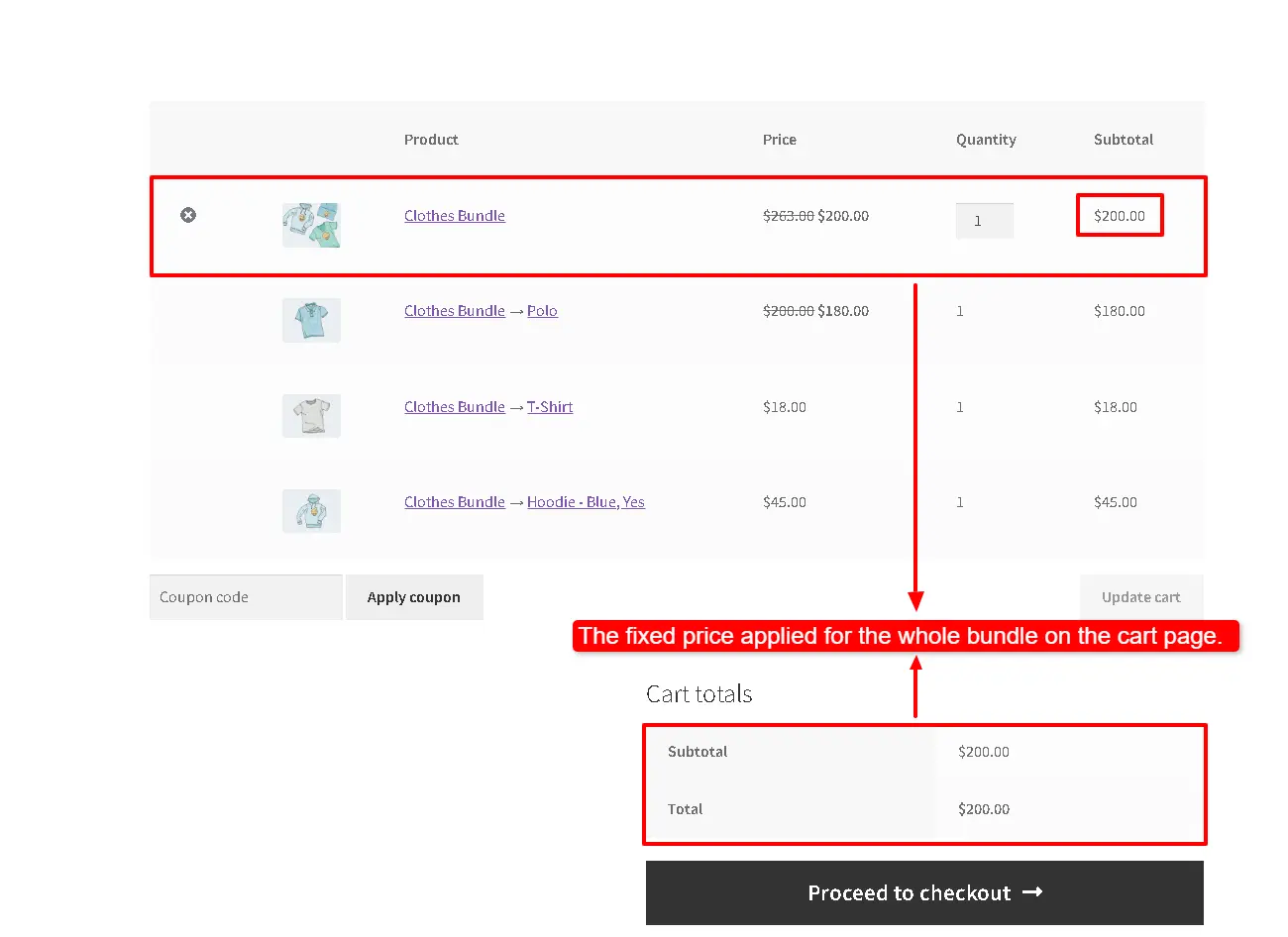
A fixed price product bundle applies to the bundle total price.

An example of WooCommerce mix and match product bundles in the cart.
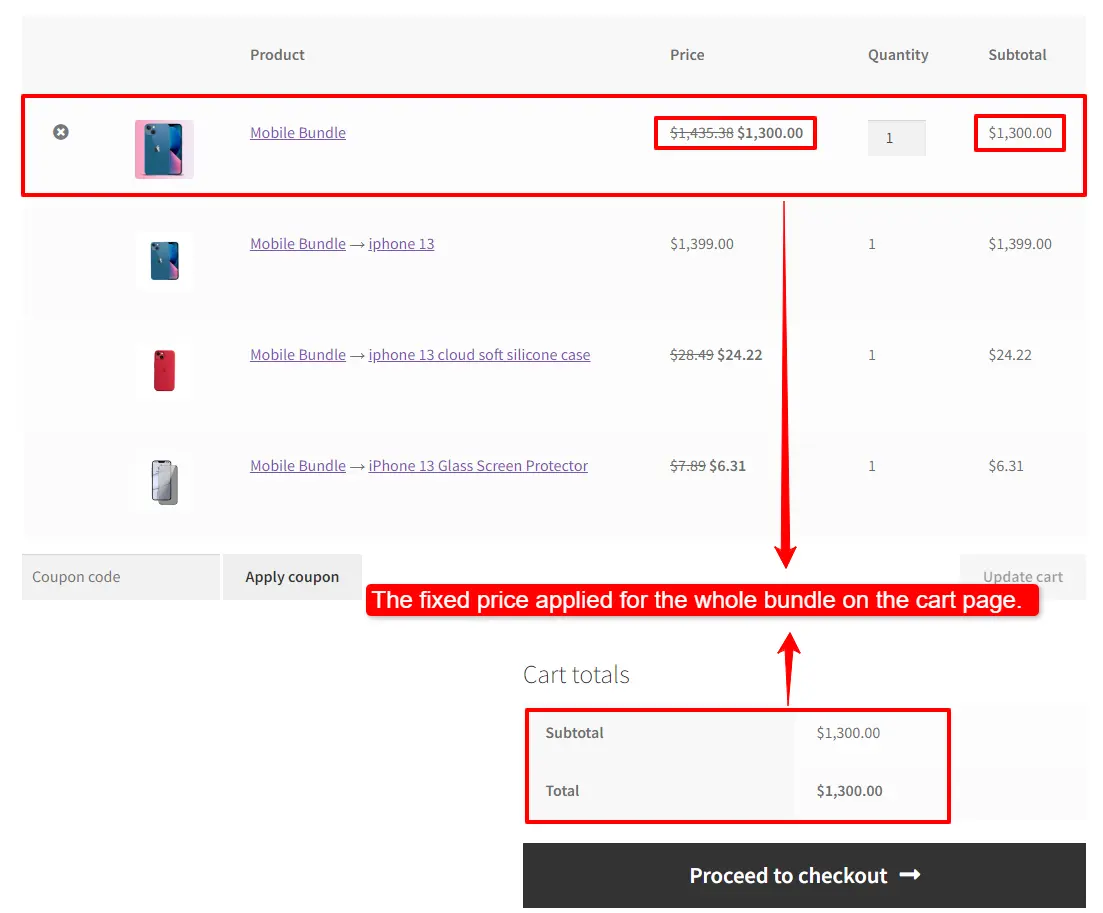
Applied fixed price in cart

2. Auto Calculate Price

Auto-calculates price helps set a dynamic price for the product bundle based on the selected items.

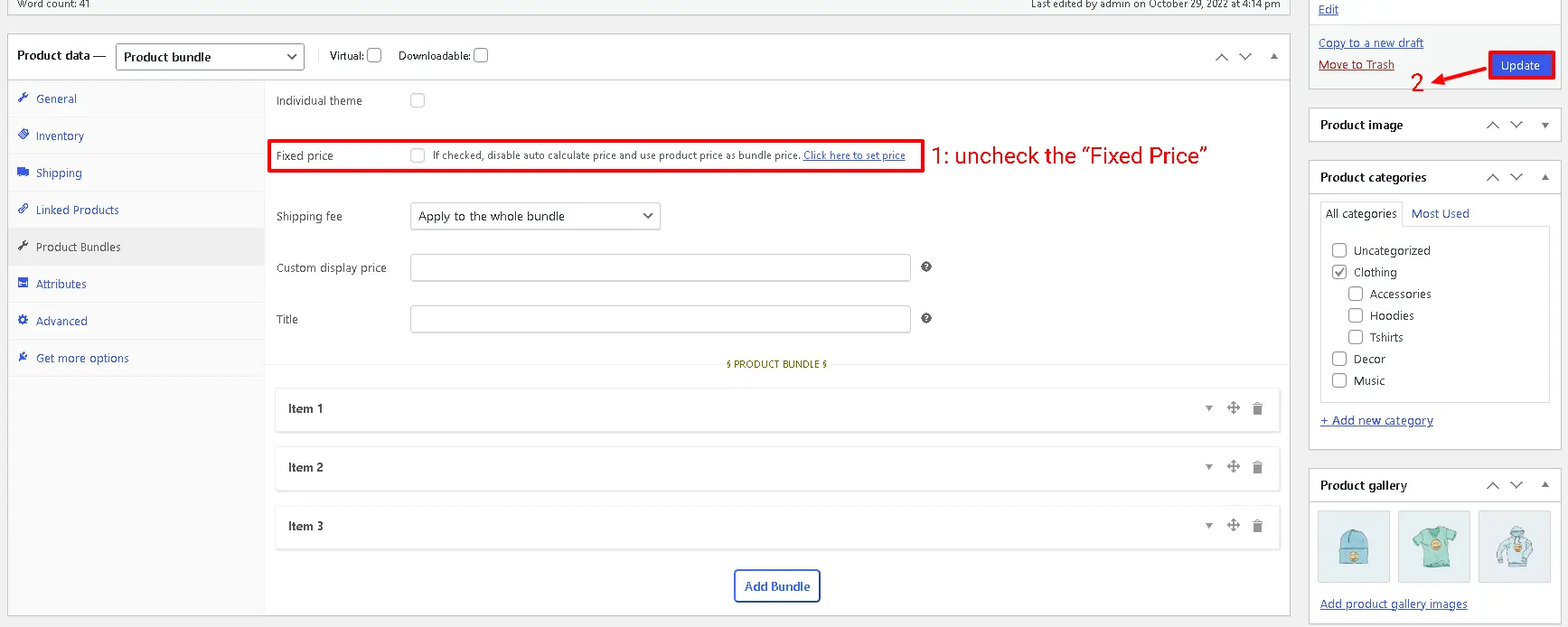
To use the auto-calculate price feature, uncheck the “Fixed Price” option and update the product.

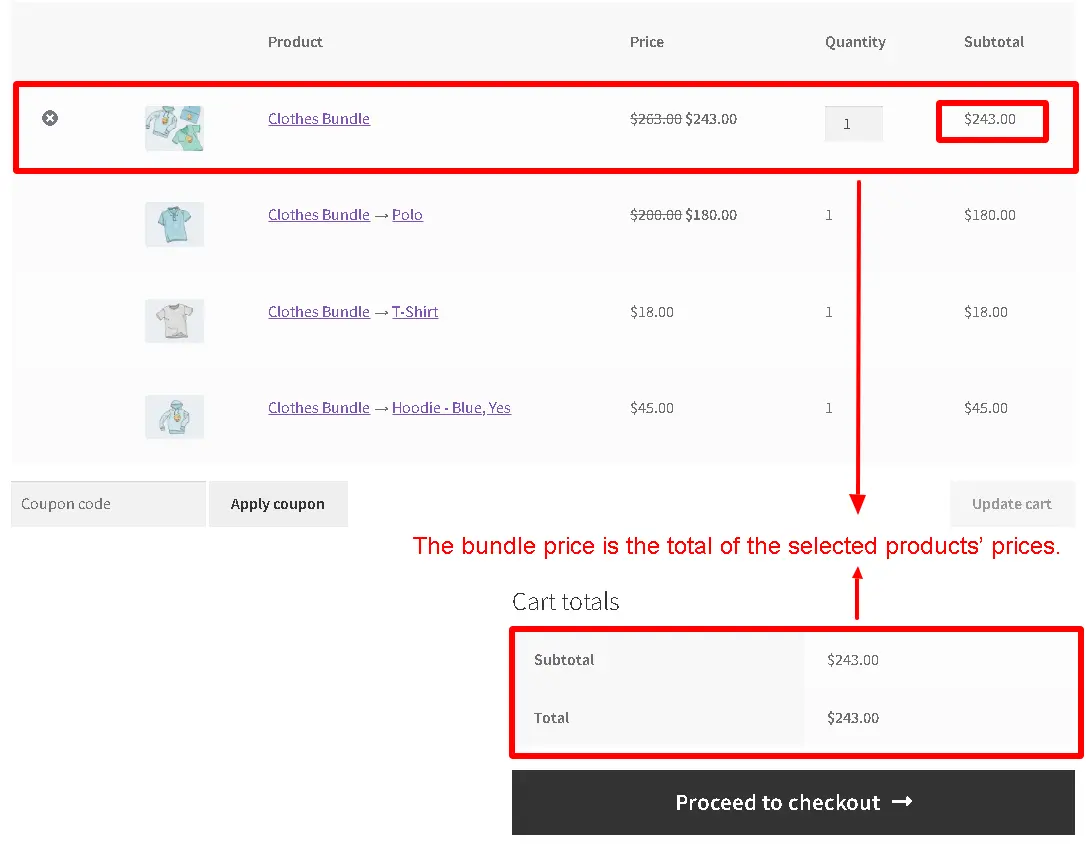
As you can see in the image below, the bundle price is the total of the prices of the selected products.
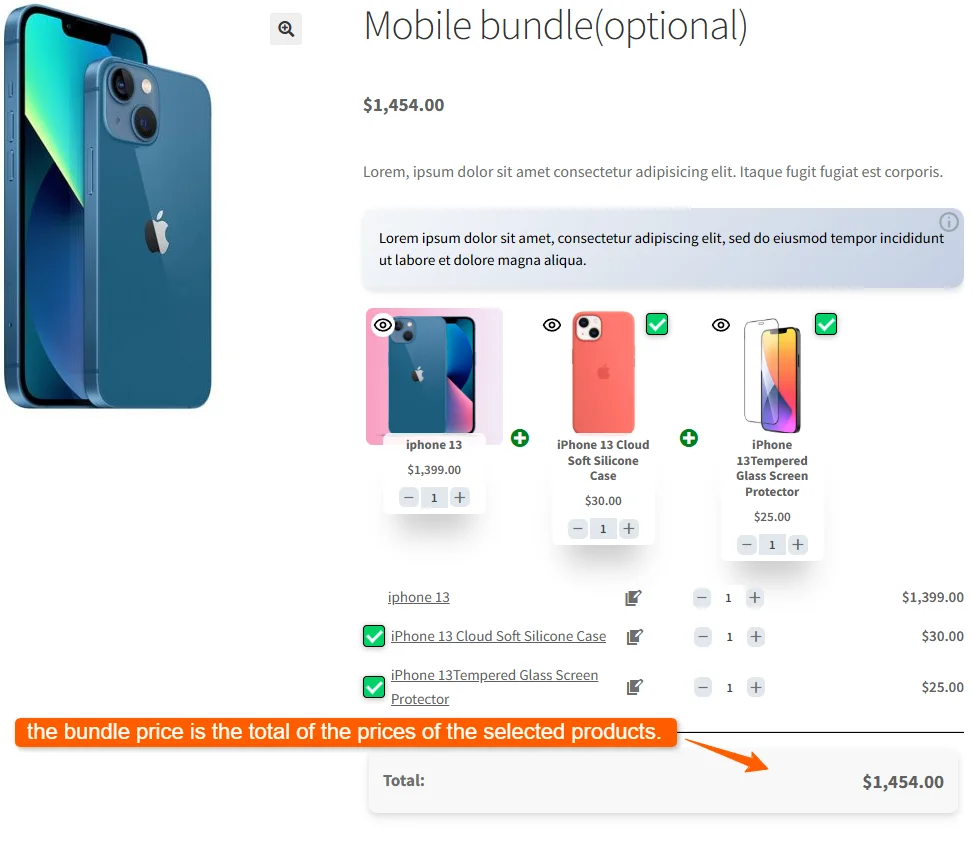
Auto Calculate Price of product bundles

Step 7: Configure the Plugin Settings

All the plugin settings you need can be found on the “Product Bundles” tab in the WordPress dashboard.
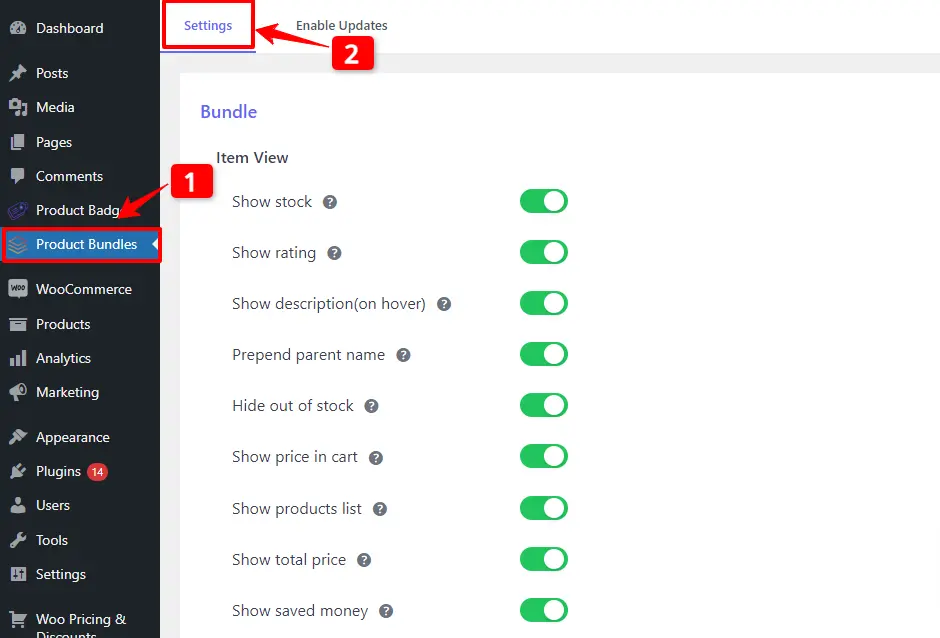
Configure the Product Bundles plugin Settings

Settings and customization are available on this page:

  • Item View:In this section, you can configure various settings, such as displaying stock availability, showing product ratings and descriptions, adding a quantity field on item pages, displaying a plus icon for items, setting the theme and size options, positioning product bundles on the product page, defining custom CSS selectors, specifying the product price selector, and many other customizable options.
  • Change product popup: In this section, you can configure popup settings.
  • Styles: In this section, you can customize the colours of different parts of your bundle and set the product image object-fit CSS.

Final Result for Mix and Match Products in WooCommerce

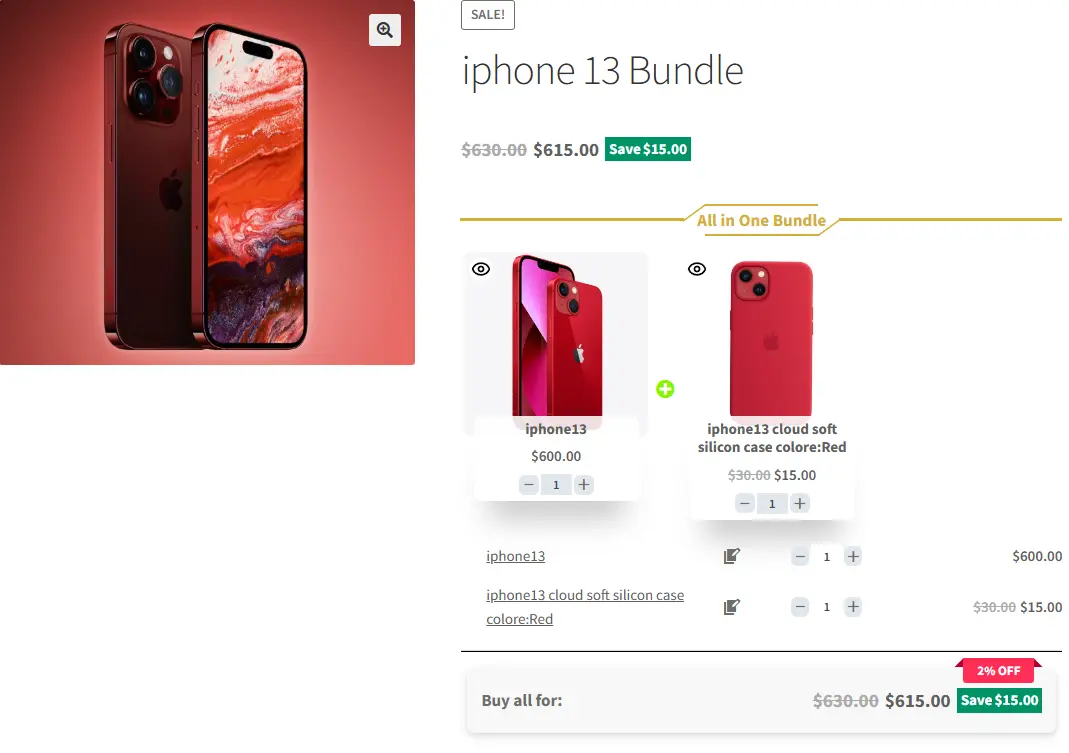
WooCommerce Mix and Match Product will be shown on your site like this
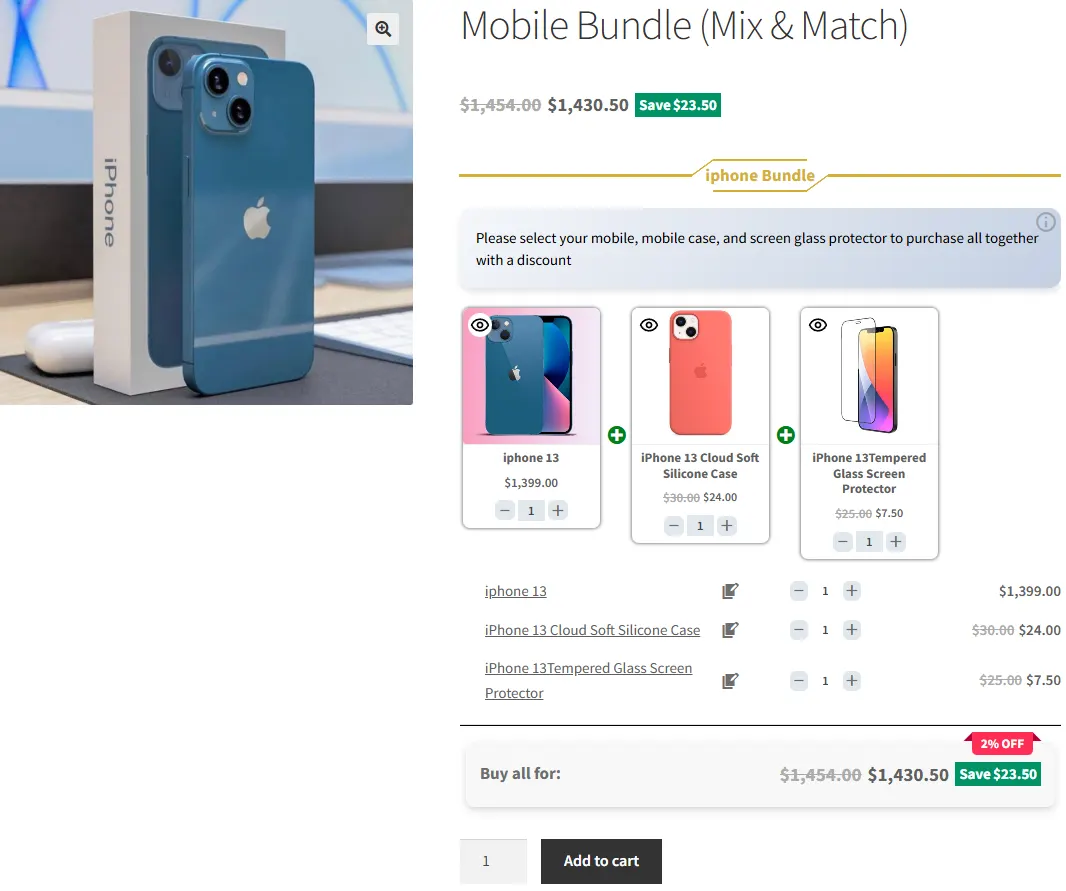
Mix and Match Products in WooCommerce

How to create mix-and-match product bundles with variable products

To create mix-and-match product bundles with variable products, follow the steps below:

📽️Video tutorial

Step 1: Create mix-and-match product bundles with variable products

1. Navigate to the “Products” section in WooCommerce.

2. Click on “Add New” to create a new product.

3. Set a name for the mix-and-match product bundles

4. Click on “Set product image” from the right sidebar and select an image for product bundles.

5. Navigate to the Product data panel, and select “Product bundle” as the product type.

6. After selecting “Product bundle” as the product type the “Product Bundles” tab will appear in the product data panel.

7. Navigate to the “Product Bundles” tab and click on the “Add Item” button to add a new bundle item.

8. Now, in the “default product” field, search and select a variable product. You can also select as many variable products as you want in the products section.

  • Likewise, if you would like to include variable products from a category, you can do it with the “Categories” field of the item. therefore you can search for categories and add them.
  • In addition, you can do the same for the variable product tags and include them in the “Tags” field. 

Step 2: Customising WooCommerce mix-and-match product bundle

You can also configure the below settings to your mix and match Product Bundle in the item field:

  • Sort products: With this field, you can sort selected variable products by “ID”, “Title”, “Menu order”,” Date”, “Price”, “popularity” and“Rating”.
  • Quantity: In this field, you can set the default quantity for each product.
  • Edit quantity by user: Check this field to allow the user to change the quantity of product and Set the “min/max quantity” for each item.
  • Discount: In this field, you can set discounts for product bundles by percentage, price or fixed price.
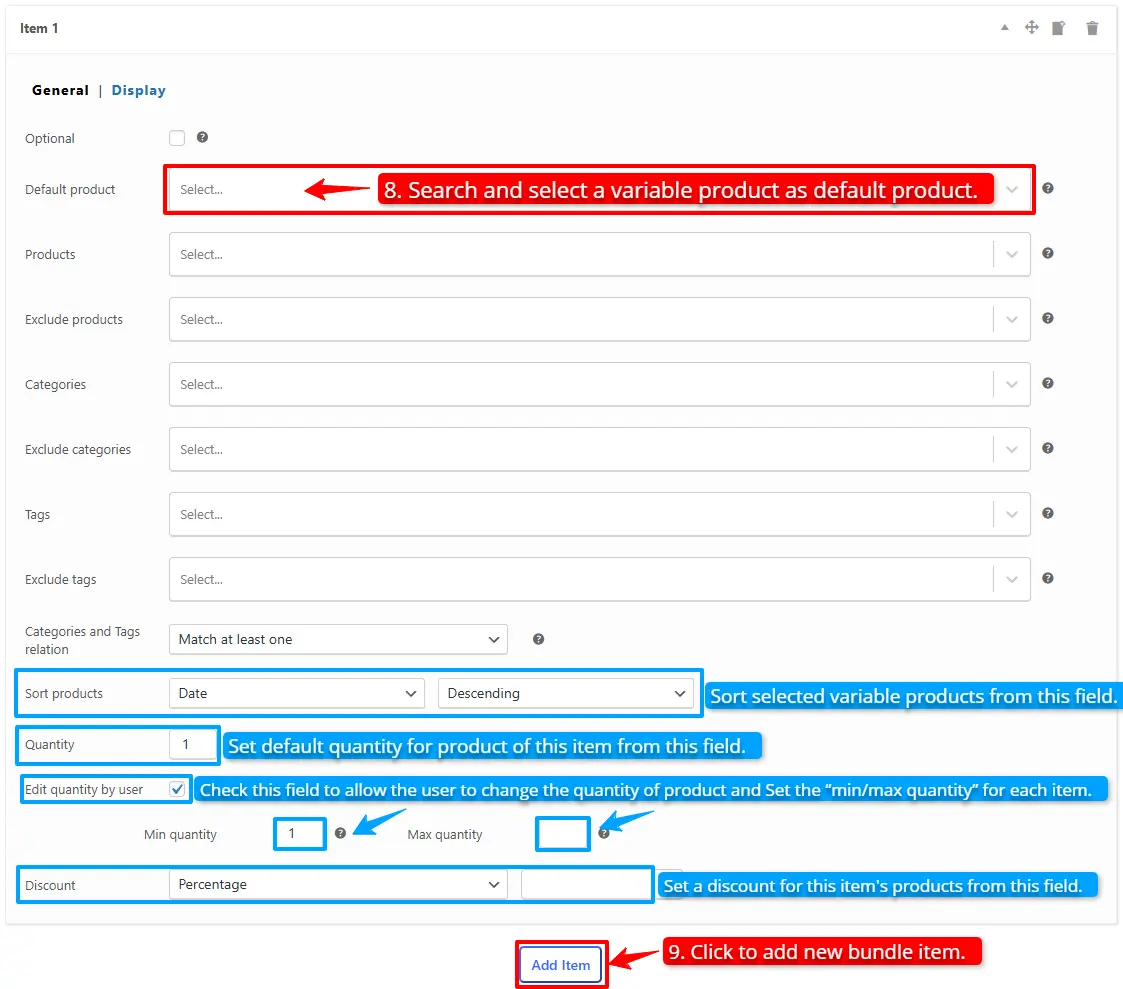
Add variable products to mix and match product bundles

Now you can navigate to the “display” tab of the item and configure the following sections:

  • Overwrite bundle item title.
  • Overwrite bundle item short description. (Show when the mouse hovers over it)
  • Change the title of the bundle empty item.
  • Change the product list product selection title.
  • Change the pop-up header title.
  • Set an image for the empty item.
Display tab of product bundle item

9. Then you can click on “Add Item” to add a new item to the mix and match product bundles and configure it as in the previous steps. we create one other item and select simple products for this item.

Step 3: Configure the Plugin Settings

To configure the Plugin Settings, you can just read this section of the article for more information.

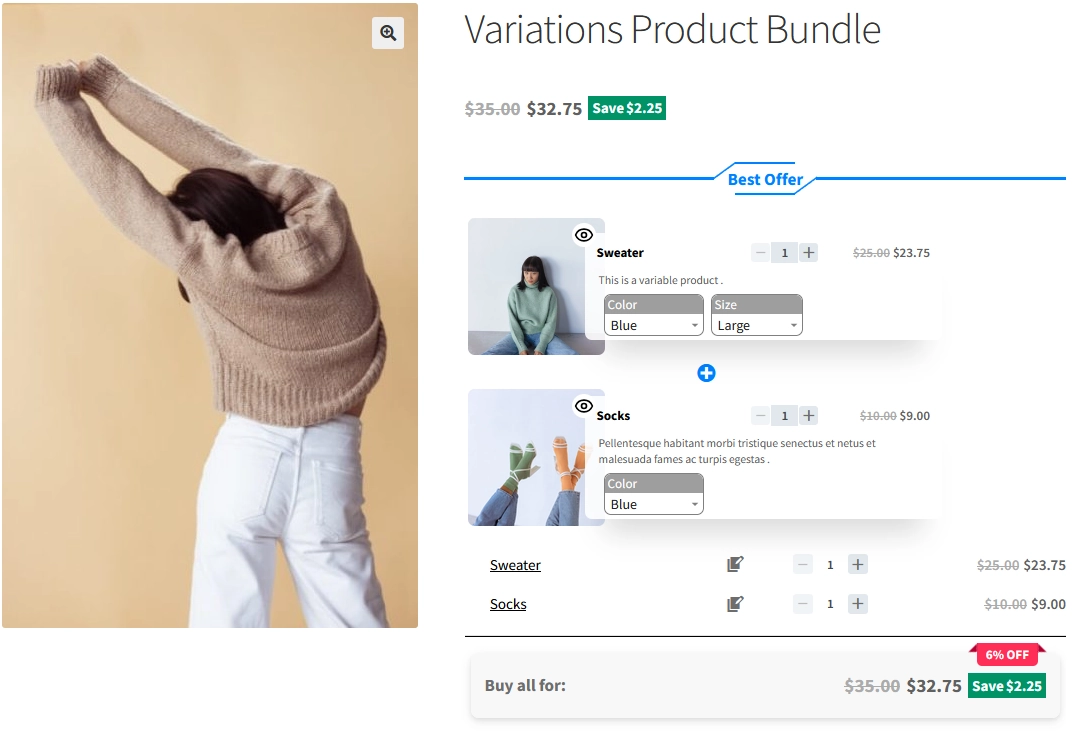
Final result of Mix and Match With Variable Products

Now open the product page on the frontend to see the mix-and-match product bundles.
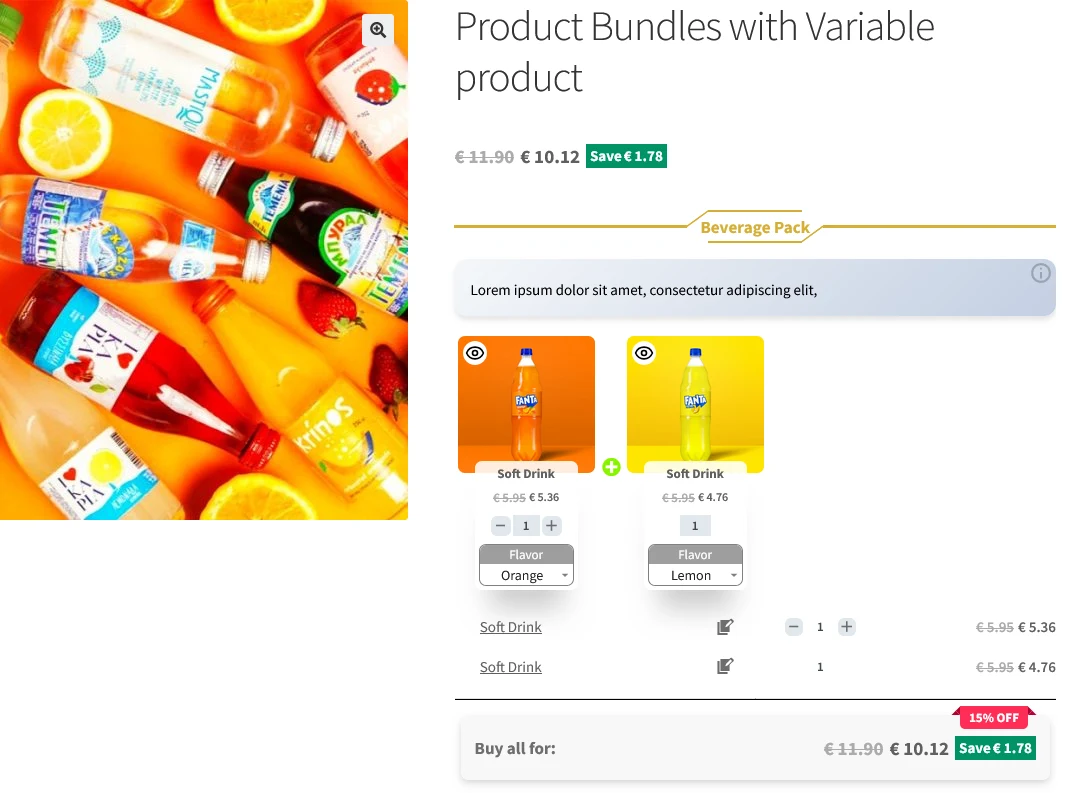
mix-and-match product bundles.

Optional Items in WooCommerce Product Bundles

You can make product bundle items optional, so that the customer does not have to select a product for that bundle item.

Step 1: Create optional product bundle item

1. To make an item optional, open it and check the “Optional” field. This option is available in the pro version of the Easy Product Bundles for WooCommerce.

2. Check the “Selected” field to make this optional item selected at first time in front.
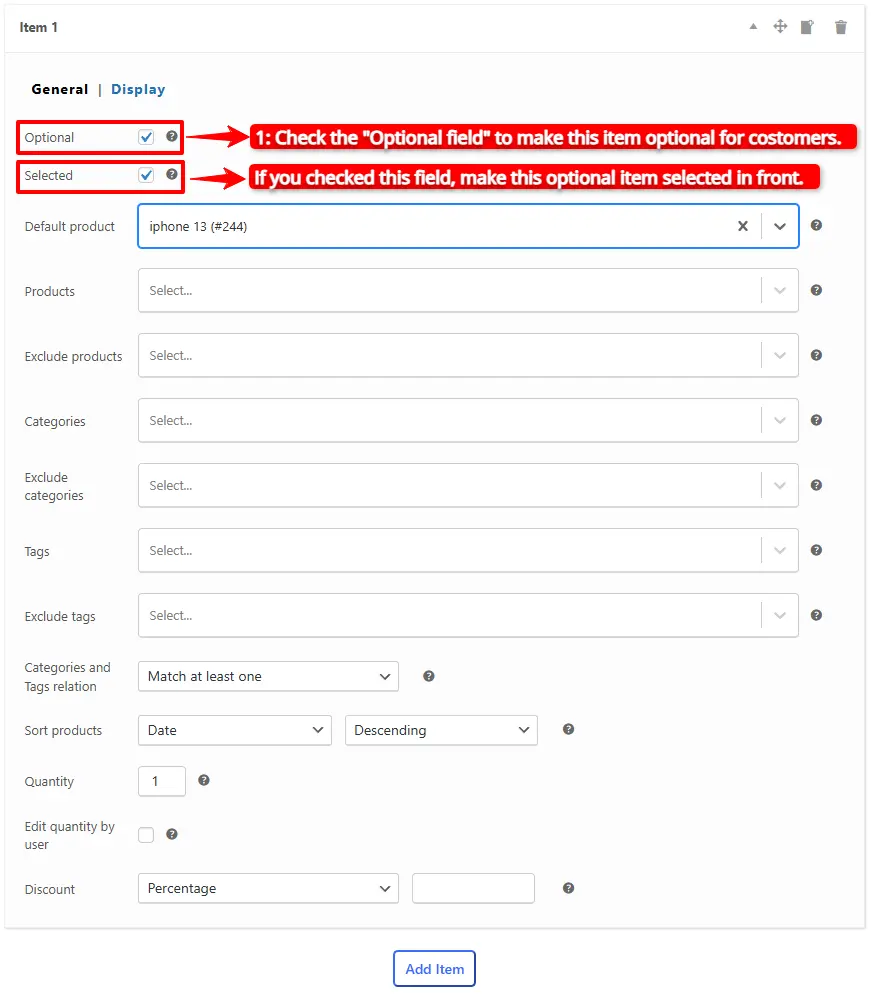
Optional product bundle items

Step 2:Change the Optional item mode

3. Go to the “product bundle” tab in the WordPress dashboard.

4. In the settings, navigate to the “Optional Item Mode” section and change the mode of the optional item to either “Checkbox” or “Delete Button”.
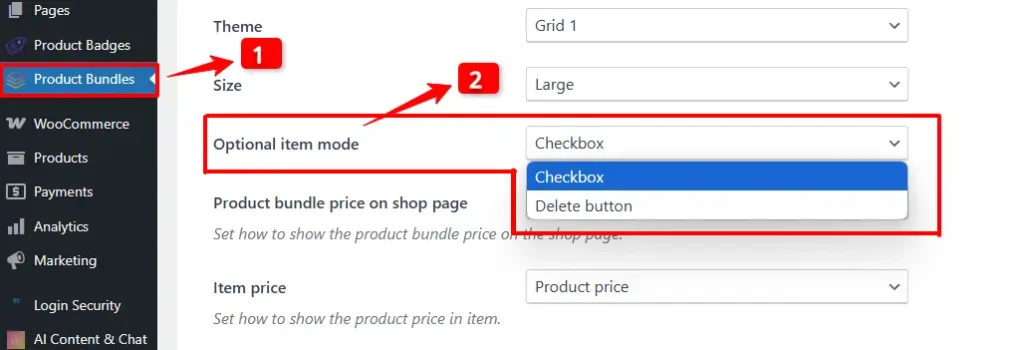
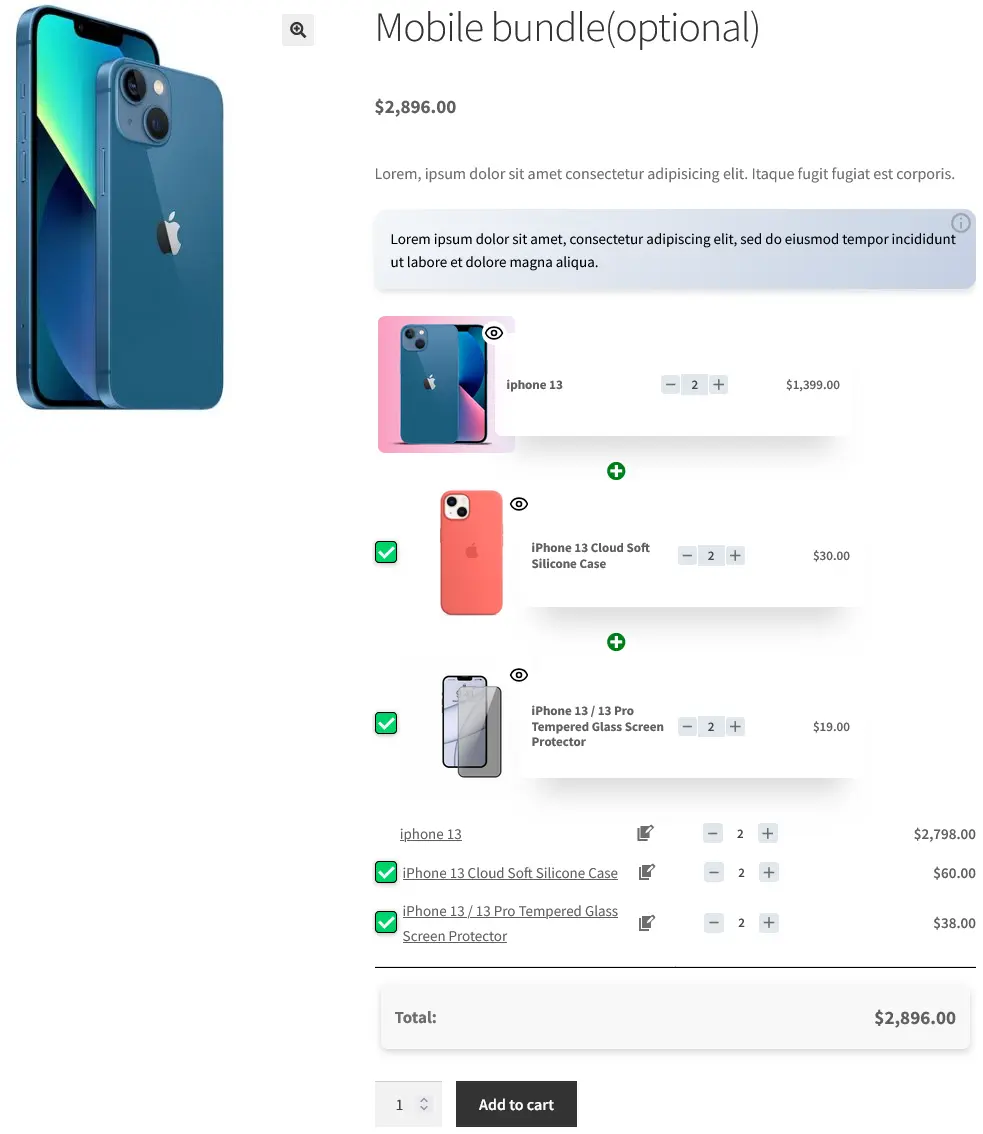
Final Result of Optional Product Bundles

After setting an item as optional, a checkbox or delete button will appear above the bundled item, allowing the customer to choose whether or not to include that product in their purchase.
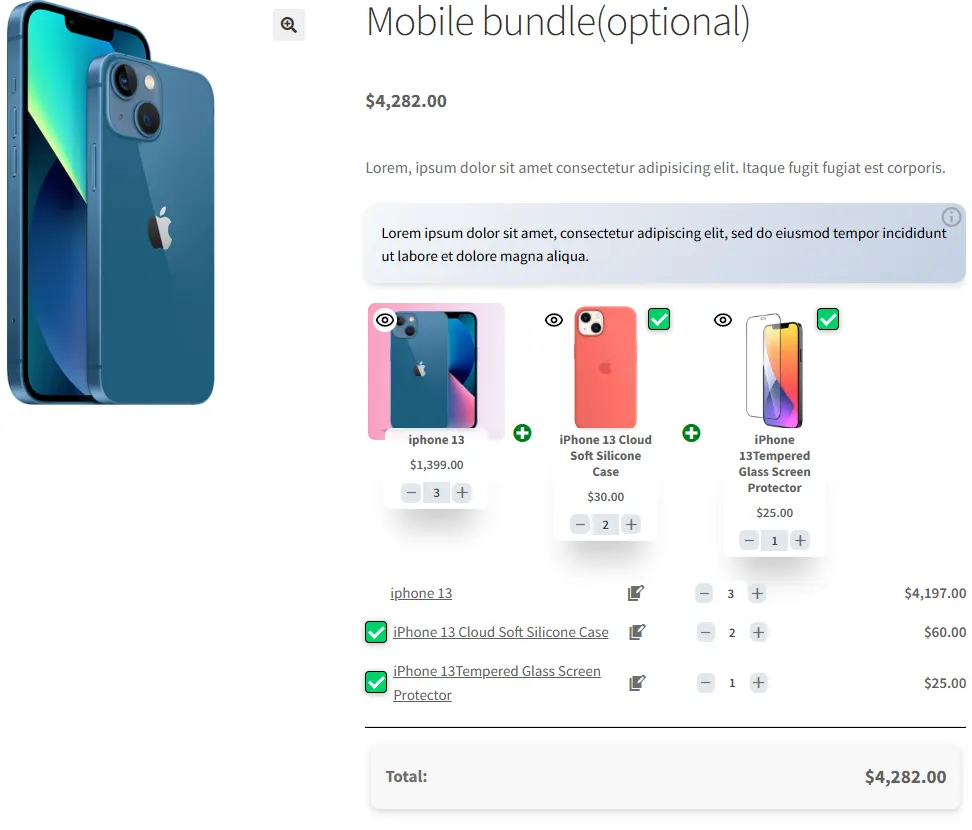
Optional Mix and Match Product bundles in WooCommerce

Offer BOGO Deals in WooCommerce

BOGO deals are one of the best strategies to make money and build customer loyalty.

In this article, we will use the Easy Product Bundles for WooCommerce to create BOGO deals. If you would like to create advanced BOGO deals, you can check out Discount Rules and Dynamic Pricing for WooCommerce or Auto Add Products to Cart for WooCommerce plugins.

Step 1: Create a Product Bundle

1. To create a BOGO deal in WooCommerce, navigate to WooCommerce Products >> Add New to create a new product.

2. Set a name for the product bundle.

3. Click on “Add Media” and select an image for your product bundle.

4. Now navigate to the Product data panel, and select “Product bundle” as the product type.

5. After selecting “Product bundle” as the product type the “Product Bundles” tab will appear in the product data panel.

Step 2: Add bundle items

6. Navigate to the “Product Bundles” tab

7. Click the “Add Item” button to add a new bundle item to the product bundle.
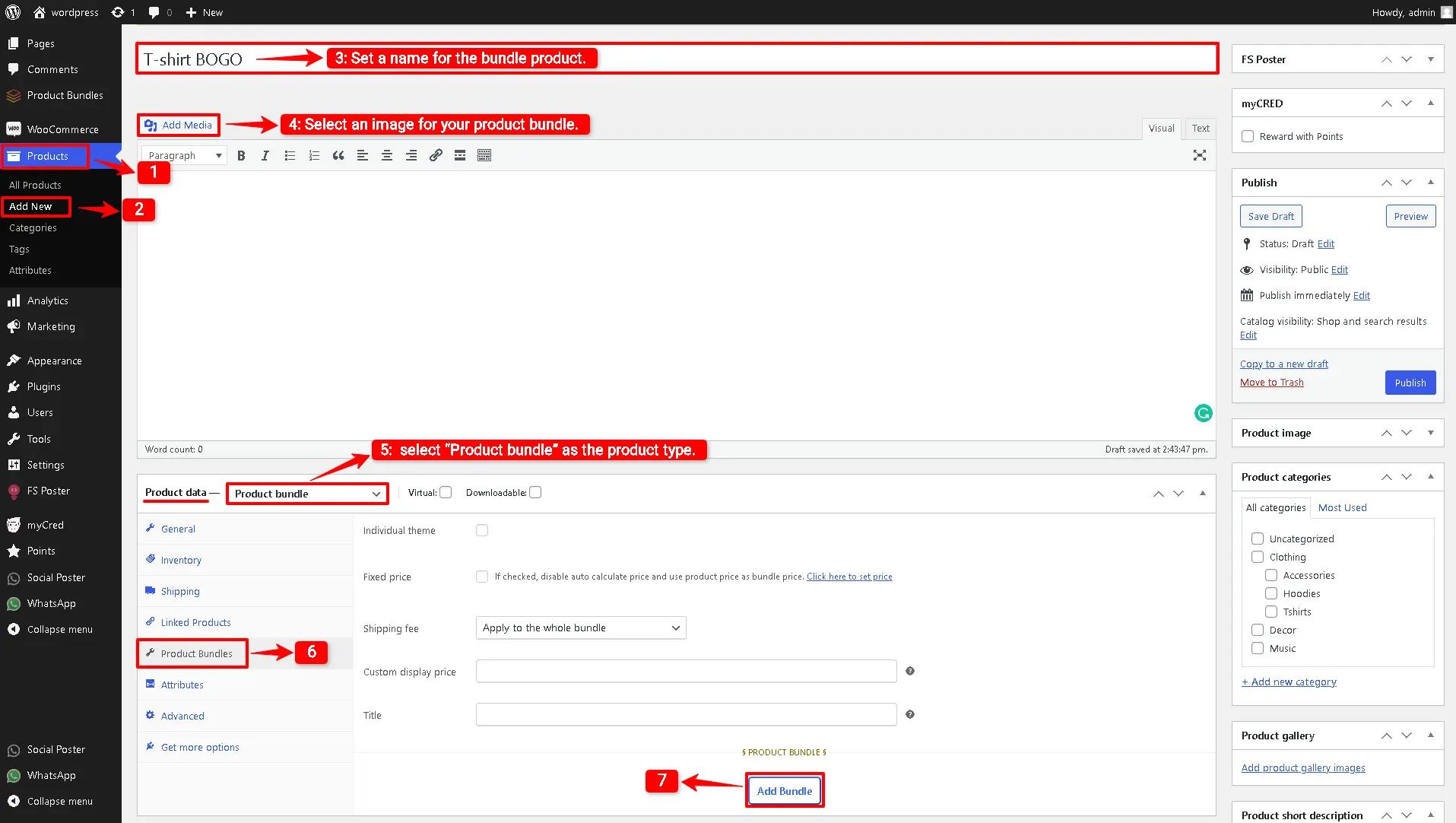
BOGO Deals Add bundle WooCommerce Mix and Match Free Plugin

8. Now, in the “Default Product” field, search for the product and select it.

9. Click on the “Add Item” button to add a new item for the gift product.
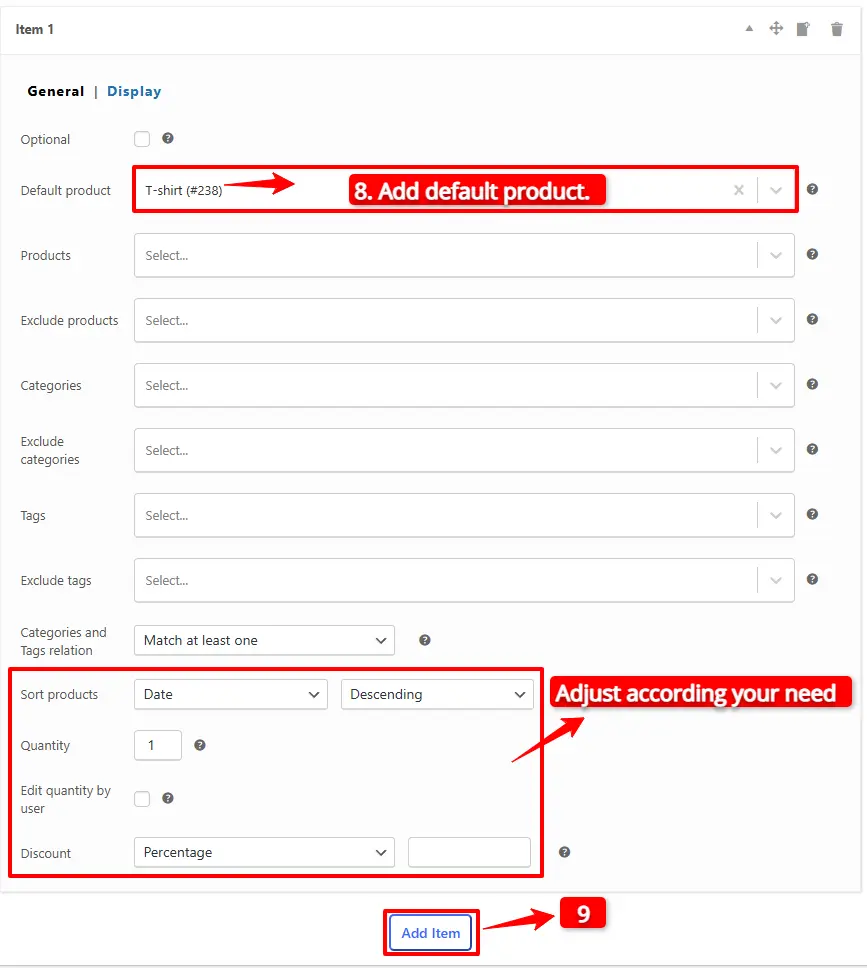
Configure the item of the product bundle plugin

10. In the “Default Product” field, search for the gift product and select it.

Note: The bundle item has a “Discount” field, and you can use it to apply a discount on the gift product.

11. Select “Percentage” as the discount type and set “100” as the discount value. The gift product will be free.
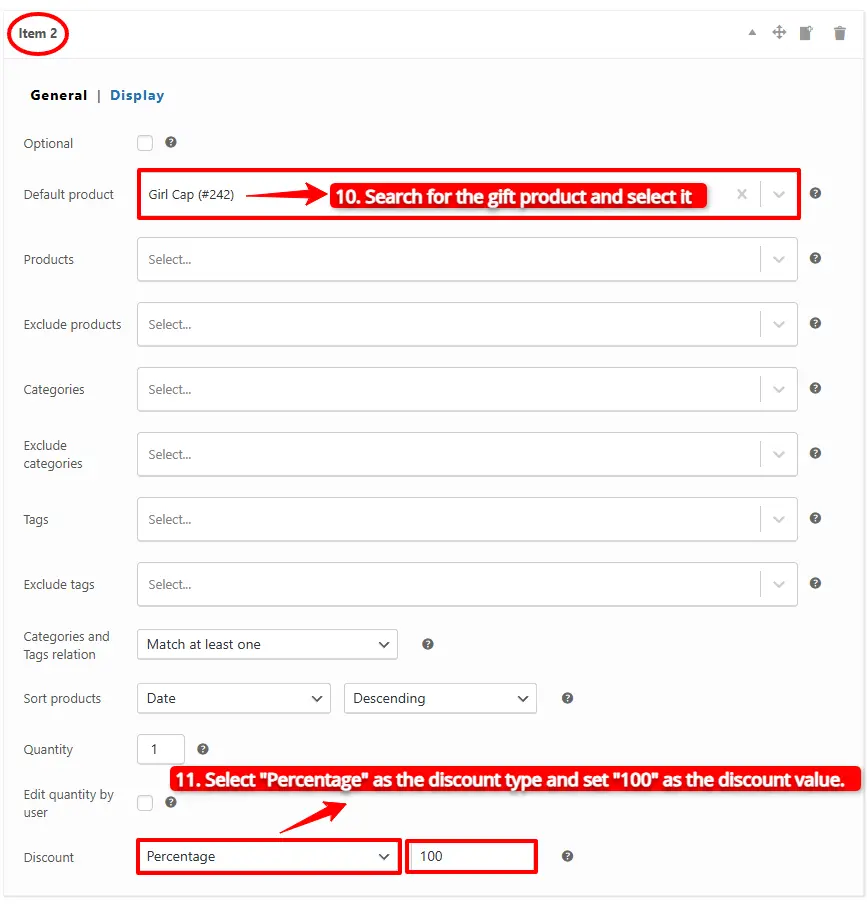
Set a discount on the Product bundle item

Final Result of BOGO Deals in WooCommerce

12. Publish the product, and you will see the product in the image below.
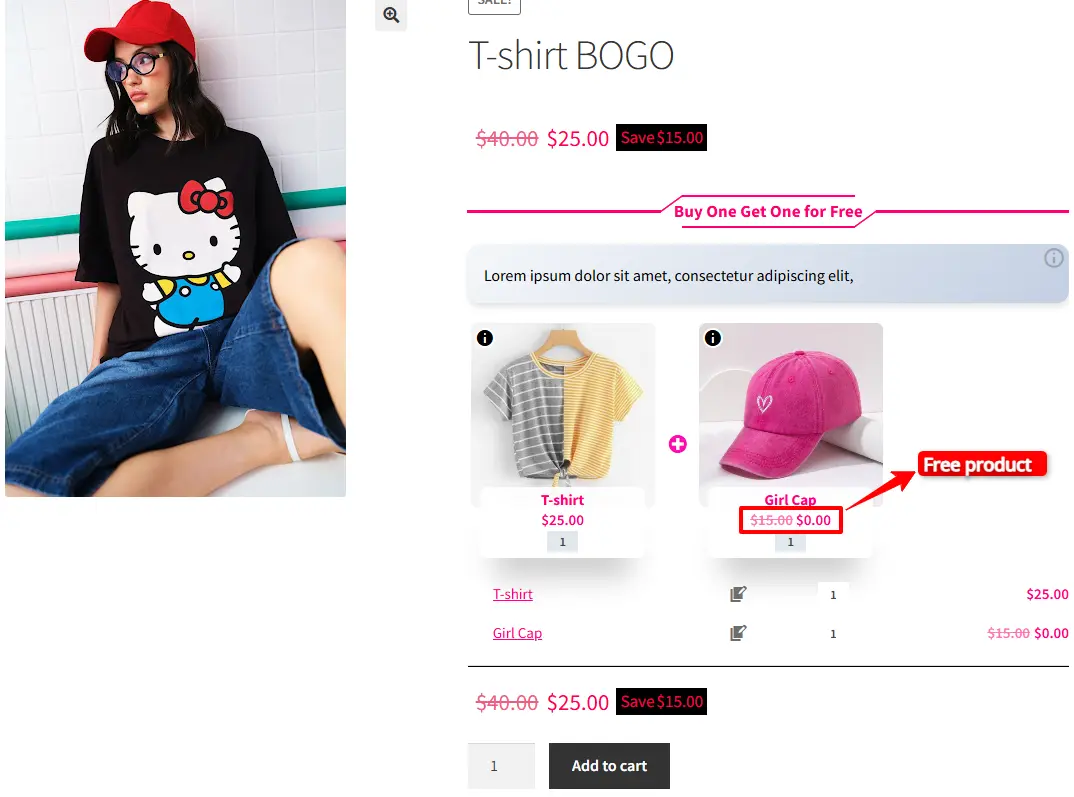
Final result of WooCommerce Mix and Match Free Plugin BoGo deal

When the customer purchases it, he will only pay the t-shirt price and will get the gift product for free.

Offer Multiple Gift Products in WooCommerce

You can offer multiple gift products in WooCommerce with the Product Bundles for WooCommerce plugin.

In the BOGO deal offered in the above example, we offered one product as a gift product. So we can edit it to include multiple product items.

1. To offer multiple products as gifts, edit the “Products” field of the item and include all of the gift products there, so the customer can choose from them.

2. In the “Products” field, search for the gift products and include them as shown in the image below.
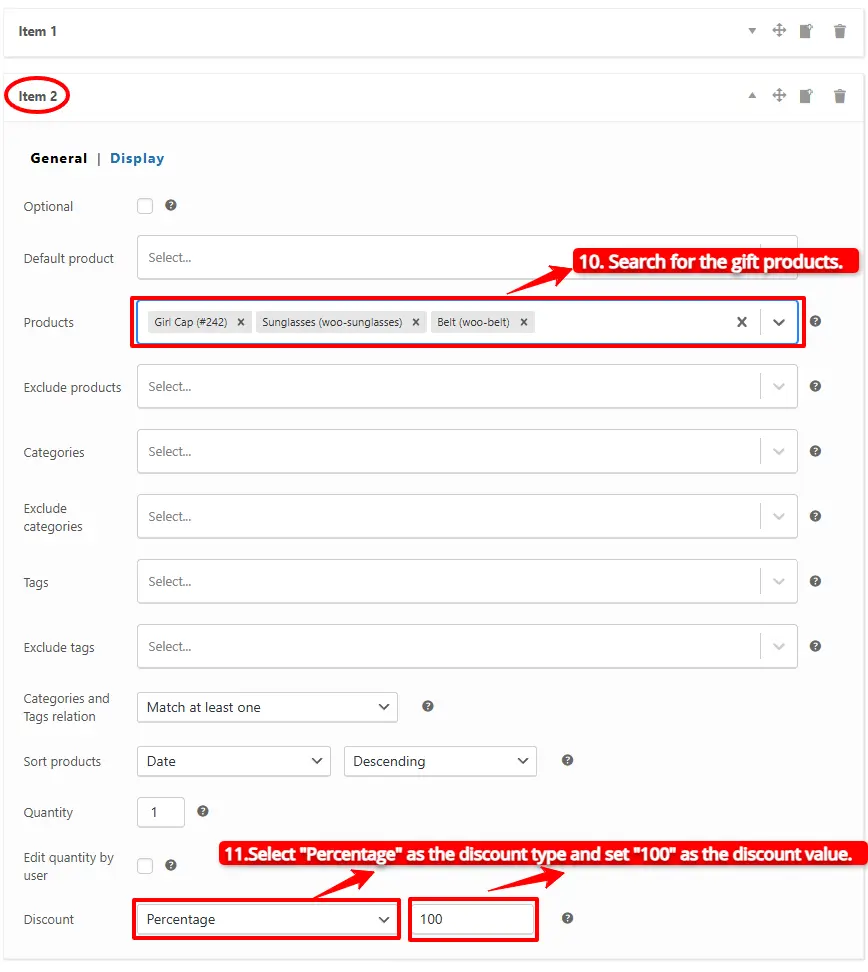
Offer Multiple Gift Products in WooCommerce

You can use one of the gift products as a default gift product or leave it empty to allow the customer to choose it.

Final result of offering multiple gift products

The product page will be like the image and allows the customer to choose the gift product in a popup.
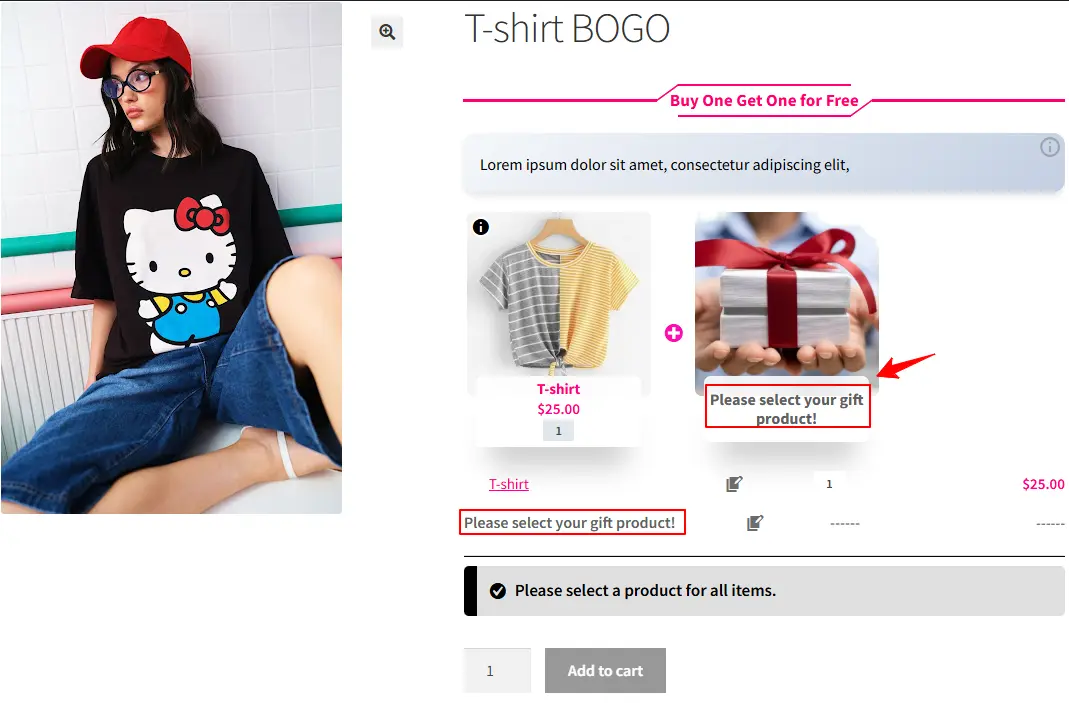
Final result of offer Multiple Gift Products in WooCommerce

Create Configurable or Personalized Products in WooCommerce

Products like food or clothes sets are examples of configurable or personalized products.

If you want to make your restaurant different from other ones, you can offer configurable foods. It allows customers to make the food as they like it.

Step 1: Create regular products

To create a configurable product, first, you should create simple or variable products that you want to include in the bundle.

Step 2: Create a Product Bundle

1. After creating regular products in WooCommerce, navigate to WooCommerce Products >> Add New to create a new product.

2. Now navigate to the Product data panel, and select “Product bundle” as the product type.

3. After selecting “Product bundle” as the product type the “Product Bundles” tab will appear in the product data panel.

Step 3: Add Items to the Bundle

4. Navigate to the “Product Bundles” tab and click on the “Add Bundle” button to add a new bundle item to the product bundle.

5. You can set a default product for each bundle item by selecting the default product in the “Default product” field.

6. Now you can include other available options for that item in the “Products” field of the item. Search for the products and add them to the “Products” field.

  • Or if you would like to include products from a category, you can do it with the “Categories” field of the item. You can search for categories and add them to the “Categories” field.
  • You can do the same for the product tags and include them in the “Tags” field.
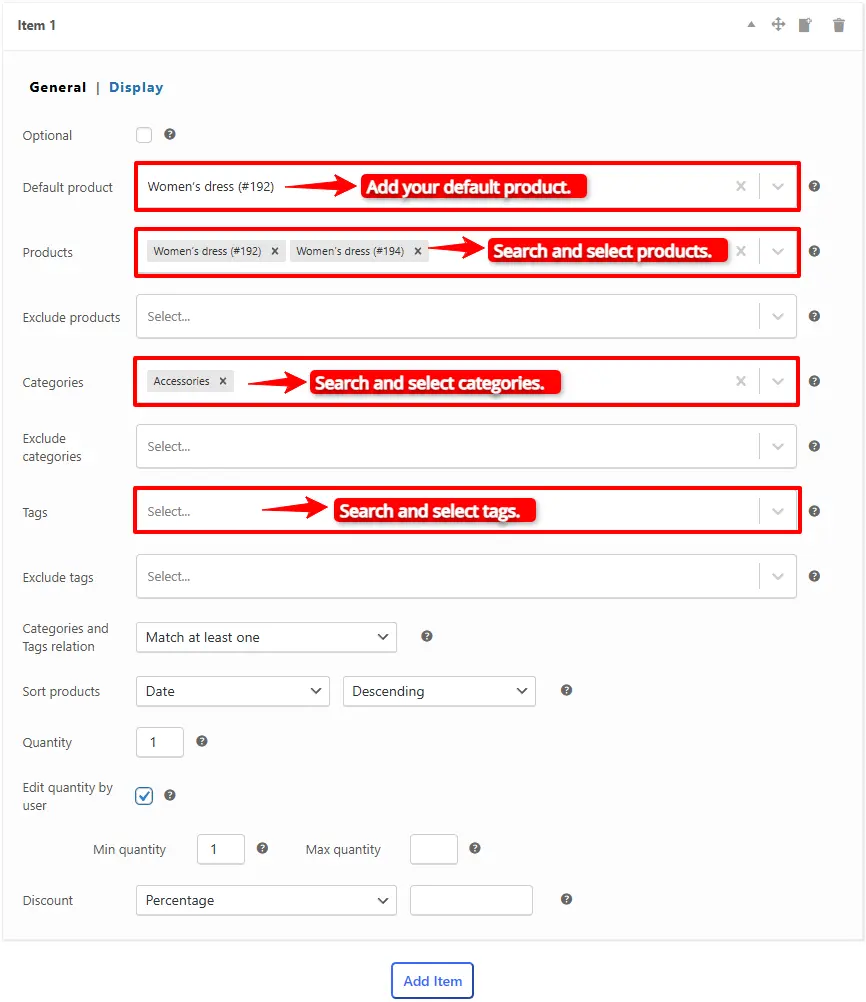
Add products on product bundle items

Now we have added an item to the bundle, and you can repeat the above “Add Items to the Bundle” steps to add other items to the bundle.

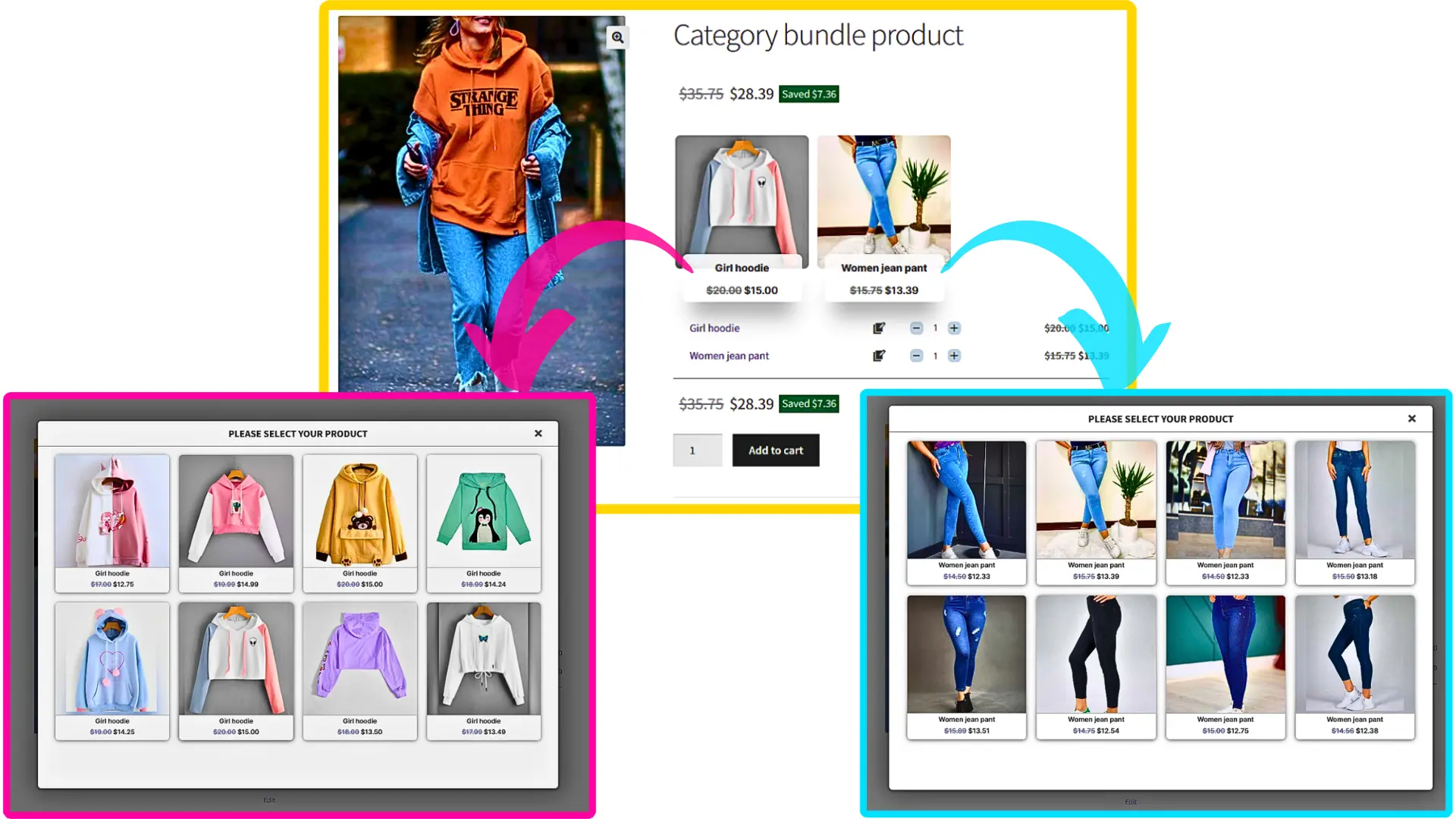
Final Result of WooCommerce Mix and Match Free Plugin

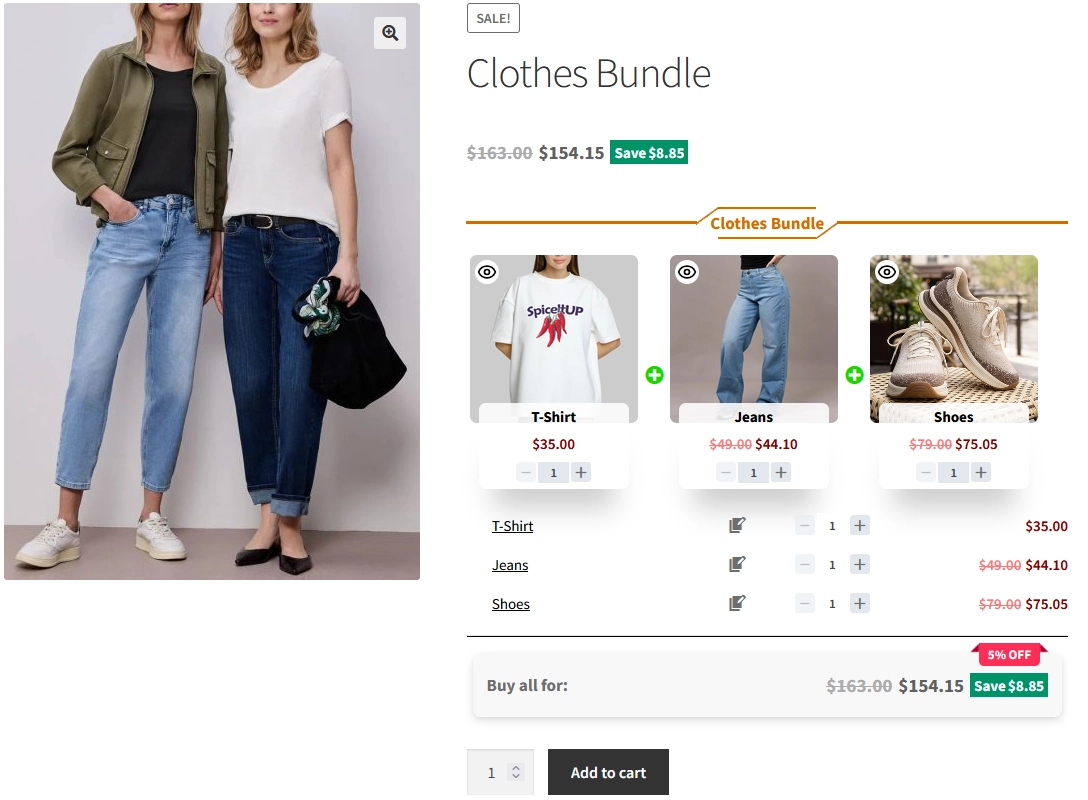
We have created a configurable Women’s clothes set that allows customers to build their own set, like the image below.
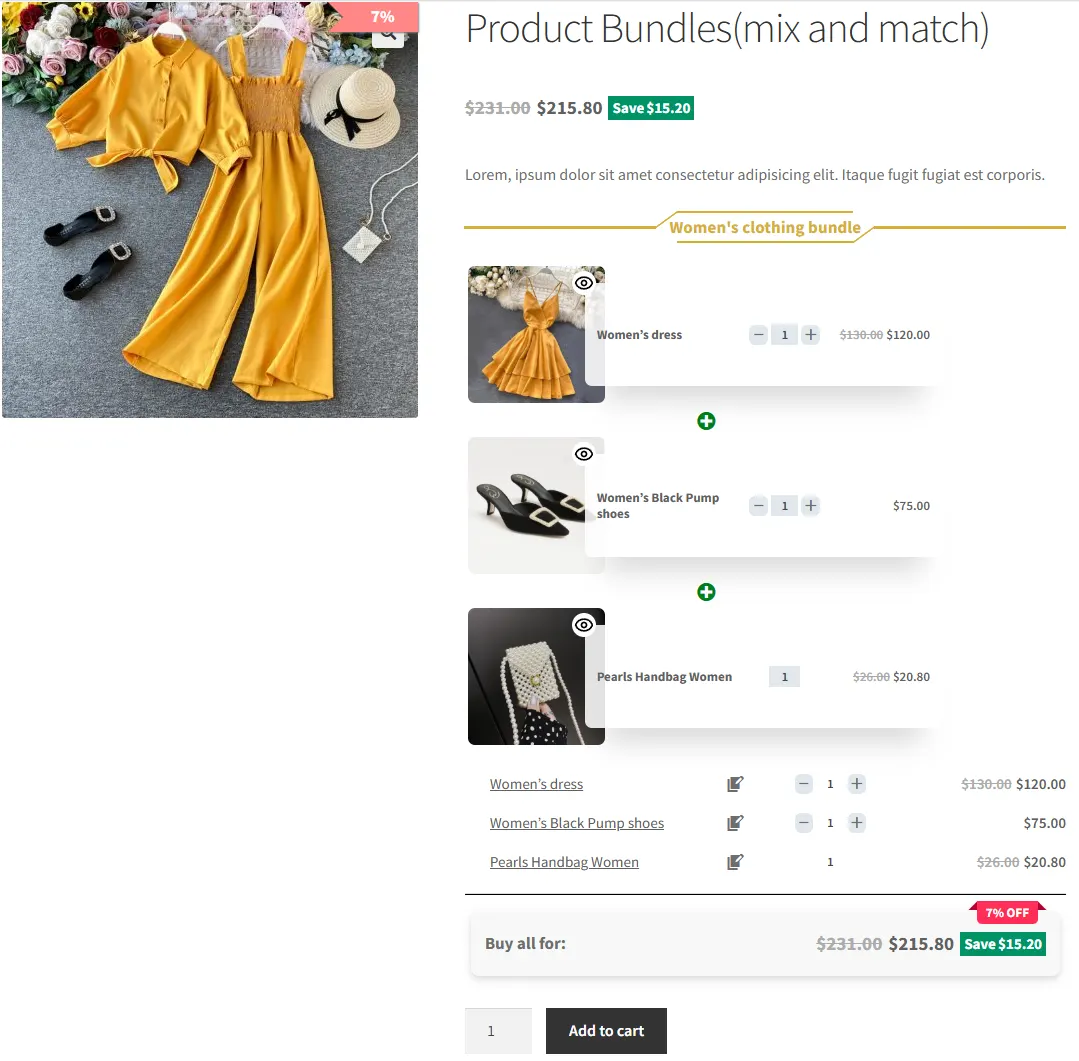
WooCommerce Mix and Match product bundles

Shortcodes

The plugin has the below shortcodes and you can use them:

  • [asnp_wepb_product] Use it on the product page to show the bundles.
  • [asnp_wepb_product show_add_to_cart="1"] Use it on the product page to show the bundles + add to cart button.

Articles

To delve deeper into the realm of Product Bundle plugin and their applications, we invite you to explore the array of informative resources we’ve compiled in the list below. These resources promise to expand your understanding and proficiency in leveraging the potential of this plugin to the fullest:

WooCommerce Mix and Match Free Plugin FAQ

What is a mix and match product?

A mix-and-match product allows customers to create personalized boxes. They can select products and quantities from multiple available products and mix them together to build their own one.

How to create a mix and match product in WooCommerce?

To create a mix and match product you can use the Easy Product Bundles for WooCommerce. The plugin allows creating simple to advanced mix and match products like bundle discounts, BOGO deals, multiple gift products, custom products, and configurable or personalized products easily.

How do I merge two products in WooCommerce?

If you want to merge products and sell them together then you can create a bundle product and sell it. You can use the Easy Product Bundles for WooCommerce plugin to create simple to advanced bundles.
Updated on Leave a comment

WooCommerce Product Bundles Free Plugin

WooCommerce Product Bundles Free Plugin

Easy WooCommerce Product Bundles is a free plugin designed to help store owners create attractive product bundles and sell multiple products together as a single offer. It allows you to build powerful deals across different product types, boosting sales while giving customers better value and a smoother shopping experience. As a smart product bundle builder, this plugin strengthens cross-selling strategies, improves conversions, and supports better visibility in search engines.

In this article, you’ll learn how to create product bundles in WooCommerce step by step using this free plugin.

Video Tutorial

How To Create Product Bundles in WooCommerce

To create product bundles in WooCommerce, we use the free and powerful Product Bundle Builder for WooCommerce plugin, one of the most popular WordPress plugins in 2025. This plugin is easy to use and provides a wide range of customization options, allowing store owners to create flexible, attractive bundles tailored to their customers’ needs.

Step 1: Install WooCommerce Product Bundles Free Plugin

To install Easy WooCommerce Product Bundles, follow the below steps.

  1. Navigate to the Plugins >> Add New menu on your WordPress website
  2. Then search for Product Bundle Builder for WooCommerce or “Asanaplugins”
  3. Find the Product Bundle Builder for WooCommerce
  4. Install the plugin and activate it.
Installing Product Bundle Free Plugin

Step 2: Create Product Bundles in WooCommerce

After installing the Easy WooCommerce Product Bundles free plugin, you can create a product bundle in WooCommerce.

Here we will create a product bundle with three default products.

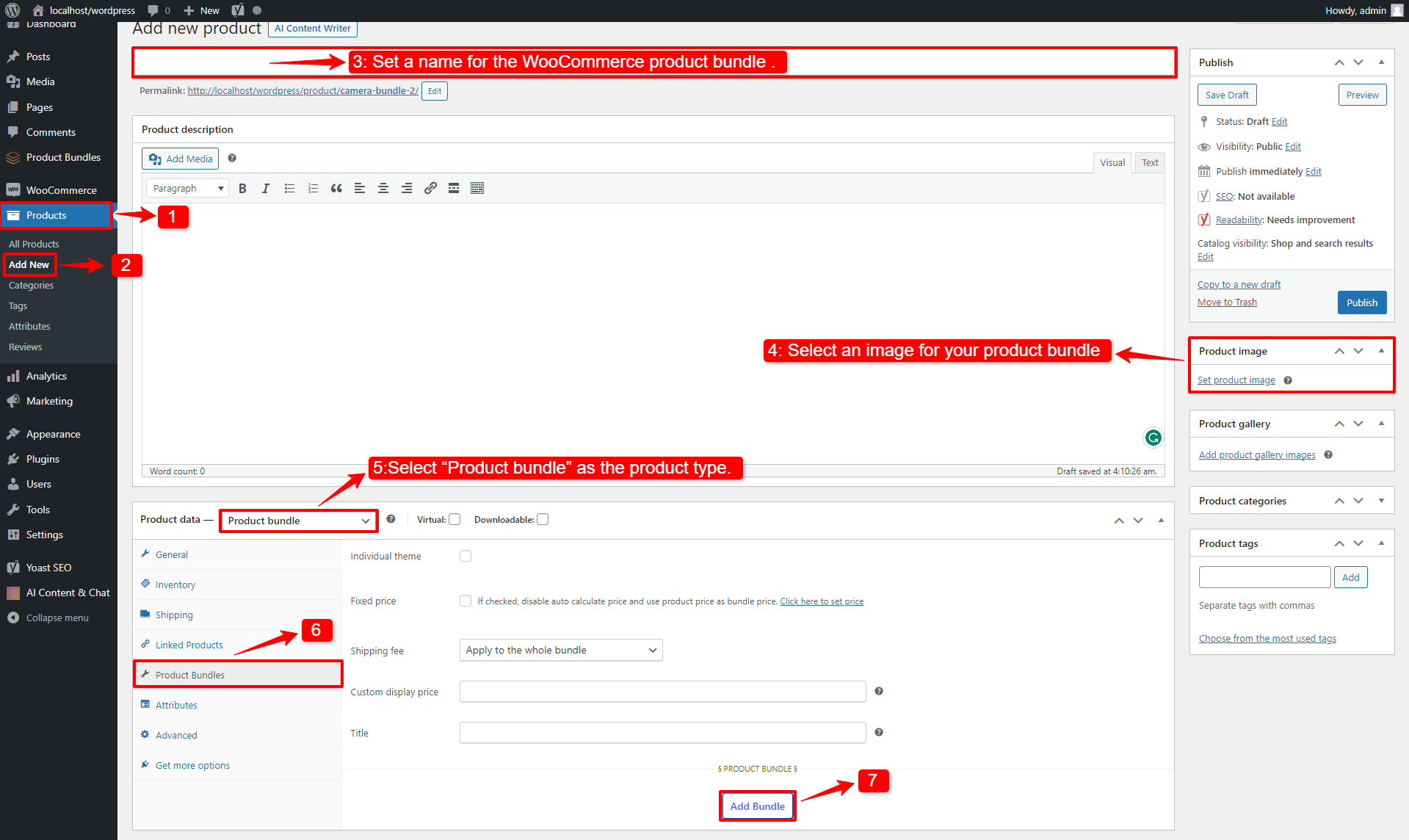
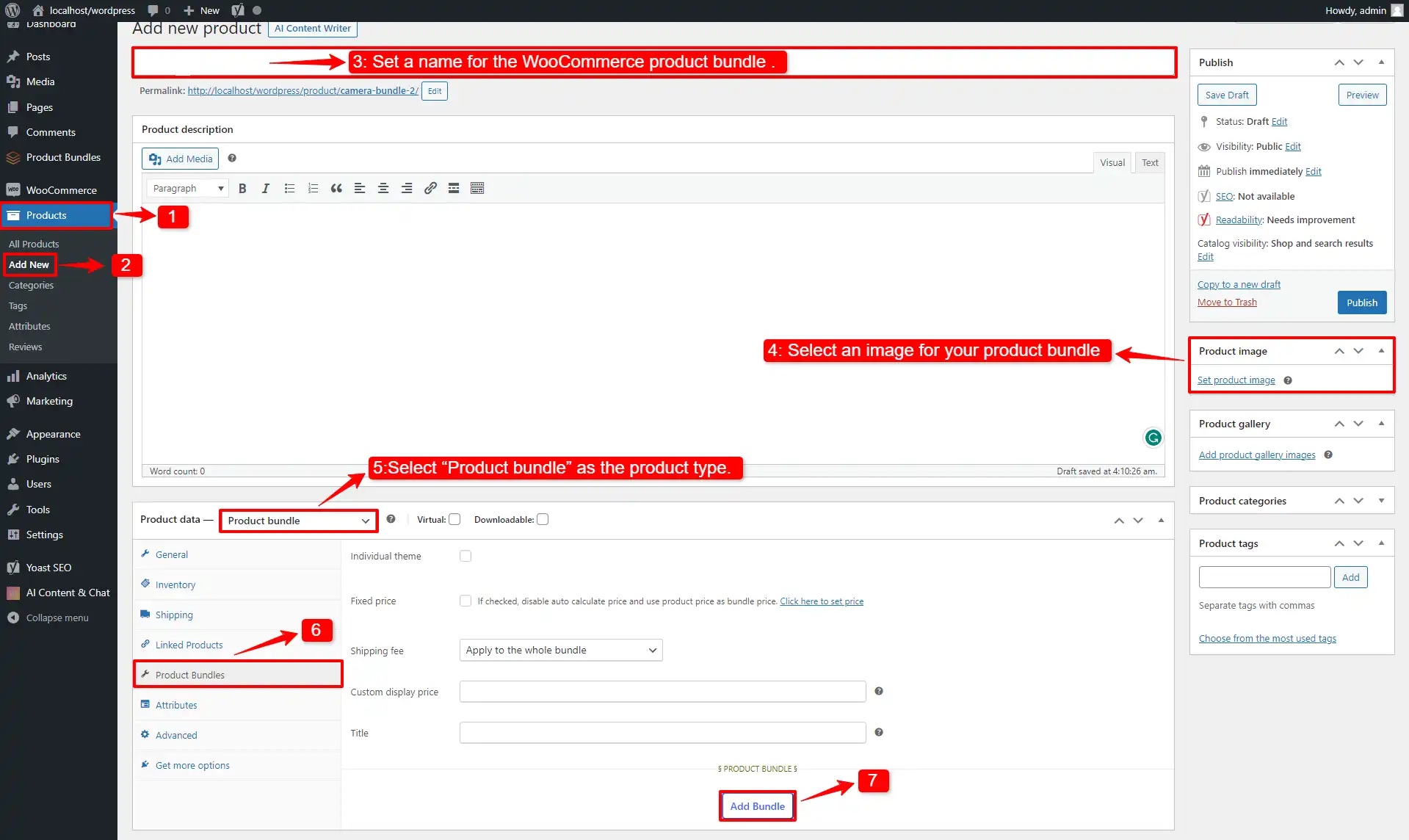
  1. Navigate to WooCommerce Products >> Add New to create a new product.
  2. Set a name for the product bundles.
  3. Click on “Set product image” from the right sidebar and select an image for your Product Bundles.
  4. Now navigate to the Product data panel, and select “Product bundle” as the product type.
  5. After selecting “Product bundle” as the product type, the “Product Bundles” tab will appear in the product data panel.
  6. Click on the “Product Bundles” tab.
  7. And click on the “Add Bundle” button to add a new bundle item to the product bundle.
Create Product Bundles in WooCommerce

8. Now, in “the default product” field, search for a product and select it.

Step 3: Customising WooCommerce Product Bundles

You can also configure the settings below for your WooCommerce Product Bundles in the item field:

  • Sort products: With this field, you can sort selected products by “ID”, “Title”, “Menu order”,” Date”, “Price”, “popularity” and“Rating”.
  • Quantity: In this field, you can set the default quantity for each product.
  • Edit quantity by user: Check this field to allow the user to change the quantity of product and Set the “min/max quantity” for each item.
  • Discount: In this field, you can set discounts for product bundles by percentage, price or fixed price.
Customising WooCommerce Product Bundles

Now you can go to the “display” tab of the item and configure the following sections:

  • Overwrite bundle item title.
  • Overwrite bundle item short description. (Show when the mouse hovers over it)
  • Change the title of the bundle’s empty item.
  • Change the product list product selection title.
  • Change the pop-up header title.
  • Set an image for the empty item.
Display tab of product bundle item

9. Then you can click on “Add Item” to add a new item to the bundle and select a default product for it. We have created two bundle items.

10. At the end, publish the product bundles on your website.

Step 4: Configure the Plugin Settings

All the plugin settings you need can be found on the “Product Bundles” tab in the WordPress dashboard.

Configure the Product Bundles plugin Settings

Settings and customization are available on this page:

  • Item View: In this section, you can configure various settings, such as displaying stock availability, showing product ratings and descriptions, adding a quantity field on item pages, displaying a plus icon for items, setting the theme and size options, positioning product bundles on the product page, defining custom CSS selectors, specifying the product price selector, and many other customizable options.
  • Change product popup: In this section, you can configure popup settings.
  • Styles: In this section, you can customize the colours of different parts of your bundle and set the product image object-fit CSS.

Final Result

WooCommerce product bundles will be shown in front like this image.

Product Bundles in WooCommerce

Pricing of Product Bundles in WooCommerce

The Easy WooCommerce Product Bundles free plugin offers two pricing strategies.

  1. A fixed price for the whole bundle product
  2. Auto calculate the price based on selected products

1. Fixed Price

If you would like to set a fixed price for the whole bundle product, then check the “Fixed Price” option.

fixed price product bundle in woocommerce

Navigate to the “General” tab and set a regular price for the Product. You can set a Sale price too.

After setting a price, update the product.

Set fixed price

Now you can see the fixed price for the whole bundle on the product and cart pages.

final result of set fixe price

2.Auto Calculate Price

Auto calculates price helps to set a dynamic price for the product bundle based on selected items for the bundle.

To use the auto-calculate price feature, uncheck the “Fixed Price” option and update the product.

Auto calculated price of product bundles

As you can see in the below image, the bundle price is the total of the selected products’ prices.

WooCommerce Product Bundles with Variables

Learn how to create product bundles that include variable products in WooCommerce. In the following, we’ll guide you through the step-by-step process of setting them up.

Video

Step 1: Create WooCommerce Product Bundles with Variables

  1. Navigate to WooCommerce Products >> Add New to create a new product.
  2. Set a name for the Variables product bundles.
  3. Click on “Set product image” from the right sidebar and select an image for your Variables Product Bundles.
  4. Now navigate to the Product data panel, and select “Product bundle” as the product type.
  5. After selecting “Product bundle” as the product type the “Product Bundles” tab will appear in the product data panel.
  6. Navigate to the “Product Bundles” tab and click on the “Add Bundle” button to add a new bundle item to the product bundle.
Create WooCommerce Product Bundles with Variables

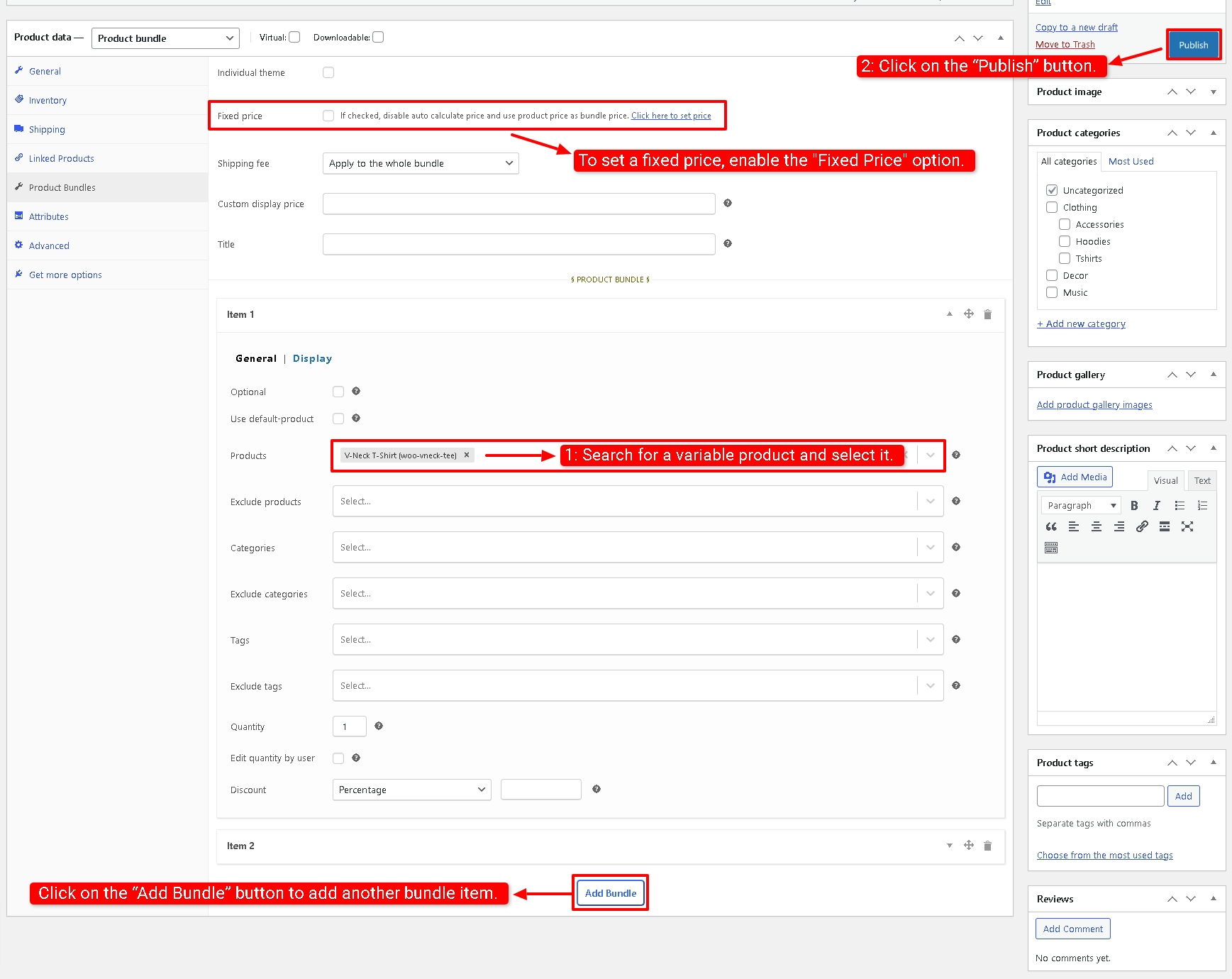
7. Now in the “Products” field of the bundle item search for a variable product and select it.

8. You can include as many products as you want in the “Products” field.

9. If you want to add another bundle item, you can click on the “Add Bundle” button to add another bundle item. We created a product bundle with two bundle items.

10. You can set a fixed price or auto-calculate the price for the product bundle.

  • To set a fixed price, enable the Fixed Price option and set a regular price for the product in the General tab.
  • To use the auto-calculate price, disable the fixed price option.

11. Click on the “Publish” button to publish the bundle product in your WooCommerce store.

configurate WooCommerce Product Bundles with Variables

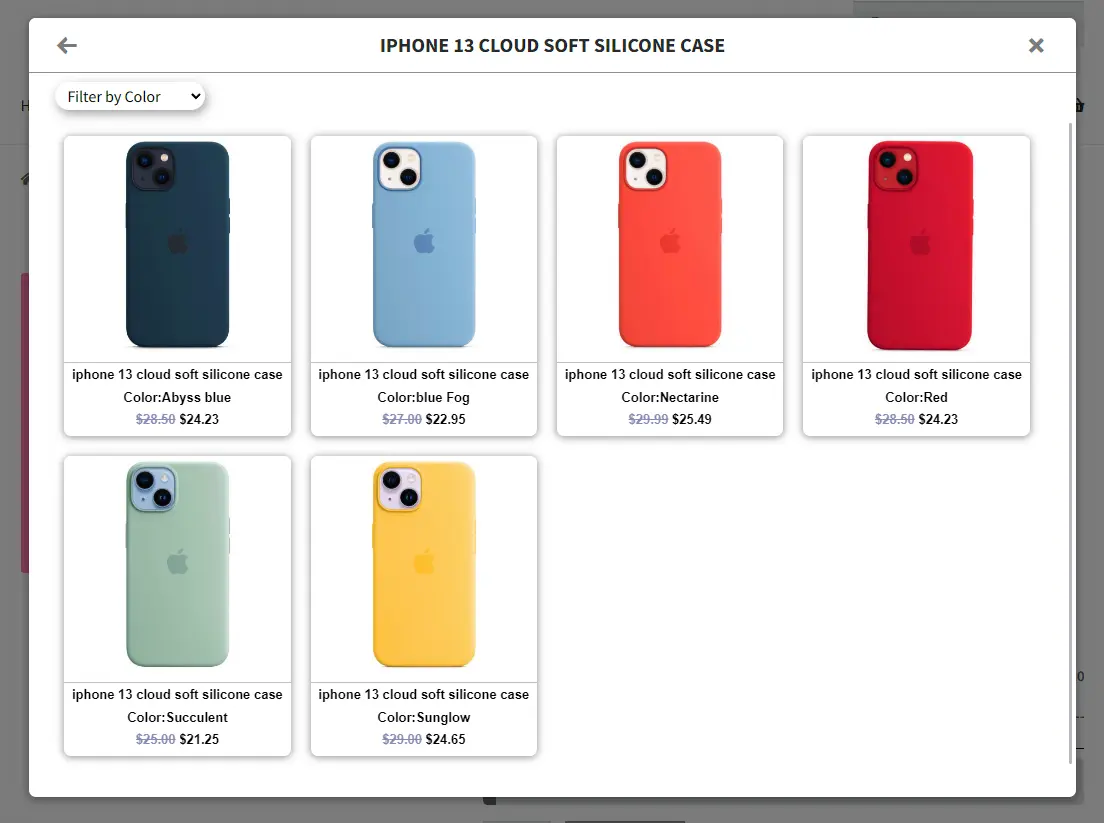
The variable product in the frontend will be shown as below in a pop-up.

The variable product in WooCommerce product bundles

Apply Discounts on WooCommerce Product Bundles

It is possible to apply discounts to WooCommerce Product Bundle items.

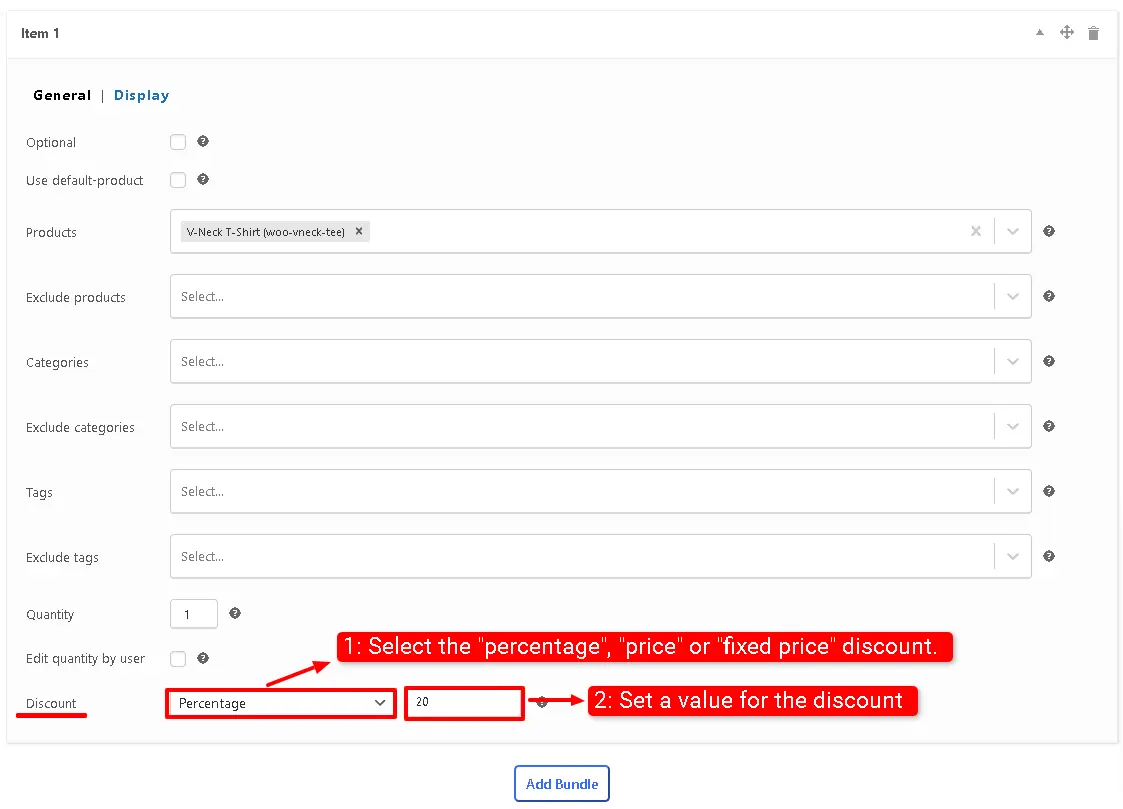
You can set a percentage, price, or fixed price discount on the products

Each bundle item in Product Bundles for WooCommerce has a discount field, and you can use it to apply a discount.

In the example, we applied a 20% discount on the bundle item.

Apply Discounts on WooCommerce Product Bundles

Create WooCommerce Product Bundles with Variations

If you would like to include variation products in your WooCommerce Product Bundle, we recommend you use the pro version of the Easy WooCommerce Product Bundles pro plugin.

You can read this article to create WooCommerce Product Bundles with Variations.

Create Personalized Product Bundles in WooCommerce

If you want to offer your customers to create their Product Bundles from multiple available products, then personalized product bundles can help you.

You can read the create personalized product bundles in WooCommerce for more information.

Create Mix and Match Products in WooCommerce

A WooCommerce mix and match product is a product where customers can build their personalized boxes from individual products on your site.

You can read the create mix and match products in WooCommerce for more information.

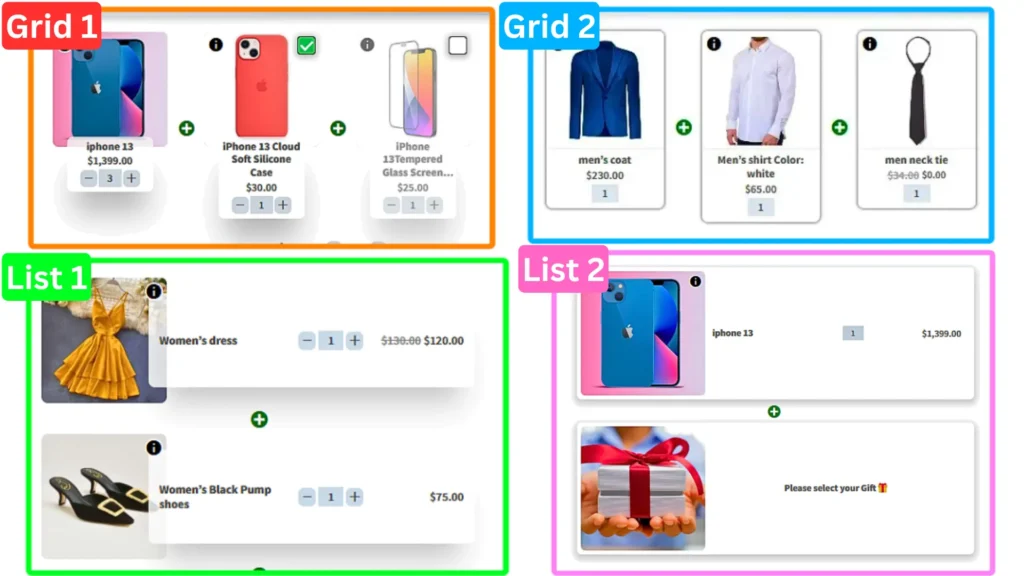
Themes and Sizes

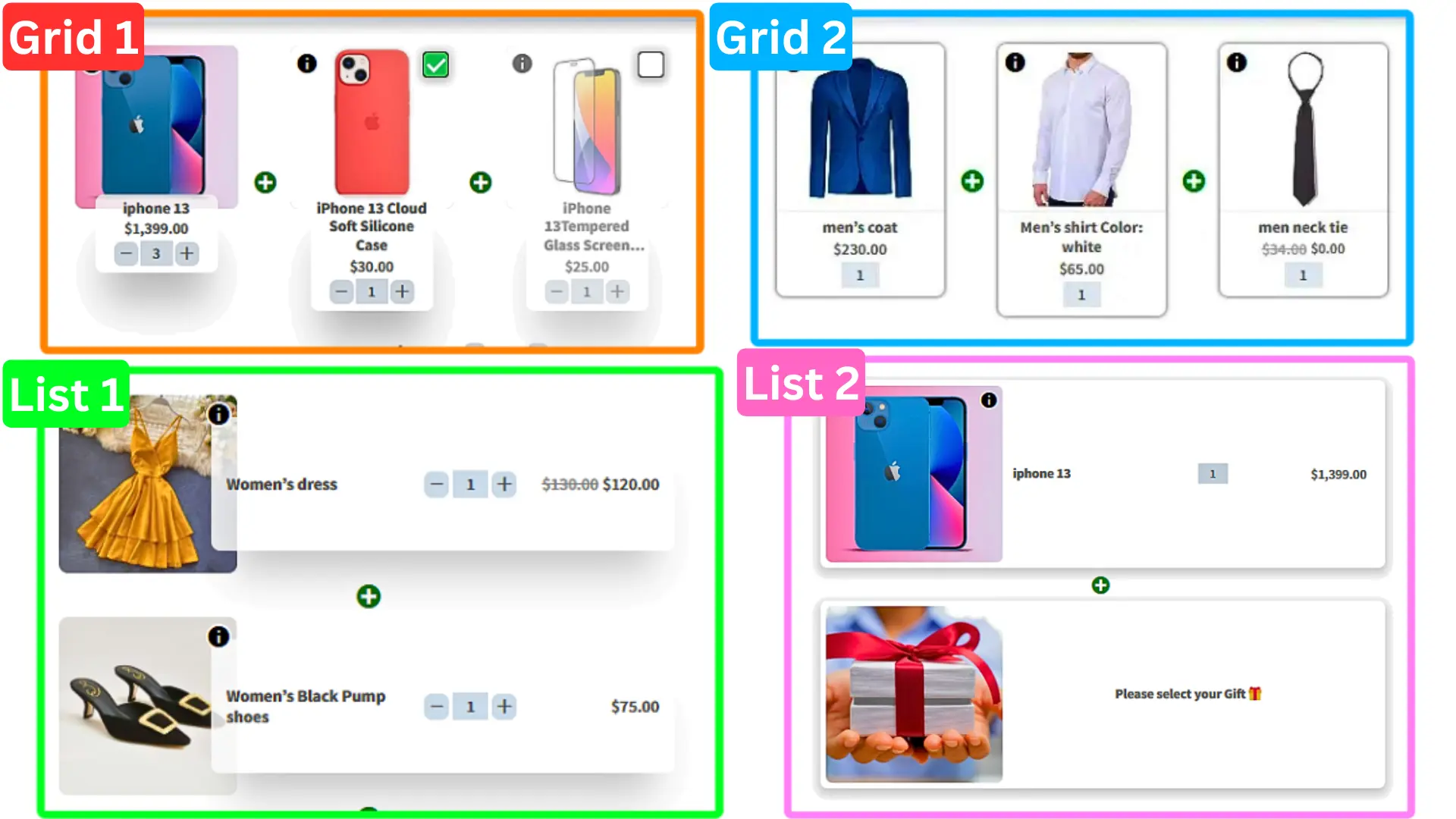
The Easy WooCommerce Product Bundles pro plugin offers multiple beautiful Grid and List themes. Also, you can select “small, medium, large” for the theme size.

You can set a theme for all of the product bundles on your site, or you can set a theme individually for a specific product bundle.

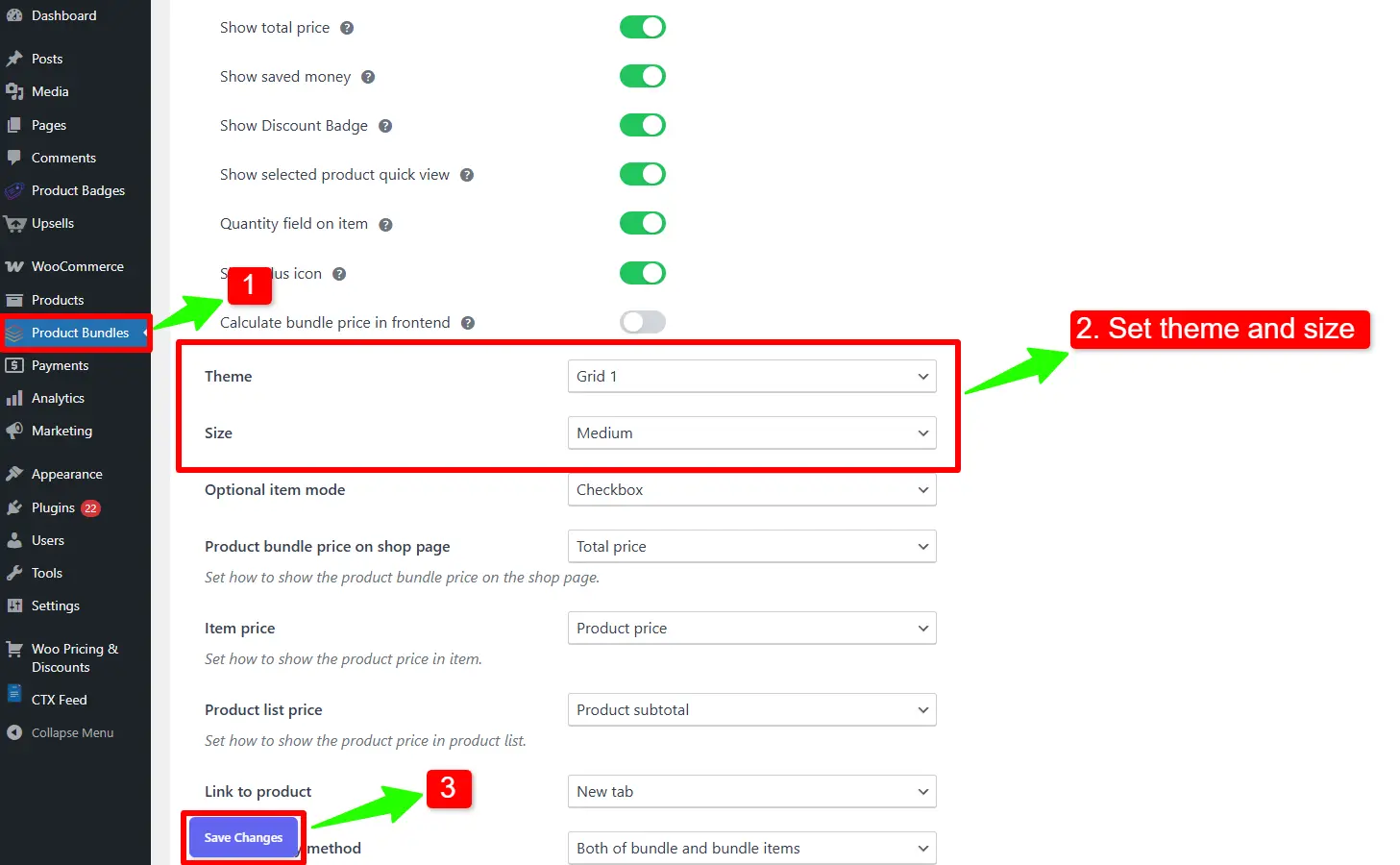
To set a theme, follow the steps below:

  1. Navigate to the “Product Bundles” menu in the WordPress dashboard.
  2. In the Settings tab, there is a Theme and Size option to set a global theme and size.
  3. Set your desired theme and size and save the settings.
  4. Save the changes.
theme and size for product bundle woocommerce

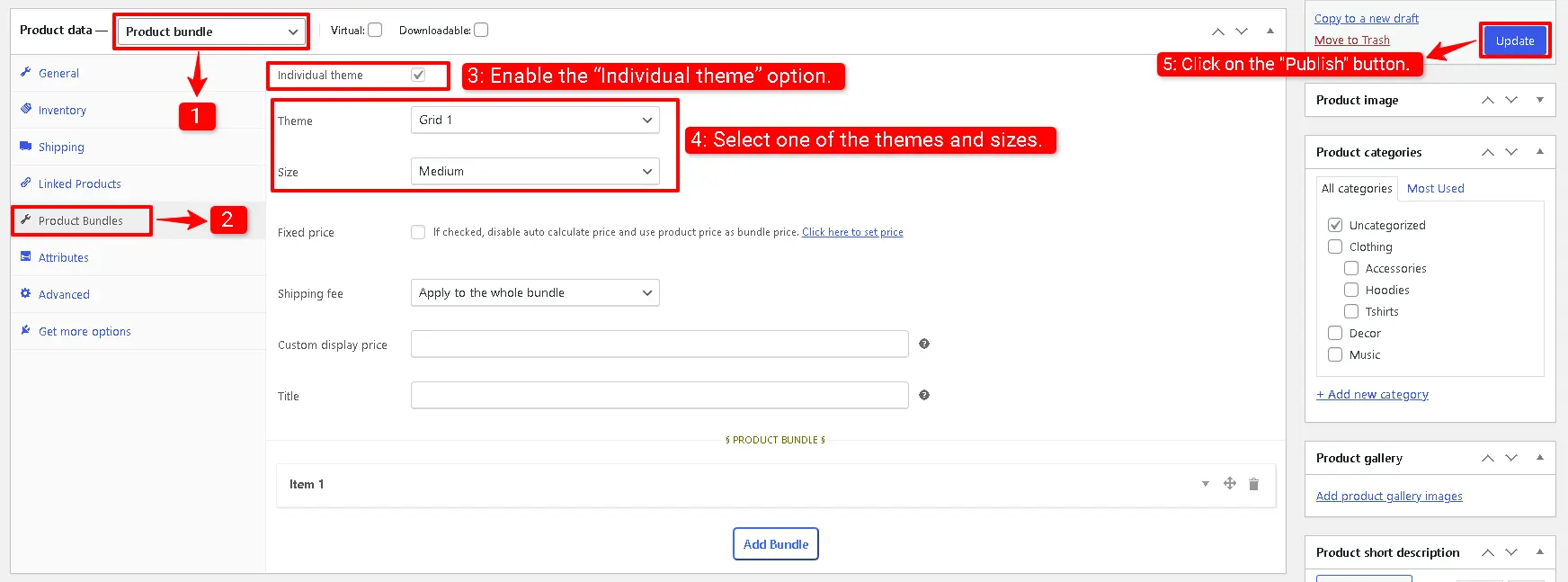
To apply a theme individually to a specific product bundle, follow the below steps.

  • Open the edit product page.
  • Navigate to the “Product Bundles” tab in the “Product data” panel.
  • Enable the “Individual theme” option
  • Set the themes and sizes
  • Click on the “Publish” button
Individual theme and size

You can see different themes in the image.

Themes and Sizes of product bundle plugin

Advanced WooCommerce Product Bundles Examples

You can read how to create product bundles in the WooCommerce article that includes various types of product bundling examples.

You can create product bundles like:

  • Simple or Pure product bundles
  • Advanced and Dynamic product bundles
  • Assembled products bundle
  • Mix-and-Match products bundle
  • Frequently bought together products bundle
  • Create BOGO deals
  • Give gift products
  • Create Personalized Boxes
  • Recommend addons and essentials
  • Optional products in WooCommerce Product Bundles

Shortcodes

The plugin has the below shortcodes and you can use them:

  • [asnp_wepb_product] Use it on the product page to show the bundles.
  • [asnp_wepb_product show_add_to_cart="1"] Use it on the product page to show the bundles + add to cart button.

To delve deeper into the realm of Product Bundle plugins and their applications, I invite you to explore the array of informative resources I’ve compiled in the list below. These resources promise to expand your understanding and proficiency in leveraging the potential of these plugins to the fullest:

Updated on 1 Comment

How to Create WooCommerce Product Bundles (2026 Tutorial)

Product Bundle or Product Groups is a strategy to group products together and sell them with a discount or without. This strategy convinces the customer to spend more money on increasing the average order value. In this tutorial, we will learn how to create various WooCommerce Product Bundles quickly and easily.

There are several methods to implement product bounding in WooCommerce. In this guide, we will introduce some useful product bundle strategies like Assembled Products, Mix-and-Match products, Dynamic Bundles, Simple Bundles, BOGO (Buy One Get One Deal), Gift Products, Optional Products, Frequently Bought Together Products, personalized boxes, recommend add-ons and essential.

WooCommerce Product Bundles Plugin

The Easy WooCommerce Product Bundles plugin allows you to create simple to advanced product bundles in WooCommerce. In this article, we use the Easy WooCommerce Product Bundles plugin to create advanced and simple product bundles.

Some example product bundles that you can create with the Easy WooCommerce Product Bundles plugin.

  • Simple or Pure product bundles
  • Advanced and Dynamic product bundles
  • Composite Products
  • Custom Bundles with Categories
  • Assembled products bundle
  • Mix-and-Match products bundle
  • Frequently bought together products bundle
  • Create BOGO deals
  • Give gift products
  • Create Personalized Boxes
  • Recommend addons and essentials
  • Optional products in WooCommerce Product Bundles

How to Create Simple WooCommerce Product Bundles

If you want to sell several related products together as one package, this method is a simple and effective solution.

With this approach, the products inside the bundle are already selected by the store owner, so the customer does not need to choose or add items manually. They simply add the bundle to the cart and complete the purchase.

Available pricing strategies:

  • Fixed Price: Set a regular or sale price for the entire product bundle.
  • Auto-calculated Price: The plugin automatically calculates the final price based on the selected products. You can apply a percentage discount, a fixed discount amount, or a custom price for each bundle item.

You can read Product Bundles in WooCommerce for more information.

Simple WooCommerce Product Bundles

How to Create WooCommerce Product Bundle with Variations (Free Plugin)

Creating a product bundle in WooCommerce with a free plugin simply means selling a few related products together in one place, while still letting customers choose options like color or size for each product. Instead of adding items to the cart one by one, the customer selects everything on a single page and buys them together. This makes shopping easier for customers and helps store owners sell more, without using complicated or paid plugins.

To learn how to do this step by step, read this WooCommerce Product Bundle with Variations (Free Plugin)
article.

WooCommerce Product Bundle with Variations (Free Plugin)

How to Create WooCommerce Mix and Match

A WooCommerce Mix and Match product lets customers build their own custom bundle by choosing individual items and quantities from a selection you provide, creating personalized product boxes like gift sets, assortments, or custom offers right on your store. The free Easy Product Bundles for WooCommerce plugin makes this possible without complex setup, offering flexible pricing (fixed or auto-calculated), optional items, quantity limits, and visual layouts so shoppers can mix products as they like.

For step-by-step instructions and real example configurations, read this WooCommerce Mix and Match Free Plugin article.

WooCommerce Mix and Match

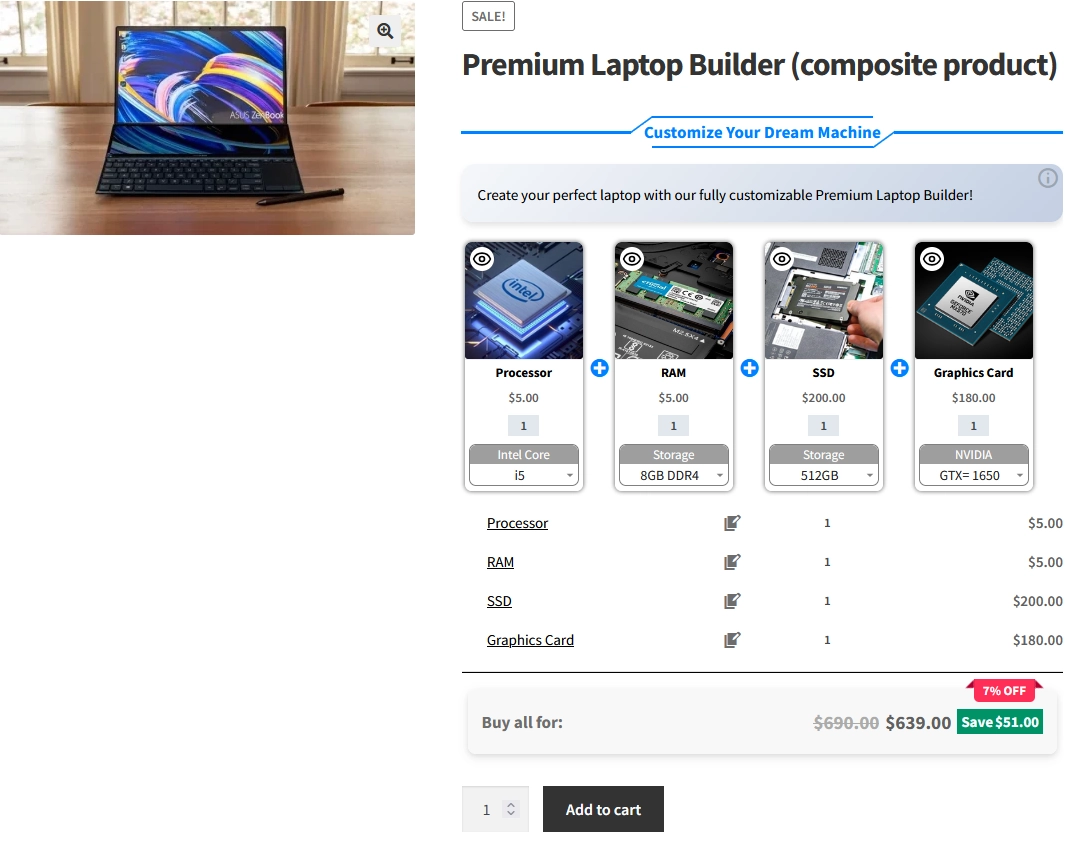
How to Create WooCommerce Composite Products

A WooCommerce Composite Product is a type of product that lets customers create and purchase a customized item by selecting from a set of pre-defined components or options. For example, a “Build Your Own Pet Basket” allows customers to choose the products that will make up their unique gift basket for their beloved furry friends, giving them full control over the contents while keeping the shopping experience simple and seamless.

You can read Create WooCommerce Composite Products for more information.

WooCommerce Composite Products

How to Create Custom Bundles with Categories 

One of the main features of the WooCommerce Product Bundle plugin is the ability to assign categories to bundle items. Categories help group related products together, making it easier for customers to find what they need and create personalized bundles that match their preferences. Using categories in your bundles not only simplifies the shopping experience but also increases the chances of a sale by guiding customers to the right products effortlessly.

You can read Create Custom Bundles with Categories for more information.

How to Create Custom Bundles with Categories

Provide Free Gift Products in WooCommerce Complete Guide

This guide explains how to offer free gift products in your WooCommerce store to delight customers and boost sales. You’ll learn practical ways to add complimentary items to orders based on rules like minimum purchase amount, specific products, or cart conditions. The step‑by‑step instructions help you create attractive promotions that increase average order value and improve the overall shopping experience.

For full details and examples, read the complete guide on “ Providing Free Gift Products in WooCommerce Complete Guidearticle.

If you would like to auto-add gift products to the cart based on advanced conditions you can check out Auto Add Products to Cart for WooCommerce plugin.

Create gift product with WooCommerce product bundle

How to Create Dynamic and Flexible Bundles in WooCommerce

This article walks you through how to build dynamic product bundles in WooCommerce that give customers flexible choices and boost your store’s sales. Instead of fixed sets, dynamic bundles let shoppers pick items or variations within a bundle, creating custom combinations that suit their needs. You’ll find clear, step‑by‑step guidance and examples to set up these smart bundles using a free or premium plugin, helping you increase conversions and improve the shopping experience.

For complete instructions and tips, read the full article “How to Create Dynamic and Flexible Bundles on AsanaPlugins.

Cross-Sell Bundles

How to Create WooCommerce Flexible Optional Product Bundles 

This guide explains how to create flexible optional product bundles in WooCommerce, allowing customers to choose which items they want to include in a bundle. Instead of forcing all products, shoppers can mix and match options according to their preferences, making the purchase more personalized and engaging. Using flexible bundles helps increase customer satisfaction, boost sales, and improve the overall shopping experience.

For detailed steps and examples, check out the full article “WooCommerce Flexible Optional Product Bundles” on AsanaPlugins.

Optional Products in WooCommerce Product Bundles

How to Create WooCommerce Combo Offers

WooCommerce Combo Offers let you create attractive deals by bundling multiple products together. Customers can enjoy discounts, “buy one, get one” promotions, or special pricing when they purchase specific product combinations. This strategy makes shopping simpler, encourages larger orders, boosts your sales, and enhances the overall customer experience.

You can read the WooCommerce Combo Offers article for more information.

How to Create WooCommerce Combo Offers

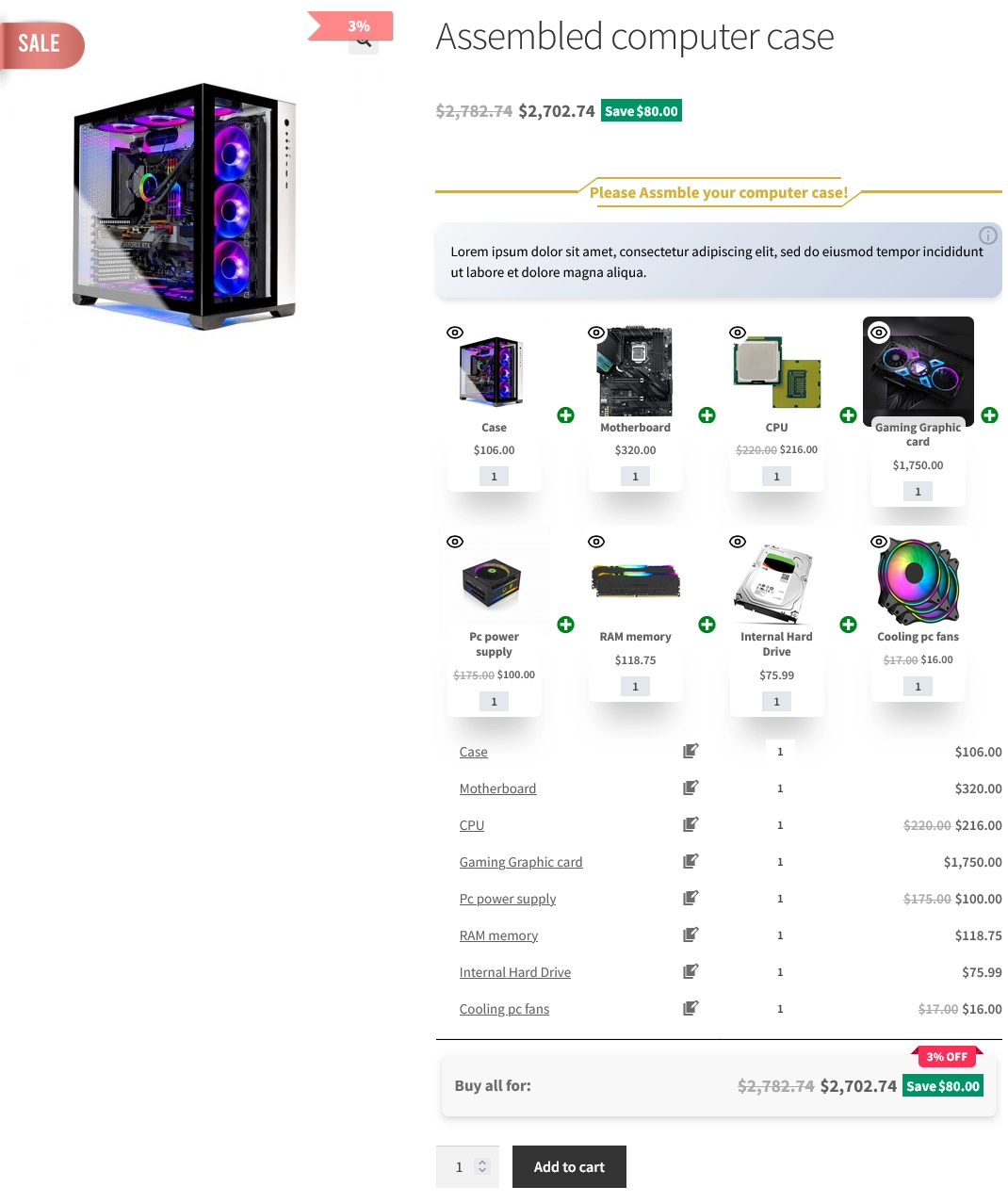
Create Assembled Products in WooCommerce

If you sell products that can be customized, WooCommerce Product Bundles lets your customers create their own unique combinations. Shoppers can assemble a product by selecting from the available components, giving them full control over what goes into their bundle and making the shopping experience more personalized and engaging.

You can read How Create Assembled Products in WooCommerce article for more information.

Assembled Products with WooCommerce Product Bundles plugin

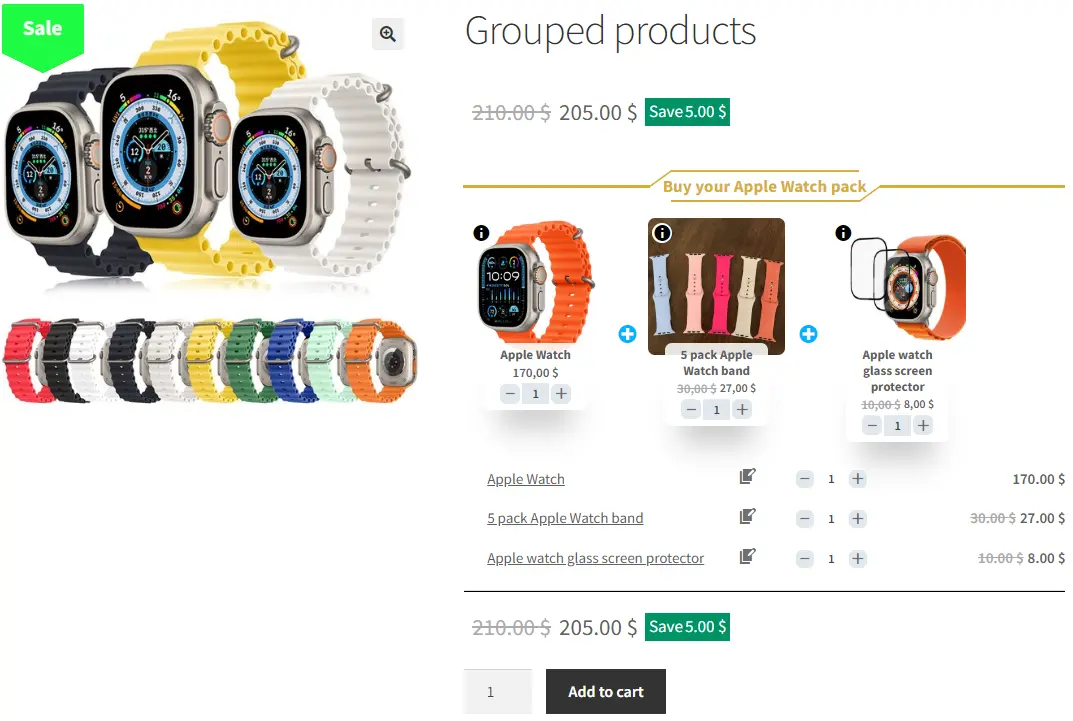
How to Create WooCommerce Grouped Products

This article explains how to use WooCommerce Grouped Products to display related items together on a single product page, letting customers add multiple products to their cart at once. Instead of selling items individually on separate pages, grouped products show complementary products—like accessories or related tools—together in one place, improving the shopping experience and increasing potential sales. The guide also covers practical steps and tips for setting up and managing grouped products in your store using the Product Bundle Builder plugin.

You can read How to Create WooCommerce Grouped Products article for more information.

WooCommerce Grouped Products

Create Frequently Bought Together Products Bundle

Stores like Amazon boost sales by showing products that are “frequently bought together.” With the WooCommerce Product Bundles plugin, you can create your own bundles of these popular product combinations. You can also add a discount to make the bundle even more appealing, encouraging customers to buy more and increasing your average order value.

WooCommerce Frequently Bought Together

How to Create BOGO Deals with WooCommerce Product Bundles

Want to offer “Buy One Get One” (BOGO) deals in your WooCommerce store? With the Product Bundle Builder for WooCommerce, you can easily create simple BOGO deals by bundling products together. This allows you to attract new customers, encourage larger orders, and increase sales—all directly through the plugin’s features.

In this article, we also show you how to create BOGO (Buy One Get One) deals in WooCommerce.

However, if you would like to create more advanced BOGO deals, you can check the Discount Rules and Dynamic Pricing for WooCommerce plugin.

Create BOGO Deals with WooCommerce Product Bundles

Create Personalized Boxes in WooCommerce Product Bundles

Allow your customers to create personalized boxes by pick and mix product strategy. You can control the minimum and maximum quantity of items that customers can add to the personalized box.

Recommend Addons and Essentials

If a product has add-ons or essentials you can create a product bundle and offer add-ons as bundle items of that product. Also, you can offer add-ons or essentials as optional bundle items. This way you can increase the average order value.

How to translate WooCommerce product bundles

Translating the WooCommerce product bundle into your own language can have a positive effect on increasing the income of your online store, you can reach customers who may not speak English and are more likely to shop in their native language. 

You can readHow to Translate WooCommerce product bundle article for more information.

Themes and Sizes

There are multiple beautiful grids and list themes in the WooCommerce Product Bundles plugin.

Also, you can choose “small, medium, or large” sizes for items of the product bundle in WooCommerce.

Themes and Sizes of WooCommerce product bundle

Powerful Price Calculation

The Product Bundles for WooCommerce plugin offers fixed price or auto-calculated price options to create bundles. You can set a fixed price for the whole bundle or allow the plugin to calculate a dynamic price based on each bundle item’s price.

Fixed Price for WooCommerce Combo offers

Add discounts to your product Bundles

The plugin allows adding percentage, price, or fixed price discounts on each bundle item when using the auto-calculate price feature.

Discount for product bundle

Shipping Fee Calculation

Select to calculate the shipping fee for the whole bundle or each bundle item.

Shipping Fee Calculation for product bundles

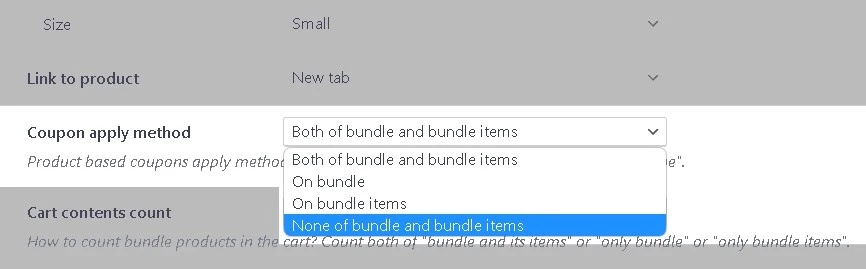
Coupon Apply Method

Control how coupons should be applied to the bundle product (Both bundle and bundle items | Only bundle | On bundle items | None).

Coupon Apply Method of bundled product

WooCommerce Product Bundles Settings

All the plugin settings you need can be found on the “Product Bundles” tab in the WordPress dashboard.

Configure the Product Bundles plugin Settings

Settings and customization are available on this page:

  • Item View: In this section, you can configure various settings, such as displaying stock availability, showing product ratings and descriptions, enabling modal quick views, adding a quantity field on item pages, displaying a plus icon for items, setting the theme and size options, positioning product bundles on the product page, defining custom CSS selectors, specifying the product price selector, and many other customizable options.
  • Change product model: In this section, you can configure the number of products per pop-up page.
  • Styles: In this section, you can customize the colours of different parts of your bundle and set the product image object-fit CSS.

Articles

To delve deeper into the realm of Product Bundle plugin and their applications, we invite you to explore the array of informative resources we’ve compiled in the list below. These resources promise to expand your understanding and proficiency in leveraging the potential of this plugin to the fullest:

🚀 SOCIAL MEDIA LINKS