
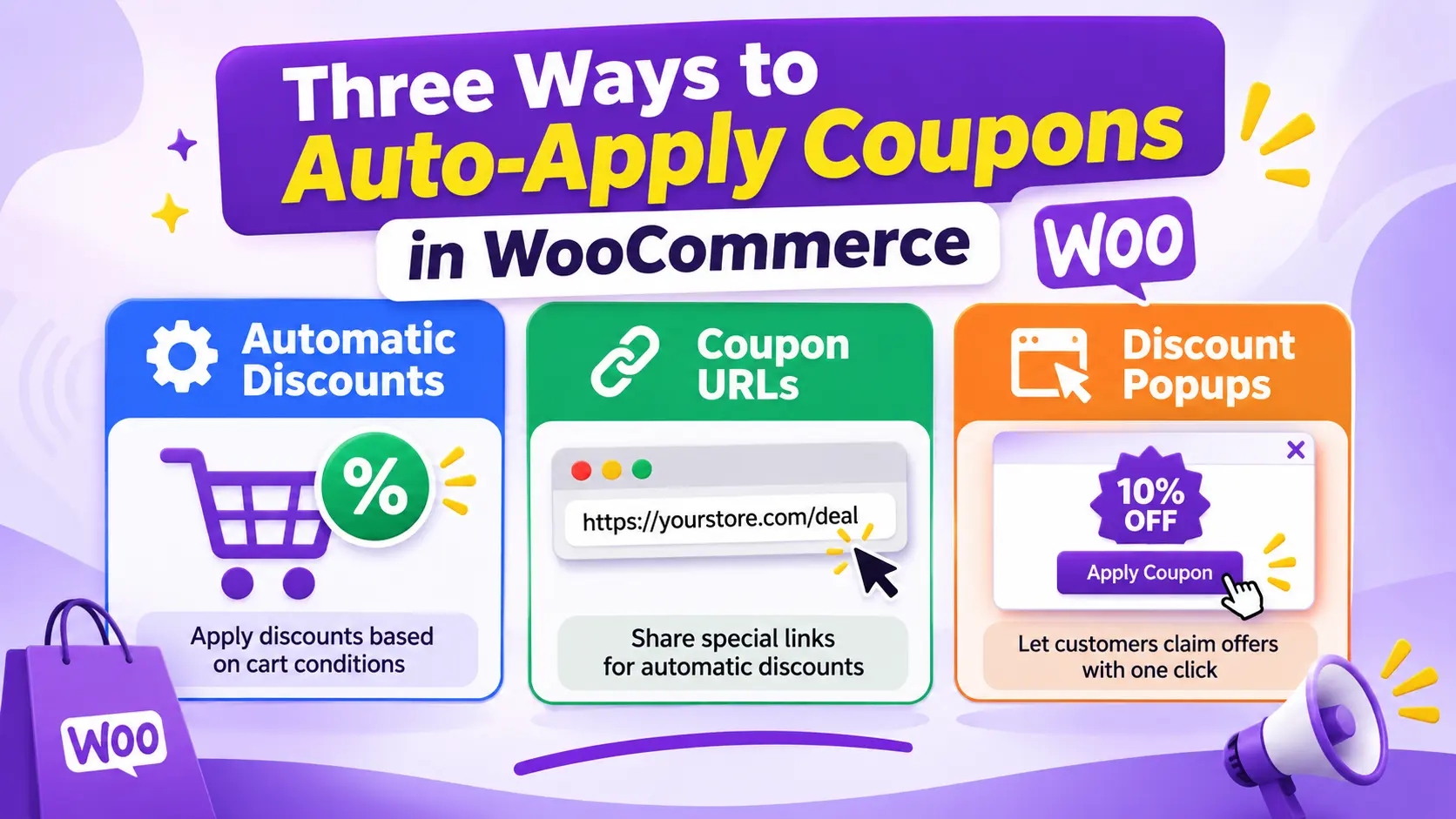
Auto-Apply Coupons in WooCommerce is a simple way to make shopping easier and encourage customers to complete their purchases. Instead of asking shoppers to find and enter coupon codes manually, you can automatically apply discounts when specific conditions are met, use coupon URLs, or let customers apply coupons with a single click.
Automatic coupons make shopping easier, remove unnecessary checkout steps, and help you run targeted promotions without manually managing every order.
The good news is that you don’t need to hire a developer or write custom PHP code to set them up.
In this guide, you’ll learn three practical ways to auto-apply coupons in WooCommerce without writing code, including how to set up automatic discounts with Discount Rules.
Let’s get started!
Table of Contents
- Quick Overview: 3 Ways to Auto-Apply Coupons in WooCommerce
- Why Should You Automatically Apply Coupons in WooCommerce?
- Method 1: Automatically Apply WooCommerce Discounts Using a Free Plugin
- Method 2: Automatically Apply WooCommerce Coupons Using a URL
- How to Create WooCommerce URL Coupons
- Step 1: Install Discount Rules PRO and the URL Coupons Addon
- Step 2: Create a New URL Coupon Rule
- Step 3: Configure Your Discount
- Step 4: Copy Your Unique Coupon URL
- Step 5: Test and Share Your Coupon Link
- Bonus: Create URL Coupons for Specific Products and Categories
- Method 3: Apply WooCommerce Coupons Using a One-Click Discount Popup
- Which WooCommerce Auto-Apply Coupon Method Is Best?
- 5 Smart Automatic Discount Strategies to Increase WooCommerce Sales
- Tips for Running Profitable Automatic Coupon Campaigns
- Frequently Asked Questions
- Can WooCommerce automatically apply coupon codes?
- How do I automatically apply a coupon in WooCommerce without coding?
- Can I automatically apply a discount when a customer spends a certain amount?
- Can I automatically apply coupons to specific products?
- Can I automatically apply multiple coupons in WooCommerce?
- Can I automatically apply coupons for first-time customers?
- Do automatic WooCommerce coupons work with guest checkout?
- Do automatic coupons work with variable products?
- Will automatic discounts reduce my profit?
- Final Thoughts
Quick Overview: 3 Ways to Auto-Apply Coupons in WooCommerce
There are several ways to automatically apply coupons in WooCommerce, depending on how you want customers to receive their offers.
| Method | How It Works | Best For |
|---|---|---|
| Automatic discount rules | Discounts apply when cart conditions are met. | Storewide sales, minimum-spend offers, product and category discounts. |
| Coupon links | Customers receive a discount when they click a special URL. | Email campaigns, social media, affiliates, and advertisements. |
| One-click coupon popups | Customers activate a discount directly from a promotional popup. | Welcome offers, special promotions, and targeted campaigns. |
Which method should you choose?
If you want discounts to appear automatically whenever customers qualify, use automatic discount rules. If you want to distribute exclusive promotional codes through marketing campaigns, coupon links are a better option. And if you want to promote a coupon directly on your website, a one-click coupon popup makes it easy for shoppers to claim the offer.
Why Should You Automatically Apply Coupons in WooCommerce?
By default, WooCommerce requires customers to enter a coupon code and click the Apply button before receiving a discount.
Although this works, it introduces an extra step into the buying process.
Imagine a customer has added $120 worth of products to their cart. You advertise a 10% discount for orders over $100, but the customer must find the coupon code, copy it, return to your store, and enter it at checkout.
Some customers will complete these steps. Others might forget, get distracted, or leave your website searching for a better coupon.
Automatically applying eligible discounts eliminates this unnecessary work.
Here are four reasons why automatic WooCommerce coupons can improve the shopping experience and help your store generate more sales.
1. Reduce Checkout Friction
Customers don’t want to work to receive a discount they’ve already qualified for.
Research from the Baymard Institute found that promotional code fields can interrupt the checkout process. Some shoppers stop to search for coupon codes elsewhere, potentially leaving the original store without completing their purchases.
Automatically applying eligible discounts helps avoid this problem.
Instead of asking customers to enter a code, show the discount in their cart or checkout automatically.
2. Encourage Customers to Spend More
Automatic discounts are particularly useful for increasing average order value (AOV).
For example, you could create this promotion:
- Spend $50 and get 5% off.
- Spend $100 and get 10% off.
- Spend $150 and get 15% off.
A customer with $85 in their cart might decide to add another $15 product to unlock the next discount.
This makes the promotion more than just a price reduction. It gives customers a reason to purchase additional products.
Research published in the Journal of Consumer Research in 2026 examined threshold-based and capped promotions across seven preregistered studies, including a field study. Its findings suggest that threshold offers can encourage stronger purchase intentions and conversions under certain conditions.
You can read the research on promotion architecture.
3. Make Promotional Campaigns Easier to Manage
Imagine running a Black Friday promotion with a 20% discount.
Without automation, you might need to distribute coupon codes, answer questions from customers who cannot apply them, and manually activate or deactivate the promotion.
With automatic discount rules, you can configure the conditions in advance and let WooCommerce handle the application.
You can also schedule promotional periods, target selected products, and create different offers for different shopping situations.
4. Reduce Missed Discounts and Improve Customer Satisfaction
When customers qualify for a discount but forget to apply their coupon code, they may feel frustrated after completing their purchase.
Automatic discounts make promotions more transparent. Customers can see their savings in the cart before placing their order.
This creates a smoother buying experience and makes your offers easier to understand.
Important: Discounts are not guaranteed to increase profitability. If you offer excessive discounts without considering product margins, you could generate more orders while earning less profit. Always set discount amounts and eligibility conditions carefully.
Method 1: Automatically Apply WooCommerce Discounts Using a Free Plugin
Best for: Storewide discounts, minimum-spend promotions, product-specific deals, and category discounts.
WooCommerce doesn’t include a built-in feature for automatically applying coupon codes based on custom cart conditions. However, you can add this functionality using a WooCommerce discount plugin.
One option is Discount Rules and Dynamic Pricing for WooCommerce by AsanaPlugins.
The plugin has a free version that lets you create automatic cart discounts and coupon rules without writing code.
You can configure discounts based on:
- Cart subtotal: Automatically discount orders that reach a minimum amount.
- Specific products: Discount selected products or variations.
- Product categories: Apply discounts to eligible category items.
- Storewide promotions: Offer percentage or fixed-amount cart discounts.
- Promotional schedules: Configure supported promotional dates and times.
Let’s create an automatic discount step by step.
Step 1: Enable Coupons in WooCommerce
Before creating your first automatic coupon, make sure WooCommerce coupons are enabled.
- Open your WordPress dashboard.
- Navigate to WooCommerce → Settings.
- Open the General tab.
- Find the Enable coupons option.
- Check the box to enable coupon codes.
- Click Save changes.
Your store is now ready to use coupon-based discount rules.
Step 2: Install Discount Rules and Dynamic Pricing
Next, install the free plugin.
- Go to Plugins → Add New Plugin.
- Search for Discount Rules and Dynamic Pricing for WooCommerce.
- Find the plugin published by AsanaPlugins.
- Click Install Now.
- Click Activate.
You can also download it directly from the WordPress plugin directory.
Once activated, you’ll find the Woo Pricing & Discounts menu in your WordPress dashboard.
Step 3: Create an Automatic WooCommerce Discount Rule
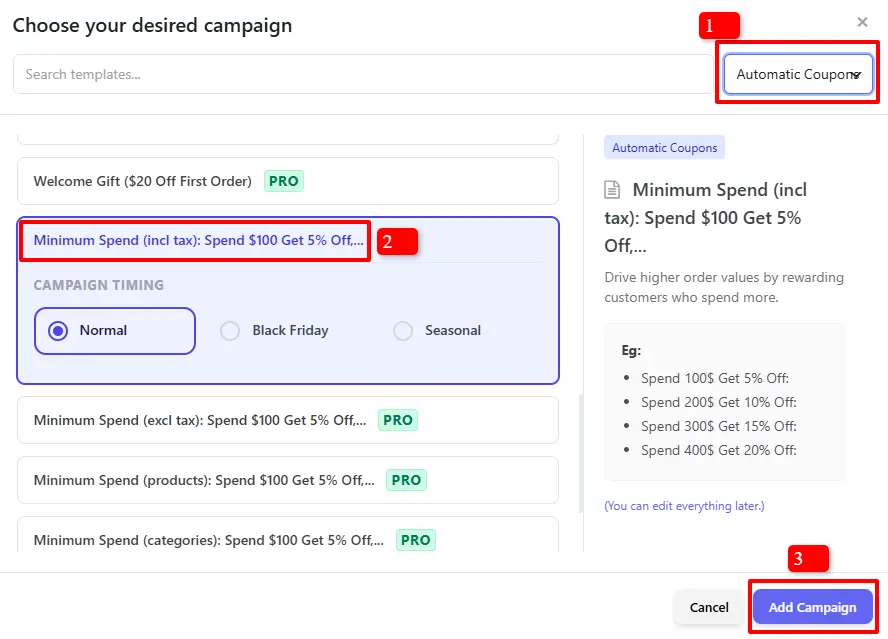
Now let’s create a practical example: automatically give customers 5% off when their cart reaches $100.
- Open Woo Pricing & Discounts.
- Navigate to the Discounts tab.
- Click Add from Template.
- Find the Automatic Coupons section.
- Choose a suitable template, such as a minimum-spend discount.
- Click Add Campaign.
You can also create a custom rule instead of using a template.
Step 4: Configure the Discount
After selecting your template, configure the discount settings.
For our example, use the following settings:
| Setting | Value |
|---|---|
| Rule Name | Minimum Spend |
| Status | Enabled |
| Manual Coupon | Disabled / Unchecked |
| Discount Type | Cart Subtotal |
Important: Leave the Manual Coupon option unchecked. This allows the discount to apply automatically when the customer meets the conditions, without entering a coupon code.
You can also configure how this rule interacts with other discount rules using the Apply Mode field:
- Non-Exclusive: Apply this discount alongside other eligible rules.
- Exclusive: Apply this rule instead of other applicable rules.
- Fallback: Apply this rule only when other rules are not applicable.
Choose the option that best matches your store’s discount strategy.

Step 5: Set the Minimum Cart Amount
Under the order total or subtotal conditions, configure the minimum amount required to receive the discount.
For example:
- Minimum subtotal: $100
- Discount type: Percentage
- Discount amount: 5%
You can also create multiple spending thresholds.
For example:
| Cart Subtotal | Automatic Discount |
|---|---|
| $100 | 5% OFF |
| $200 | 10% OFF |
| $300 | 15% OFF |
| $400 or more | 20% OFF |
This type of promotion encourages customers to increase their order value to unlock better savings.

Step 6: Schedule Your Promotion (Optional)
If you’re preparing a seasonal campaign, you can configure when the discount should become active.
Depending on the campaign and available features, you can use:
- Date range: Run a promotion between two dates.
- Date and time range: Schedule precise promotional start and end times.
- Specific date: Activate a promotion on a particular day.
- Days: Run recurring promotions on selected weekdays.
- Time: Restrict the discount to specific hours.
For example, you can schedule a Black Friday discount to start on Friday and expire automatically when the promotion ends.
Keep the rule enabled so its scheduling conditions can control when it becomes active.
Step 7: Save and Test Your Automatic Coupon
Click Save to publish your rule.
Now visit your store as a customer and add products to your cart.
Test both situations:
Scenario 1: Cart below $100
A customer adds $85 worth of products.
No discount should be applied because the minimum spending requirement hasn’t been reached.
Scenario 2: Cart reaches $100
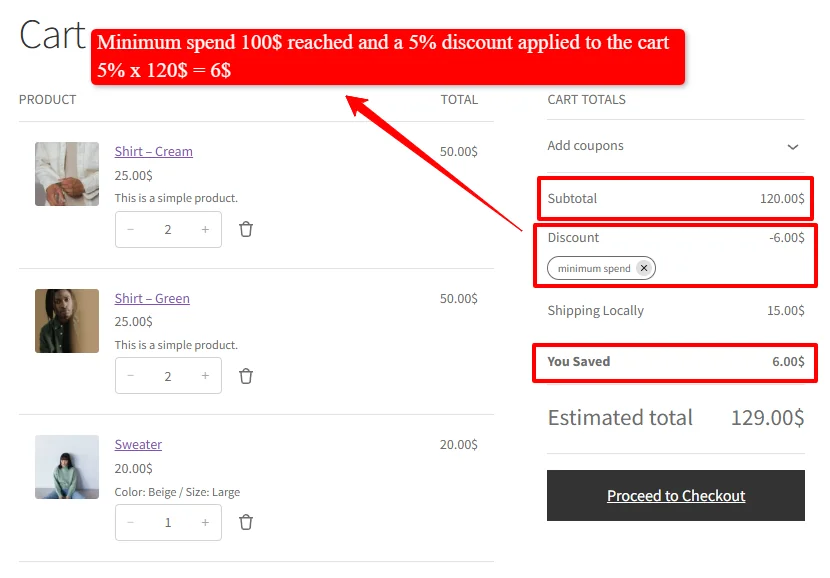
The customer adds another product, bringing the cart subtotal to $120.
The 5% discount should now apply automatically.
| Description | Amount |
|---|---|
| Cart subtotal | $120 |
| Automatic discount (5%) | -$6.0 |
| Subtotal after discount | $114 |
The customer receives the discount without entering a coupon code.
That’s it! You’ve successfully created an automatic WooCommerce discount without writing any code.
Want more examples? Explore our complete guide to automatic coupons and cart discounts in WooCommerce.
You can also learn how to create product-specific discounts and minimum-spend discounts.
Method 2: Automatically Apply WooCommerce Coupons Using a URL
Best for: Email marketing, social media promotions, affiliate campaigns, and exclusive discount offers.
Want to send customers a discount without asking them to remember or enter a coupon code?
WooCommerce URL Coupons make this possible.
Instead of sharing a traditional coupon code, you create a unique URL. When customers visit that link, the associated discount is automatically applied to their cart.
For example, imagine you’re running a summer promotion with a 10% discount.
Instead of sending customers this message:
“Use SUMMER10 at checkout to receive 10% off.”
You can share a special URL. When customers click it, the discount is automatically applied without requiring them to enter anything.
This is particularly useful for:
- Email newsletters and promotional campaigns.
- Facebook and Instagram promotions.
- Affiliate marketing campaigns.
- SMS and WhatsApp marketing.
- Abandoned cart recovery emails.
- Exclusive discounts for selected customers.
How to Create WooCommerce URL Coupons
You can create URL coupons using the URL Coupons for WooCommerce addon, designed to work with Discount Rules and Dynamic Pricing for WooCommerce PRO.
The addon lets you create unique coupon URLs using your existing discount rules. You can then share these links with customers and automatically apply discounts when they visit them.
Here’s how to set it up.
Step 1: Install Discount Rules PRO and the URL Coupons Addon
First, make sure you have Discount Rules and Dynamic Pricing PRO installed and activated.
Next, purchase and install the URL Coupons for WooCommerce addon.
Once both plugins are activated, you can start creating URL coupon campaigns.
Step 2: Create a New URL Coupon Rule
From your WordPress dashboard:
- Open Woo Pricing & Discounts.
- Navigate to the Discounts tab.
- Click Add from Template.
- Choose URL Coupons from the categories or find the URL Coupons section.
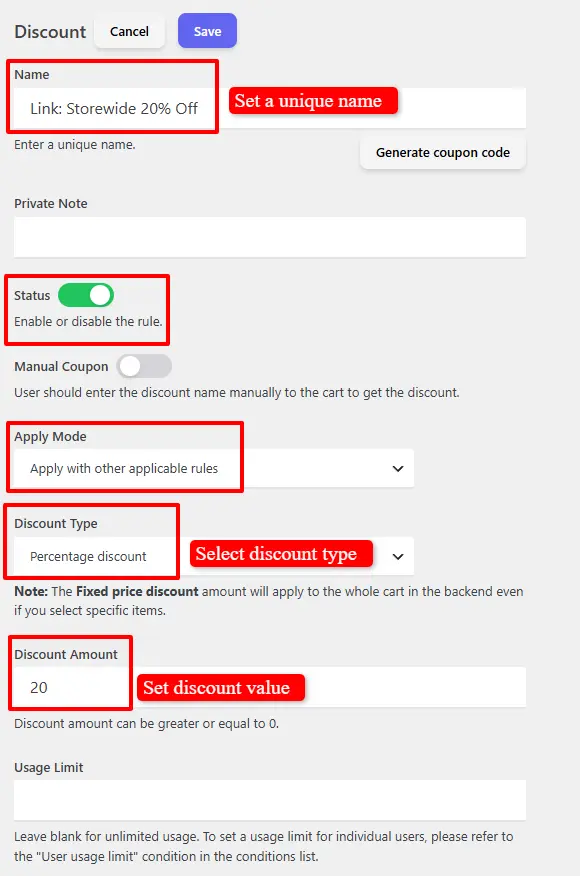
- Choose a suitable template, such as Link: Storewide 20% Off
- Click Add Campaign.
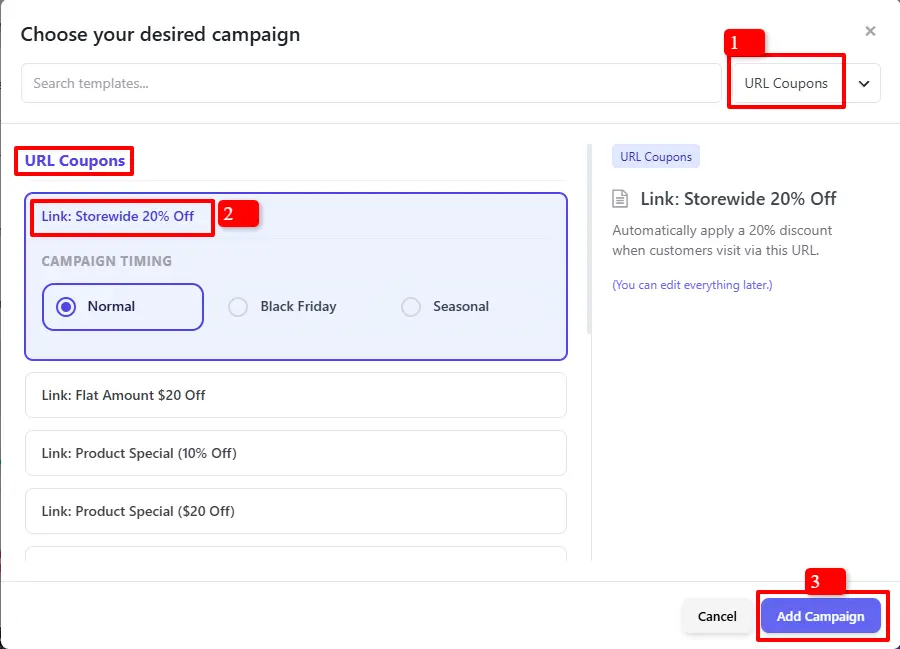
For example, let’s create a promotion that gives customers 20% off their cart.
Step 3: Configure Your Discount
Set up the discount according to your campaign requirements.
For our example, configure a 20% discount.
You can also create targeted URL coupon campaigns for specific products or categories.
For example:
- Give customers 10% off their entire cart.
- Offer $5 off a selected product.
- Give customers 15% off products in a particular category.
This allows you to create different promotional links for different marketing campaigns.
After selecting your template, configure the discount settings.
For our example, use the following settings:
| Setting | Value |
|---|---|
| Rule Name | Link: Storewide 20% Off |
| Status | Enabled |
| Manual Coupon | Disabled / Unchecked |
| Discount Type | Percentage |
| Discount Amount | 20 |
| URL Coupon | Enabled |
Important: Leave the Manual Coupon option unchecked. This allows the discount to apply automatically when the customer meets the conditions, without entering a coupon code.
You can also configure how this rule interacts with other discount rules using the Apply Mode field:
- Non-Exclusive: Apply this discount alongside other eligible rules.
- Exclusive: Apply this rule instead of other applicable rules.
- Fallback: Apply this rule only when other rules are not applicable.
Choose the option that best matches your store’s discount strategy.
Step 4: Copy Your Unique Coupon URL
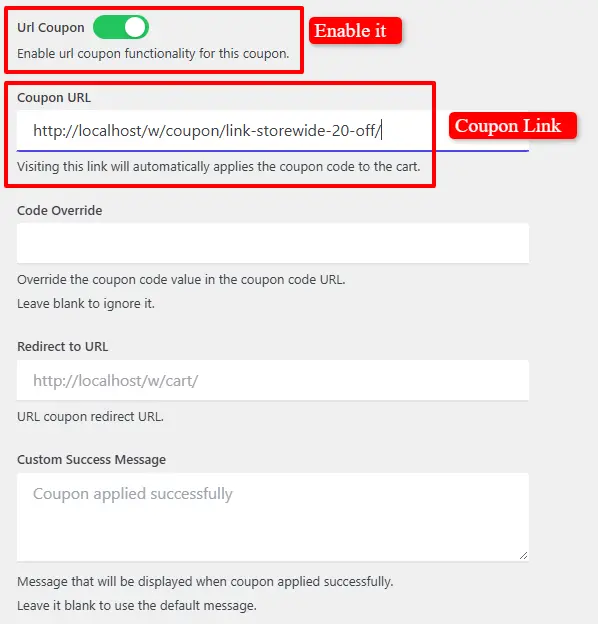
After configuring the rule, find the Coupon URL field.
Copy the generated URL. This is the link you’ll share with your customers.
You can include it in:
- Marketing emails.
- Social media posts.
- Promotional banners.
- Affiliate campaigns.
- SMS messages.
Step 5: Test and Share Your Coupon Link
Open the generated URL in a browser and check that the discount is automatically applied to the cart.
You can now share the link with your customers.
For example, send your newsletter subscribers a special URL for a 10% summer discount. When they click it, the discount is applied without requiring them to copy or enter a coupon code.
That’s it! You’ve created a WooCommerce URL coupon that automatically applies a discount when customers visit its unique link.
Bonus: Create URL Coupons for Specific Products and Categories
You don’t have to limit URL coupons to storewide discounts.
You can also create targeted campaigns for specific products or categories.
Product-specific URL coupons
For example, create a promotional link that gives customers $2 off a selected product. When customers visit the link and have the eligible product in their cart, the discount is applied to that product.
Category-specific URL coupons
You can also create a link that gives customers 10% off products in a selected category.
This is particularly useful when promoting a specific product collection through email marketing or social media.
Explore the URL Coupons for WooCommerce addon to learn more and add shareable coupon campaigns to your store.
Method 3: Apply WooCommerce Coupons Using a One-Click Discount Popup
Best for: Welcome discounts, promotional campaigns, and special offers displayed directly on your website.
What if you want customers to discover a discount while browsing your store?
A promotional coupon popup can help.
Instead of displaying a coupon code that customers must remember and enter later, you can show a popup with an Apply Coupon button.
Customers click the button, and the coupon is applied through the popup.
For this method, you can use Sale Booster – Product Badges, Labels and Countdown Timer.
Its PRO version includes a discount popup feature that can display an existing WooCommerce coupon and let shoppers apply it with one click.

Step 1: Install Sale Booster PRO
Install and activate the Sale Booster PRO plugin.
Make sure you’ve already created a valid WooCommerce coupon that you want to promote.
Step 2: Create a Discount Popup
From your WordPress dashboard:
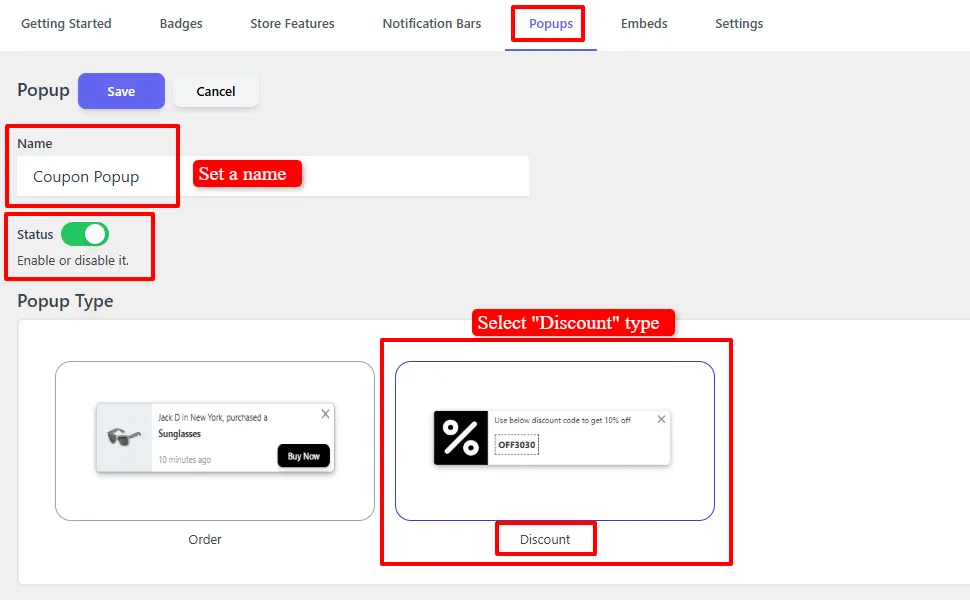
- Navigate to Sale Badges → Popups.
- Click Add New.
- Enter a name for your popup.
- Enable its status.
- Select Discount as the popup type.
- Choose a suitable popup template.
You can customize the popup design to match your store.
Step 3: Configure the Coupon
Open the Content tab.
Configure the following settings:
- Coupon Source: Select the “WooCommerce or Discount Plugin” option.
- In the search field, search for and select your WooCommerce coupon.
- Top Message: Add a promotional message, such as “Enjoy 10% OFF your order!”
You can customize the text to make your offer more attractive.

Step 4: Enable the Apply Coupon Option
Open the General tab and find the Link Options setting.
Choose: Apply Coupon
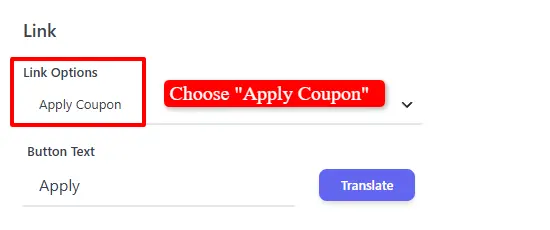
This allows customers to activate the displayed coupon with a single click.
You can also choose other behaviors:
| Option | Function |
|---|---|
| None | Displays the coupon without an action. |
| Copy Coupon | Copies the coupon code. |
| Apply Coupon | Applies the coupon with one click. |
| Custom URL | Sends customers to a selected page. |
Step 5: Choose Where the Popup Appears
Access the Targeting tab and select the pages where the discount popup will appear. The default setting is “All pages,” but you can apply specific conditions to display it only on certain pages, such as the cart and checkout pages.
Step 6: Save and Test Your Popup
Save your popup and visit your storefront.
Check that:
- The popup appears as configured.
- The correct coupon is displayed.
- The Apply Coupon action works.
- The discount appears correctly in the cart or checkout.
- Expired or restricted coupons aren’t advertised as available offers.
Important: This method requires a customer click to activate the coupon. Unlike automatic discount rules, it doesn’t silently apply the coupon just because a customer qualifies.
You can find additional instructions in our WooCommerce discount popup documentation.
Which WooCommerce Auto-Apply Coupon Method Is Best?
All three methods can remove the need for customers to manually type coupon codes, but they serve different purposes.
Here’s a quick comparison:
| Feature | Automatic Discount Rules | Coupon URLs | Discount Popup |
|---|---|---|---|
| No coding required | Yes | Yes | Yes |
| Customer enters a code | No | No | No |
| Requires a customer click | No | Yes | Yes |
| Cart-based conditions | Yes | Depends on coupon restrictions | Depends on coupon restrictions |
| Minimum-spend offers | Yes | Depends on coupon setup | Depends on coupon setup |
| Product-specific offers | Yes | Depends on coupon setup | Depends on coupon setup |
| Email marketing | Possible | Excellent | Not its primary purpose |
| Website promotions | Excellent | Good | Excellent |
Our recommendation: Use automatic discount rules if your goal is to apply discounts whenever customers qualify. They’re particularly useful for minimum-spend offers, product discounts, and storewide promotions.
Coupon URLs and promotional popups are excellent additional tools when you’re running marketing campaigns and want to distribute specific offers.
5 Smart Automatic Discount Strategies to Increase WooCommerce Sales
Automatically applying coupons is only the beginning. The real benefit comes from choosing the right discount strategy.
Here are five practical promotions you can use in your store.
1. Minimum Spend Discounts
Encourage customers to spend more by offering discounts when their cart reaches a specific amount.
Example:
- Spend $100, get 5% off.
- Spend $200, get 10% off.
- Spend $300, get 15% off.
This strategy works particularly well when customers are close to reaching the next discount threshold.
2. Product-Specific Discounts
Not every product needs the same discount.
You can automatically discount selected products to promote new arrivals, clear excess inventory, or increase sales of particular items.
For example:
“Get 15% off selected accessories.”
This lets you run targeted promotions without reducing the price of your entire catalog.
3. Category Discounts
If you want to promote an entire product category, create a discount that applies whenever eligible products are added to the cart.
For example:
“Get 20% off all products in the Clothing category.”
This is useful for seasonal promotions and category-wide clearance sales.
4. First-Order and Customer Loyalty Discounts
You can reward new customers or encourage repeat purchases with targeted discounts.
For example:
- New customers receive 10% off their first order.
- VIP customers receive exclusive discounts.
- Returning customers receive special promotional offers.
These advanced customer-targeting scenarios may require the PRO version of your discount plugin, depending on the conditions you want to use.
5. Free Shipping and Threshold Promotions
Shipping costs can influence whether customers complete their purchases.
Consider offering free shipping when the cart reaches a minimum amount.
For example:
“Spend $75 and get free shipping.”
You can combine this strategy with a product promotion or a cart discount, provided your rules and margins allow it.
For stores selling complementary products, you can also use WooCommerce product bundles to encourage customers to purchase products together, or Side Cart & Upsells to recommend additional products during shopping.
Tips for Running Profitable Automatic Coupon Campaigns
Automatic discounts can make promotions easier to use, but they should be configured carefully.
Here are a few tips to get better results.
Set minimum spending requirements. Avoid giving discounts without a clear business objective. Minimum-spend offers can encourage larger orders.
Avoid excessive discounts. Calculate your product margins before launching a promotion. More orders don’t always mean more profit.
Set expiration dates. Time-limited offers can encourage customers to purchase sooner. Make sure the promotion actually expires when advertised.
Exclude products with low margins. Not every product can support the same discount.
Test discount combinations. Make sure customers cannot combine promotions in ways that produce unintended discounts.
Show savings clearly. Displaying the discount in the cart and checkout helps customers understand the value of the promotion.
Monitor performance. Compare order volume, average order value, revenue, and discount costs before and after a campaign. Use the results to improve your next promotion.
Frequently Asked Questions
Can WooCommerce automatically apply coupon codes?
Not by default. WooCommerce includes coupon creation and redemption functionality, but customers normally need to enter a coupon code and click Apply. You can add automatic coupon functionality using a compatible discount plugin or extension.
How do I automatically apply a coupon in WooCommerce without coding?
Install a WooCommerce discount plugin that supports automatic discounts. Enable WooCommerce coupons, create a discount rule, configure its conditions, and leave the Manual Coupon option unchecked if the plugin uses that setting for automatic application.
For example, Discount Rules and Dynamic Pricing for WooCommerce offers a free way to create automatic cart discounts and coupon rules.
Can I automatically apply a discount when a customer spends a certain amount?
Yes. You can create a minimum-spend rule that automatically applies a discount when the cart reaches a specified subtotal.
For example, give customers 10% off when their eligible cart subtotal reaches $100.
Can I automatically apply coupons to specific products?
Yes. With a compatible WooCommerce discount plugin, you can target selected products, variations, or categories. The discount is applied when the customer adds eligible items to the cart and meets the rule conditions.
Can I automatically apply multiple coupons in WooCommerce?
This depends on the plugin, discount rules, and their compatibility settings. Some solutions allow multiple discounts to apply together, while others support exclusive rules or fallback conditions.
Always test combinations before launching your promotion.
Can I automatically apply coupons for first-time customers?
Yes. Advanced discount plugins can use customer-related conditions to offer first-order or new-customer discounts. Depending on the plugin, these features may require a PRO license and may have different requirements for guest customers.
Do automatic WooCommerce coupons work with guest checkout?
Many automatic discount solutions support guest checkout, but the exact behavior depends on the conditions used.
For example, cart-subtotal and product-based discounts can generally be evaluated without requiring customers to log in. Customer-history and account-based conditions may require additional information.
Test your chosen rules with guest checkout enabled.
Do automatic coupons work with variable products?
Compatible discount plugins can target variable products and, in some cases, individual variations. Check the plugin’s supported product conditions and test the specific variations you want to discount.
Will automatic discounts reduce my profit?
They can if you don’t calculate your margins carefully.
Before creating a promotion, consider product costs, payment fees, shipping expenses, and the discount amount. Use minimum-spend conditions, product exclusions, and discount limits to protect profitability.
Final Thoughts
Automatically applying coupons in WooCommerce is a simple way to make promotions easier to use and reduce unnecessary checkout friction.
Whether you want to offer storewide discounts, reward customers who spend more, promote selected products, or distribute special coupon links, there is a solution that doesn’t require custom coding.
Here are the three methods covered in this guide:
- Automatic discount rules: Best for applying discounts based on cart conditions, products, and spending thresholds.
- Coupon URLs: Best for email marketing, social media, and promotional campaigns.
- One-click coupon popups: Best for displaying special offers directly on your website.
If you’re looking for a free and flexible way to get started, try Discount Rules and Dynamic Pricing for WooCommerce.
You can create automatic cart discounts, product promotions, category discounts, and more without asking customers to enter coupon codes.
Get Discount Rules for Free and start creating smarter promotions for your WooCommerce store today.