
Looking for WooCommerce product bundle ideas to increase sales and encourage customers to spend more in your online store?
Product bundles offer a simple way to do both. By combining complementary products into a single package, you can create attractive deals, introduce customers to related items, and make shopping more convenient.
But what products should you bundle together? From skincare kits and coffee sets to travel essentials and home office accessories, there are plenty of ways to create bundles that appeal to your customers.
In this guide, we’ll explore 5 WooCommerce product bundle ideas with practical examples, suggested products, and tips for creating each bundle. You’ll also learn how to turn these ideas into attractive offers using Product Bundle Builder for WooCommerce.
Table of Contents
- What Are WooCommerce Product Bundles?
- 5 WooCommerce Product Bundle Ideas to Boost Sales
- How to Create Product Bundles in WooCommerce
- How to Choose the Right WooCommerce Product Bundle
- Tips for Creating High-Converting WooCommerce Product Bundles
- Frequently Asked Questions About WooCommerce Product Bundles
- Conclusion
- 📚Related Resources
- 🌐SOCIAL MEDIA LINKS
What Are WooCommerce Product Bundles?
WooCommerce product bundles are packages that combine two or more related products into a single offer. Instead of purchasing each item separately, customers can buy several products together, often at a discounted price.
For example, a store selling men’s grooming products can combine face wash, shaving cream, a razor, and beard oil into one grooming kit. Similarly, a gaming store can bundle a gaming headset, mouse, and mousepad into a single offer.
Product bundles make it easier for customers to discover complementary products while giving store owners an opportunity to increase the average order value (AOV) and promote more products in a single purchase.
Depending on your store’s needs, you can create fixed bundles with preselected products or customizable bundles that let customers choose the items they want. You can also offer percentage-based discounts, fixed discounts, or special bundle prices to make your offers more appealing.
5 WooCommerce Product Bundle Ideas to Boost Sales
Creating product bundles doesn’t have to be complicated. The key is to combine products that complement each other and offer customers a convenient way to purchase related items together.
Here are five WooCommerce product bundle ideas for different types of online stores, along with product examples and practical tips for creating each bundle.
1. Men’s Grooming Bundle
A men’s grooming bundle is a great option for stores selling personal care and grooming products. By combining items customers commonly use in their daily grooming routines, you can create a convenient package that encourages shoppers to purchase multiple products together.
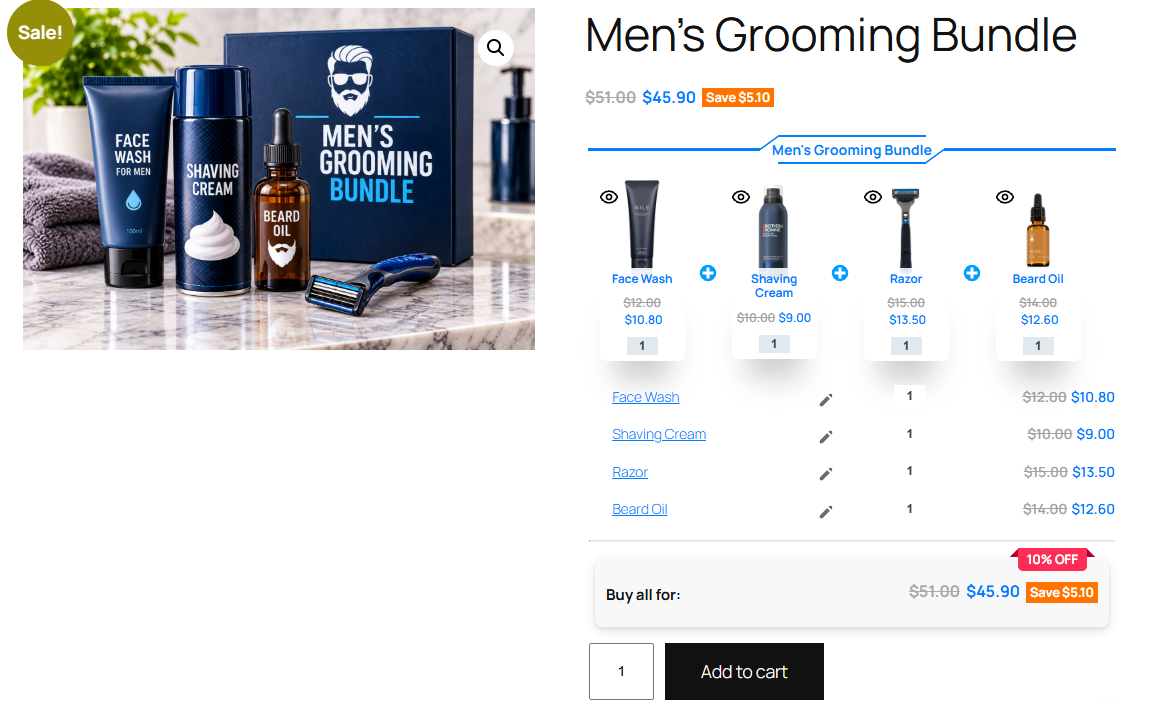
Products to Include:
- Face Wash – $12
- Shaving Cream – $10
- Razor – $15
- Beard Oil – $14
Total Regular Price: $51
Bundle Price: 45.90$
Bundle Idea: Create a complete grooming kit that includes everything customers need for their daily shaving and beard care routine. You can offer the products together at a discounted price to make the bundle more attractive than purchasing each item separately.
How to Create It in WooCommerce: Add each product as a separate bundle item using Product Bundle Builder for WooCommerce. Set the Default Quantity of each item to 1 and leave Edit Quantity by User disabled. This ensures customers receive one of each product and cannot change the quantities. You can then apply an individual discount to each bundle item to offer customers a better price on the complete grooming kit.
Why This Bundle Works: Customers looking for grooming essentials can get several complementary products in one convenient package. It also gives store owners an opportunity to promote related products and increase the average order value.
2. Fitness Bundle
A fitness bundle is a great option for online stores selling sportswear and workout accessories. By bringing together clothing and essential workout gear, you can create a ready-to-use package for customers who want to get everything they need for their training sessions in one purchase.
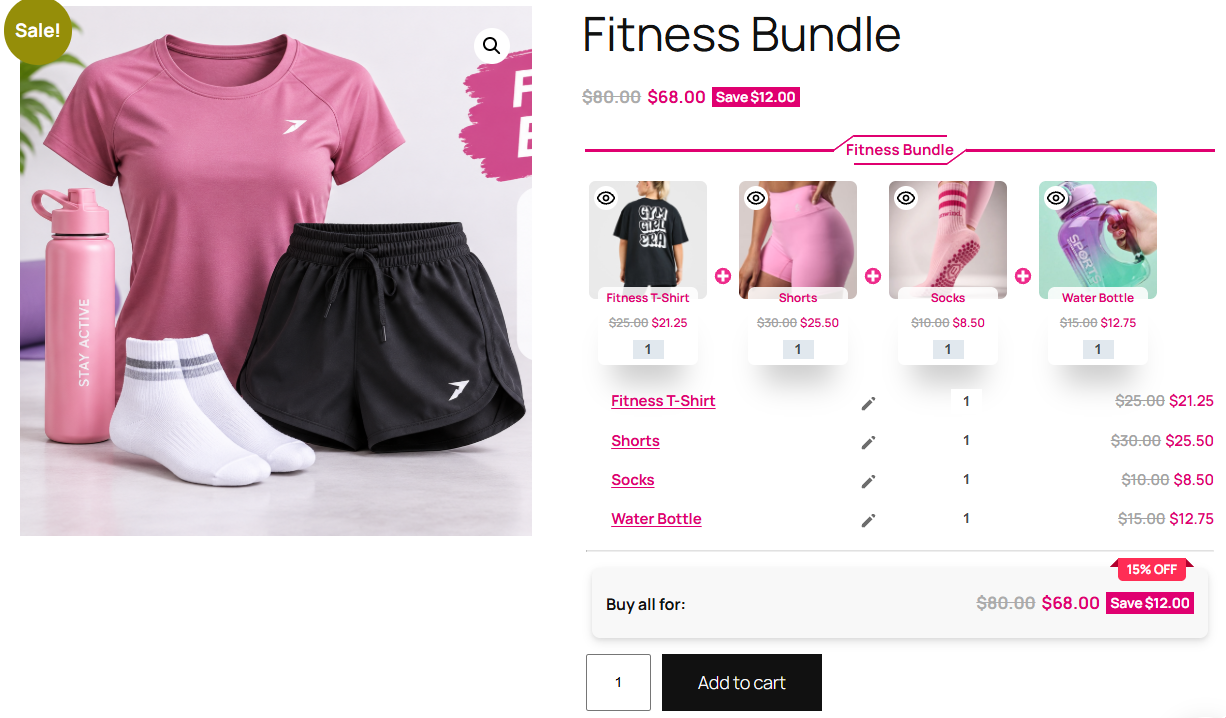
Products to Include:
- T-Shirt – $25
- Shorts – $30
- Socks – $10
- Water Bottle – $15
Total Regular Price: $80
Bundle Price: 68$
Bundle Idea: Create a complete workout outfit bundle that combines a T-shirt, shorts, socks, and a water bottle. This package gives customers a convenient combination of clothing and an everyday fitness accessory. You can offer each product at a discounted price to make buying the complete set more appealing.
How to Create It in WooCommerce: Add each product as a separate bundle item using Product Bundle Builder for WooCommerce. Set the Default Quantity of each item to 1 and leave Edit Quantity by User disabled. This ensures customers receive one of each product and cannot change the quantities. You can then apply an individual discount to each bundle item to make the fitness package more attractive.
Why This Bundle Works: Customers preparing for gym sessions or regular workouts often need both suitable clothing and basic accessories. Offering these products together saves them the effort of finding each item separately and allows your store to sell complementary products in a single order.
3. Coffee Bundle
A coffee bundle is a great option for online stores selling coffee, beverages, and related accessories. By combining coffee with complementary treats and accessories, you can create an appealing package for coffee lovers and customers looking for a thoughtful gift.
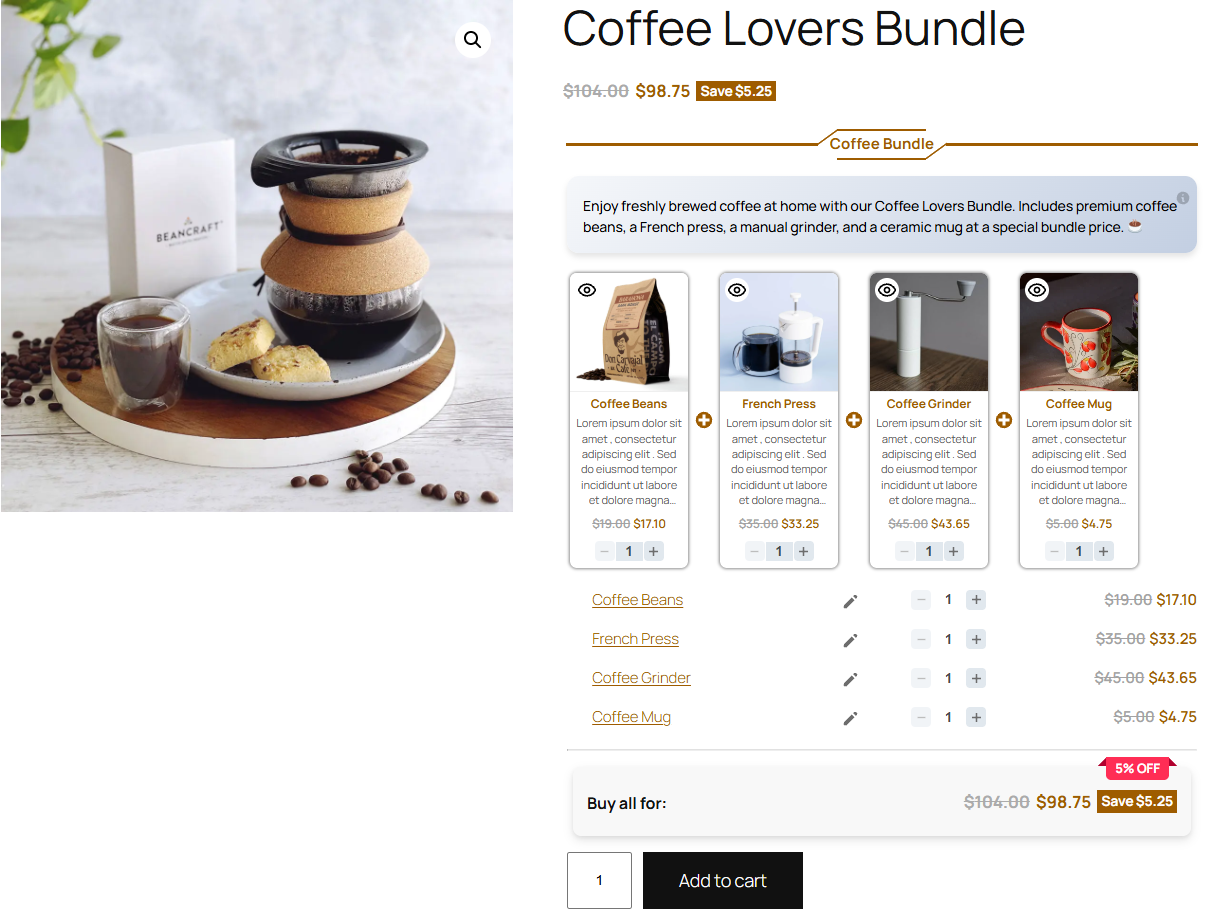
Products to Include:
- Coffee Beans – $19
- French Press – $35
- Coffee Grinder – $50
- Coffee Mug – $5
Total Regular Price: $109
Bundle Price: 98.75$
Bundle Idea: Create a complete coffee-making set that brings together coffee beans, a French press, a coffee grinder, and a mug. This bundle gives customers the essential tools to grind fresh coffee and prepare it at home. You can offer individual discounts on each product to make purchasing the complete set more appealing.
How to Create It in WooCommerce: Add each product as a separate bundle item using Product Bundle Builder for WooCommerce. Set the Default Quantity of each item to 1 and enable Edit Quantity by User so customers can adjust the quantity of each product based on their needs. You can also apply an individual discount to each bundle item to offer a better price on the products included in the bundle.
Why This Bundle Works: Coffee enthusiasts often need more than just coffee beans to prepare their favorite drinks at home. Combining beans with a grinder, French press, and mug creates a practical package that covers several steps of the coffee-making process. Allowing customers to adjust quantities also makes the bundle more flexible for different shopping needs.
4. Gaming Bundle
A gaming bundle is a great option for online stores selling gaming accessories and computer peripherals. By combining essential gaming equipment into one package, you can help customers build or upgrade their gaming setup without having to search for each accessory separately.
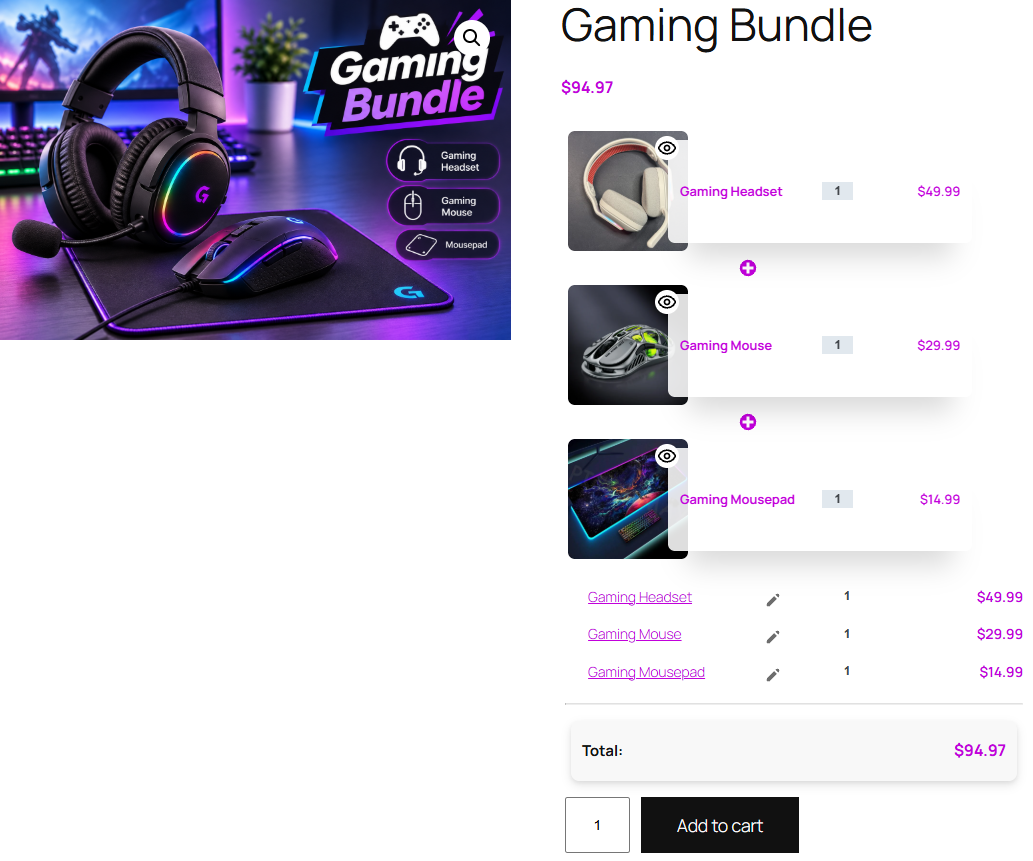
Products to Include:
- Gaming Headset – $49.99
- Gaming Mouse – $29.99
- Mousepad – $14.99
Total Regular Price: $94.97
Bundle Idea: Create a gaming essentials bundle featuring a headset, gaming mouse, and mousepad. These accessories provide a practical starting point for customers setting up a gaming station or upgrading their existing equipment. You can offer the three products together at discounted prices to make the complete setup more appealing.
How to Create It in WooCommerce: Add each product as a separate bundle item using Product Bundle Builder for WooCommerce. Set the Default Quantity of each item to 1 and leave Edit Quantity by User disabled. This ensures customers receive one headset, one gaming mouse, and one mousepad without being able to change the quantities. You can then apply an individual discount to each bundle item to offer a better deal.
Why This Bundle Works: Gamers often look for accessories that complement their existing equipment. Offering a headset, mouse, and mousepad together creates a convenient shopping option, encourages customers to discover more products from your store, and can help increase the average order value. Or essential gear while helping store owners promote more products and increase the average order value.
5. Baby Bundle
A baby bundle is a great option for online stores selling baby clothing and accessories. By bringing together everyday essentials for newborns, you can help parents find several useful products in one convenient package instead of shopping for each item separately.
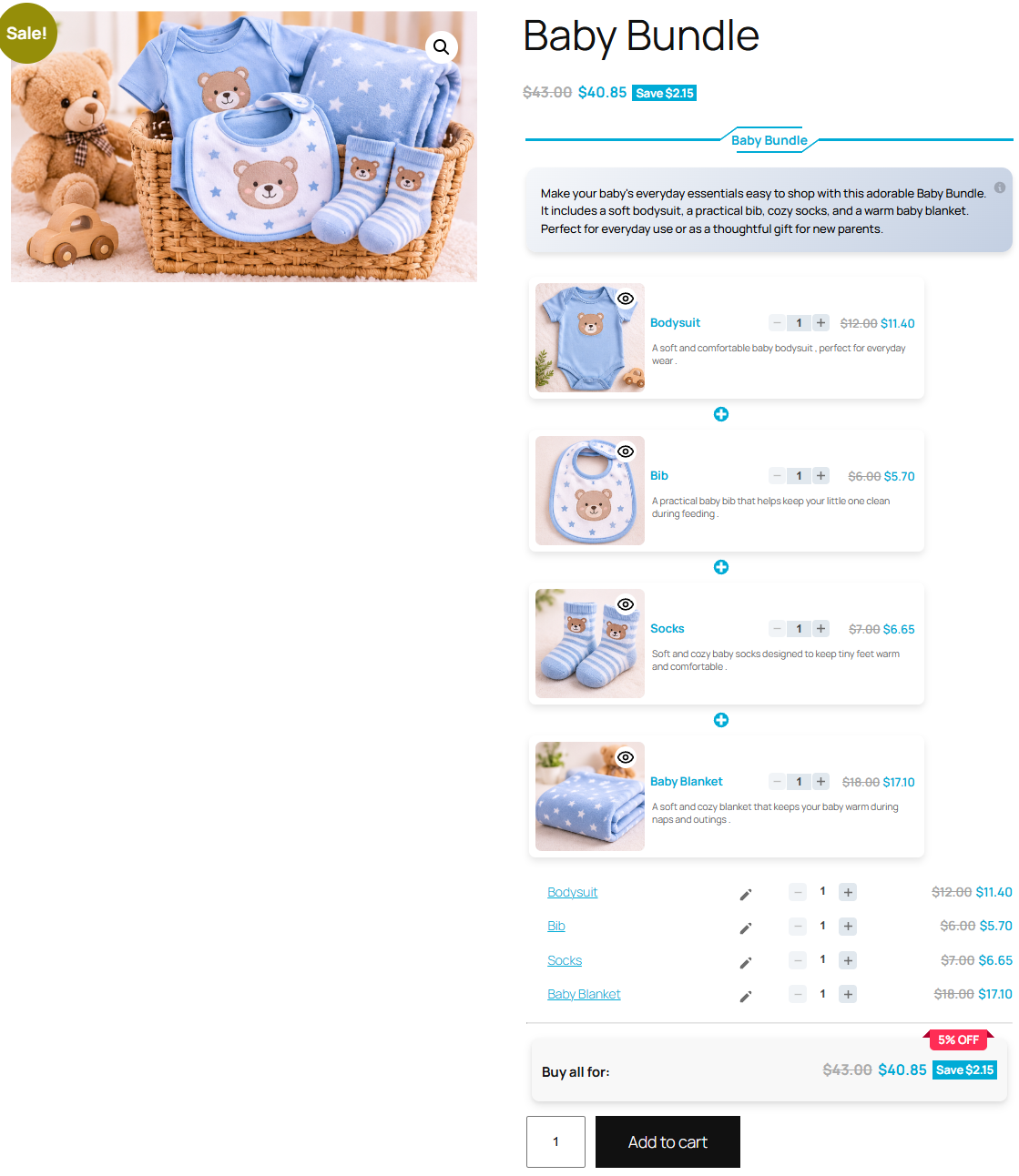
Products to Include:
- Bodysuit – $12
- Bib – $6
- Socks – $7
- Baby Blanket – $18
Total Regular Price: $43
Bundle Price: 40.85$
Bundle Idea: Create a newborn essentials bundle featuring a comfortable bodysuit, a bib, a pair of socks, and a soft baby blanket. These everyday items make a practical package for new parents preparing for their baby’s arrival or looking for useful baby essentials. You can offer all four products together at discounted prices to make the bundle more appealing.
How to Create It in WooCommerce: Add each product as a separate bundle item using Product Bundle Builder for WooCommerce. Set the Default Quantity of each item to 1. Enable or disable Edit Quantity by User according to your preferences: enable it if you want customers to adjust product quantities, or leave it disabled to keep quantities fixed. You can also apply an individual discount to each bundle item to create an attractive offer.
Why This Bundle Works: Shopping for a newborn often involves purchasing several different essentials. Bringing these items together saves parents time and makes it easier to find complementary products in one place. It also gives store owners an opportunity to introduce more baby products and increase the average order value.
How to Create Product Bundles in WooCommerce
After exploring these WooCommerce product bundle ideas, it’s time to turn them into real offers for your store.
To create product bundles in WooCommerce, you can use Product Bundle Builder for WooCommerce by AsanaPlugins. This plugin lets you combine multiple products into a single offer, apply discounts, and create fixed or customizable bundles for your store.
1. Install and Activate the Plugin
First, install the free Product Bundle Builder for WooCommerce plugin from your WordPress dashboard.
Follow these steps:
- Log in to your WordPress admin dashboard.
- Navigate to Plugins → Add New Plugin.
- Search for Product Bundle Builder for WooCommerce.
- Click Install Now and wait for the installation to finish.
- Click Activate to enable the plugin.
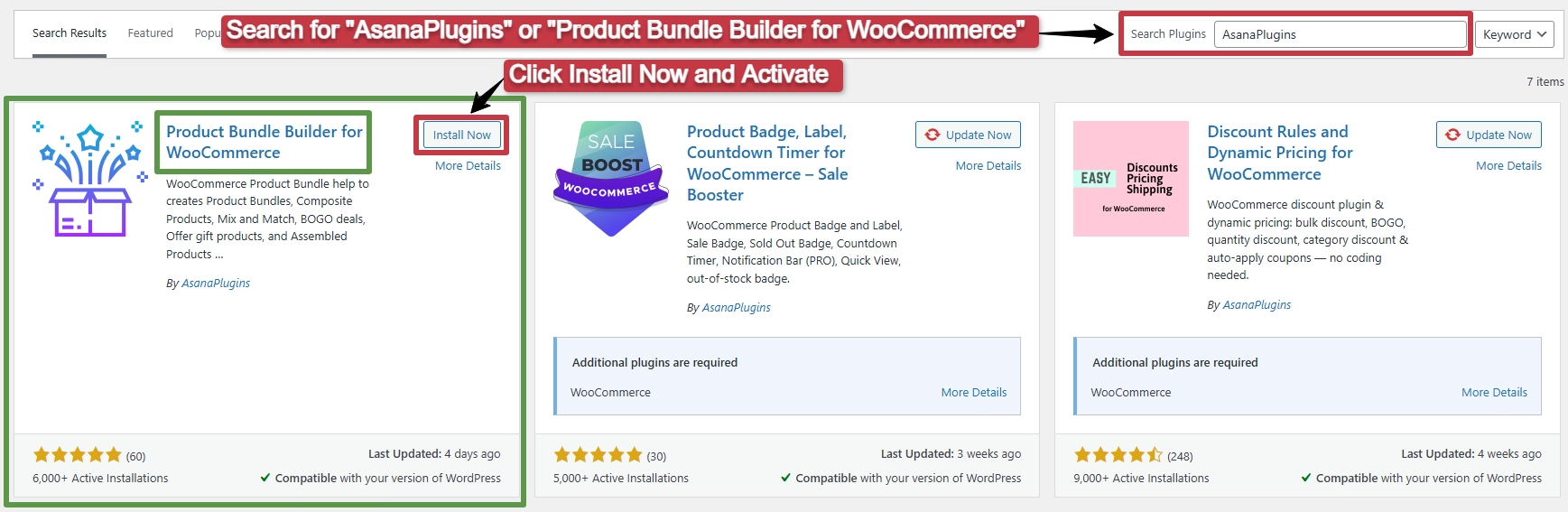
Once activated, you can start creating product bundles in your WooCommerce store.
You can also download the free plugin directly from WordPress.org.
2. Create a New Product Bundle
After installing and activating the plugin, you can create your first product bundle from the WooCommerce product editor.
Follow these steps:
- Go to Products → Add New in your WordPress dashboard.
- Enter a name for your bundle and add a product description if needed.
- Set a product image for your bundle from the right-hand sidebar.
- Scroll down to the Product data section.
- Open the product type dropdown menu and select Product bundle.
- A new Product Bundles tab will appear in the product data panel.
- Open the Product Bundles tab and click Add Item to create your first bundle item.
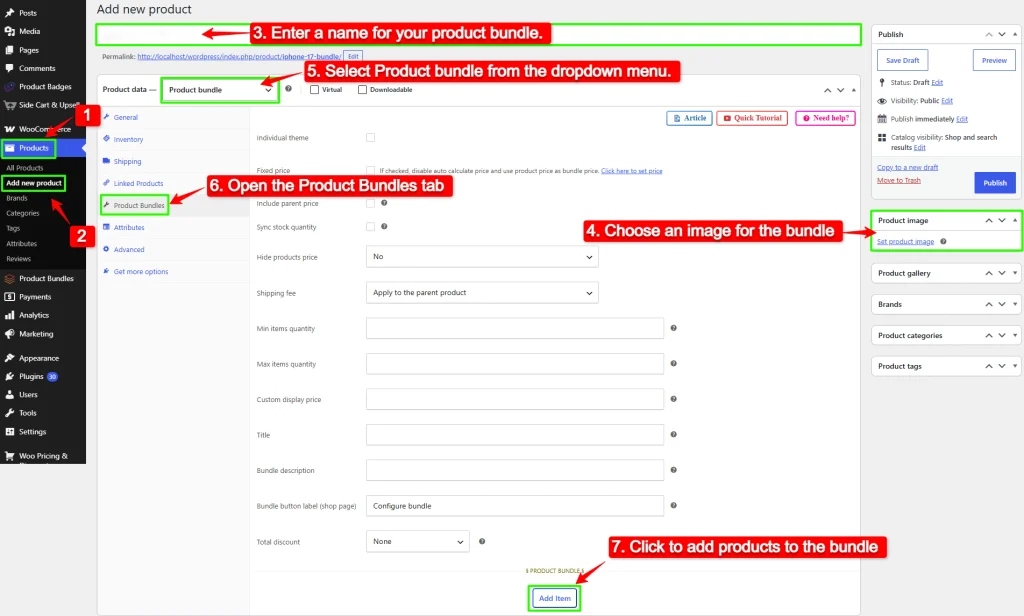
After clicking Add Item, you can select the products you want to include in your bundle and configure their settings in the next step.
3. Add Products and Configure Bundle Items
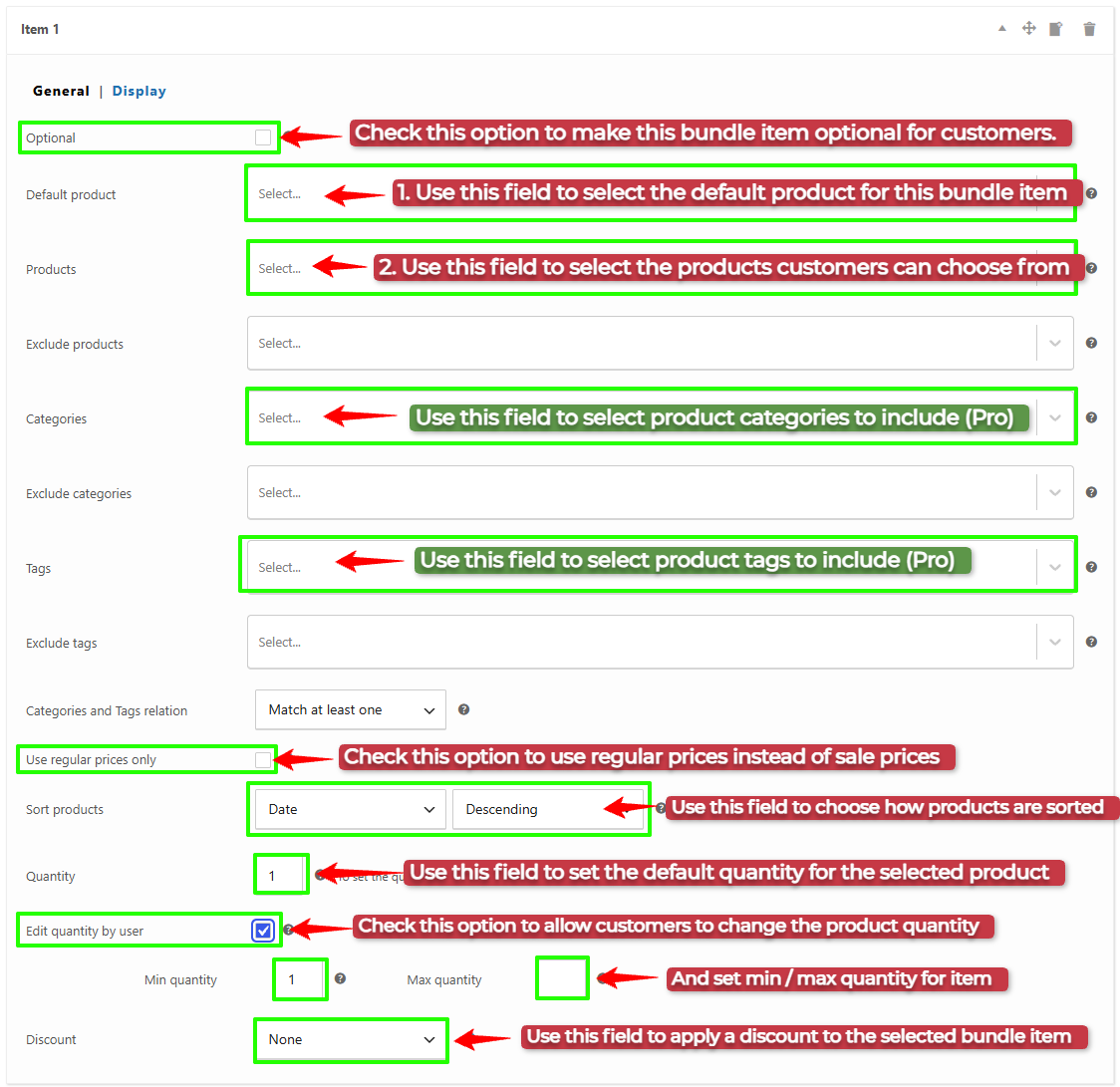
After adding a bundle item, scroll down to configure its product selection and settings.
- In the Default Product field, search for and select the product you want to set as the default for this bundle item.
- In the Products field, search for and select the products customers can choose from.
If you’re using the Pro version, you can also use options such as Categories and Tags to determine which products are available for a bundle item dynamically.
Configure Bundle Item Settings
Each bundle item can be configured independently based on how you want customers to build or purchase the bundle.
Here are some of the available options:
- Use Regular Prices Only: Enable this option to use the regular prices of selected products instead of their sale prices.
- Sort Products: Choose how products are sorted, such as by ID, Title, Menu Order, Date, Price, Popularity, or Rating.
- Quantity: Set the default quantity of the selected product.
- Edit Quantity by User: Allow customers to change the product quantity. You can also set minimum and maximum quantity limits.
- Discount: Apply a percentage, fixed-price, or price-based discount to the selected product.
Customize the Bundle Item Display
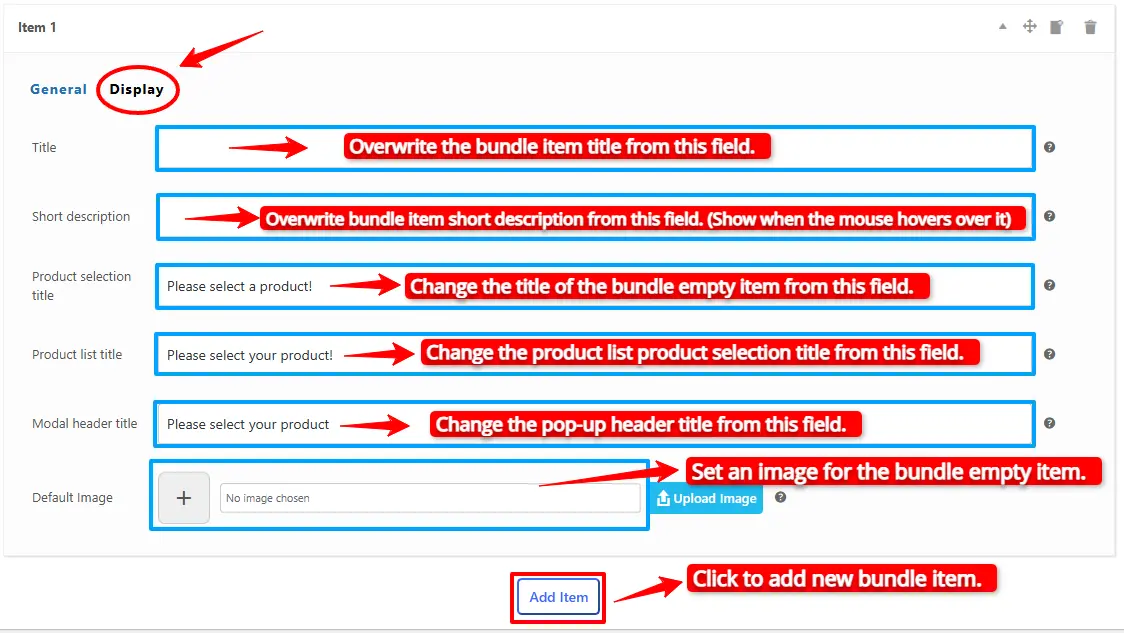
You can also use the Display settings to configure the settings below:
- Title: Use this field to overwrite the title of the selected product in the bundle item.
- Short Description: Use this field to overwrite the short description of the selected product in the bundle item.
- Product Selection Title: Use this field to change the title displayed when customers need to select a product for the bundle item.
- Product List Title: Use this field to change the title displayed for the product list.
- Modal Header Title: Use this field to customize the title displayed in the product selection pop-up.
- Default Image: Use this field to set an image for the bundle item when no product has been selected.
- This image is displayed for the empty bundle item.
Repeat these steps for each bundle item you want to add. To add another item, click Add Item and configure its product selection and settings in the same way.
For example, if you are creating a Baby Bundle, you could create separate items for a Bodysuit, Bib, Socks, and Baby Blanket like this:
- Item 1: Bodysuit
- Item 2: Bib
- Item 3: Socks
- Item 4: Baby Blanket
4. Set the Bundle Price
Product Bundle Builder for WooCommerce supports two main pricing methods:
- Fixed Price: Set one price for the entire bundle.
- Auto Calculate Price: Automatically calculate the bundle price based on the products selected for each bundle item.
For a fixed-price bundle:
- Enable Fixed Price
- Enter the bundle’s price in the General tab.
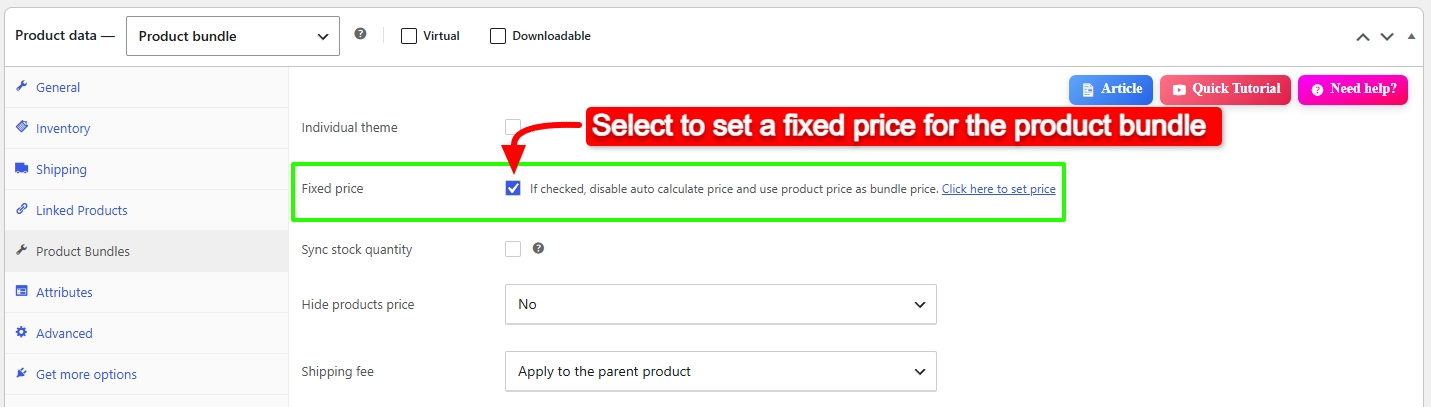
For a dynamically calculated bundle, leave Fixed Price disabled. The bundle price will then be calculated from the products selected in the bundle items.
After configuring the bundle, click Publish to make it available in your store.
5. Apply a Total Discount (Pro)
If you’re using the Pro version, you can apply a discount to the entire bundle using the Total Discount option.
To configure it:
- Locate the Total Discount field above the bundle items.
- Select your preferred discount type:
- Percentage: Apply a percentage discount to the entire bundle.
- Price: Set a price-based discount for the bundle.
- Enter the required discount value.
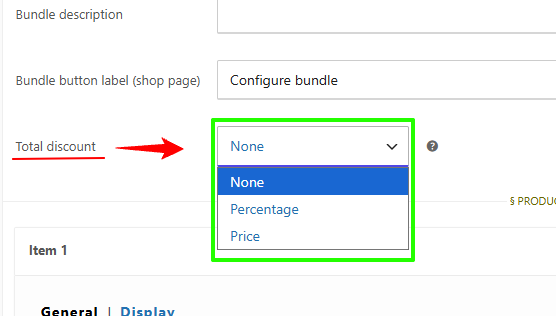
This option allows you to apply a discount to the entire bundle instead of configuring separate discounts for individual bundle items.
6. Publish and Display Your Bundle
Once you’ve added your products and configured the bundle settings, you’re ready to publish your bundle.
Before publishing, review the following settings:
- Bundle Items: Make sure all products, default quantities, and item settings are configured correctly.
- Pricing: Check your selected pricing method (Fixed Price or Dynamic Pricing).
- Discounts: Review any individual item discounts or the Total Discount applied to the bundle.
- Product Details: Make sure your product title, description, and featured image are ready.
Follow these final steps:
- Review all bundle settings to make sure everything is configured correctly.
- Click Publish to make your bundle available in your WooCommerce store.
- Visit the product page to check how the bundle appears to customers.
After publishing, customers can view the bundle, explore its included products and available options, and add it to their cart.
How to Choose the Right WooCommerce Product Bundle
Choosing the right products is one of the most important steps when creating successful WooCommerce product bundles. The best bundles combine items that make sense together and offer customers a clear reason to purchase them as a package.
Here are a few tips to help you choose the right products for your WooCommerce store:
1. Combine Products That Complement Each Other
Choose products that customers naturally use together or need for the same purpose. For example, a camera store could bundle a camera with a memory card and a camera bag. These products serve related needs and make the bundle more useful to customers.
2. Consider Your Customers’ Needs
Think about what your customers frequently buy and which products they might need alongside their regular purchases. Customer purchase history, product reviews, and frequently bought-together items can help you identify useful bundle combinations.
3. Include Products at Different Price Points
Combining a higher-priced product with a few lower-priced complementary items can make a bundle more attractive without making the total price too expensive. This approach also allows customers to discover products they might not have purchased individually.
4. Offer a Clear Financial Benefit
Give customers a reason to choose the bundle instead of buying each product separately. You can offer discounts on individual bundle items or apply a discount to the entire bundle. Make sure the final price remains profitable for your store.
5. Test Different Product Combinations
Not every product combination will perform equally well. Experiment with different bundles, monitor sales and average order value, and use customer feedback to identify which combinations work best.
Tips for Creating High-Converting WooCommerce Product Bundles
Creating a product bundle is only the first step. To make your offers more appealing and encourage customers to complete their purchases, you need to present your bundles effectively and choose the right pricing strategy.
Here are some practical tips to help you create high-converting WooCommerce product bundles:
1. Offer an Attractive Bundle Discount
Give customers a clear financial reason to purchase products together. Compare the regular prices of individual products with the bundle price and make the savings easy to understand. However, choose discounts carefully to maintain a healthy profit margin.
2. Use High-Quality Bundle Images
Show all the products included in your bundle in one clear, attractive image. A good bundle image helps customers understand what they will receive and makes your offer more appealing.
3. Write Clear Product Descriptions
Explain what the bundle includes, who it is designed for, and how customers can benefit from purchasing the products together. Clearly mention any important details, such as product variations, quantities, or included accessories.
4. Make Your Bundles Easy to Customize
Depending on your products and sales strategy, consider letting customers choose products or adjust quantities within a bundle. This flexibility can make your offers more appealing by giving shoppers greater control over their purchases.
5. Monitor Bundle Performance
Track bundle sales, conversion rates, and average order value to understand how your offers perform. Use these insights to adjust product combinations, pricing, and discounts over time.
Frequently Asked Questions About WooCommerce Product Bundles
Product bundles increase average order value, make shopping more convenient, and encourage customers to buy complementary products together.
You can create product bundles using Product Bundle Builder for WooCommerce. Simply install the plugin, create a new product, select Product Bundle as the product type, add your products, configure the bundle settings, and publish it.
Yes. Product Bundle Builder for WooCommerce supports individual product discounts in the free version and a Total Bundle Discount for the entire bundle in the Pro version.
Yes. Some product bundle plugins let customers select products from available options or customize their bundles. With Product Bundle Builder for WooCommerce Pro, you can also make specific bundle items optional, allowing customers to decide whether to include them.
Yes. You can include variable products in a WooCommerce bundle, allowing customers to select their preferred variations, such as size or color, depending on the plugin’s settings. Product Bundle Builder for WooCommerce supports variable products, so you can offer bundles with different product variations.
Yes. Product Bundle Builder for WooCommerce has been tested with WooCommerce Subscriptions, allowing you to include subscription products in your bundles. This makes it possible to combine subscription-based products with other items in a single bundle offer.
For the best results, make sure WooCommerce Subscriptions and Product Bundle Builder for WooCommerce are installed and up to date.
Conclusion
The WooCommerce product bundle ideas covered in this guide can help you increase average order value, promote related products, and create a more convenient shopping experience. By combining complementary products and offering attractive discounts, you can create bundle offers that appeal to your customers and support your store’s sales goals.
Whether you want to create a grooming kit, a fitness set, a coffee gift box, or a gaming bundle, choosing the right products and pricing strategy is essential.
With Product Bundle Builder for WooCommerce by AsanaPlugins, you can easily combine multiple products into a single bundle, configure quantities, offer discounts, and create customizable product offers for your store.
Get Product Bundle Builder for WooCommerce and start creating product bundles for your WooCommerce store today!
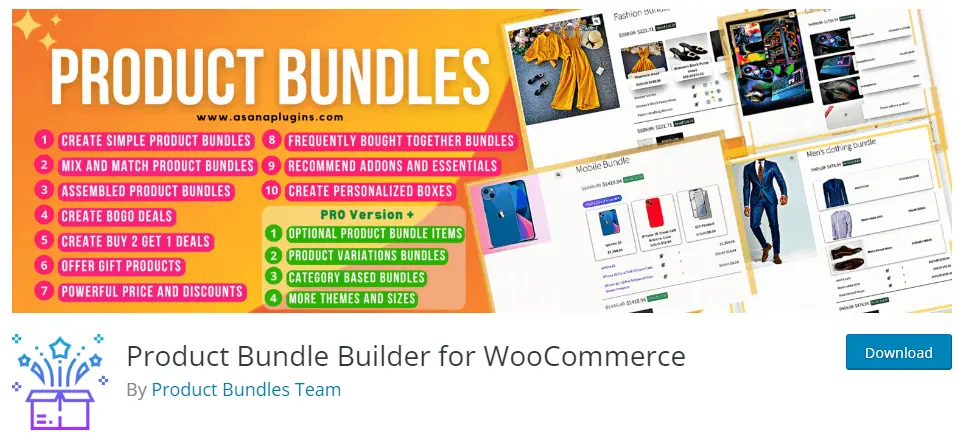
Create product bundles, configure discounts, and offer flexible shopping options with Product Bundle Builder for WooCommerce.
📚Related Resources
Want to learn more about WooCommerce product bundles and related strategies? Explore these helpful guides:
- How to Create WooCommerce Product Bundles
- WooCommerce Product Bundles Free Plugin
- WooCommerce Product Bundle with Variations (Free Plugin)
- WooCommerce Mix and Match Free Plugin
- How to Translate WooCommerce Product Bundles
- 4 Best WooCommerce free plugins to boost sales and revenue
- Boost Your E-commerce Sales with WooCommerce Product Bundles
- Create Custom Bundles with Categories in WooCommerce Product Bundle Plugin
- How to Create WooCommerce Composite Products? (free Plugin)
- 11 Best Plugins to Create WooCommerce Product Bundles
- WooCommerce Product Bundle: How to Create Dynamic and Flexible Bundles
- Provide Free Gift Products in WooCommerce: Complete Guide
- WooCommerce Combo Offers Free Plugin
- WooCommerce Bundled Products
- WooCommerce Grouped Products
- WooCommerce Assembled Products
- How to Create Subscription Bundles in WooCommerce (Complete Guide)
- Easy Product Bundles for WooCommerce: Step-by-Step Setup & Review