
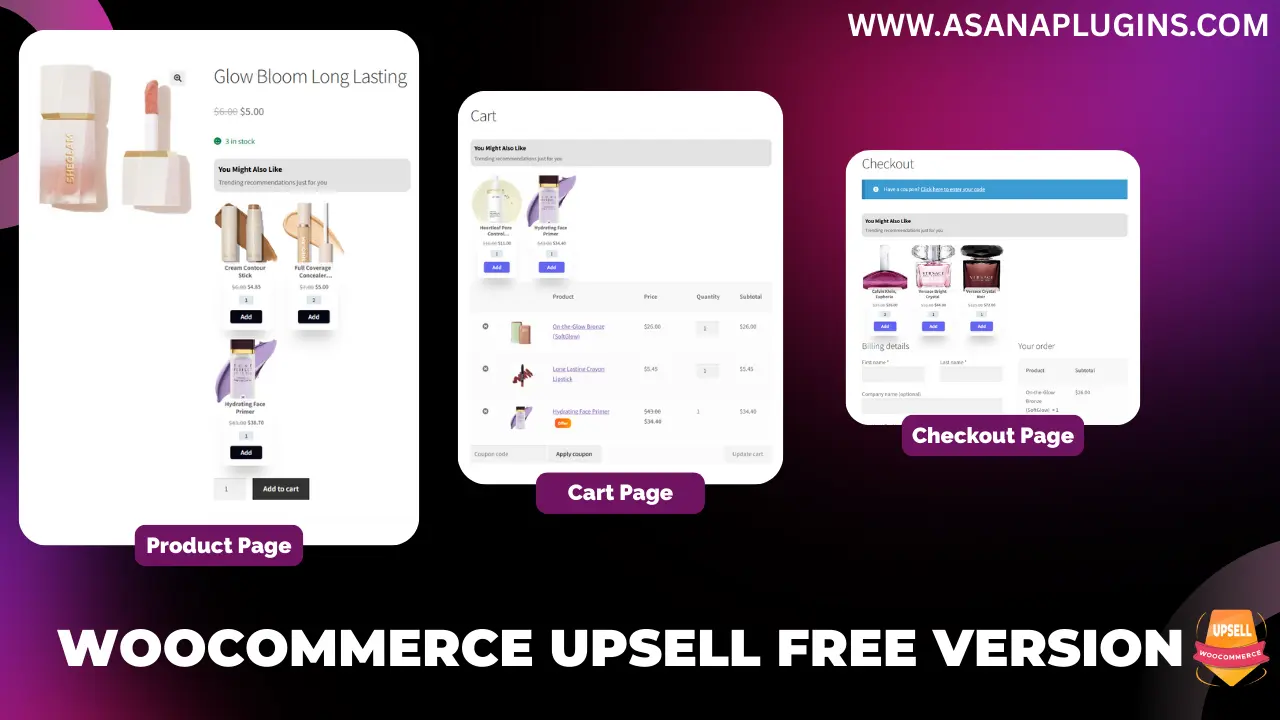
The WooCommerce Upsell Free Plugin is a powerful tool designed to help you boost sales by displaying targeted upsell offers across your product, cart, and checkout pages. By recommending complementary or higher-value products at the perfect moment, this plugin enhances the customer experience while increasing your store’s average order value. Whether you’re promoting beauty items, accessories, or bundled discounts, the WooCommerce Upsell Free Plugin makes it easy to create personalized shopping journeys that convert. For more details or to download the plugin, visit the official WordPress plugin page.
What Is the WooCommerce Upsell Free Plugin?
The WooCommerce Upsell Free Plugin allows you to showcase complementary or higher-value products directly on product, cart, and checkout pages. With targeted recommendations, you can increase customer engagement, boost conversions, and maximize average order value without any complex setup.
Why Use Product Upsells in WooCommerce?
The Product Upsell feature helps you promote add-on or premium products where customers are most likely to buy—right on the product page. By displaying relevant items, you encourage buyers to upgrade or purchase additional items.
Example:
If a shopper is viewing Glow Bloom Long Lasting, you can promote upsell items like:
- Cream Contour Stick
- Full Coverage Concealer Matte Finish Concealer
- Hydrating Face Primer
This personalized experience inspires customers to complete their look with complementary products.
Scenario: Smart Upsells in Action
Imagine a customer browsing Glow Bloom Long Lasting. Just below the main product, an upsell section appears showing perfectly matched items such as a contour stick, concealer, and primer. Customers can review product details, choose quantities, and even enjoy discounts.
This seamless recommendation system helps increase revenue while improving the shopping experience.
How to Create a Product Upsell Using the WooCommerce Upsell Free Plugin
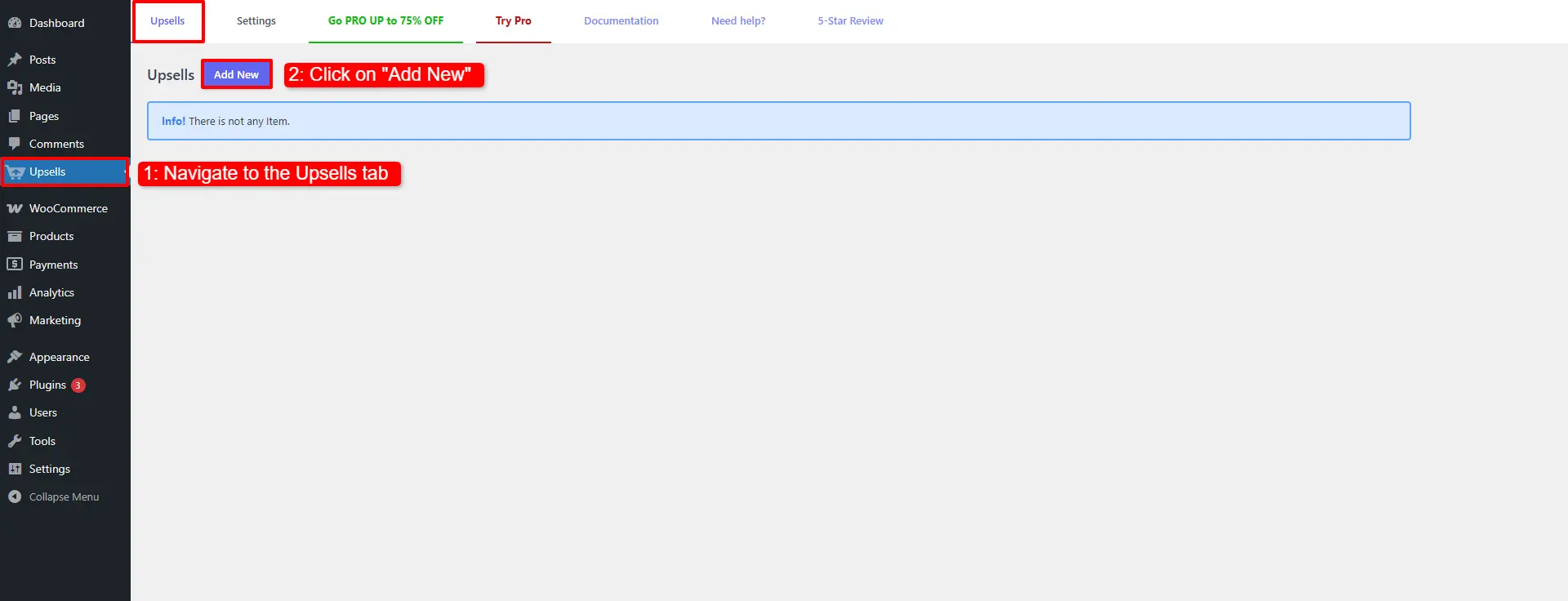
- Navigate to Upsells.
- Click on Add New.
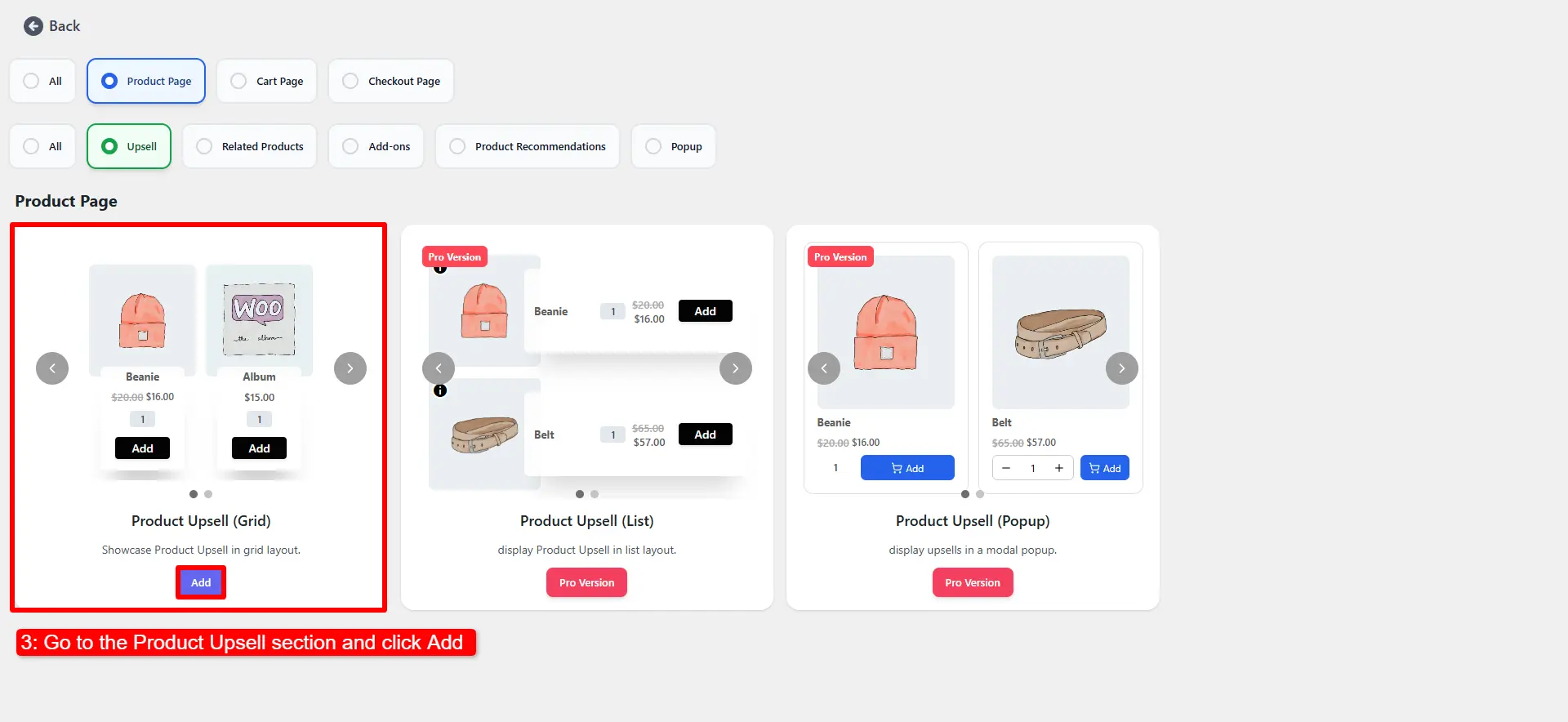
- Go to the Product Upsell section and click Add.
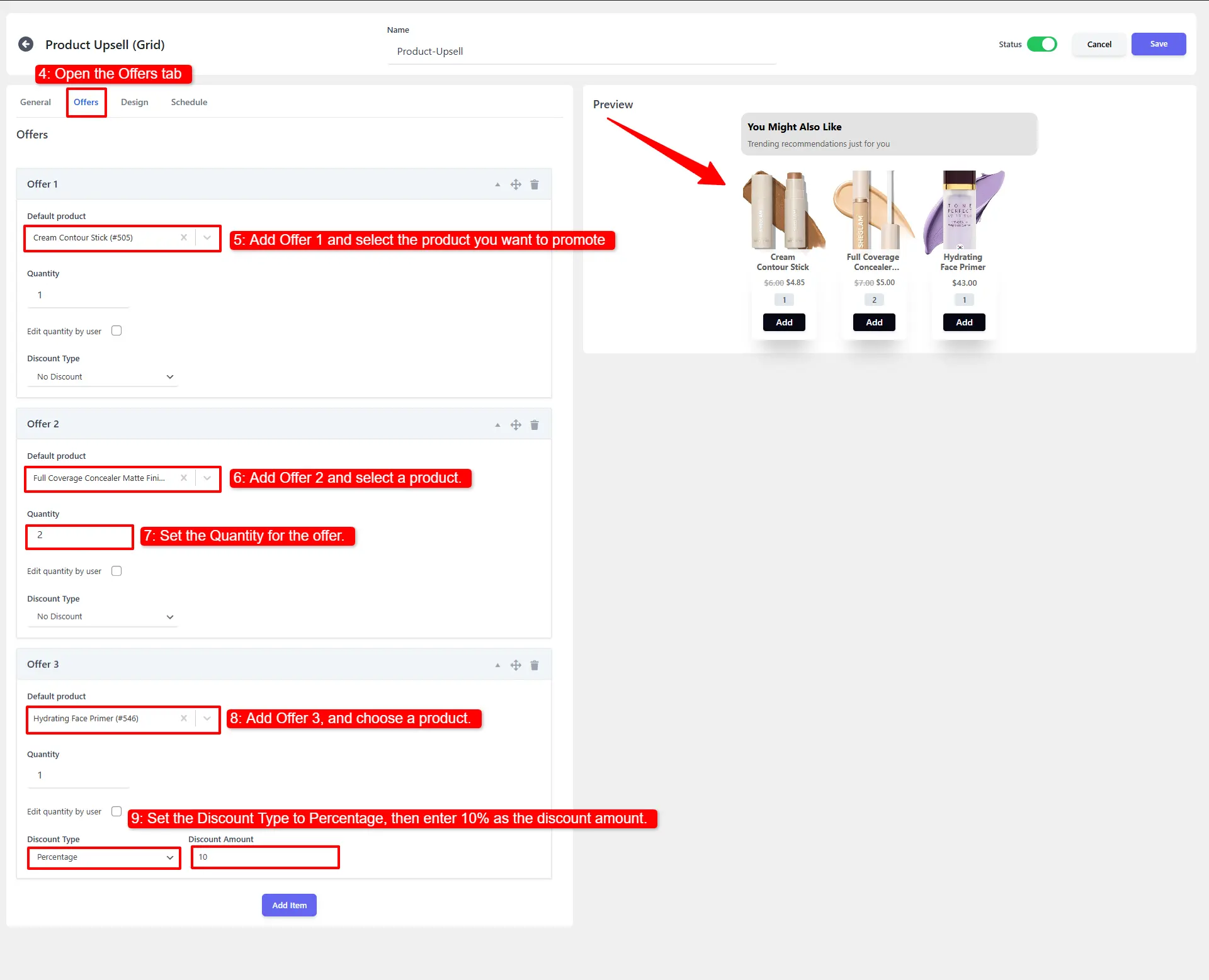
- Open the Offers tab.
- Add Offer 1 and select the product you want to promote.
- Add Offer 2, then select a product.
- Set the Quantity for the offer.
- Add Offer 3, and choose a product.
- For Offer 3, set the Discount Type to Percentage and enter 10% as the discount amount.
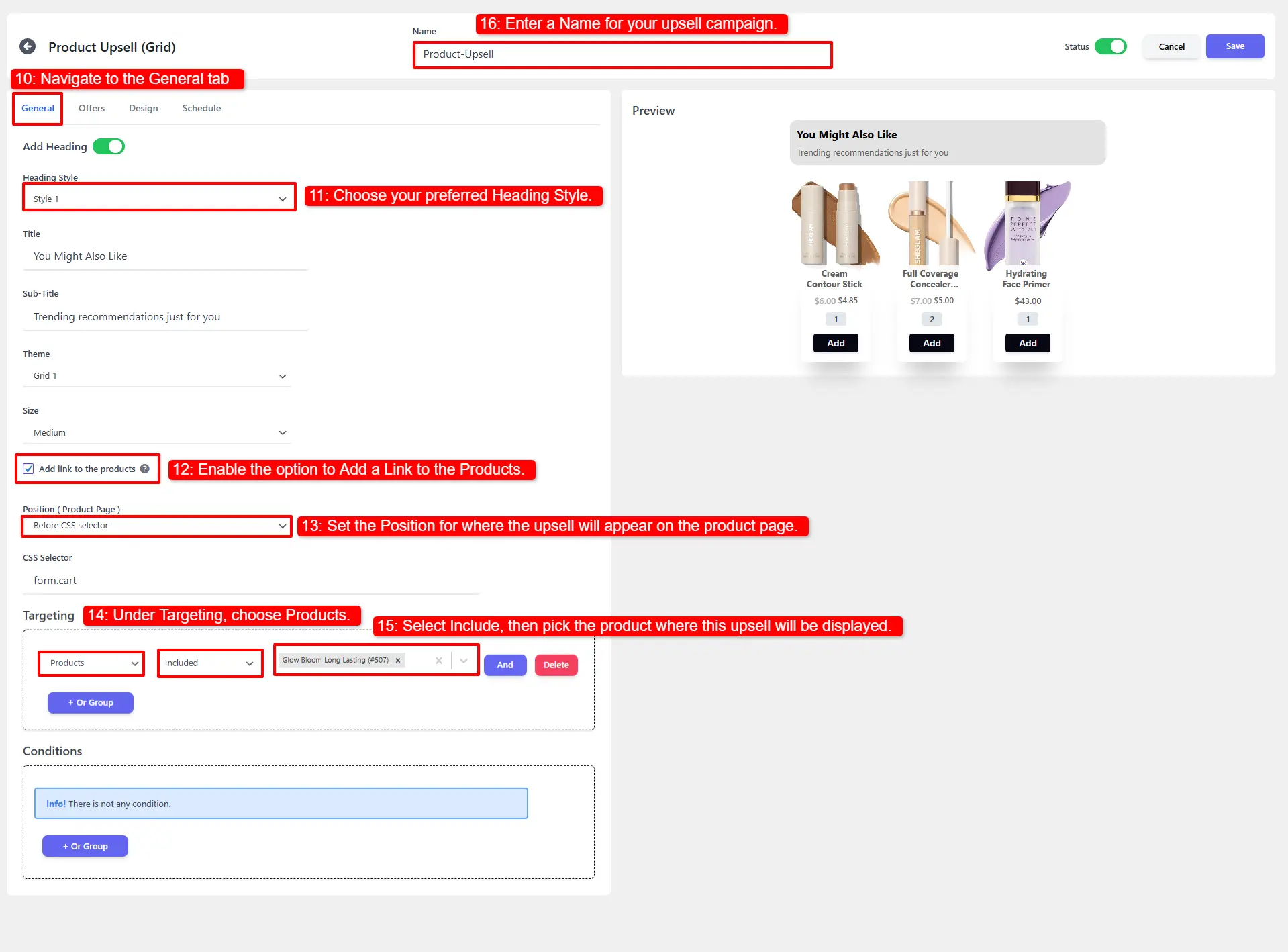
- Navigate to the General tab.
- Choose your preferred Heading Style.
- Enable the option to Add a Link to the Products.
- Set the Position for where the upsell will appear on the product page.
- Under Targeting, choose Products.
- Select Include, then pick the product where this upsell will be displayed.
- Enter a Name for your upsell campaign.
- Go to the Design tab.
- Adjust the Product Button Color or any other styling options as needed.
- Save your changes.
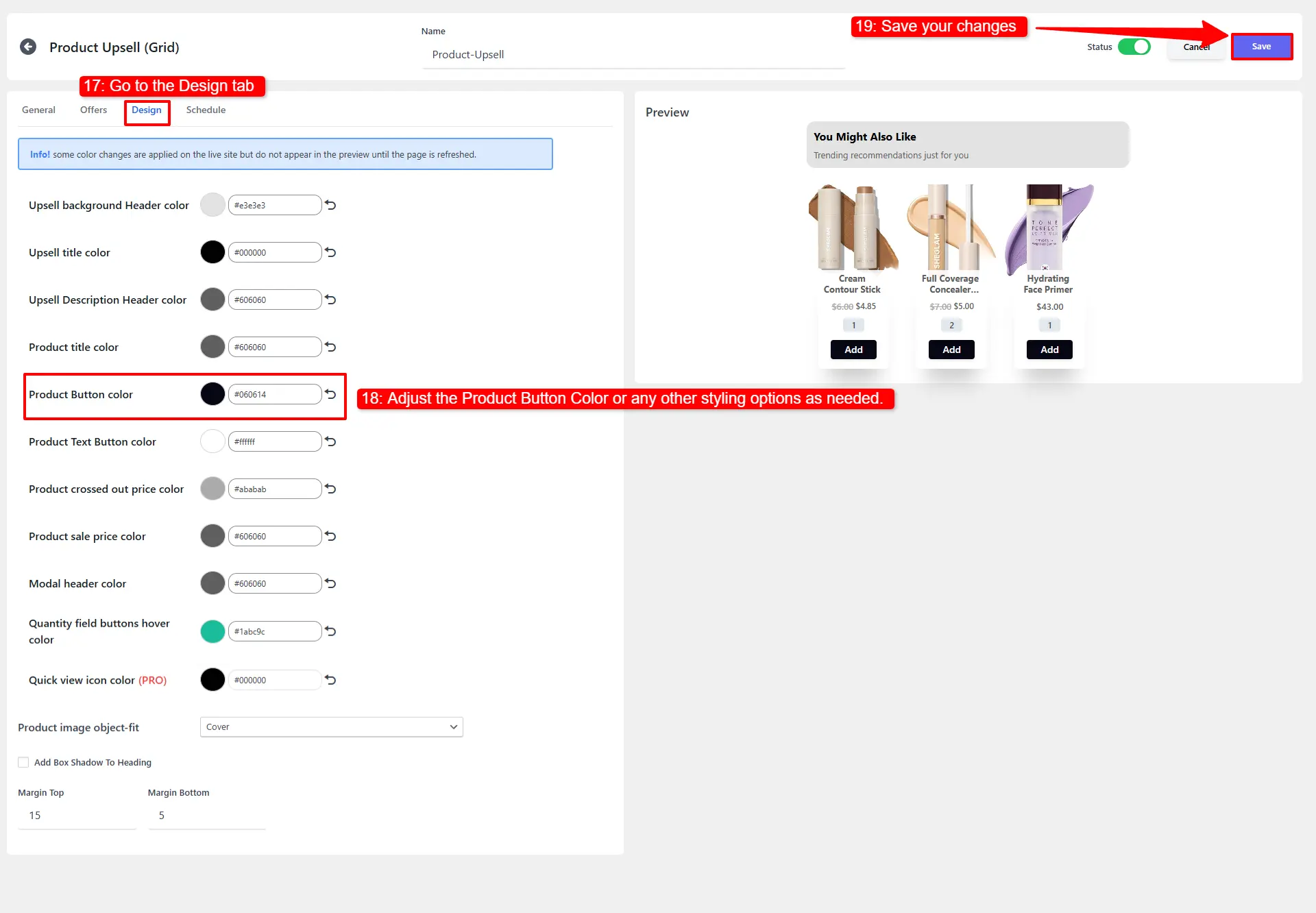
Once everything is set up, your Product Upsell section will automatically appear on the Glow Bloom Long Lasting product page. The offers you added will display according to your chosen theme and layout.

How to Create a Cart Upsell (WooCommerce Upsell Free Plugin)
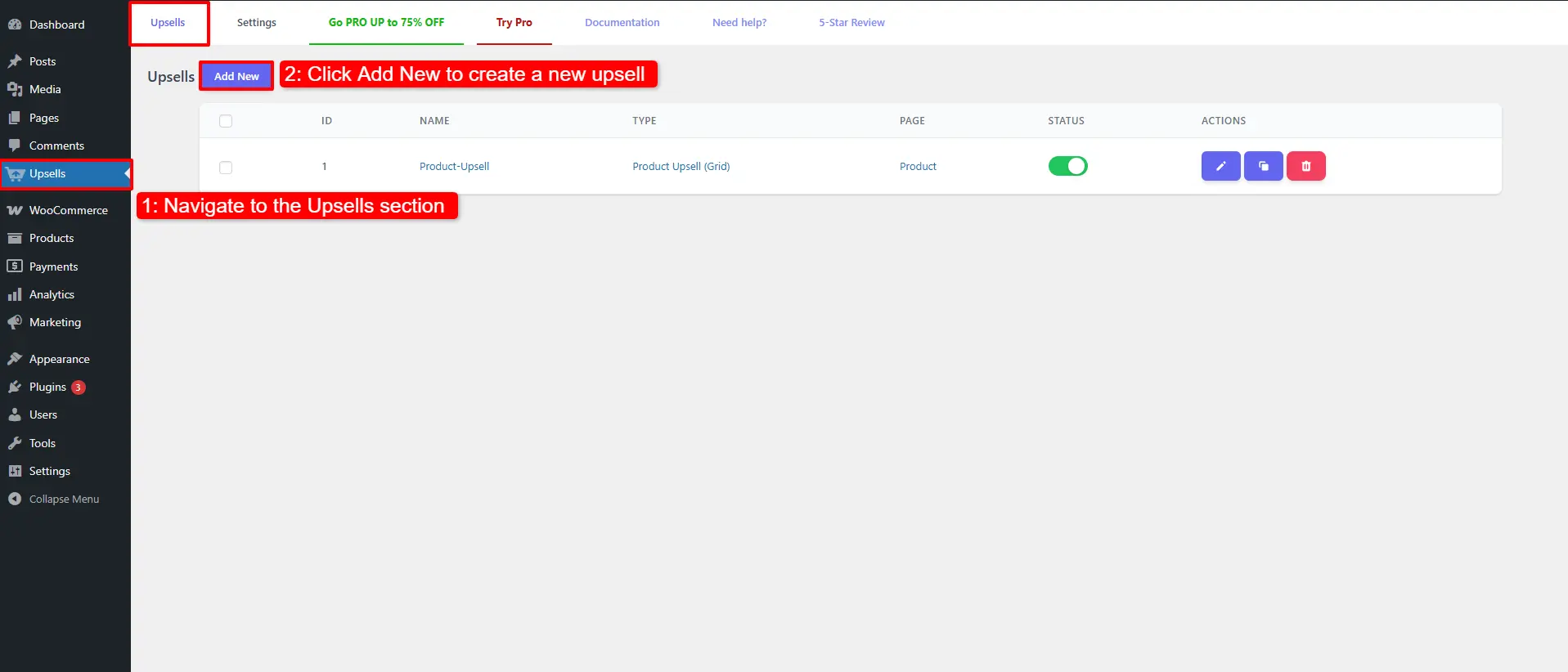
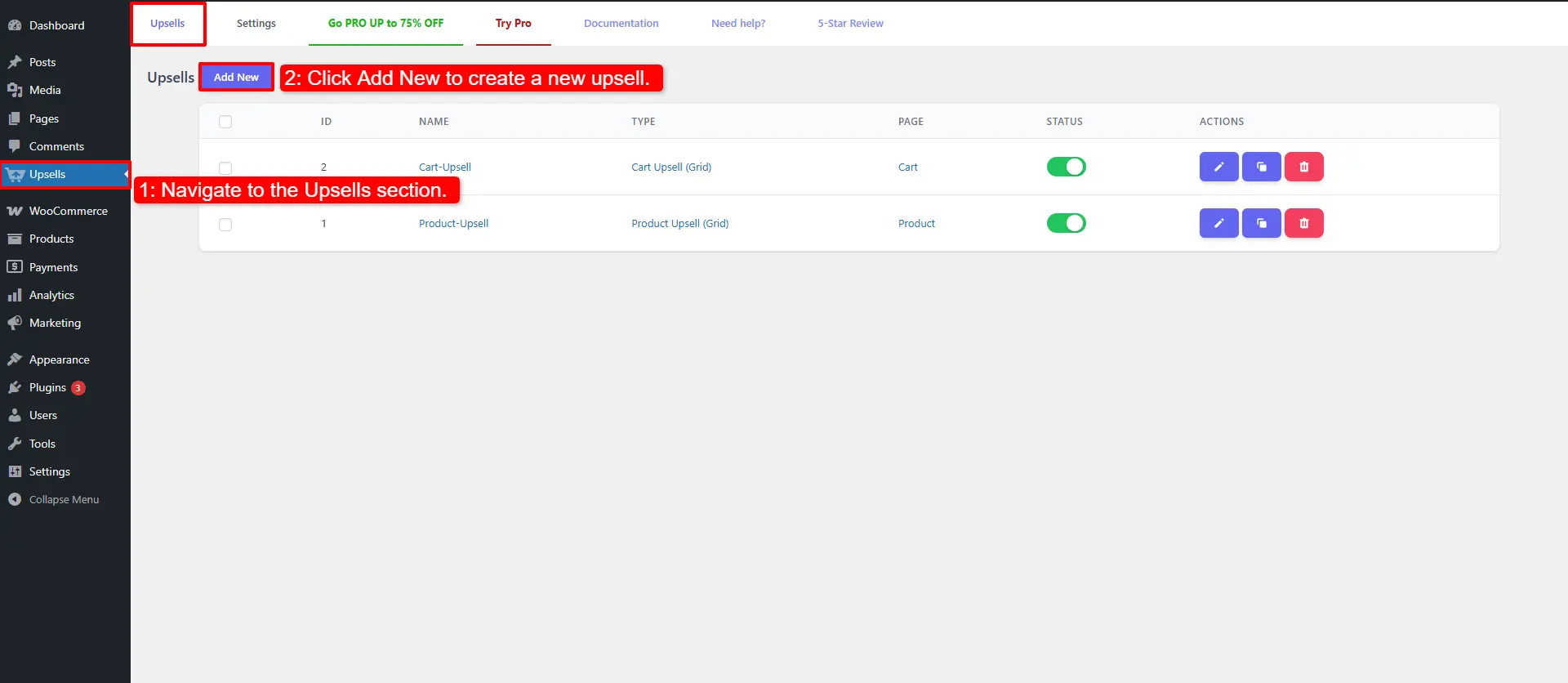
- Navigate to Upsells
- Click Add New to create a new upsell
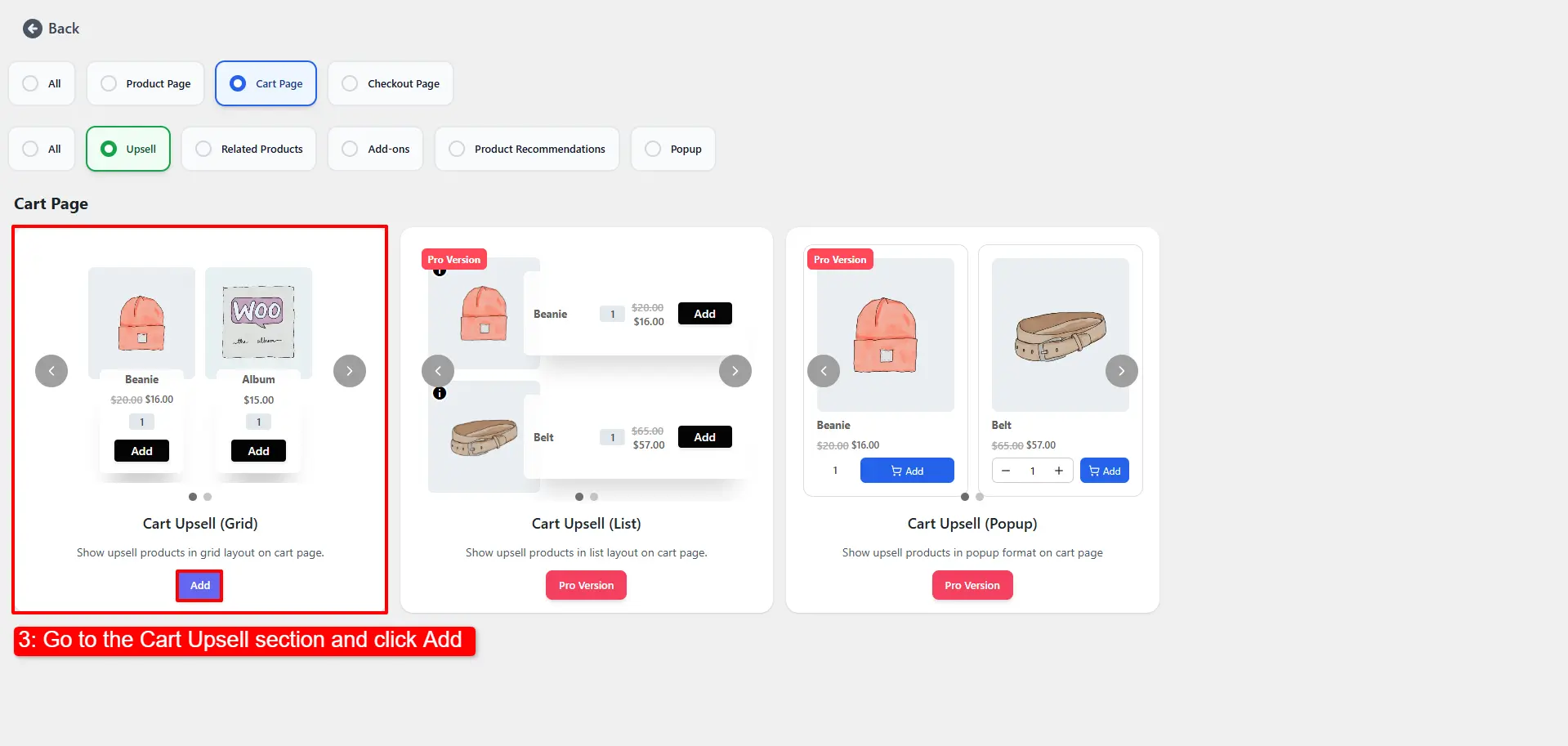
- Go to the Cart Upsell section and click Add
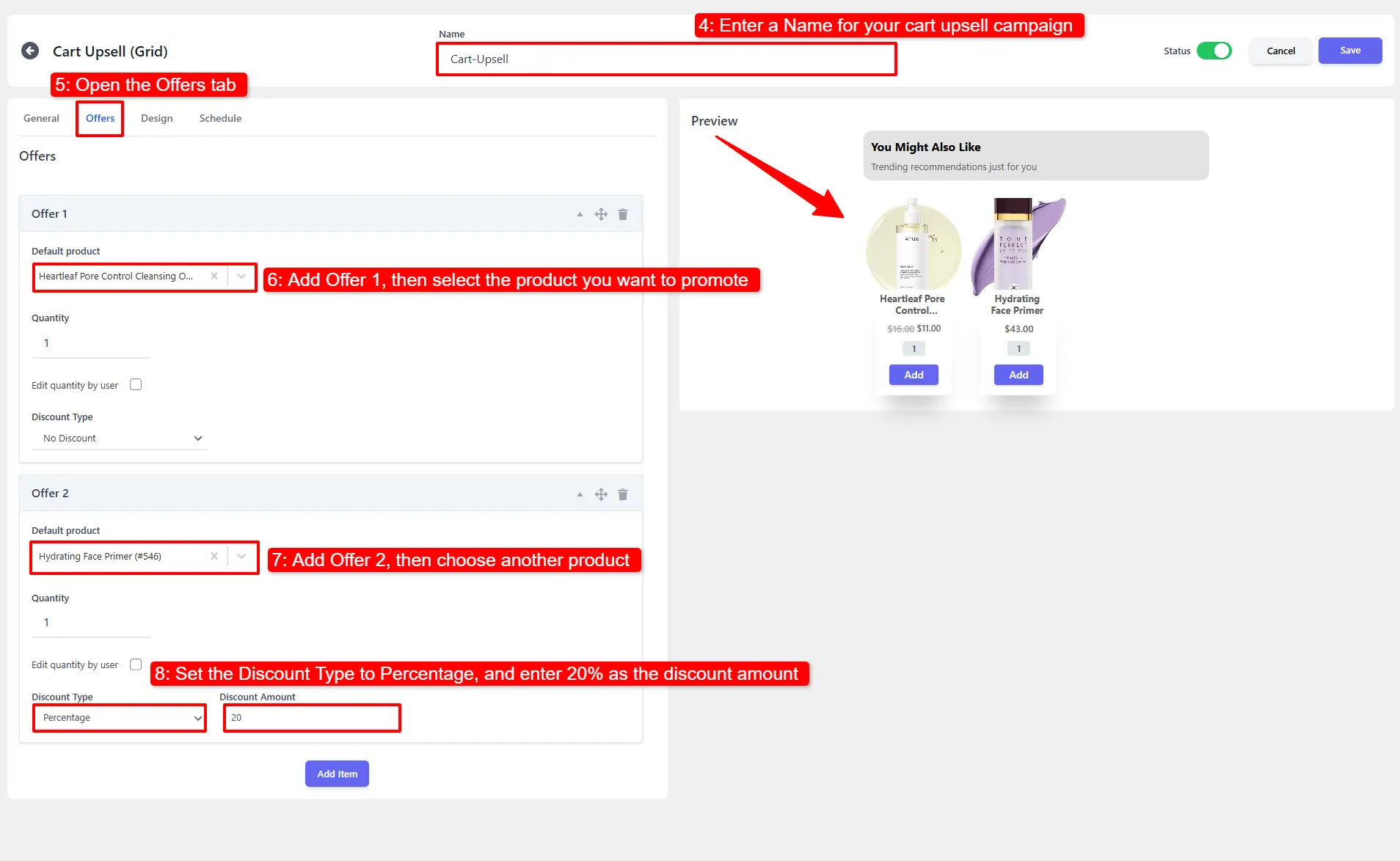
- Enter a Name for your cart upsell campaign.
- Open the Offers tab.
- Add Offer 1 and select the product you want to promote.
- Add Offer 2, then select a product.
- For Offer 2, set the Discount Type to Percentage and enter 20% as the discount amount.
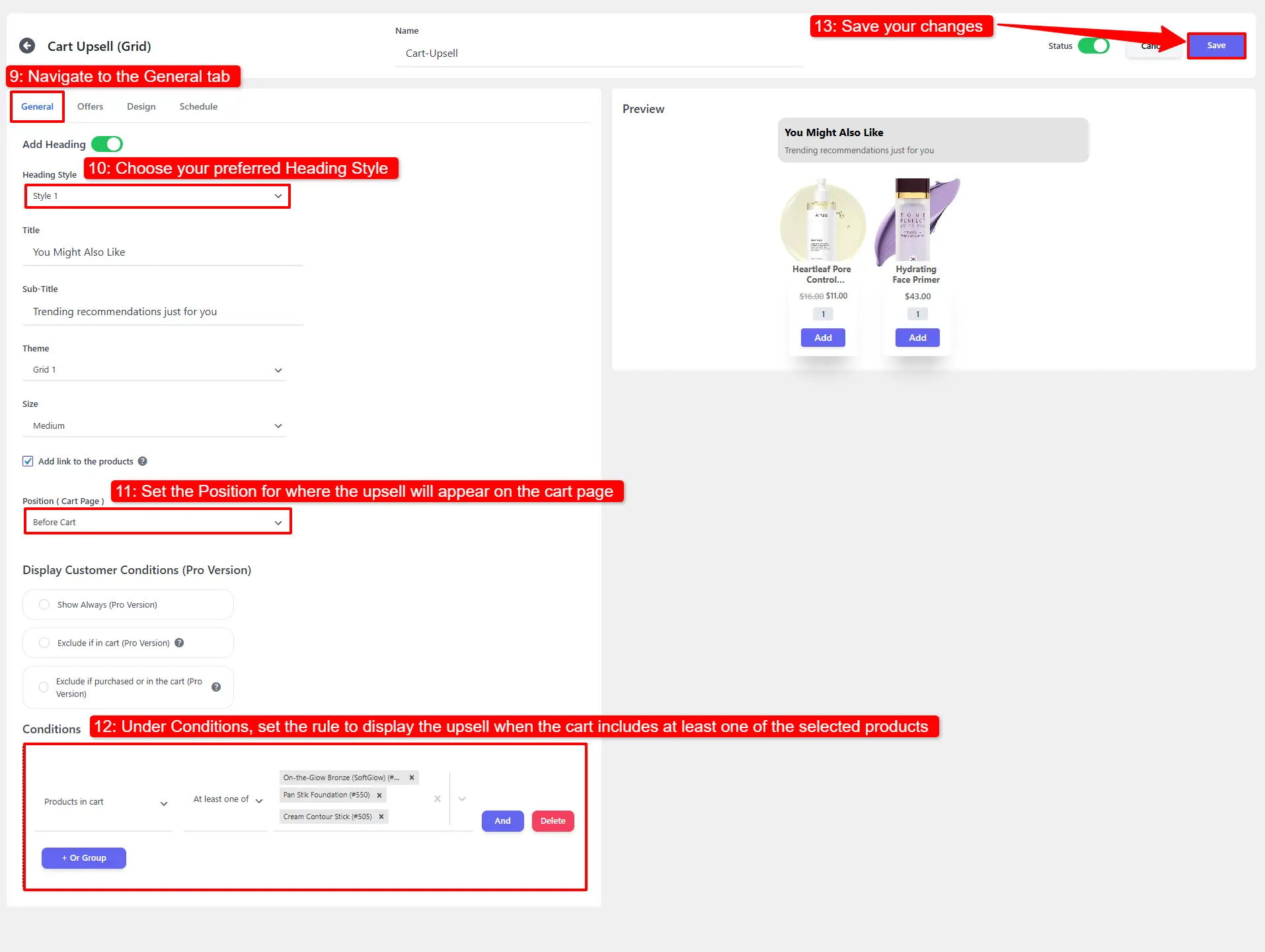
- Navigate to the General tab.
- Choose your preferred Heading Style.
- Set the Position for where the upsell will appear on the cart page..
- Under Conditions, set the rule to display the upsell when the cart includes at least one of the selected products.
- Save your changes.
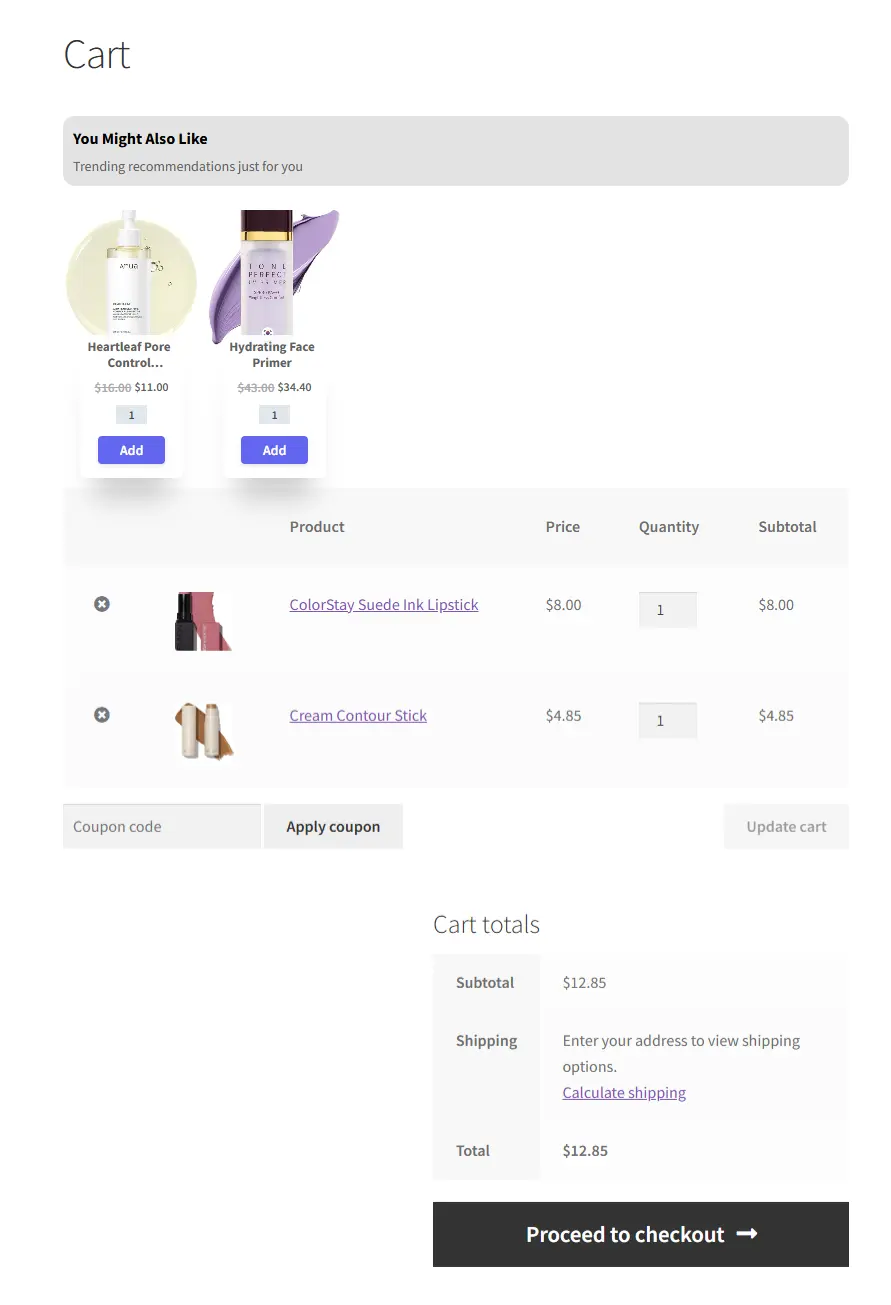
Once everything is configured, the cart upsell will automatically appear at the top of the Cart page whenever a customer has at least one of the selected products in their cart.
How to Create a Checkout Upsell (WooCommerce Upsell Free Plugin)
- Navigate to Upsells
- Click Add New to create a new upsell
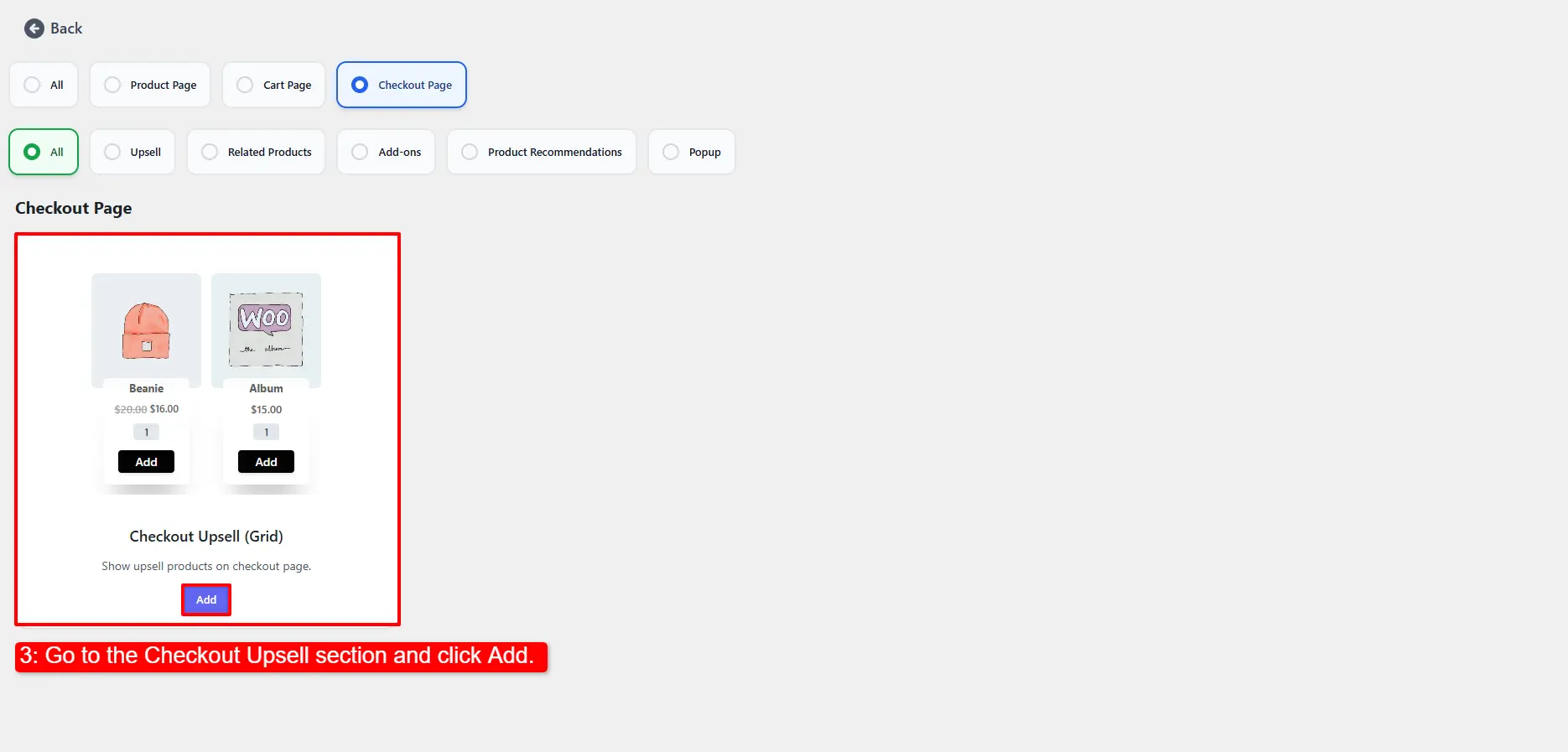
- Go to the Checkout Upsell section and click Add.
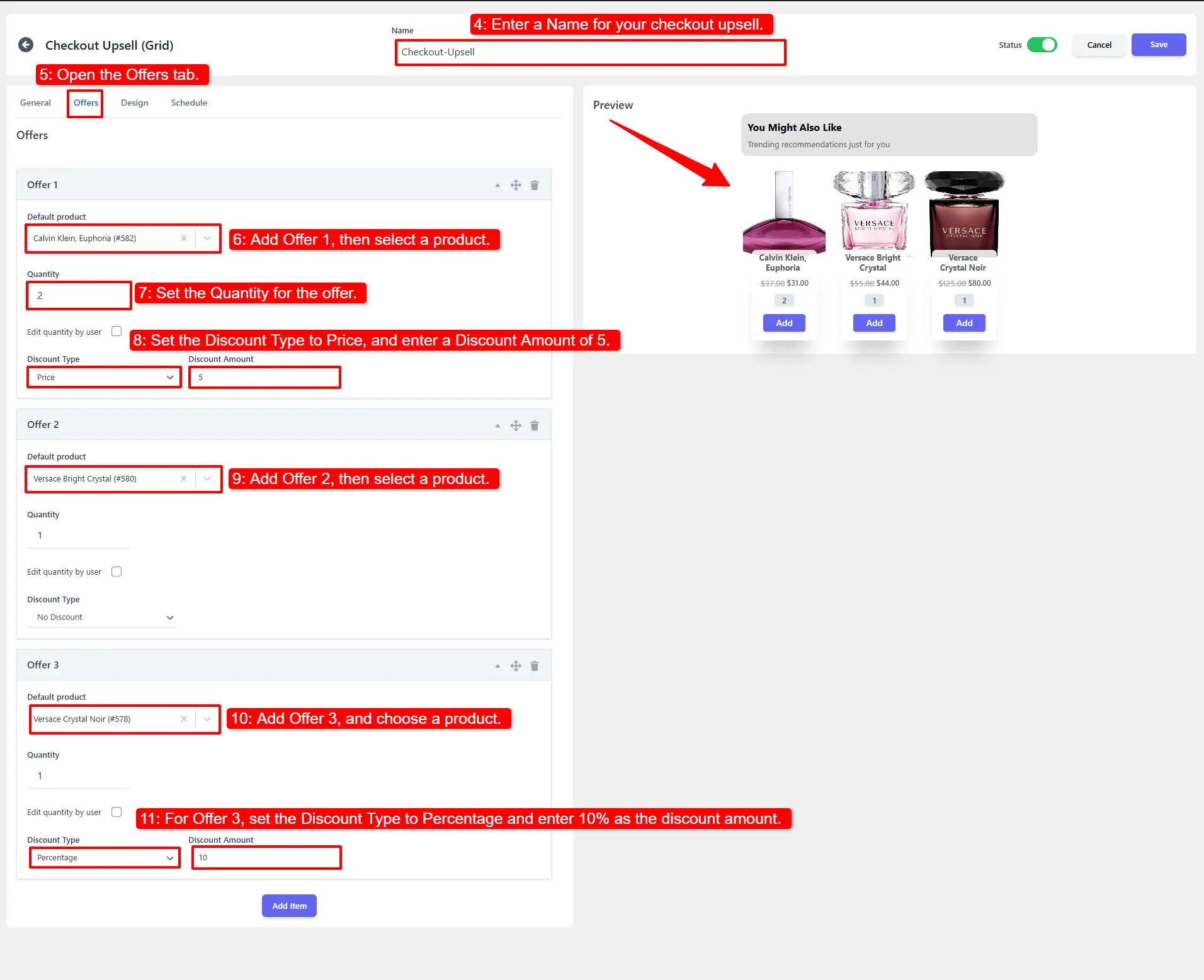
- Enter a Name for your checkout upsell.
- Open the Offers tab.
- Add Offer 1, then select a product.
- Set the Quantity for the offer.
- Set the Discount Type to Price, and enter a Discount Amount of 5.
- Add Offer 2, then select a product.
- Add Offer 3, and choose a product.
- For Offer 3, set the Discount Type to Percentage and enter 10% as the discount amount.
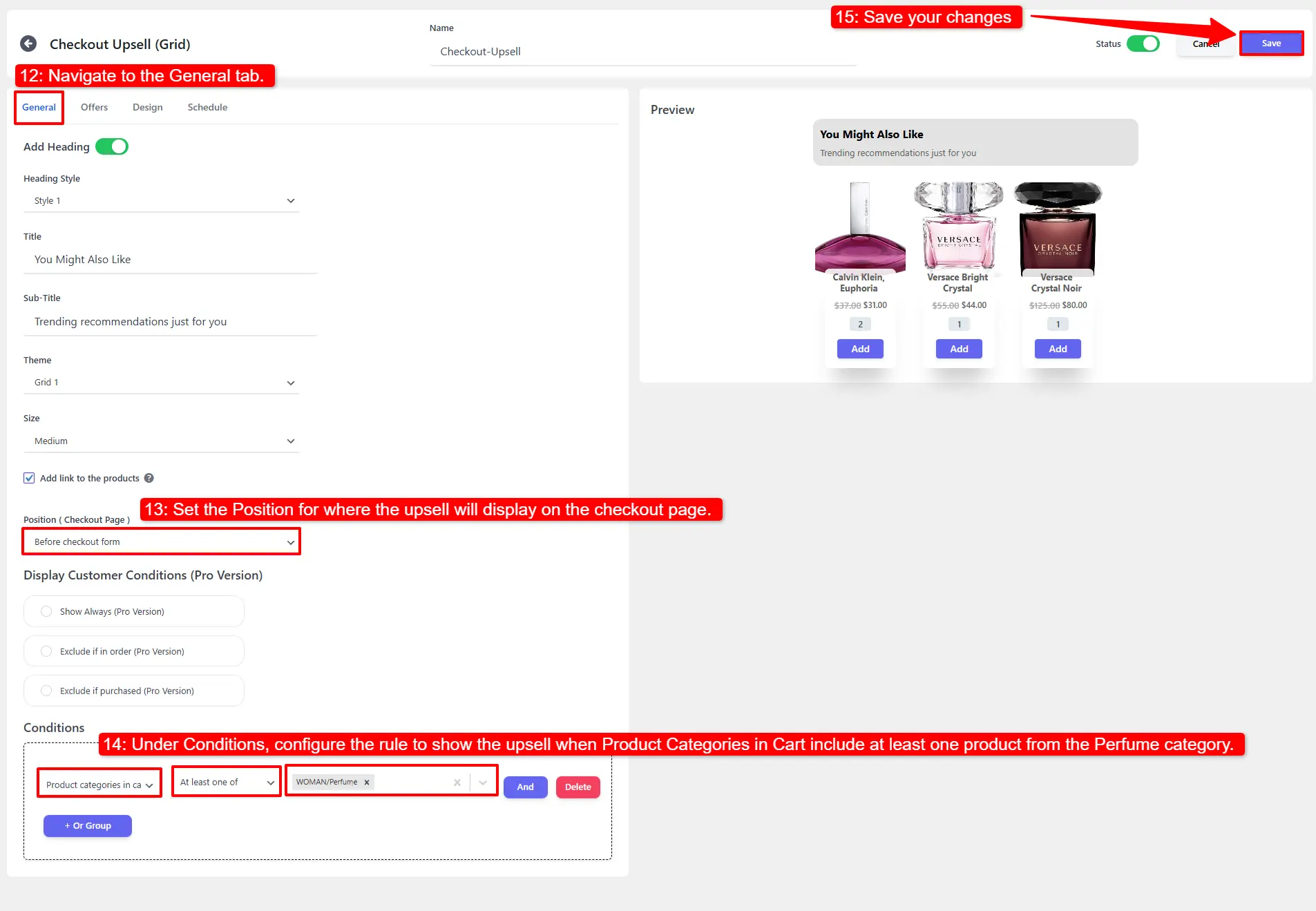
- Navigate to the General tab.
- Set the Position for where the upsell will display on the checkout page.
- Under Conditions, configure the rule to show the upsell when Product Categories in Cart include at least one product from the Perfume category.
- Save your changes.
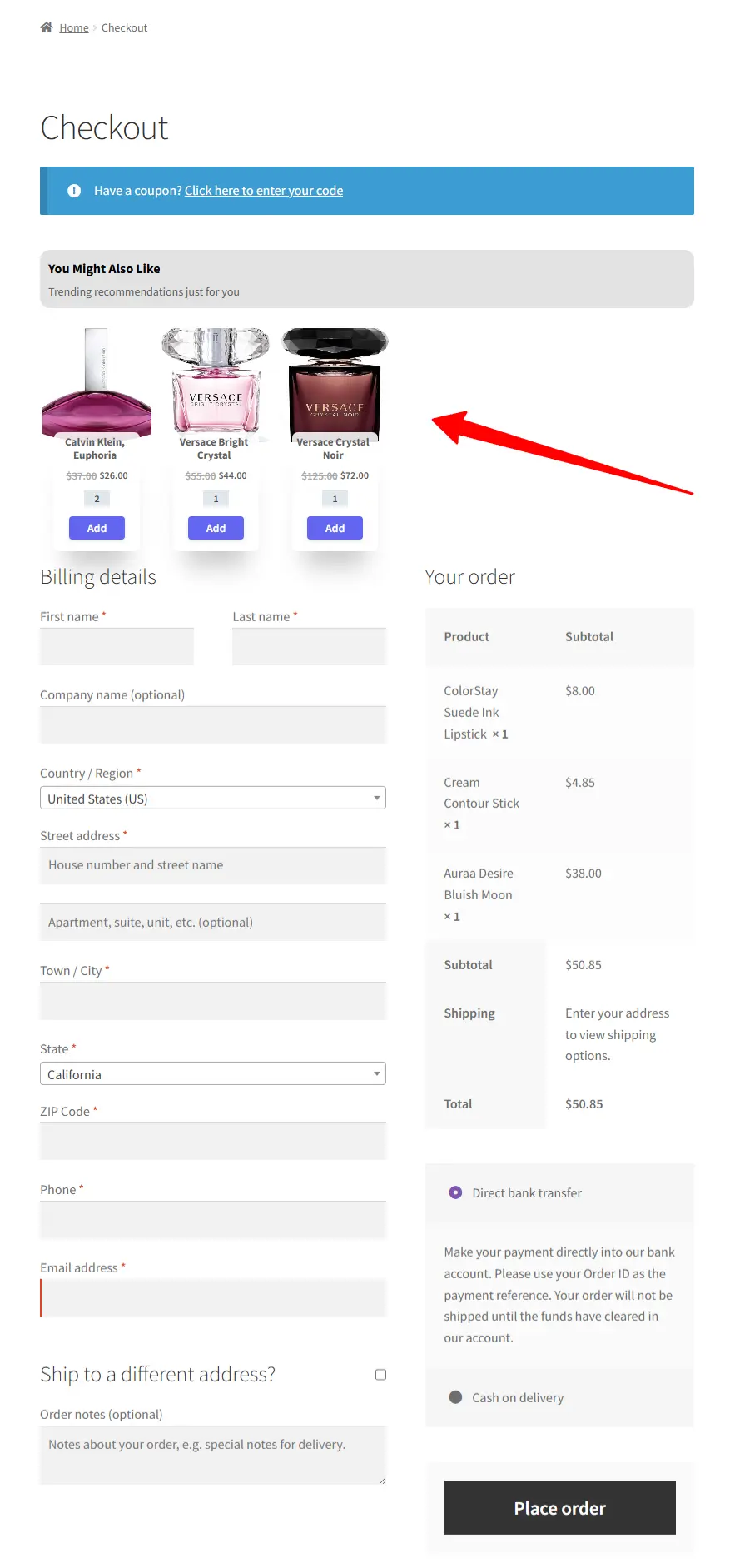
Once everything is set, the checkout upsell will automatically appear at the top of the Checkout page whenever a customer’s cart contains at least one product from the Perfume category.
Final Thoughts on the WooCommerce Upsell Free Plugin
The WooCommerce Upsell Free Plugin is a powerful tool for boosting your store’s average order value. With flexible display rules, smart targeting, and customizable designs, you can create highly effective upsells throughout your store.
If you want to explore additional options and view more detailed guides, you can visit the plugin Documentation.