
WooCommerce product bundles allow you to combine multiple products into a single offer and sell them together as one bundle. You can use bundles to group complementary products, create special offers, encourage customers to buy related products, or offer multiple products at a combined price.
For example, a clothing store could create a bundle that includes a shirt, pants, and shoes. Instead of purchasing each product separately, customers can purchase the complete bundle from a single product page.
In this guide, you’ll learn how to create WooCommerce product bundles step by step using the Product Bundle Builder for WooCommerce plugin. We’ll start with a simple product bundle and then look at other bundle types, pricing methods, shipping, and advanced options.
Table of Contents
- What Are WooCommerce Product Bundles?
- Why Create Product Bundles in WooCommerce?
- How to Create a WooCommerce Product Bundle
- Different Types of WooCommerce Product Bundles
- Add Discounts to Your Product Bundles
- Shipping Fee Calculation
- How to Configure Plugin Settings
- Themes and Sizes
- Coupon Apply Method
- Shortcodes
- Using Shortcodes with Elementor
- How to translate WooCommerce product bundles
- Best WooCommerce Product Bundle Examples
- WooCommerce Product Bundles Free vs Pro
- Frequently Asked Questions
- Conclusion
- Related Resources
- 🌐SOCIAL MEDIA LINKS
What Are WooCommerce Product Bundles?
A WooCommerce product bundle is a product that combines multiple individual products into one package.
You can create bundles with fixed products or, depending on your configuration, allow customers to choose products, quantities, or variations within the bundle.
For example, you could create:
- A clothing bundle with a shirt, pants, and shoes
- A computer bundle with a laptop, mouse, and keyboard
- A skincare bundle with cleanser, serum, and moisturizer
- A gift bundle containing several complementary products
Product bundles can be configured in different ways depending on the products you sell and how you want customers to purchase them.
Why Create Product Bundles in WooCommerce?
Product bundles can help you offer related products together and create more flexible purchasing options for your customers.
Here are some common reasons to create product bundles in WooCommerce:
- Increase average order value: Encourage customers to purchase multiple related products together.
- Promote complementary products: Group products that are commonly used or purchased together.
- Create special offers: Sell several products as a package with a fixed price or discount.
- Simplify the buying process: Let customers purchase multiple products from a single product page.
- Create customizable offers: Allow customers to choose products, quantities, or variations when needed.
How to Create a WooCommerce Product Bundle
The easiest way to create a WooCommerce product bundle is to use a product bundle plugin that integrates with WooCommerce.
In the following steps, we’ll use Product Bundle Builder for WooCommerce to create a simple product bundle.
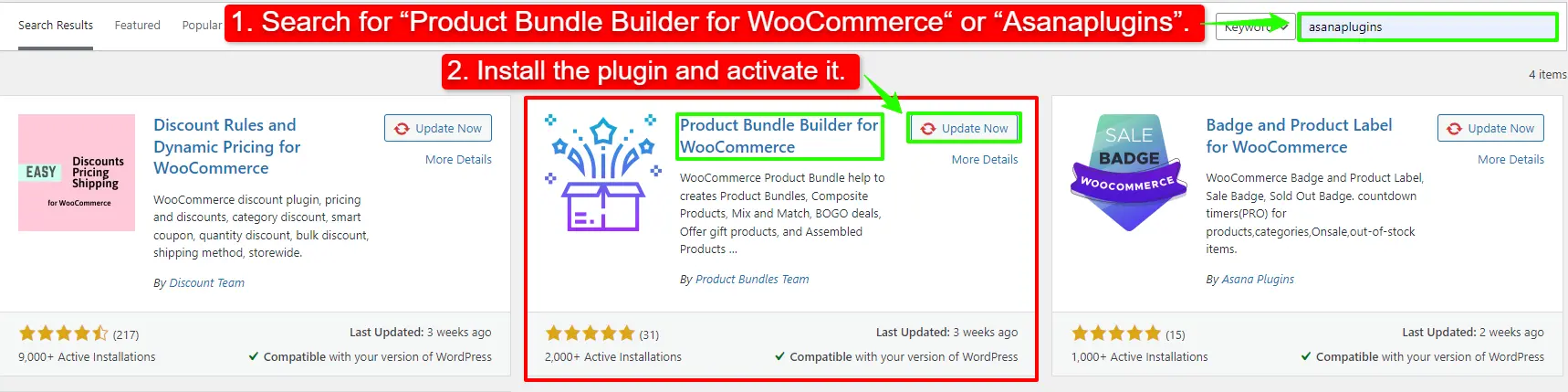
Step 1: Install Product Bundle Builder for WooCommerce
To install Product Bundle Builder for WooCommerce, follow these steps:
- Go to Plugins → Add New in your WordPress dashboard.
- Search for “Product Bundle Builder for WooCommerce” or “AsanaPlugins.”
- Find Product Bundle Builder for WooCommerce in the search results.
- Click Install Now, then click Activate.
Get Product Bundle Builder for WooCommerce
Step 2: Create a New Product Bundle
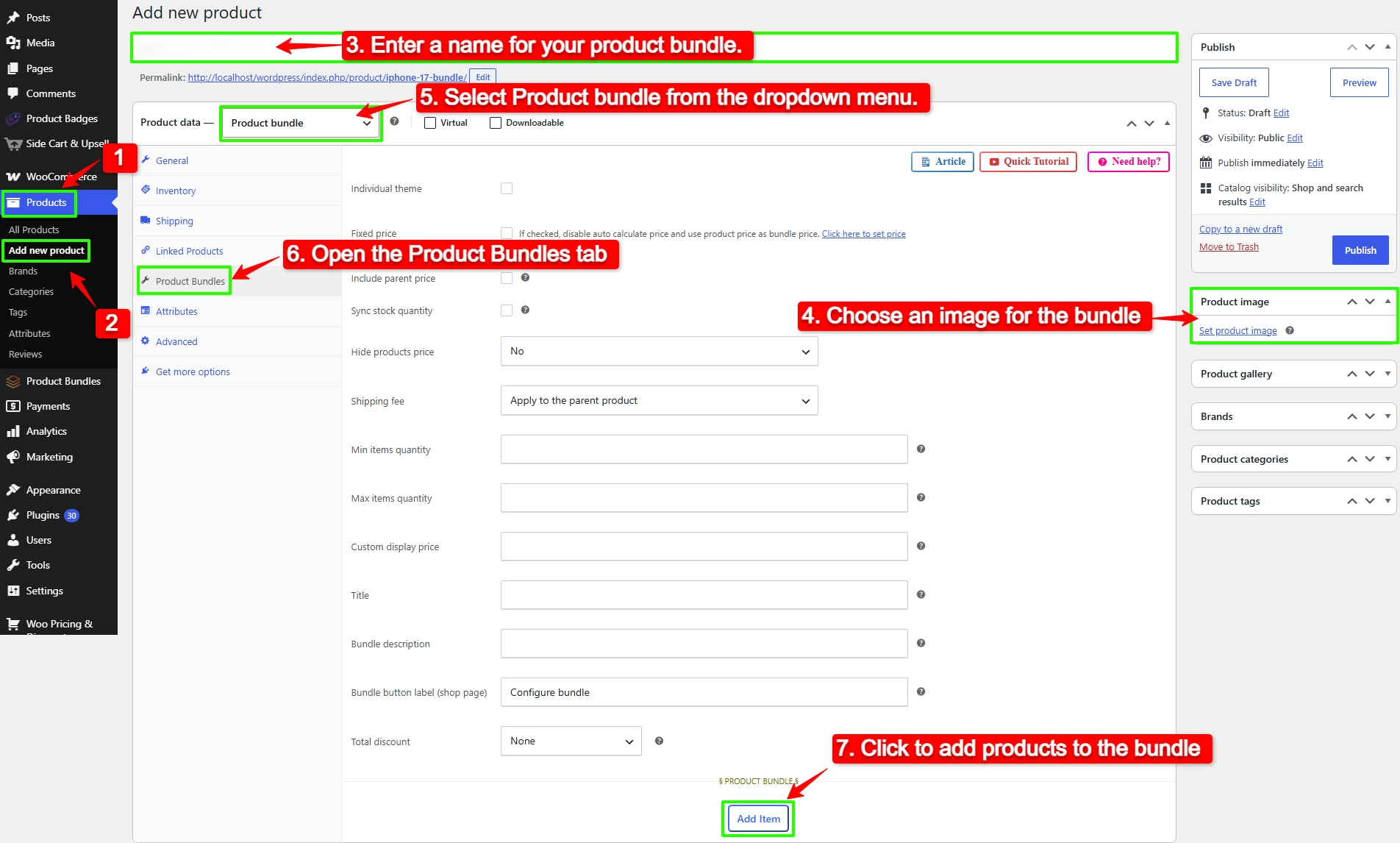
To create a WooCommerce Product Bundle, follow these steps:
- Go to “WooCommerce” → “Products” in your WordPress dashboard.
- Click “Add New” to create a new product.
- Enter a name for your product bundle.
- In the right sidebar, click “Set product image” and choose an image for your bundle.
- In the “Product data” section, select “Product bundle” from the product type dropdown.
- After selecting “Product bundle,” the “Product Bundles” tab will appear in the product data panel.
- Go to the “Product Bundles” tab and click “Add Item” to add products to your bundle.
Step 3: Add and Configure Bundle Items
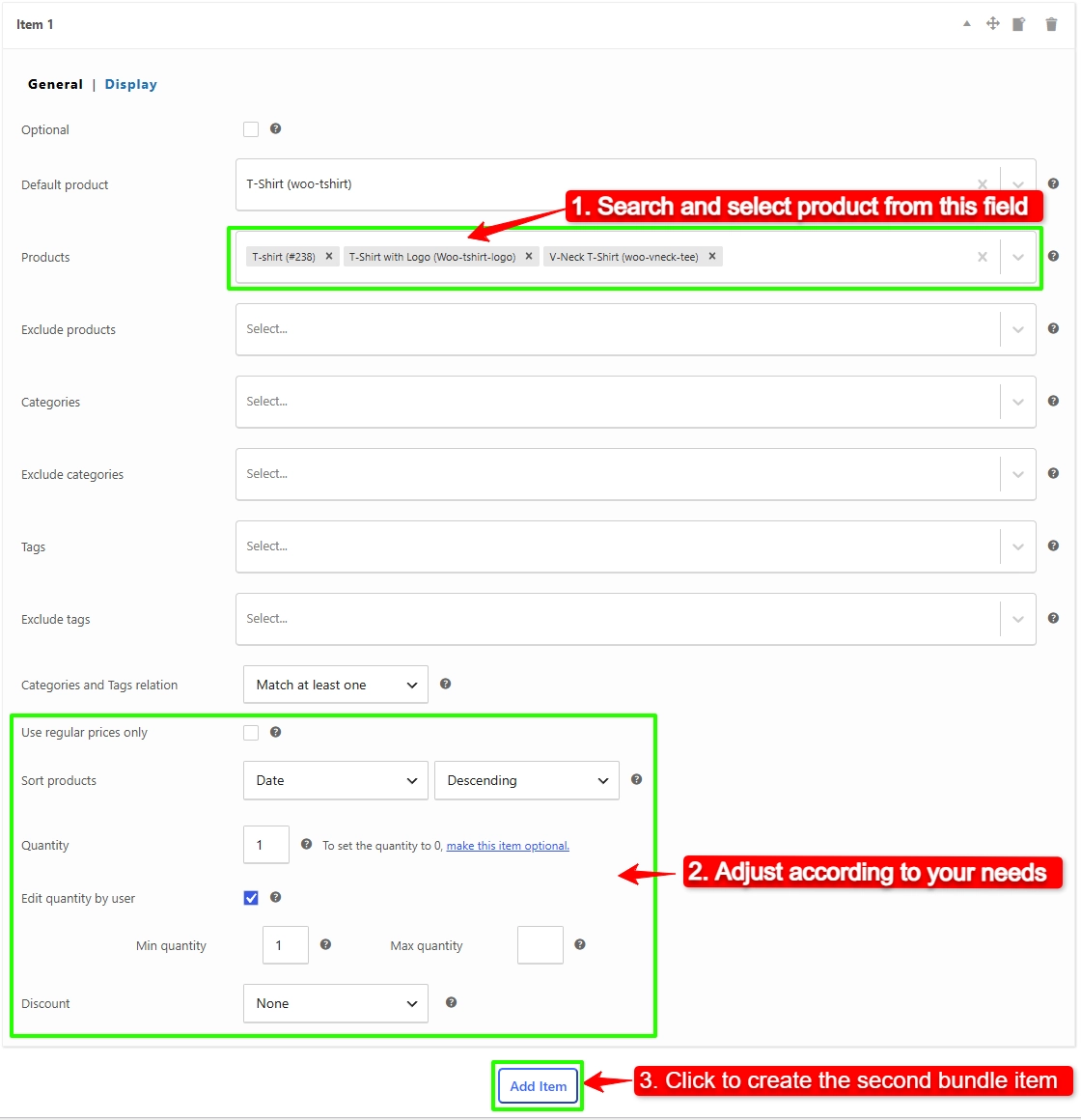
After clicking on “Add Item”, configure the first bundle item using the available options:
- In the “Products” field, search for and select the product you want to add to the bundle.
- Set the “Quantity” for the selected product.
- Configure the available quantity options according to your requirements.
- Configure any other available options for the bundle item.
- Review the item settings and make sure they are configured as needed.
For example, if you are creating a clothing bundle, you can add a T-Shirt as the first bundle item and configure its quantity and other available options.
- Once you have finished configuring the first item, click “Add Item” to create the second bundle item.
Select another product, such as Jeans, and configure its quantity and available options.
Repeat the same process to add and configure the remaining bundle items, such as Shoes.
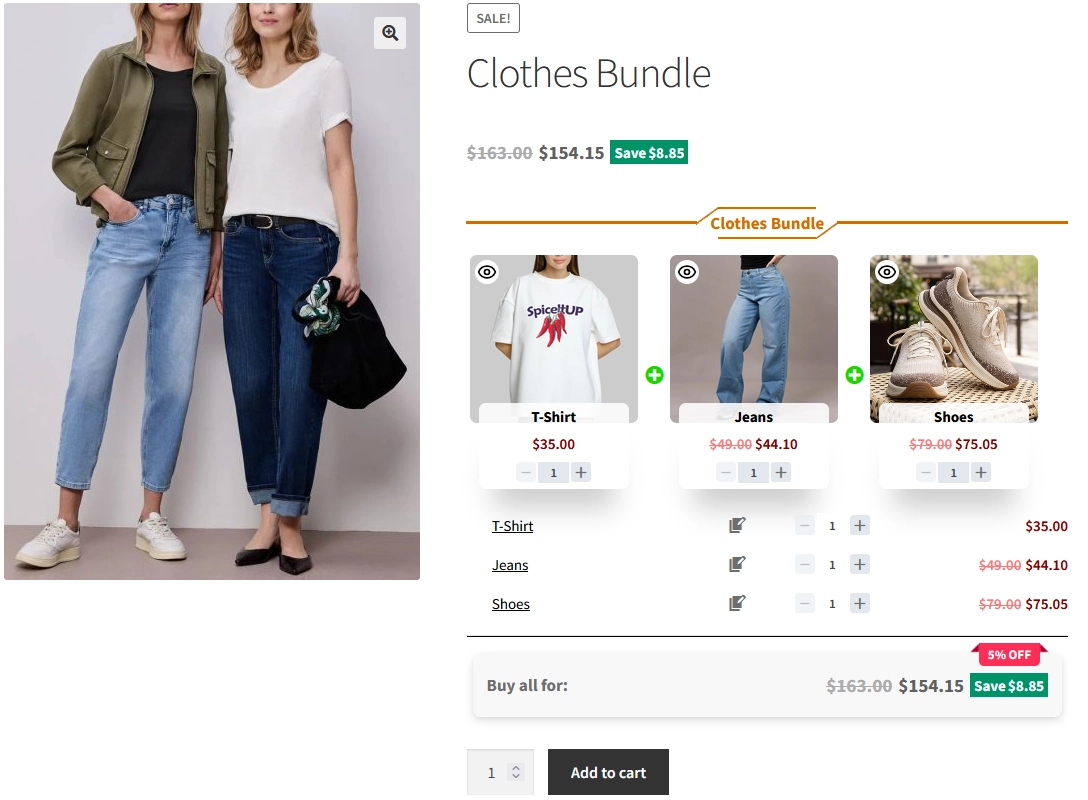
Your bundle can now contain:
- Item 1: T-Shirt
- Item 2: Jeans
- Item 3: Shoes
Each bundle item can be configured separately according to your requirements.
Step 4: Configure the Bundle Price
After adding and configuring all the bundle items, configure the pricing method for your bundle.
In the “Product Bundles” tab, configure the bundle price according to your requirements.
The plugin provides two pricing methods:
1. Fixed Price
Select the fixed pricing option if you want to set one specific price for the entire bundle.
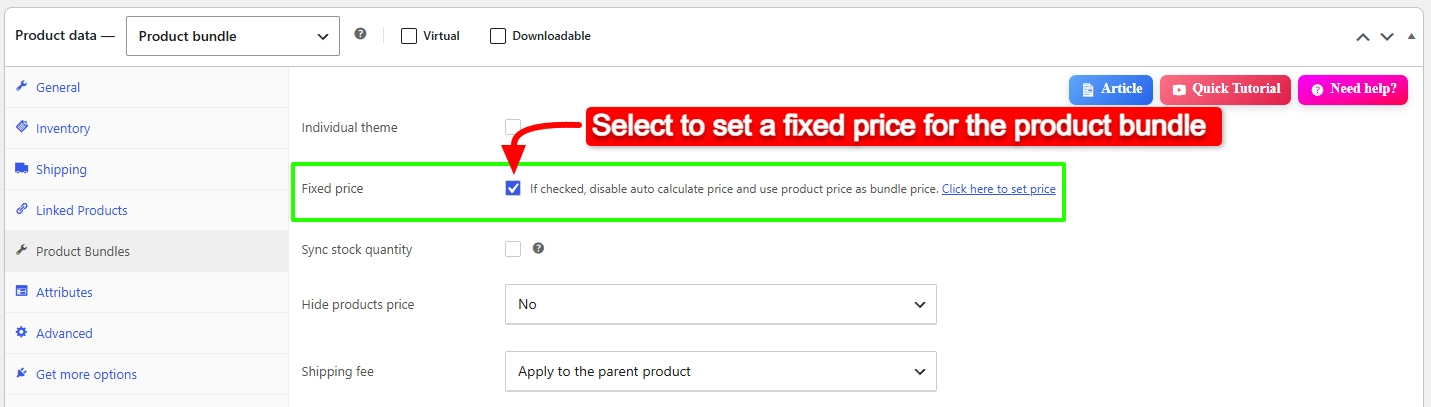
For example, if the products in your bundle have a combined regular price of $100, you can sell the complete bundle for $85.
2. Automatically Calculated Price
The Auto Calculate Price option dynamically calculates the price of the product bundle based on the selected items.
To use the automatic pricing feature, uncheck the “Fixed Price” option and update the product.
This option is useful when the products in your bundle have different prices or when you want the bundle price to change based on the products selected by the customer.
Step 5: Configure Additional Bundle Options
After configuring the bundle items and pricing, review the available bundle options and configure them according to your requirements.
Depending on your bundle configuration, you can customize options such as product selection, quantities, discounts, and other available settings.
For more advanced bundle configurations, such as product variations, Mix and Match, categories, tags, optional products, and dynamic product selection, you can follow the dedicated guides linked in this article.
Step 6: Publish the Bundle
Once you have finished configuring your bundle, click “Publish” to publish the product.
Your WooCommerce product bundle is now ready to be displayed in your store.
Open the product page and make sure that the bundle works as expected before making it available to your customers.
Check that:
- All bundle items are displayed correctly.
- The selected products are correct.
- Quantities work as expected.
- The bundle price is correct.
- Any configured discounts are applied correctly.
- The bundle can be added to the cart successfully.
Different Types of WooCommerce Product Bundles
WooCommerce product bundles can be created in different ways depending on how you want customers to select and purchase products. With Product Bundle Builder for WooCommerce, you can create simple fixed bundles as well as more flexible bundle configurations.
Simple Product Bundles
A simple product bundle combines specific products into one package. The store owner selects the products included in the bundle, and customers purchase them together.
For example, you can create a bundle containing a T-shirt, jeans, and shoes and sell them as one package.
This is the simplest way to create a WooCommerce product bundle and is covered in the step-by-step tutorial above.
Product Bundles with Variations
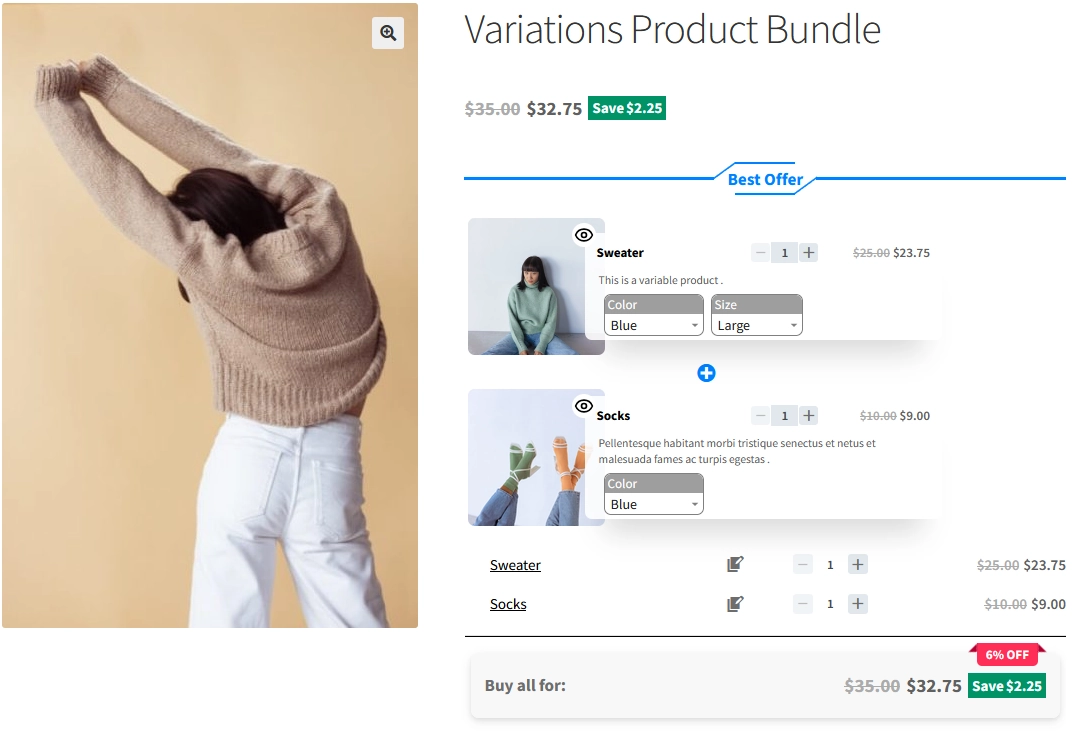
You can also include variable products in your WooCommerce bundles and allow customers to select the variation they want.
For example, if a bundle contains a T-shirt, customers can choose its size and color before adding the bundle to the cart.
Learn more about WooCommerce Product Bundles with Variations.
Mix and Match Product Bundles
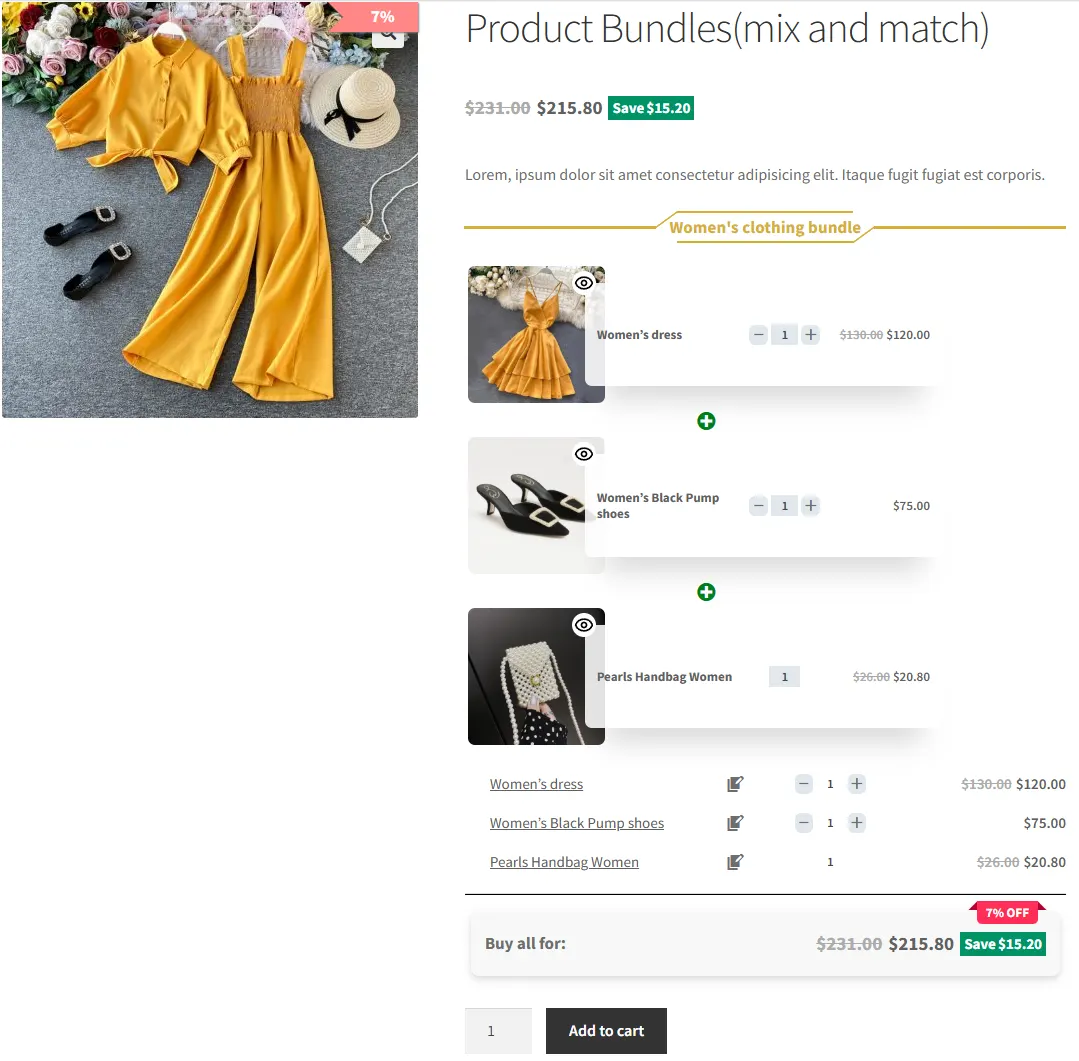
Mix and Match bundles allow customers to choose products from a selection of available items.
For example, you can let customers choose any 3 products from a selection of 10 products to create their own bundle.
Learn how to create WooCommerce Mix and Match bundles.
Dynamic Product Bundles
Dynamic bundles allow you to create more flexible product selections and configure bundle items based on your store’s requirements.
They can be useful when you want customers to build a bundle by selecting products from different options.
Learn more about creating dynamic WooCommerce product bundles.
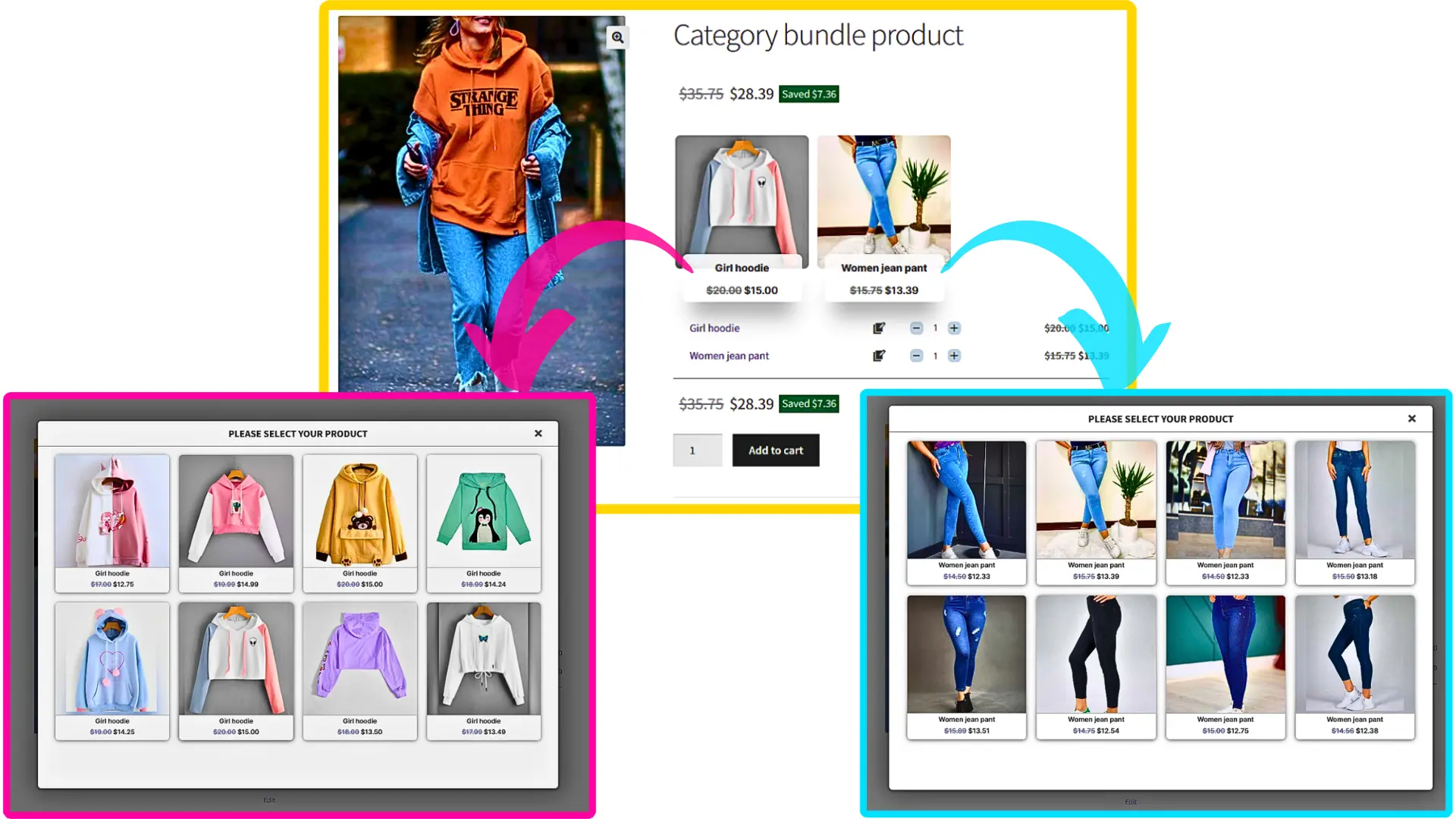
Category-Based Product Bundles
With category-based bundles, you can allow products to be selected from specific WooCommerce product categories.
For example, you could create a bundle where customers choose one product from the Shirts category and another from the Shoes category.
Learn how to create WooCommerce product bundles with categories.
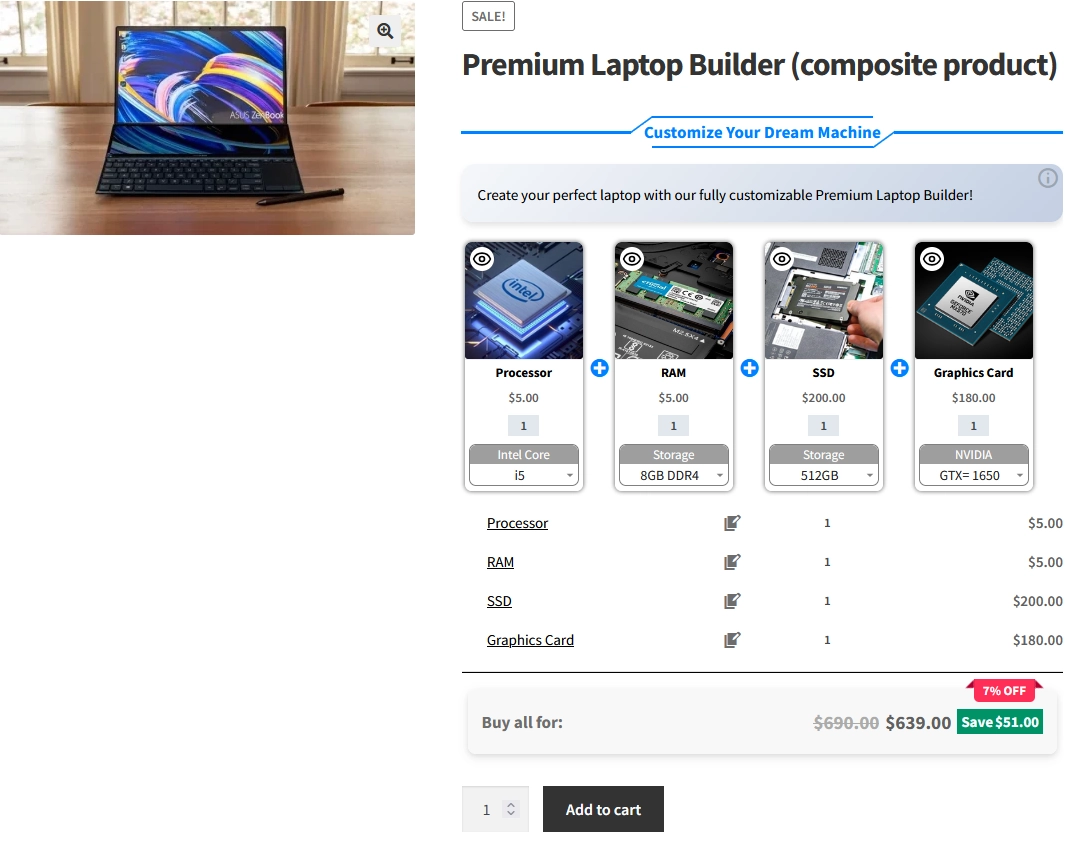
Composite Products
Composite products allow you to create bundles with multiple configurable components.
For example, you can create a computer bundle where customers select a processor, memory, storage, and other components.
Learn more about creating WooCommerce composite products.
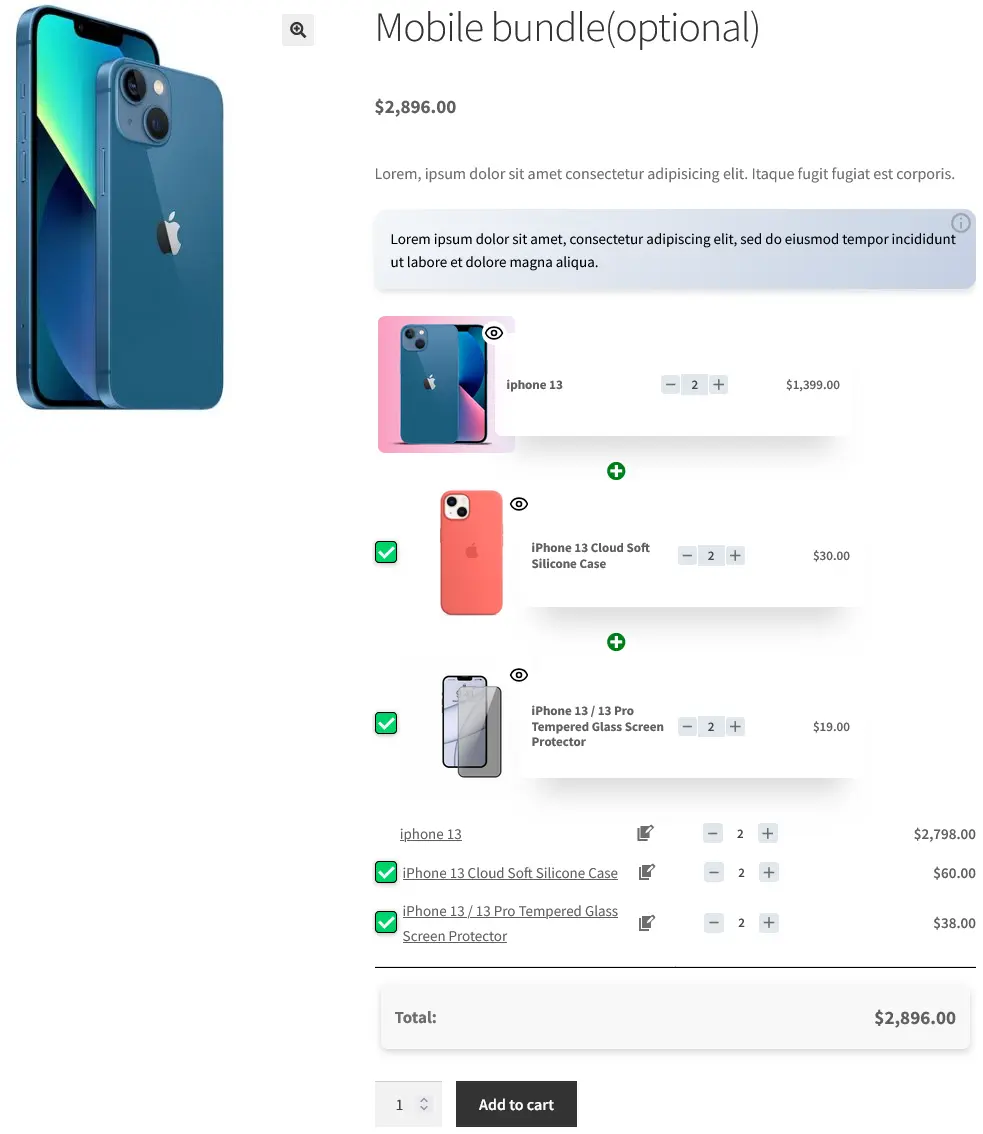
Optional Product Bundles
Optional bundle items allow customers to choose whether they want to include certain products in their bundle.
For example, you can make an additional product optional so customers can choose whether to add it to their bundle.
Learn how to create optional product bundles in WooCommerce.
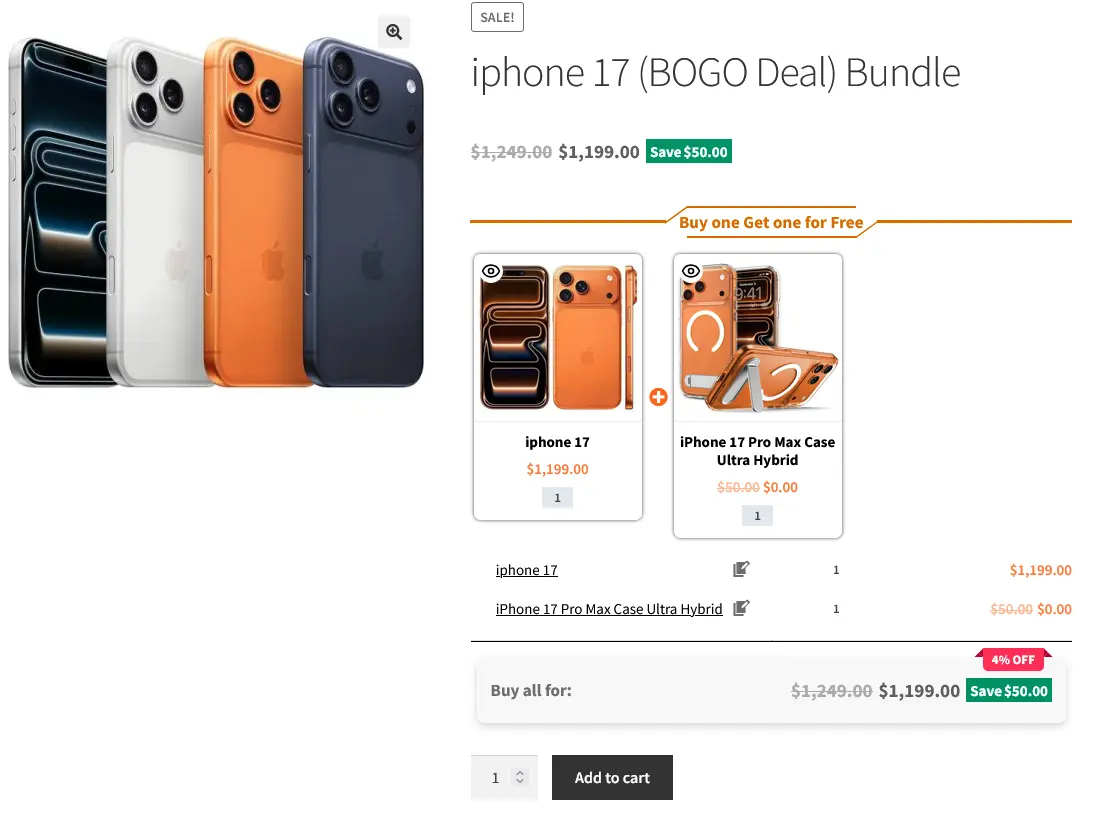
BOGO Product Bundles
BOGO (Buy One Get One) bundles allow you to offer a free or discounted product when a customer purchases another product.
For example, you can offer a free T-shirt when a customer purchases a specific product.
Learn how to create BOGO deals with WooCommerce Product Bundles.
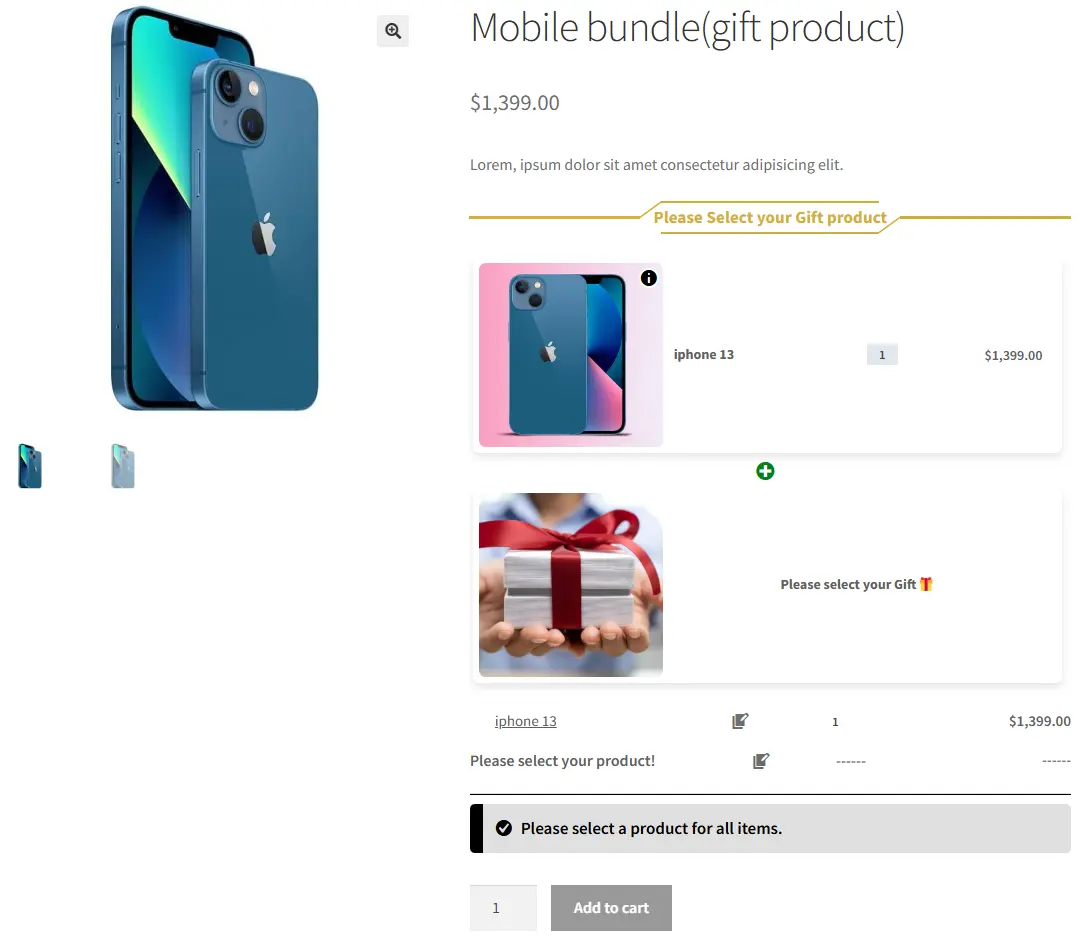
Gift Product Bundles
Gift product bundles allow you to offer one or more products as gifts when customers purchase a specific product or bundle.
For example, you can give customers a free product as an incentive to purchase a bundle.
Learn how to offer gift products with WooCommerce Product Bundles.
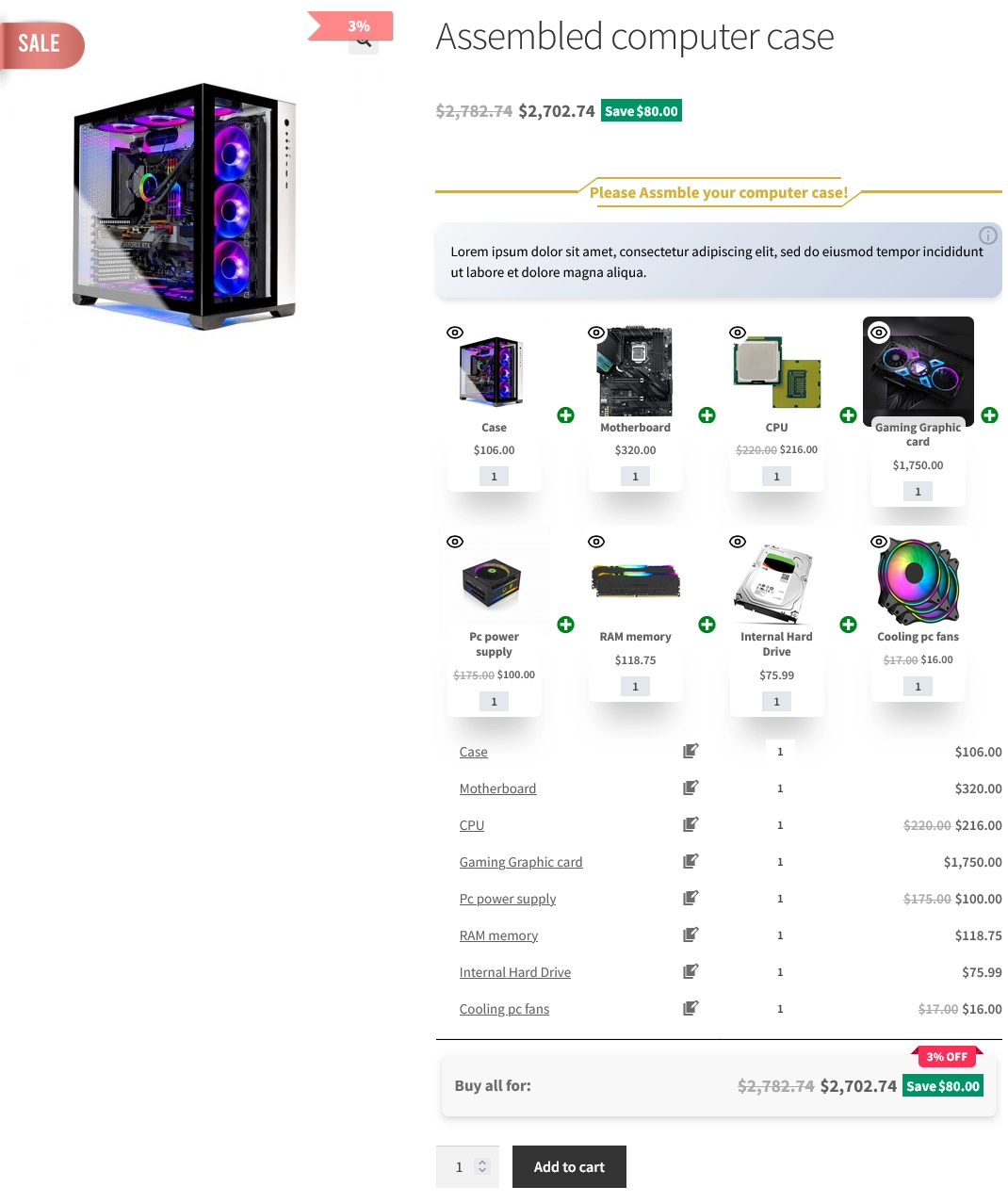
Assembled Product Bundles
Assembled product bundles combine multiple individual products or components into one complete product offering.
For example, you can create an assembled computer bundle containing a monitor, keyboard, mouse, and other components.
Learn how to create assembled products in WooCommerce.
Subscription Bundles
You can also use product bundles with subscription products to create recurring product offers.
For example, a store can combine several products into a subscription bundle and allow customers to receive the products on a recurring basis.
For a complete guide, see How to Create Subscription Bundles in WooCommerce.
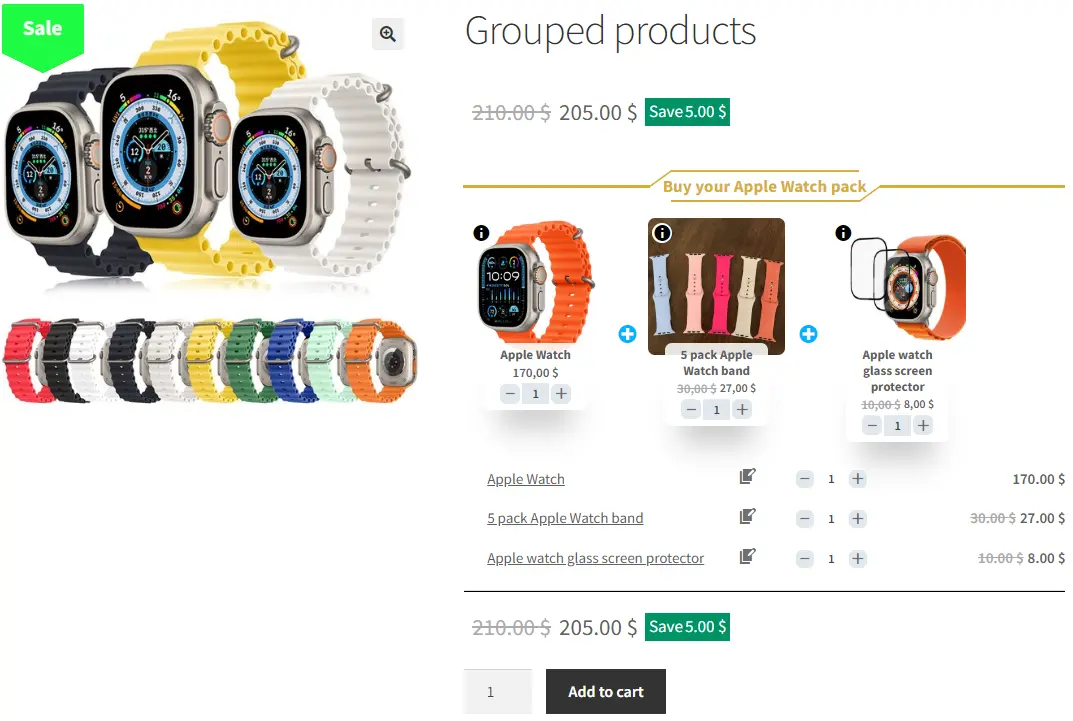
Grouped Products
Grouped Products provide another way to present multiple related WooCommerce products together on a single product page.
This can be useful when you want customers to view and purchase several related products together without creating them as a single bundled product.
For more information, see How to Create WooCommerce Grouped Products.
Combo Offers
Combo offers allow you to combine complementary products and present them as a special offer.
For example, you can combine several related products and offer them together at a special price.
See How to Create WooCommerce Combo Offers for more information.
Add Discounts to Your Product Bundles
Product Bundle Builder for WooCommerce allows you to apply discounts to both the entire product bundle and individual bundle items when using the Auto Calculate Price option.
Discount on the Entire Bundle
You can apply a discount to the total price of the product bundle. The discount can be configured as either a percentage or a price discount.
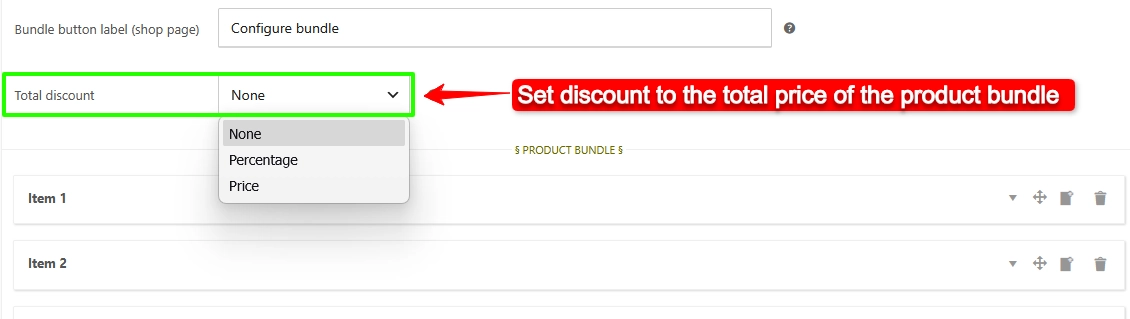
This allows you to offer a discount on the complete bundle rather than applying a separate discount to each product.
Discount on Individual Bundle Items
You can also apply a discount to individual products included in the bundle.
Each bundle item can have its own discount, allowing you to apply different discounts to different products within the same bundle.
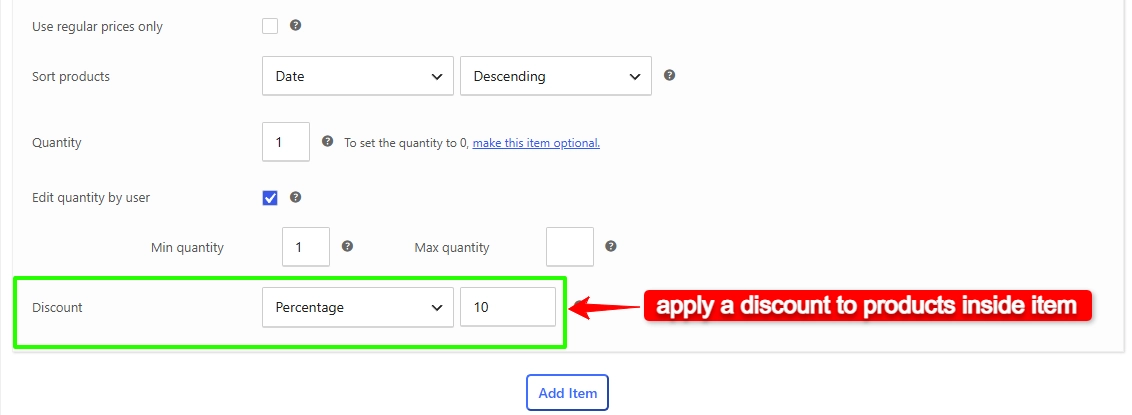
This is useful when you want to offer specific discounts on selected products while keeping other bundle items at their regular prices.
Shipping Fee Calculation
Product Bundle Builder for WooCommerce allows you to choose how the shipping fee is calculated for a product bundle.
You can choose to apply the shipping fee for the whole bundle or each bundle item, or the parent product.

How to Configure Plugin Settings
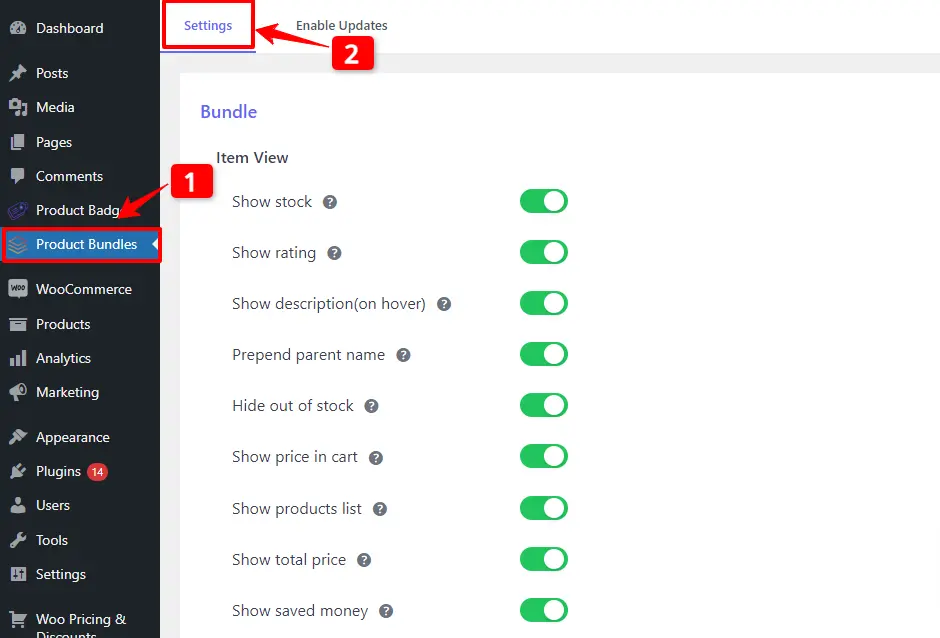
The main plugin settings are available in the “Product Bundles” tab in your WordPress dashboard.
From there, you can configure the general options that control how product bundles work and are displayed in your store.
Settings and customization are available on this page:
- Item View: In this section, you can configure various settings, such as displaying stock availability, showing product ratings and descriptions, enabling modal quick views, adding a quantity field on item pages, displaying a plus icon for items, setting the theme and size options, positioning product bundles on the product page, defining custom CSS selectors, specifying the product price selector, and many other customizable options.
- Change product model: In this section, you can configure the number of products per pop-up page.
- Styles: In this section, you can customize the colours of different parts of your bundle and set the product image object-fit CSS.
Themes and Sizes
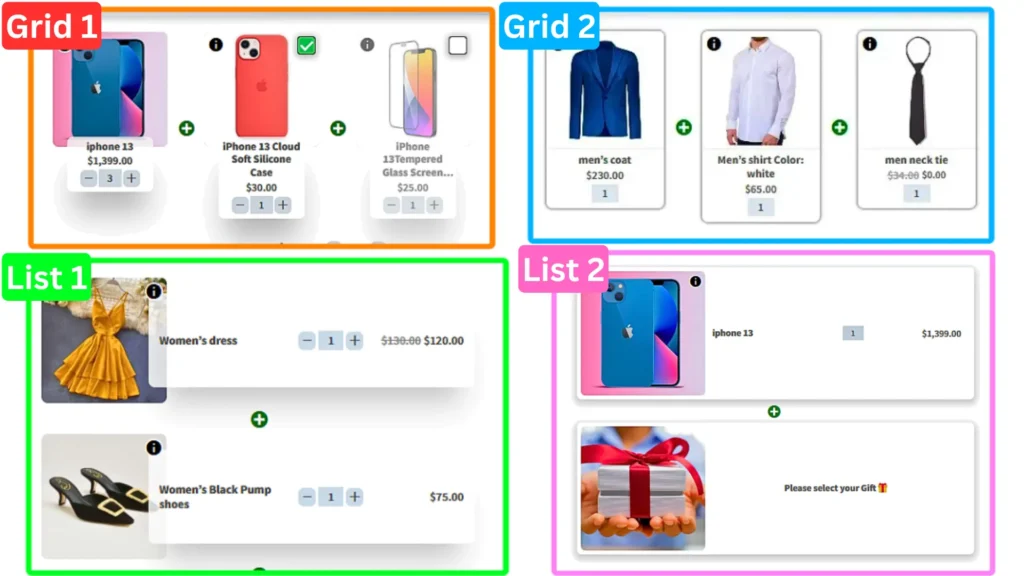
Product Bundle Builder for WooCommerce includes multiple grid and list themes for displaying bundle items on your product pages.
You can also choose the item size for your product bundle, with Small, Medium, and Large size options.
These settings allow you to customize how bundle items are displayed and choose a layout and size that best fits your store’s design.
Coupon Apply Method
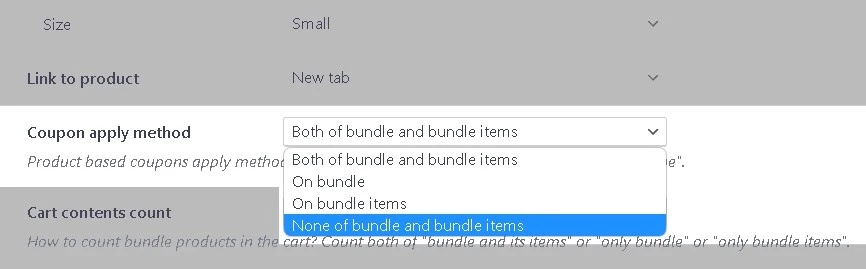
You can also control how WooCommerce coupons are applied to a product bundle.
The plugin provides the following options:
- Both Bundle and Bundle Items
- Only Bundle
- On Bundle Items
- None
Choose the coupon application method that best fits your bundle pricing and discount strategy
Shortcodes
The Product Bundle Builder plugin provides shortcodes that you can use to display product bundles on your product pages.
These shortcodes are especially useful when you want to manually place the bundle output in a specific location or use it with page builders such as Elementor.
Available Shortcodes
Display Product Bundles
Use the following shortcode to display product bundles:
[asnp_wepb_product]Display Product Bundles with Add to Cart
Use the following shortcode to display product bundles with an Add to Cart button:
[asnp_wepb_product show_add_to_cart="1"]Using Shortcodes with Elementor
To use a shortcode with Elementor:
- Edit your page with Elementor.
- Add the Shortcode widget.
- Enter one of the Product Bundle Builder shortcodes.
- Save or update the page.
For example:
[asnp_wepb_product show_add_to_cart="1"]The product bundles will be displayed where the shortcode is placed.
How to translate WooCommerce product bundles
Translating your WooCommerce product bundles can help you provide a better shopping experience for customers who speak different languages. It allows you to display bundle-related text and product information in your customers’ preferred language.
For a step-by-step guide, see How to Translate WooCommerce Product Bundles.
Best WooCommerce Product Bundle Examples
Product bundles can be used in many different ways depending on your products and business model. Here are some common examples:
Clothing Bundle
Combine products such as a T-Shirt, Jeans, and Shoes into a complete outfit and offer them together as one bundle.
Computer Bundle
Create a bundle containing products such as a computer, monitor, keyboard, mouse, and other accessories.
Skincare Bundle
Combine complementary products such as cleanser, moisturizer, and serum into one skincare package.
Gift Bundle
Create a package containing several related products and offer it as a ready-made gift.
BOGO Offer
Offer a free or discounted product when a customer purchases a qualifying product.
Build Your Own Bundle
Allow customers to choose products from a predefined selection and create their own personalized bundle.
These examples show how WooCommerce product bundles can be adapted to different products, offers, and customer needs.
WooCommerce Product Bundles Free vs Pro
Product Bundle Builder for WooCommerce is available in both Free and Pro versions.
The free version provides the essential features needed to create and sell product bundles, while the Pro version adds more advanced bundle types, customization options, and additional features.
With the Pro version, you can create advanced bundle offers such as Mix and Match, Dynamic Bundles, Category-Based Bundles, Optional Products, and Assembled Products, along with additional display and customization options.
For a complete list of Pro features, pricing, and available options, see the Product Bundle Builder for WooCommerce Pro page.
Frequently Asked Questions
Yes. You can create basic product bundles using the free version of Product Bundle Builder for WooCommerce.
Yes. Depending on how you configure the bundle, you can allow customers to select products, quantities, or variations.
Yes. You can include variable products in a bundle and allow customers to select the available variations.
Yes. You can enable the Fixed Price option and set a specific price for the entire bundle.
Yes. By disabling the Fixed Price option, you can use Auto Calculate Price to calculate the bundle price based on the selected products.
Yes. Product Bundle Builder for WooCommerce can be used to create Buy One Get One offers where customers receive a free or discounted product.
Yes. You can configure a bundle to include a free gift product with a qualifying purchase.
Yes. Variable products can be included in bundles, allowing customers to select available variations according to your configuration.
Conclusion
WooCommerce product bundles allow you to combine related products, create special offers, and give customers a more convenient way to purchase multiple products together.
With Product Bundle Builder for WooCommerce, you can start with simple product bundles and create more advanced offers such as Mix and Match bundles, Dynamic Bundles, Optional Products, BOGO offers, Gift Products, Category-Based Bundles, and Assembled Products.
Whether you want to increase the value of each order, promote complementary products, or create customizable product offers, product bundles can be adapted to different types of WooCommerce stores.
Start with a simple bundle using the step-by-step tutorial above, or explore the dedicated guides throughout this article to create more advanced WooCommerce product bundle offers.
Related Resources
Want to learn more about WooCommerce product bundles and related strategies? Explore these helpful guides:
- WooCommerce Product Bundles Free Plugin
- WooCommerce Product Bundle with Variations (Free Plugin)
- WooCommerce Mix and Match Free Plugin
- How to translate WooCommerce product bundle
- 4 Best WooCommerce free plugins to boost sales and revenue
- Boost Your E-commerce Sales with WooCommerce Product Bundles
- Create Custom Bundles with Categories in WooCommerce Product Bundle Plugin
- How to Create WooCommerce Composite Products? (free Plugin)
- 11 Best Plugins to Create WooCommerce Product Bundles
- WooCommerce Product Bundle: How to Create Dynamic and Flexible Bundles
- Provide Free Gift Products in WooCommerce: Complete Guide
- WooCommerce Combo Offers Free Plugin
- WooCommerce Bundled Products
- WooCommerce Grouped Products
- WooCommerce Assembled Products
- How to Create Subscription Bundles in WooCommerce (Complete Guide)
[…] only documentation available for the plugin comes in the form of a lengthy blog post, which helps if you need to find something out fast, but we’d like to see dedicated […]