Product Upsell Popup
🧭 Introduction
The Product Upsell Popup feature allows you to suggest additional products to customers at the moment they add an item to their cart. By offering complementary products, you can increase average order value, improve cross-selling, and enhance the shopping experience.
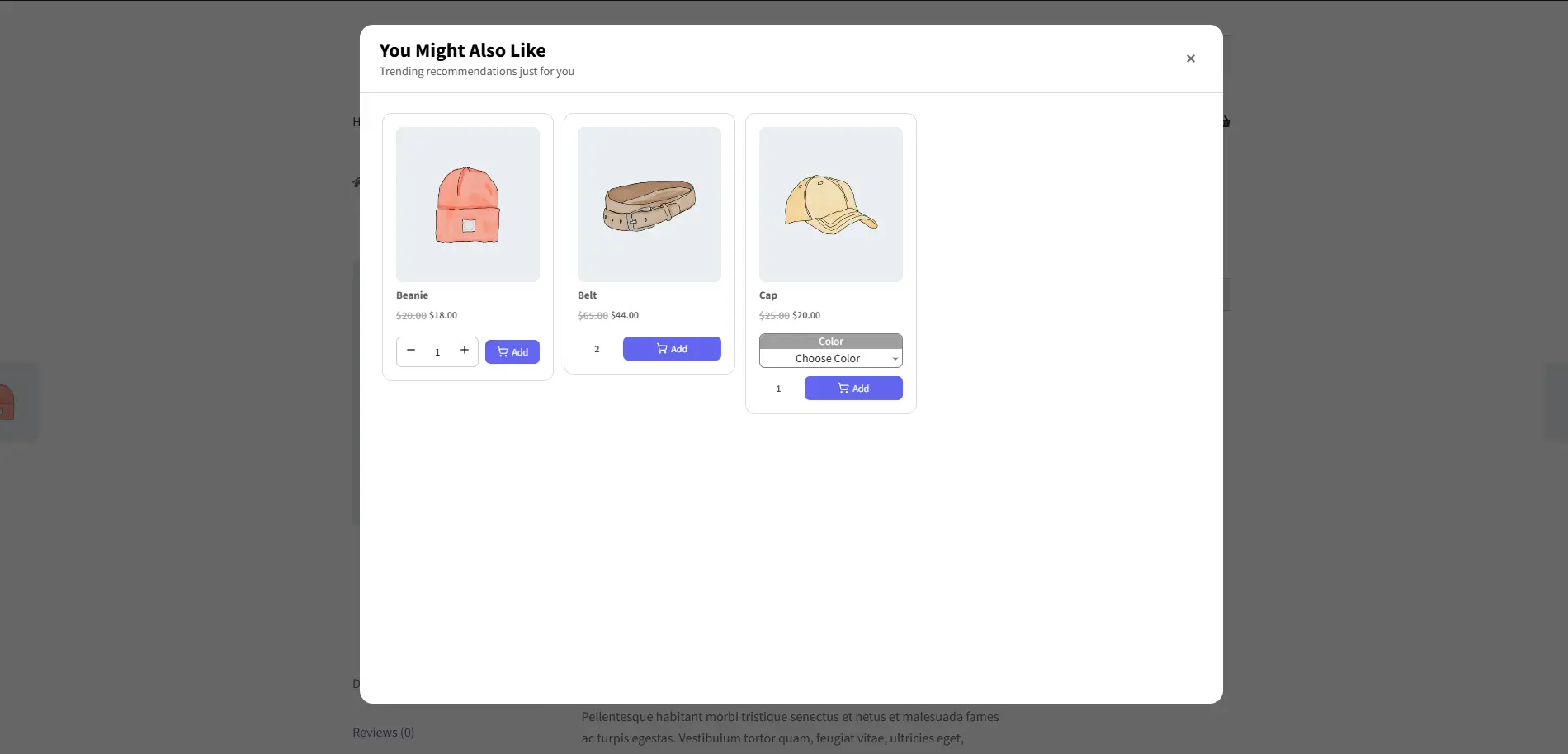
For example, if a customer adds a Sunglasses to their cart, you can immediately suggest a beanie, belt and a cap as an upsell, encouraging them to purchase more items that complement their choice.
💡 Scenario
Imagine a customer is browsing your store and adds a sunglasses to their cart. Before completing the addition, a popup appears showing a beanie, belt and a cap as recommended offers. The customer can quickly add these products, adjust quantities if allowed, and receive a discount if configured. This strategy helps boost sales while keeping the shopping experience seamless and user-friendly.
⚙️ Configuration Steps
Follow these steps to configure your Product Upsell Popup section:
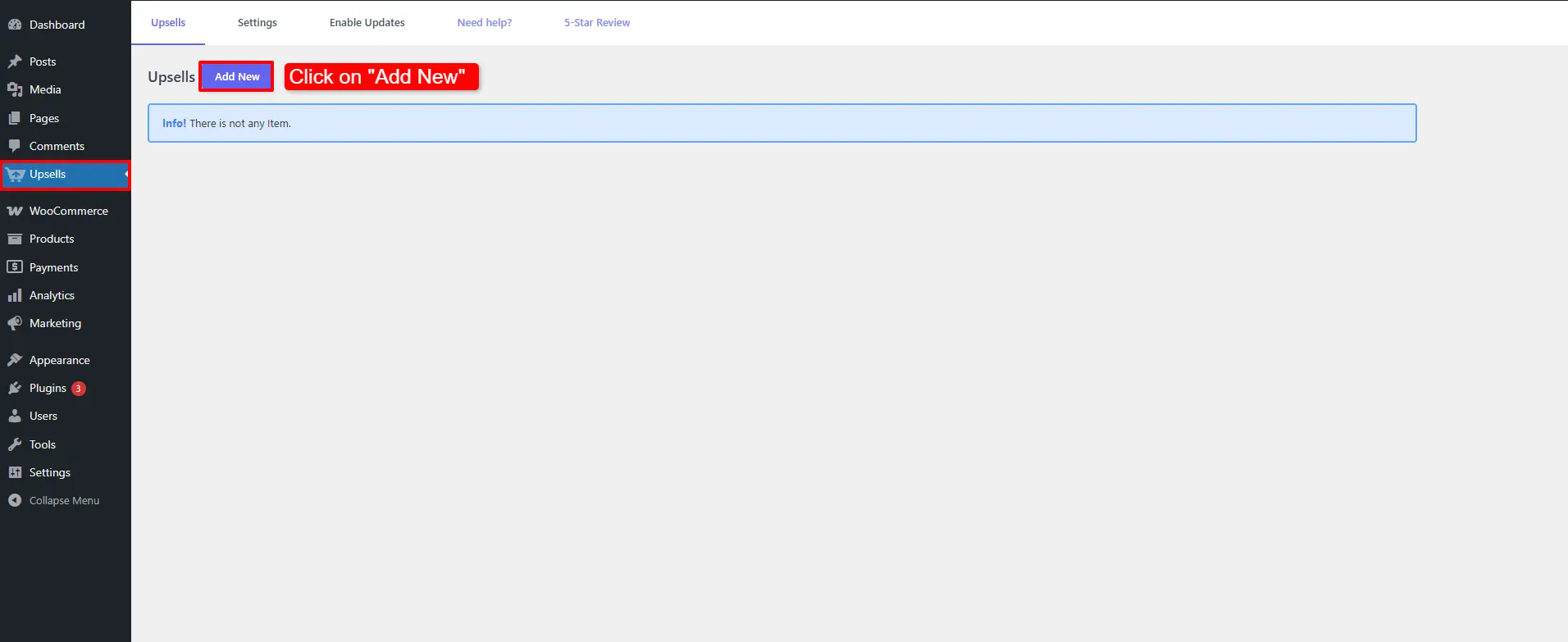
- Navigate to Upsells.
- Click on Add New.
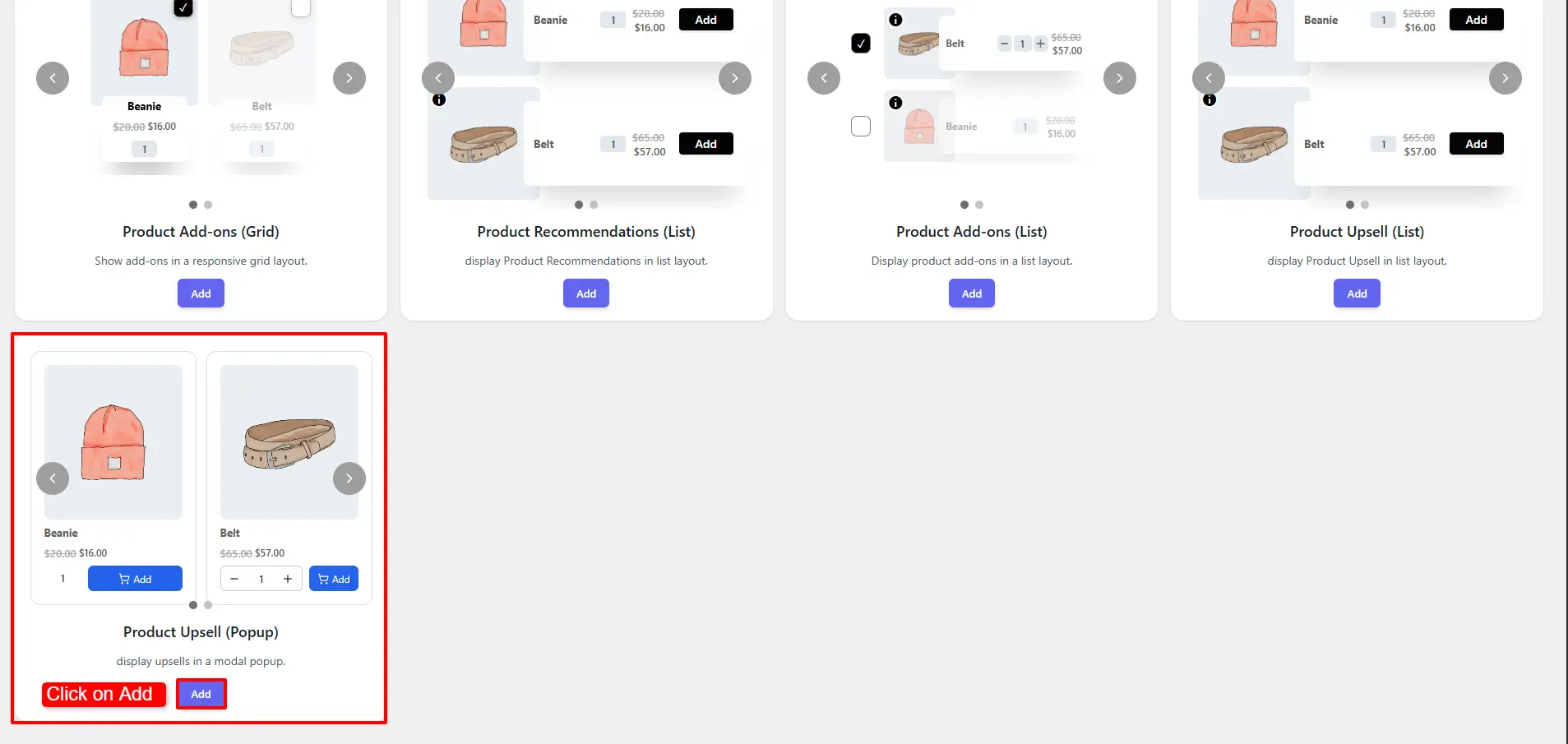
- Click on Add.
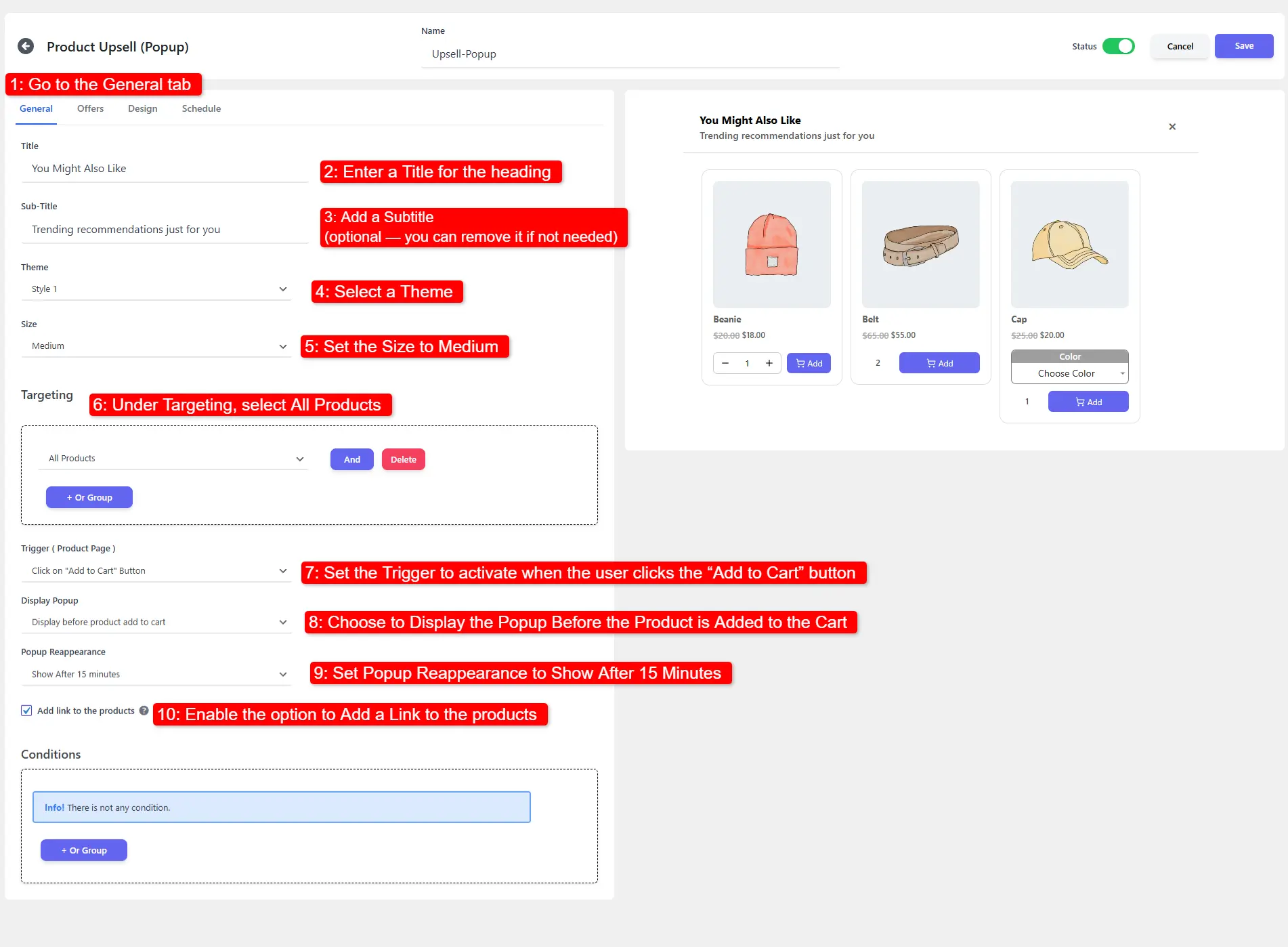
- Go to the General tab.
- Enter a Title for the heading.
- Add a Subtitle (optional — you can remove it if not needed).
- Select a Theme.
- Set the Size to Medium.
- Under Targeting, select All Products.
- Set the Trigger to activate when the user clicks the “Add to Cart” button.
- Choose to display the Popup Before the Product is Added to the Cart.
- Set Popup Reappearance to Show After 15 Minutes.
- Enable the option to Add a Link to the Products.
- Navigate to the Offers tab.
- Add Offer 1, then select a product (e.g., beanie).
- Set the Quantity.
- Enable Edit Quantity by User.
- Set the Minimum and Maximum Quantity.
- Add Offer 2, then select a product (e.g., belt).
- Set the Quantity to 2.
- Choose a Discount Type and set the Discount Amount to 20%.
- Add Offer 3, then select a product (e.g., cap).
- Save your changes.
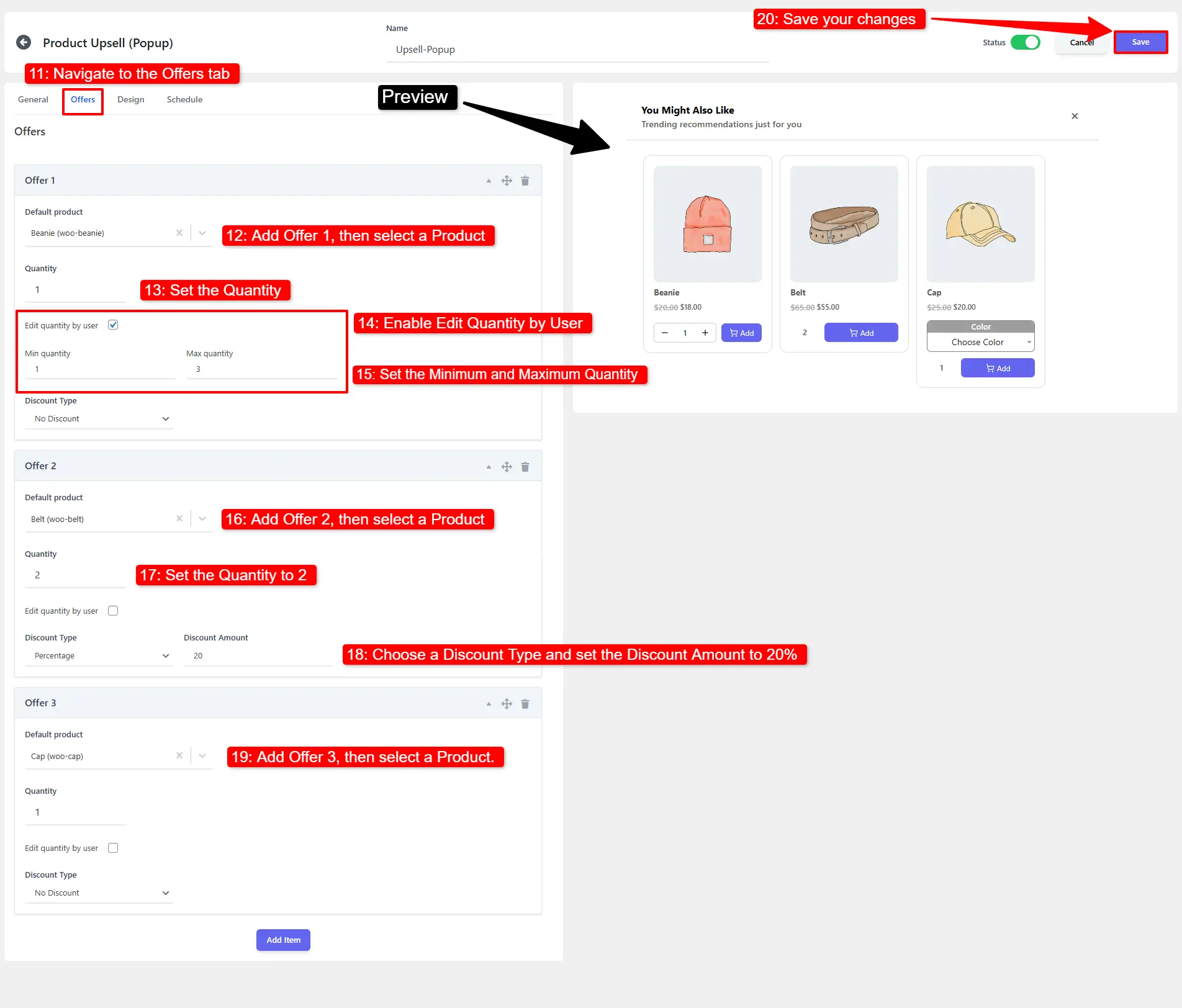
✅ Result: When finished, your Product Upsell Popup will appear before a product is added to the cart on all product pages, displaying the selected offers (belt, beanie, cap) according to your chosen theme, layout, and popup settings.
🖼️ Preview
Here’s an example of how your Product Upsell Popup might appear to customers: